The Load Machine of Reveal gives you access to loading data within the Reveal Platform. Once you have successfully logged in, you will see the Reveal Processing (Discovery Manager) and Review Manager applications installed on the desktop. To access it, follow the steps below.
Navigate to Reveal Processing Landing Page: http://landing.revealdata.com/. We recommend bookmarking this landing page (e.g., “Reveal Load Machine”) to distinguish this from your Reveal front-end instance URL.
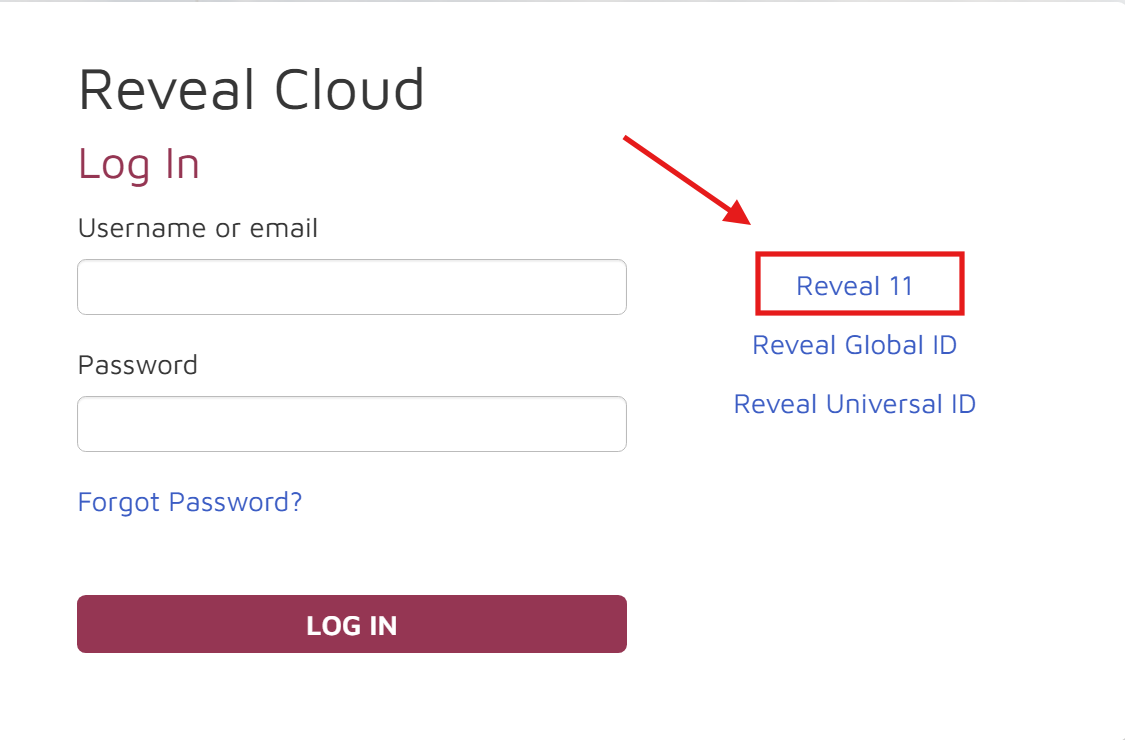
Click on Reveal 11.
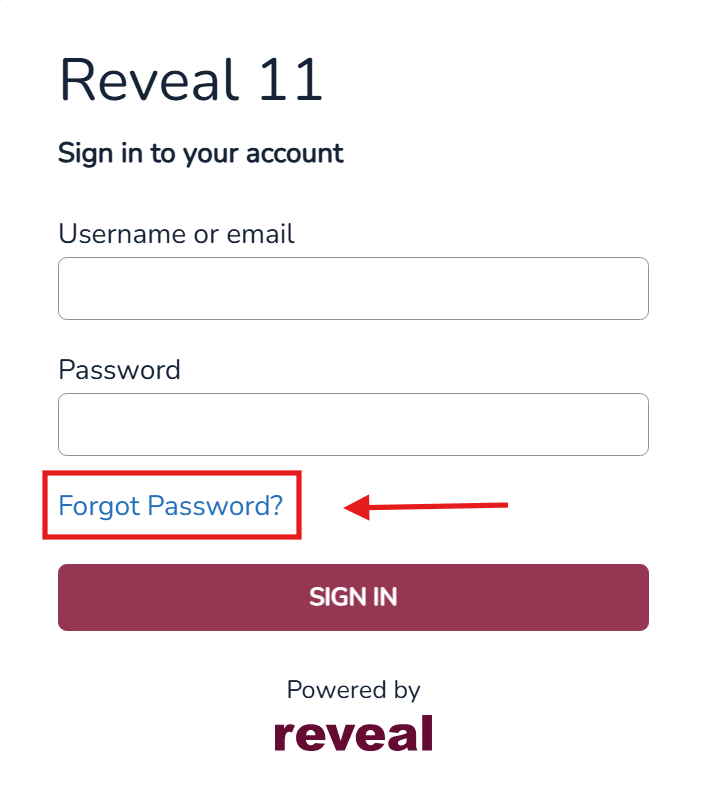
Click “Forgot Password?” and enter your company email which was submitted to the Reveal Security team.
Important
You should receive an email to reset your password from no-reply@revealdata.com. If you do not see the email, please check your Spam, Other, or Junk folders. If you didn’t get a password reset email, reach out to support@revealdata.com.
Click on Link to reset credentials within the email.
Enter your new password, confirm it once again, and click Submit. Password must be at least 14 characters long with upper/lower case letters and at least 1 number and 1 special character.
Navigate back to the Reveal Processing Landing Page: http://landing.revealdata.com/ and select Reveal 11 once again. Now, login with your Reveal P81 Admin Username (firstname.lastname) and enter the newly created password. This will take you to your organization’s P81 dashboard.
From the applications tab, select the Remote Desktop Protocol (RDP) that matches your Reveal Metropolitan Statistical Area (MSA).
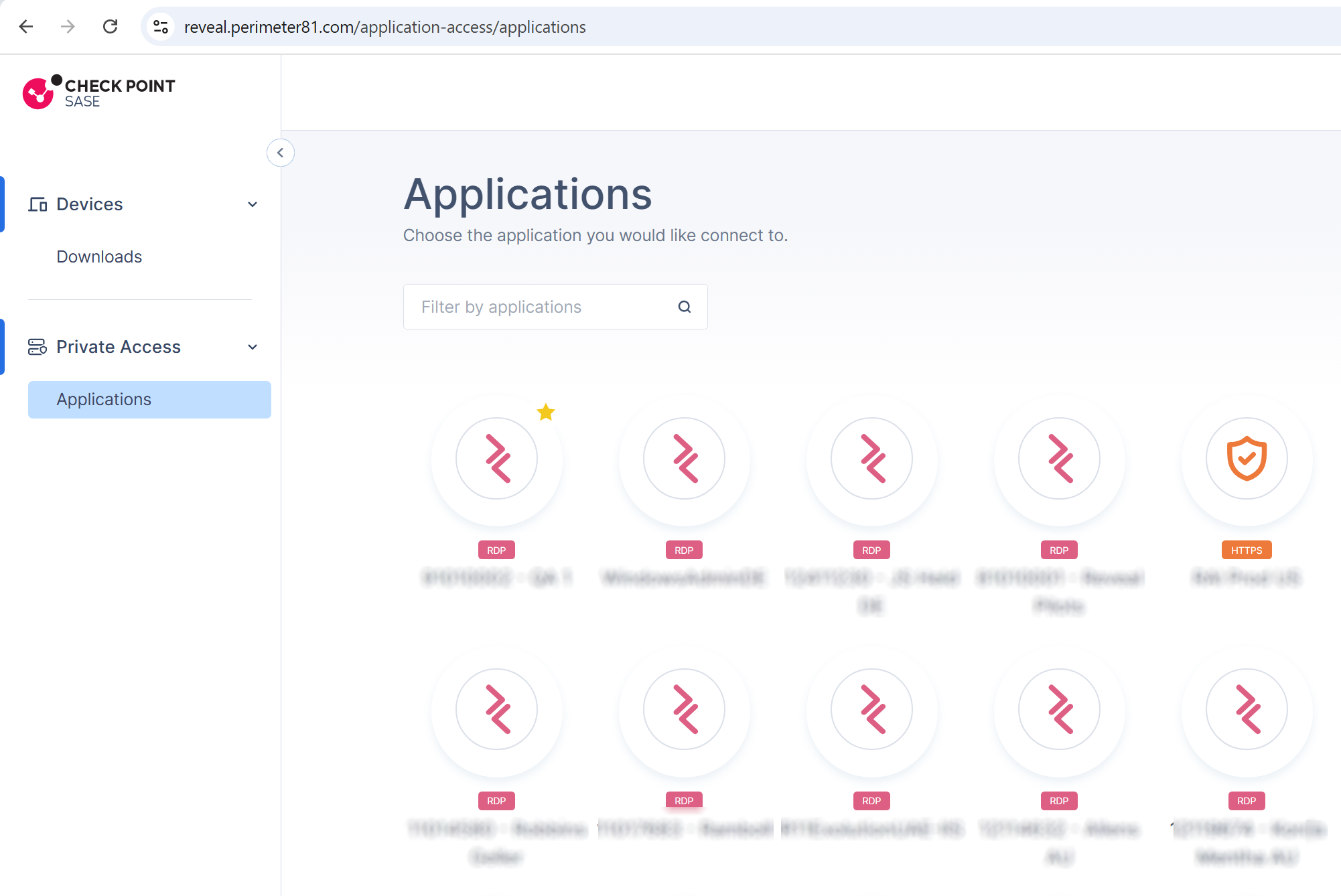
A new window will appear that looks like a Microsoft virtual machine (MVM) within your browser. When prompted to login to the MVM, enter your Reveal P81 Admin Username (firstname.lastname) and the new password you created in step 5.
.png)