This article explains how to upload load file data in Reveal when associated native and text files have been staged in S3. It is intended for users who need to create a web upload job using a local load file and file paths that reference data stored in S3.
Upload requirements
Before starting the upload:
Confirm that you have access to the relevant Reveal project
Ensure the load file is available locally
Confirm that the native and text files are staged in the required S3 location
Check that you have permission to create upload jobs
Verify the load file format and date settings before starting the upload.
See the supported file types in the following table:
File type | Supported |
|---|---|
Metadata | Yes |
Native files | Yes |
Text files | Yes |
Images | No. Images are not currently supported because they must be staged locally. |
Staging requirements
The load file must be available locally, while the native and text files can be staged in S3 under Temporary > Company > Client > Project Name.
To stage the data in the correct location, upload the root folder that contains the native and text folders by using an Upload Only job.
The load file does not need to be edited manually. You can keep standard relative paths, such as Vol01\Natives\file.pdf, and the system will make the necessary path adjustments.
Upload workflow
Stage the data in the correct location by uploading it through a native files Upload Only job, or by moving it with another approved tool.
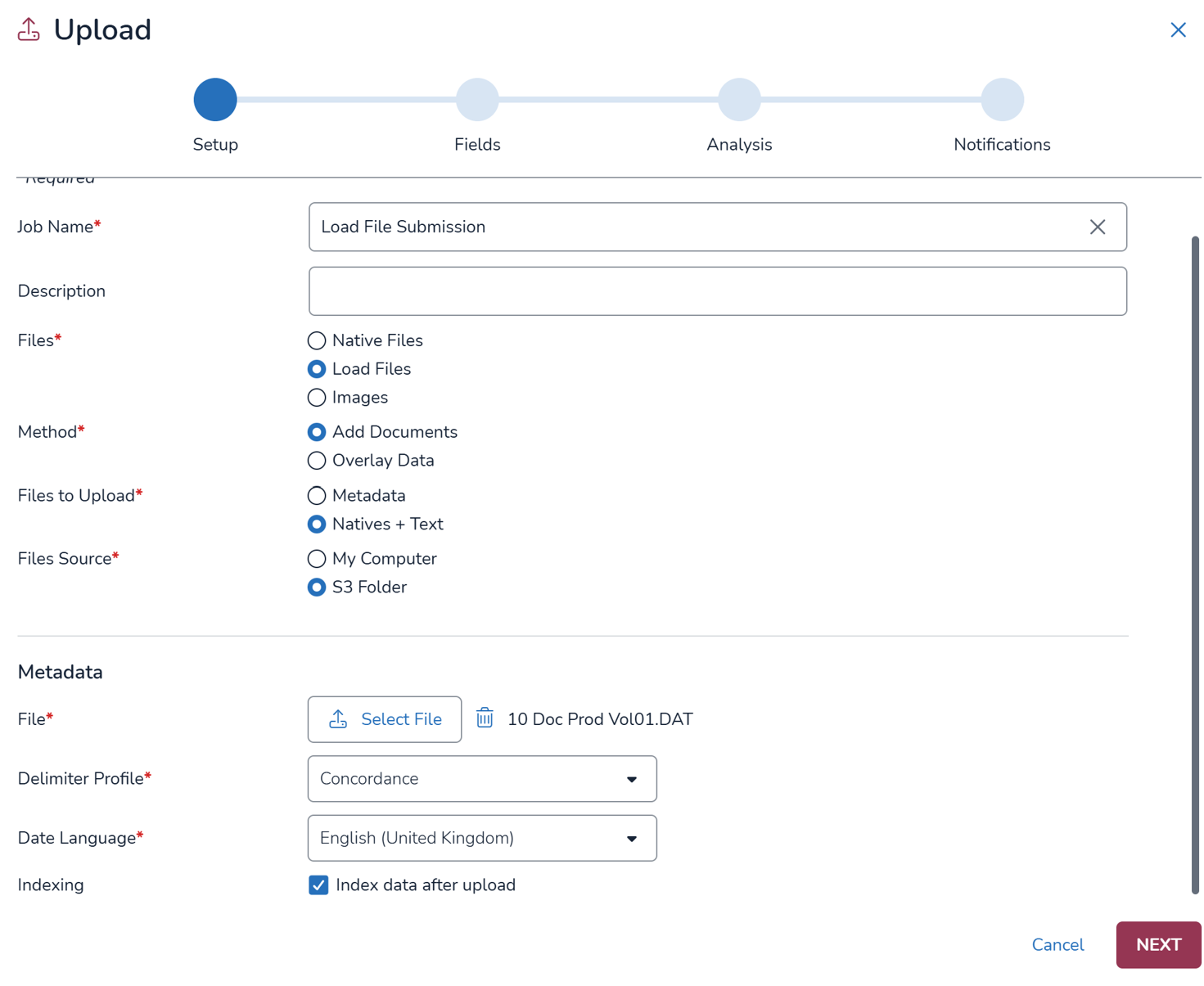
Create a new upload job and fill in the Job Name and Description.
Select Load files.
In the Method field select Add documents,
In the Files to Upload field, select Native + Text.
Next, select S3 Folder as a File Source.
In the Metadata section, click on Select File to browse and add your file.
Select the locally staged load file and select the correct type, such as Concordance or CSV in the Delimiter Profile field.
Select the language that matches the date formats in the load file.
It is recommended that you leave the Index data after upload option selected.
Click Next.
Configure field mapping as required. At minimum, map Begin Number to the key identifier, Exported Native File to the native location, and OCR Path to the text location.
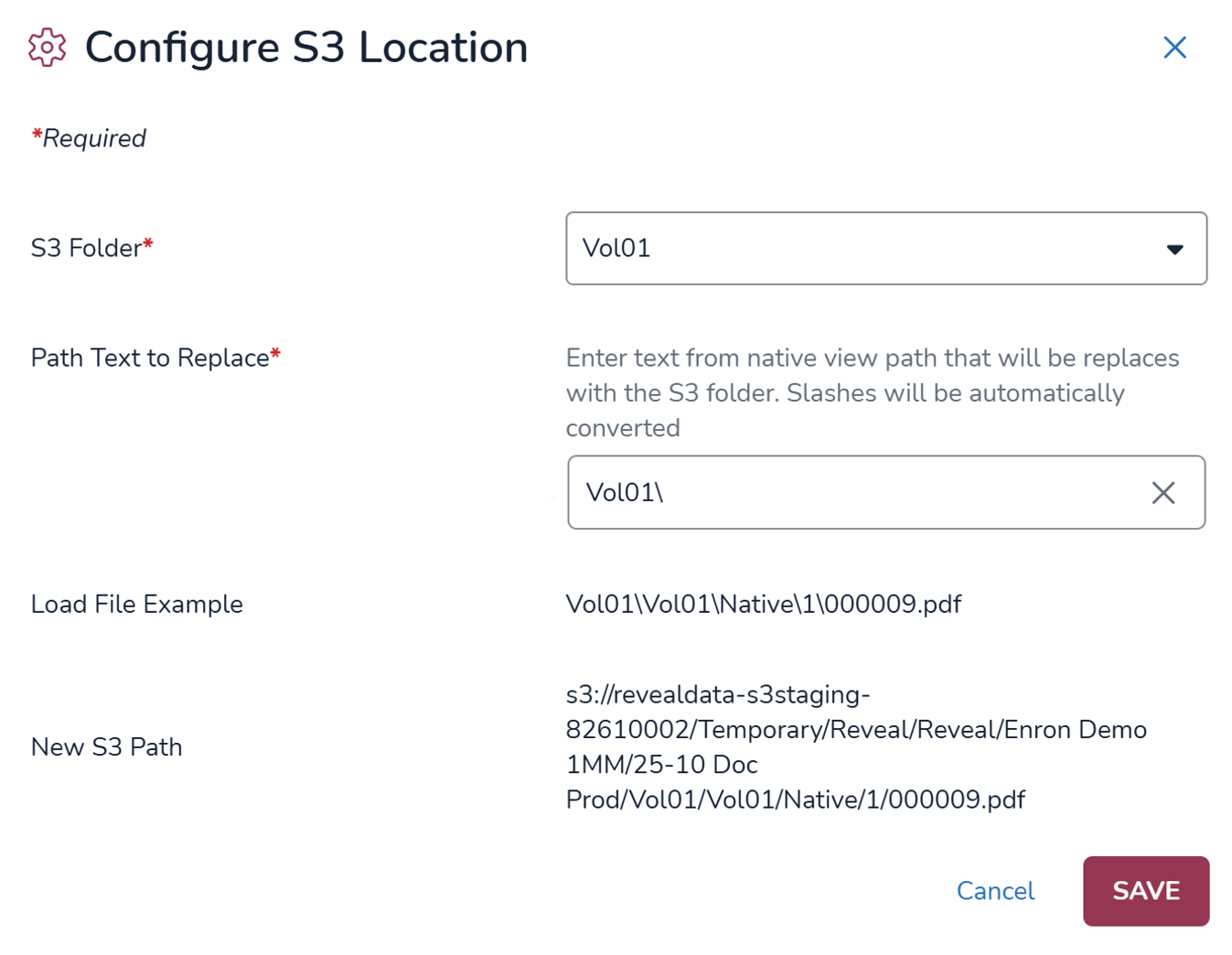
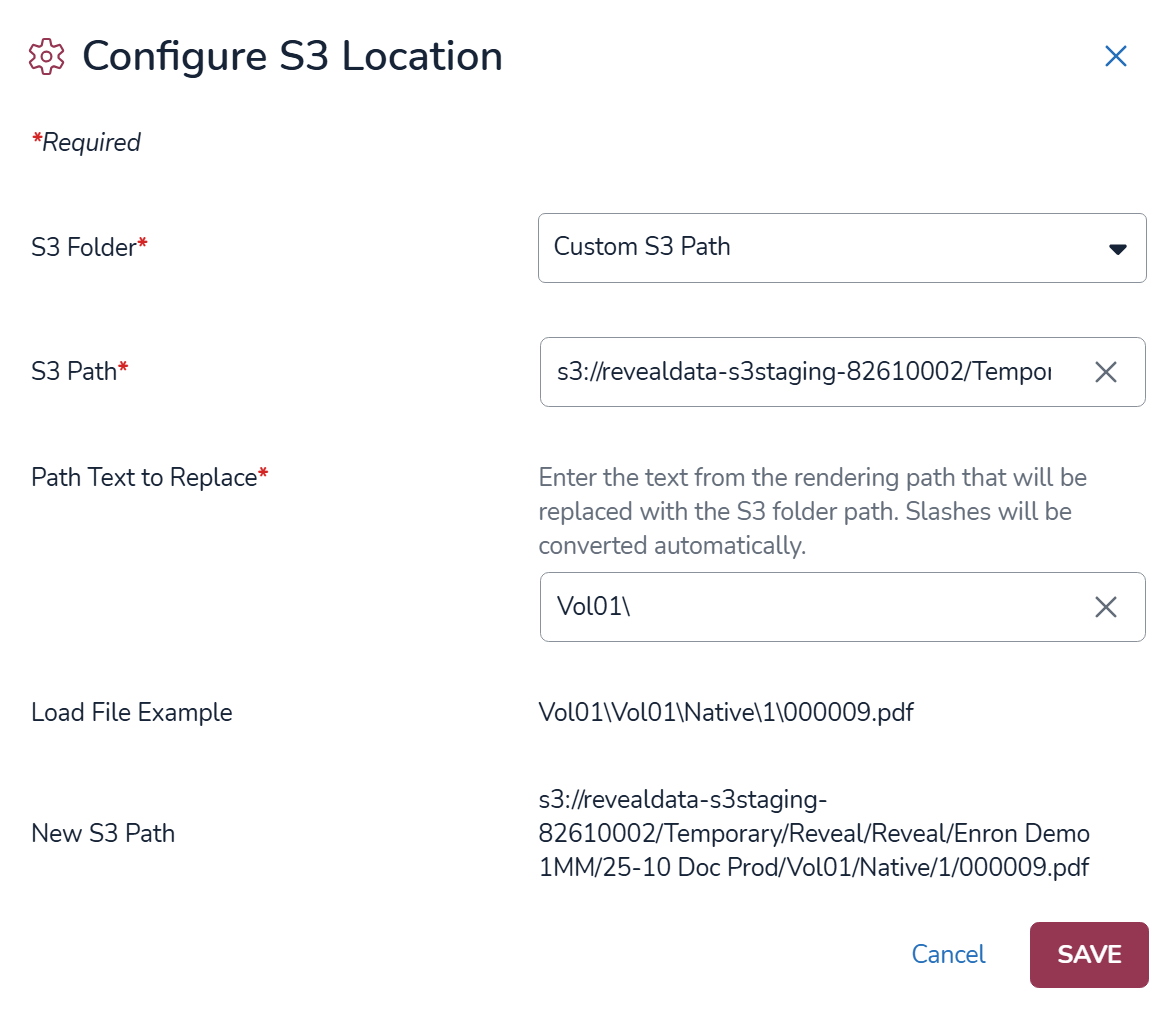
Click Configure S3 Path. After the Configure S3 Location modal opens up, you have two ways to configure it.
By using the root folder that matches the start of the paths in the load file. For example, if the path is Vol01\Natives\file.pdf, select the Vol01 folder. Under Path Text to Replace, enter the same root folder name followed by a backslash.
Or by selecting a Custom S3 Path under S3 Folder and enter the full S3 path up to the root folder used in the load file. For example, use s3://example-staging-bucket/Temporary/Company/Client/Project/Vol01/ if the relative path in the load file starts with the Vol01 folder. This option allows the data to be staged elsewhere in the S3 bucket, rather than only in the predefined staging location. Under Path Text to Replace, repeat the load file’s root folder name followed by a backslash.
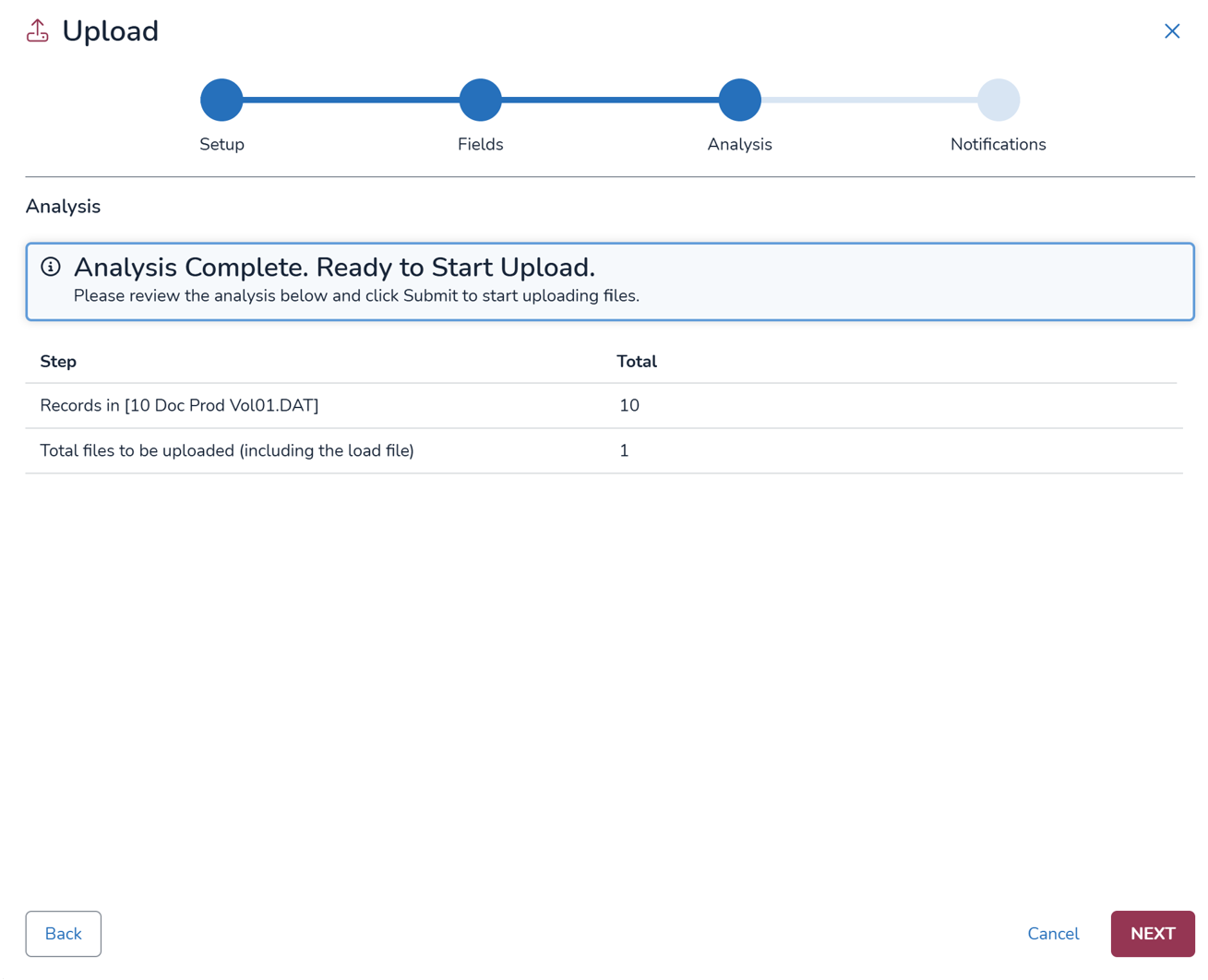
Review the upload analysis. Once the paths have been configured correctly, click Next and double-check the analysis results. The system can currently identify only the number of records in the load file, meaning the total number of database entries or Begin Numbers being created. It cannot identify the total number of files being uploaded. The total number of files to be uploaded will appear as 1, which represents only the locally staged load file.
Monitor the upload and indexing jobs. Once the upload is complete and indexing starts, monitor the job for preparation errors. These usually indicate issues with the records themselves or that the system cannot locate files in the designated paths.
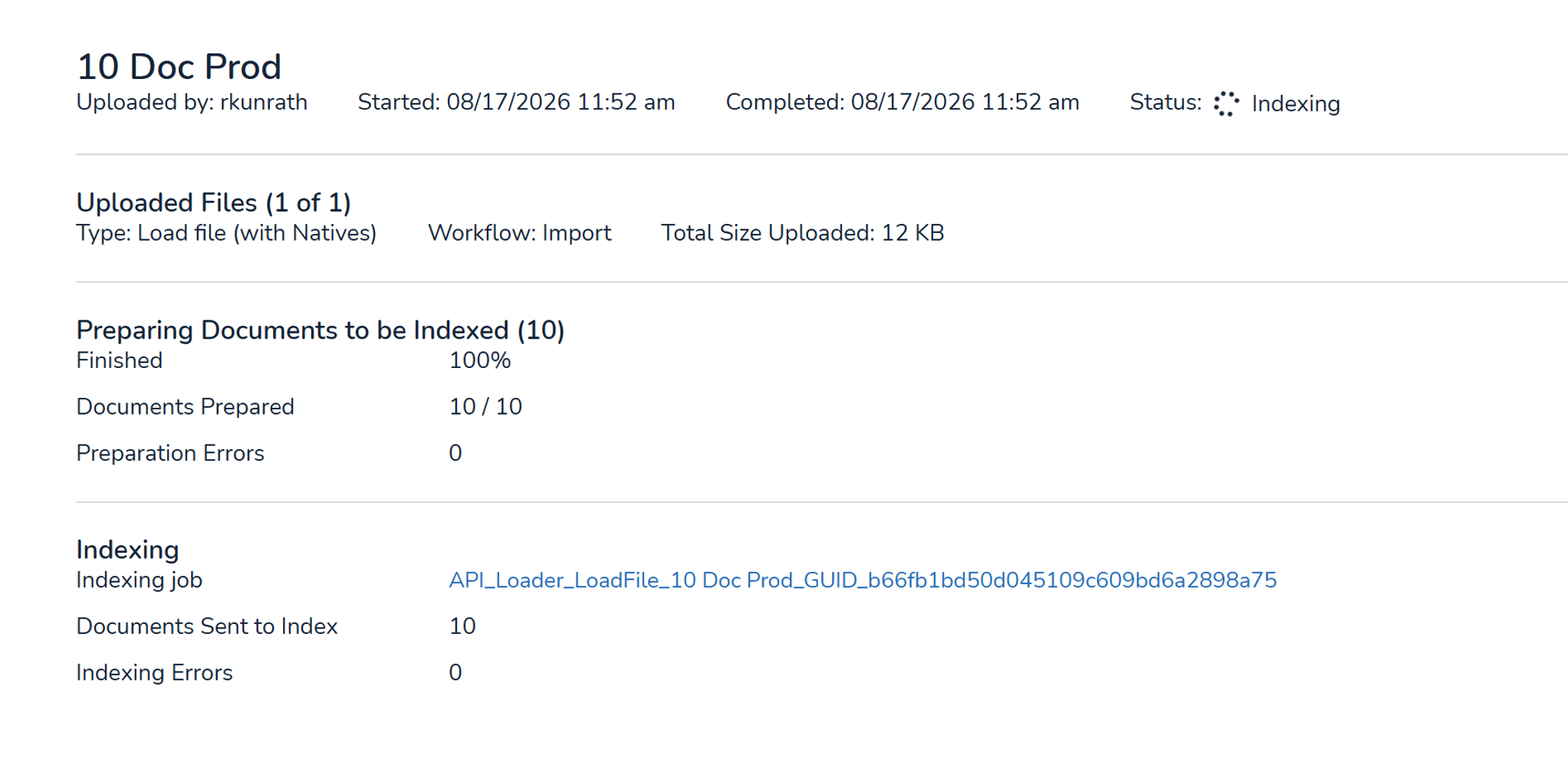
Under Jobs > Indexes, check the two index jobs triggered by the automation, if the option was selected at the beginning of the process. For Native Views and OCR/Loaded, monitor for the Missing error, which means that a path exists but the system could not locate the file.
Important
The Path text to replace field and the related on-screen instructions (Load File Example and New S3 Paths) may not reflect the recommended path configuration. Use the guidance in this document when configuring paths.
Web overlays are not currently supported for files staged in S3. If paths were incorrect during the initial upload, either run the overlay through Review Manager after updating the paths in the load file, or delete the records and rerun the upload through the web workflow.