When available, Ask responses include citations drawn directly from documents. These appear as cards in a vertical list, organized by source document. Citations add transparency by showing exactly where the information comes from and enabling quick review of the original material.
Navigating Citation Cards
The example below shows the results for the question “ Who is Jeffrey Killing?”
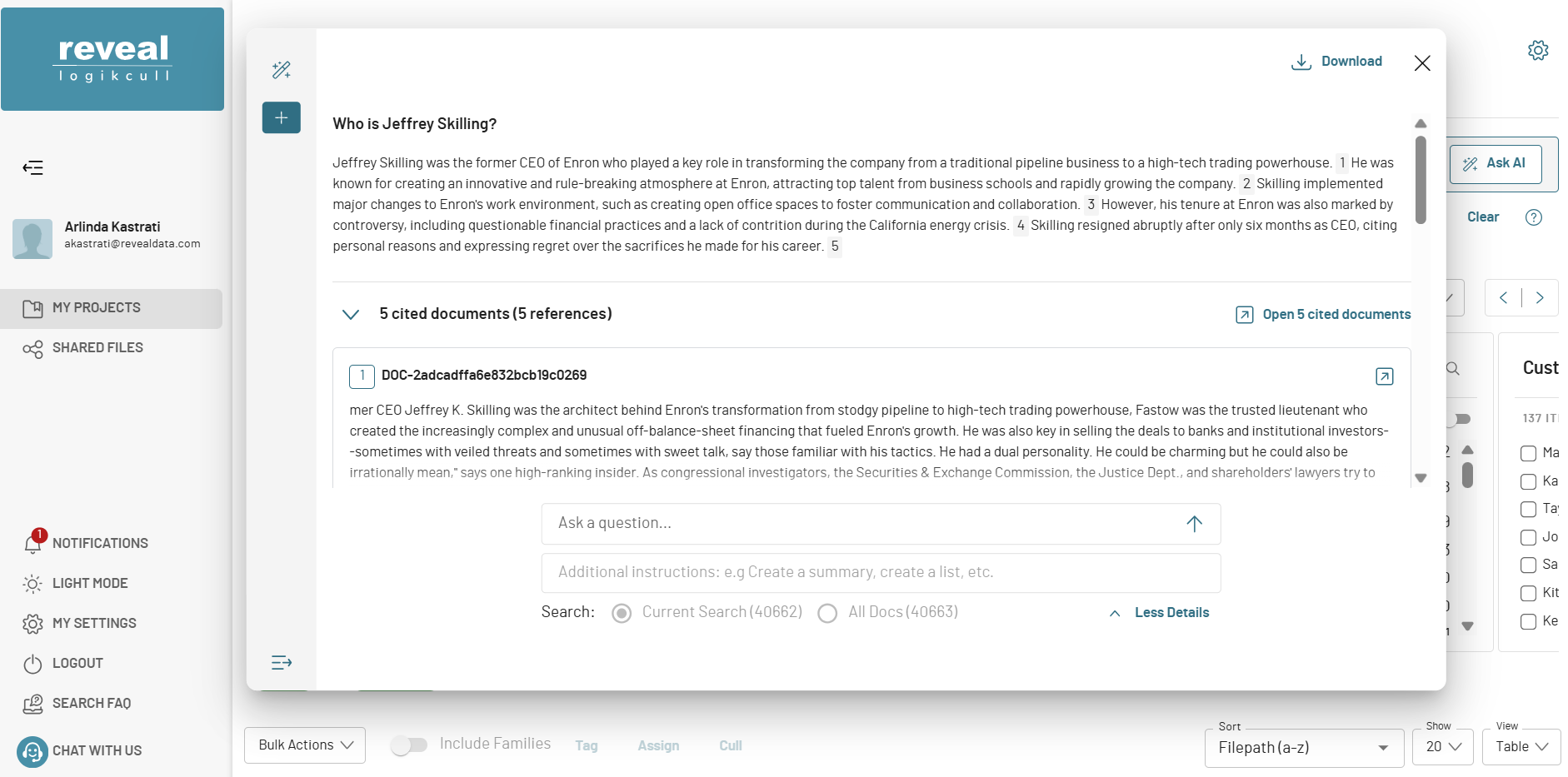
Five strong matches are returned, drawn from nine different documents.
The Open <#> cited docs button opens the cited documents in the Document Viewer.
The Show button reveals all citation cards, including those with lower match percentages.
Reference Number Highlighting
In the image below, reference number 1 is selected.

Clicking a reference number in the Ask response jumps directly to the corresponding citation card and highlights the cited text.
Clicking inside the expanded card collapses it again.
Adding Instructions
Users can refine results by adding instructions to their question. This allows for more tailored answers and richer insights.
In the question pane, select More Details to open an extra text box.

Enter additional instructions.

Examples of instructions include:
Pulling in metadata (e.g., “List the author and publication date”).
Translating the response into another language.
Presenting results in a specific format (e.g., “List references by date”).
Adding instructions broadens or redirects the scope of the question. In the example above, more references are cited to capture communication dates, and the response is reformatted into a concise summary.