An overlay is a process of updating and/or replacing metadata, images, natives, or text on existing documents.
When should Overlays be applied?
You received documents with poor quality images or text, you can now request an overlay and add them to Logikcull without losing work product. Logikcull will re-index the overlaid text automatically.
You received natives and placeholder images. Now you can re-image the natives in Logikcull and create your own overlay to replace the placeholders.
You received documents but realize some of the metadata is missing. You can now request a supplemental delivery of just the metadata and add it to Logikcull.
Important
Documents that have been overlaid will not be re-processed. This means that any changes made to the metadata will not have any impacts on de-duplication. De-duplication is only run the first time documents are uploaded. If you overlay custodians, you may no longer be able to accurately use the custodian deduplication filter.
What can't be overlaid?
Notes can be imported as metadata but will not populate as notes.
Comments can be imported as metadata but will not populate as comments.
Perform an overlay upload
The option to do an overlay is available in the Uploads tab of your projects, under the Create a new... menu. Select Overlay Upload from the menu options.
Select what's being overlaid with new data [Load File, Natives, Images Text]
Important
Load files are a must. If you're overlaying the Native File Link or Text link, you will need to check "Natives" and/or "Text" accordingly. If you already have OCR text files, it’s advisable NOT to select the OCR option.
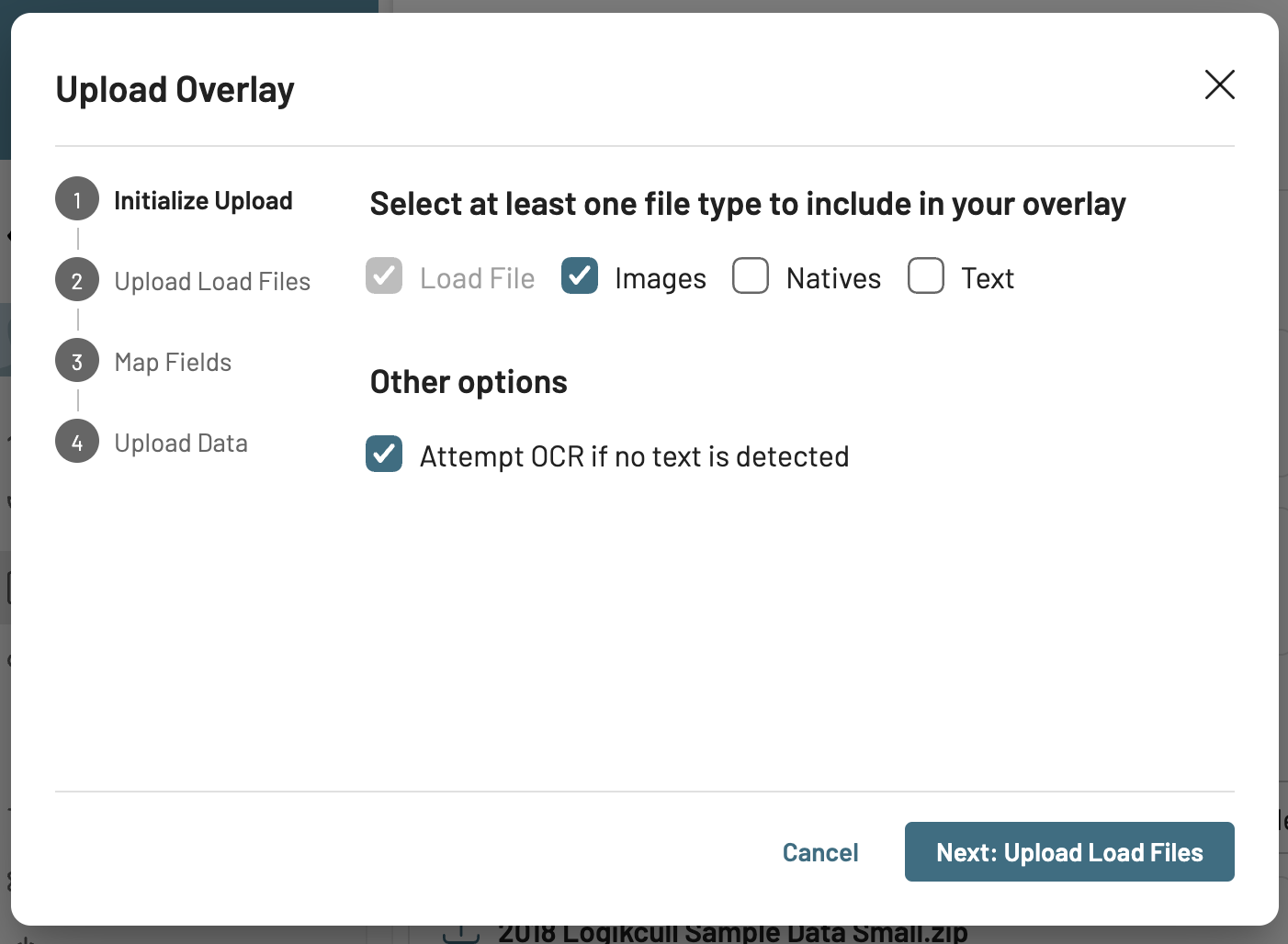
Tip: Select the checkboxes for anything you plan on replacing (Example: If you are trying to overlay an image, the Image option should be selected)
Drag-and-drop the updated overlay load file. If images are being overlaid, drag-and-drop the updated OPT file. An OPT may not be required if images are multipage and named as the cross-reference index in the load file (usually Beg Bates).
Select the “Overlay Cross-Reference Number” and then map only the field(s) that are being overlaid with new data. Any metadata that isn't being overlaid can be ignored (Do not import).
What is an Overlay Cross-reference number? It is a field that Logikcull uses as a reference to locate the document(s) for which the overlay needs to be applied.
Note
Beg Bates and Logikcull ID are currently the only two fields accepted as overlay cross-reference number).
Once the fields have been mapped, you can name your overlay. Then, drag-and-drop the zip folder with any files associated with the overlay.
Overlaying family relationships
Users can overlay standalone documents to create family relationships, simplifying the grouping of related files. This allows you to link related documents together within Logikcull, even if they were uploaded separately.
If opposing counsel sends you missing attachments after you have already uploaded documents into Logikcull for review, you can link these documents together as a family. It is possible to create a new family relationship between existing documents in your project, as long as they are both standalone documents. You cannot change the existing family relationship between documents.
i.e. if Doc A is a child of Doc B, you cannot change it to be a child of Doc C.
However, if Doc A and Doc B are standalone documents, you can create a new family relationship between them via overlays.
Overlays update metadata for existing documents. If only the parent exists, and not the child, ensure you first upload the child documents (e.g attachments) into Logikcull before proceeding with the overlay.
Recommended workflow: Identify the documents that are to be associated together in a family, tagging both the proposed parent and proposed child documents. Using the 4 step download flow, or the CSV download tool, export the relevant metadata that needs to be overlaid - you must include the Logikcull ID or imported bates numbers (the cross-reference numbers) and the Family ID field. Give your child documents the same family ID as the parent, and then proceed with your overlay.
Downloading validation error reports
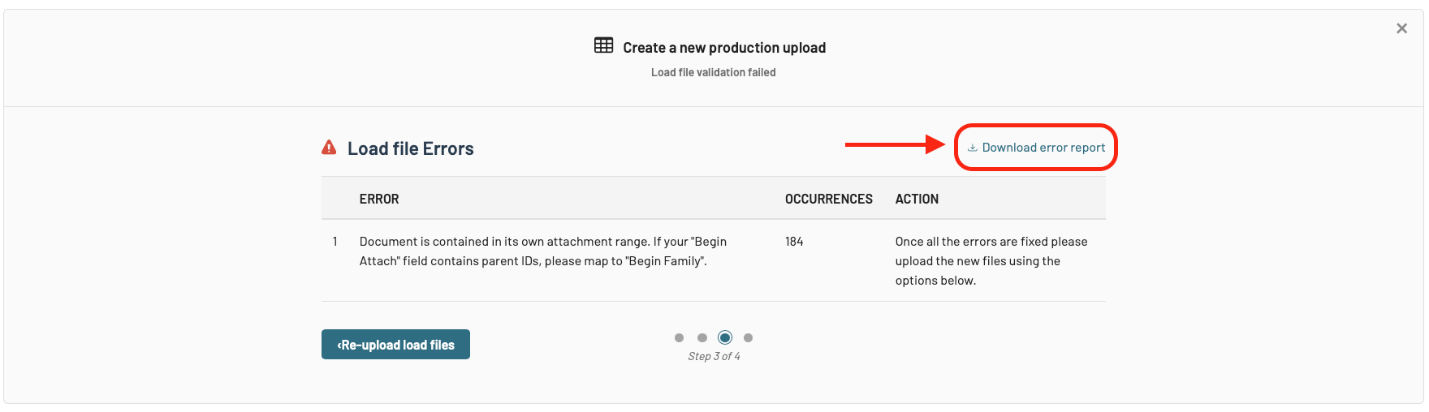
At certain stages of your database upload, you may encounter validation errors. To help with troubleshooting, you may download those errors to your computer. Just click "Download error report" on the screen where the error is presented to you:
Special rules and considerations
Rule | |
|---|---|
Overlaying tags | Tags must be comma separated in the same field in your load file. Adds on to existing tag Cannot overlay tags that are auto-applied by the system such as "Has Redactions". You can create custom tags. |
Overlaying thread ids | Any document type can be threaded. All documents in a thread must have the same thread id. If a document is part of an active thread (other documents in the thread), then overlay is prohibited. |
Overlaying family ids | Must use a bates number to overlay families. Every document must be assigned a Bates number. You can assign bates to a document via overlays. |
Troubleshooting
Checking the Native/Text file path in CSV/DAT load file
Assuming the files are located in their correct folder, and are accounted for, the next step would be to ensure that your zip file structure matches up with the expected file structure in the load file.
For example, if the database volume directory leading to a Native File is structured like this:
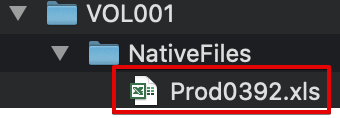
The Native File Link in your load file needs to mirror that structure, with the same folders and subfolders leading to the file, like this:

Important
Be careful to make sure the top-level zip folder is not included in the directory.
Checking the image file path in OPT/LFP
Assuming the files are located in their correct folder, and are accounted for, the next step would be to ensure that your zip file structure matches up with the expected file structure in the load file.
Your Image file links will be located in an image load file (OPT or LFP).
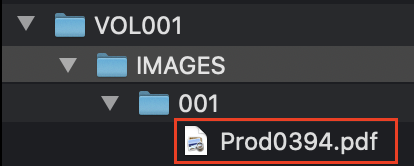

You should ensure that your zip file has this same expected structure when uploading to Logikcull.
For example, the first folder you would want to see in your zip would be a folder called “VOL001” if you had a structure similar to that one.
Ensuring that your zip file has an identical structure to the one specified in your load file will clear the errors in the upload.
Resolving the “Document is a duplicate” error
Logikcull overlays can currently only be applied to original documents, not duplicates. So when attempting an overlay, you may encounter an error that reads "Document 'ID_001' is a duplicate. Overlays are currently limited only to original documents." This means the document you're trying to overlay (ID_001) is a duplicate of another document in your project.
Logikcull deduplicates at the family level, so if a document exists both as a standalone file and as an email attachment, one of those files will be considered the “original” and the other marked as “duplicate”. Only the original file is eligible for an overlay.
To fix this error, perform the overlay using the original document, not the duplicate. You can use the syntax file_duplicate:false in the search bar to locate and work exclusively with original documents so that you’re not met with the overlay error.
See How to Fix Load File Errors for a detailed load file troubleshooting guide.