
In this article:
Skip Processing Overview
How to Skip ProcessingRob
Frequently Asked Questions (FAQs)
Skip Processing Overview
Onna's processing pipeline is designed to handle a wide variety of resource types. During processing, each resource may go through multiple retry attempts when issues arise — particularly for large files, complex resource types, or items with many embedded children. As a result, certain resources can take a significant amount of time to process and may delay the overall completion of a sync.
To help move synchronizations forward without waiting indefinitely, Onna provides a Skip Processing feature. This allows you to manually skip resources that are stalled during processing directly from the Sync Status screen.
How to Skip Processing
To skip processing for datasource resources follow the steps below:
Step 1 — Open the Sync Status Screen
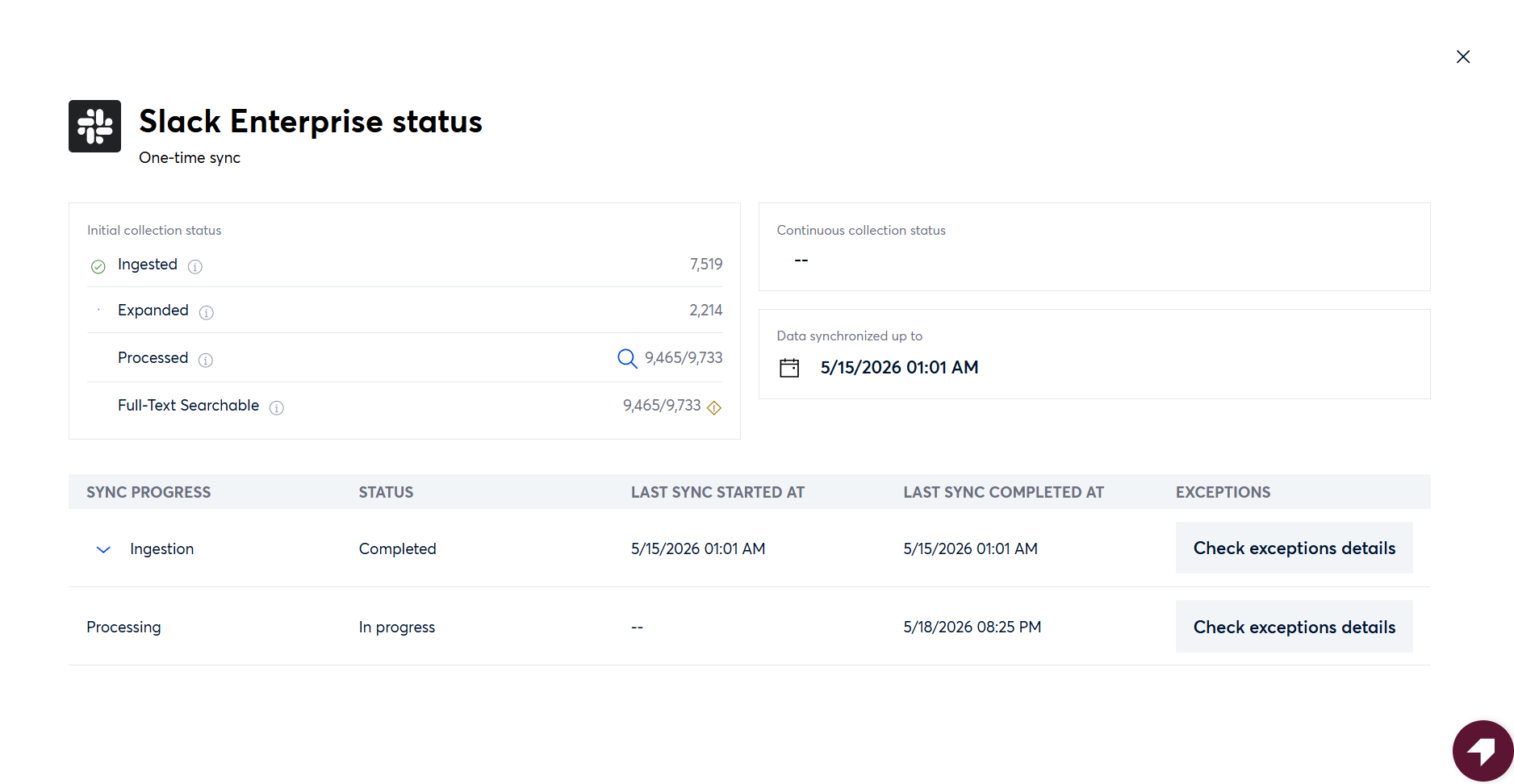
Navigate to the datasource you want to review. From the datasource view, open the Sync Status screen. This screen displays a breakdown of synchronization statistics, including counts by status (e.g., Completed, Processing, Failed).
Step 2 — Access Unprocessed Resources
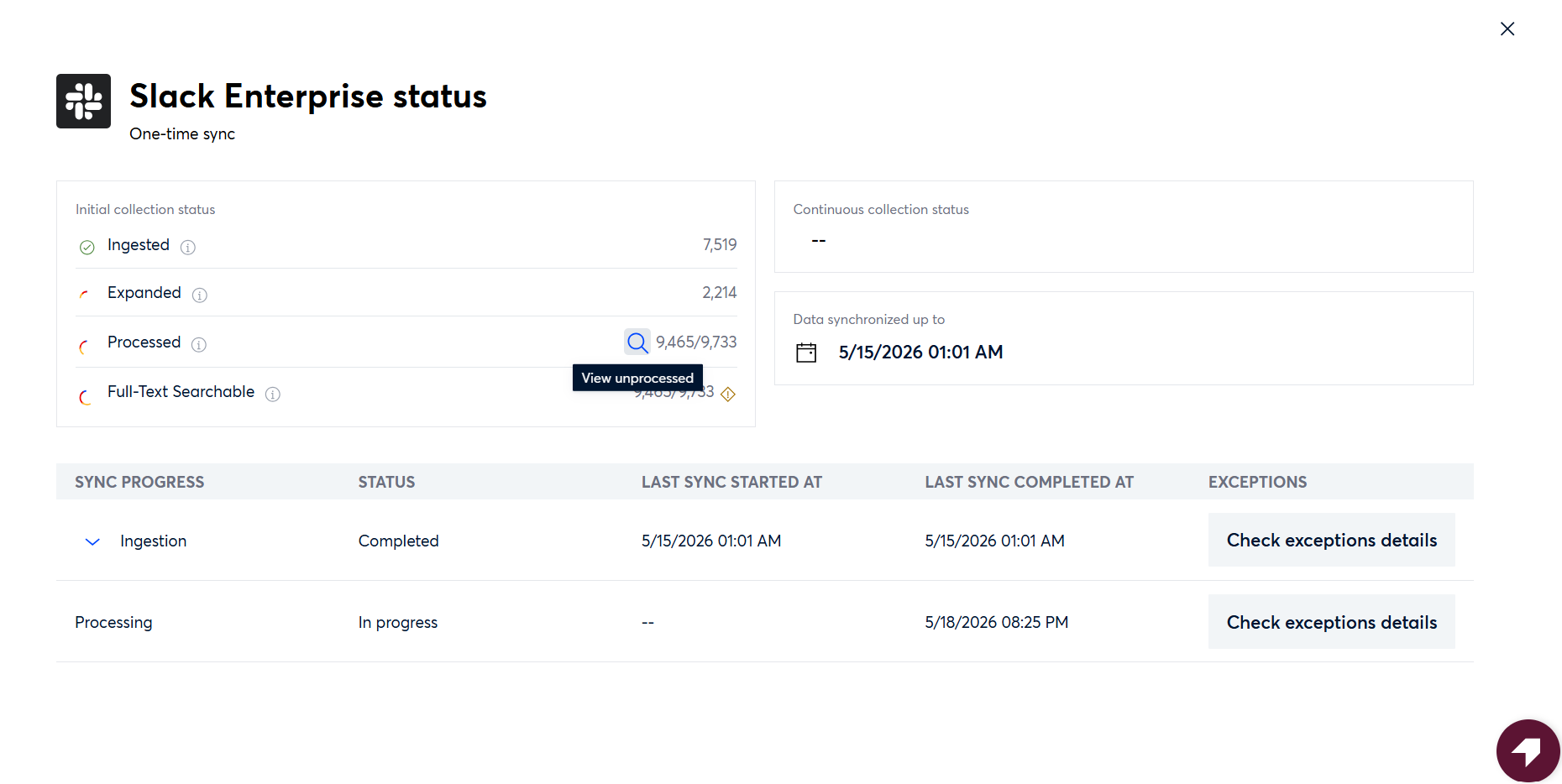
Locate the Processing row in the initial synchronization statistics table. A magnifying glass icon (🔍) button is now available on this row. Click the magnifying glass button to open a list of all currently unprocessed resources for the datasource.
Note
This list is particularly useful when a sync appears stalled — you can review exactly which resources are pending and take targeted action.
Step 3 — Review Unprocessed Resources
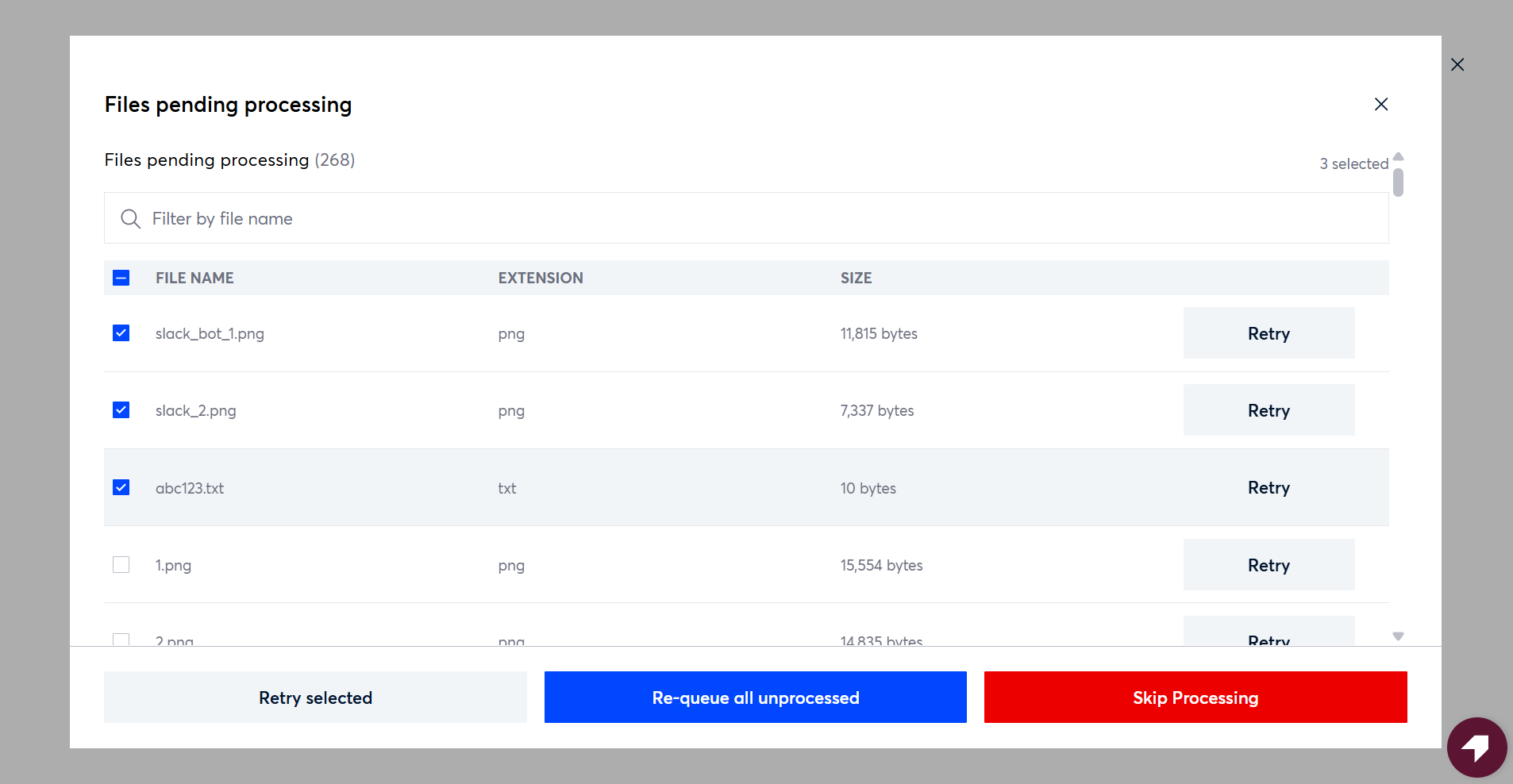
The panel displays all resources currently awaiting processing. For each resource, you have three options:
Action | Description |
|---|---|
Retry selected | Re-queues the resource for another processing attempt. |
Re-queue all unprocessed | Re-queues all currently unprocessed resources in the datasource at once, without having to select them individually. |
Skip Processing | Marks the resource as Completed and removes it from the processing queue. |
Step 4 — Initiate Skip Processing
After you selected the resource(s) you wish to skip and click Skip Processing.
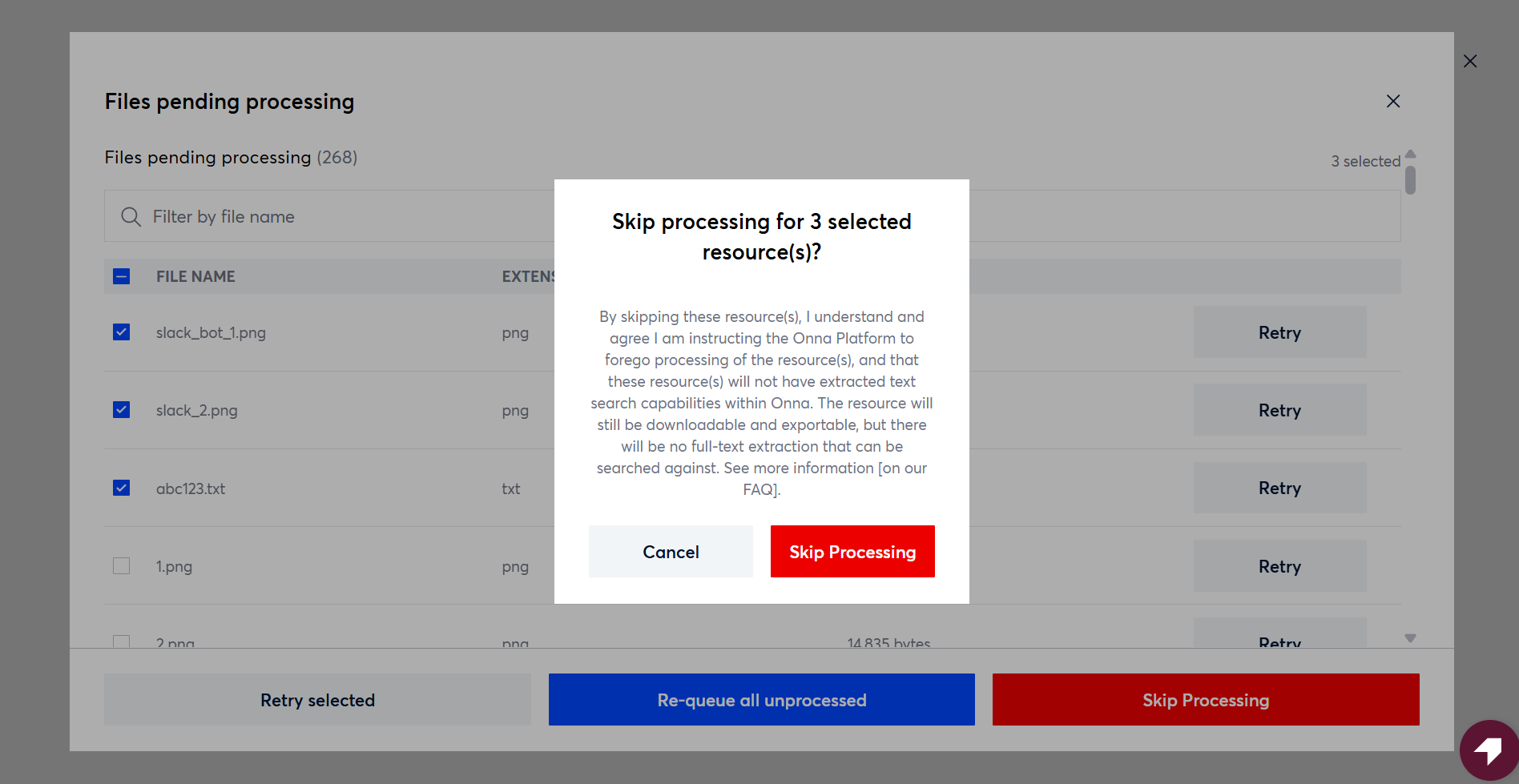
Skipped resources are automatically marked as Completed. These resources will not be full-text searchable within Onna. The native file remains intact and available for download and export.
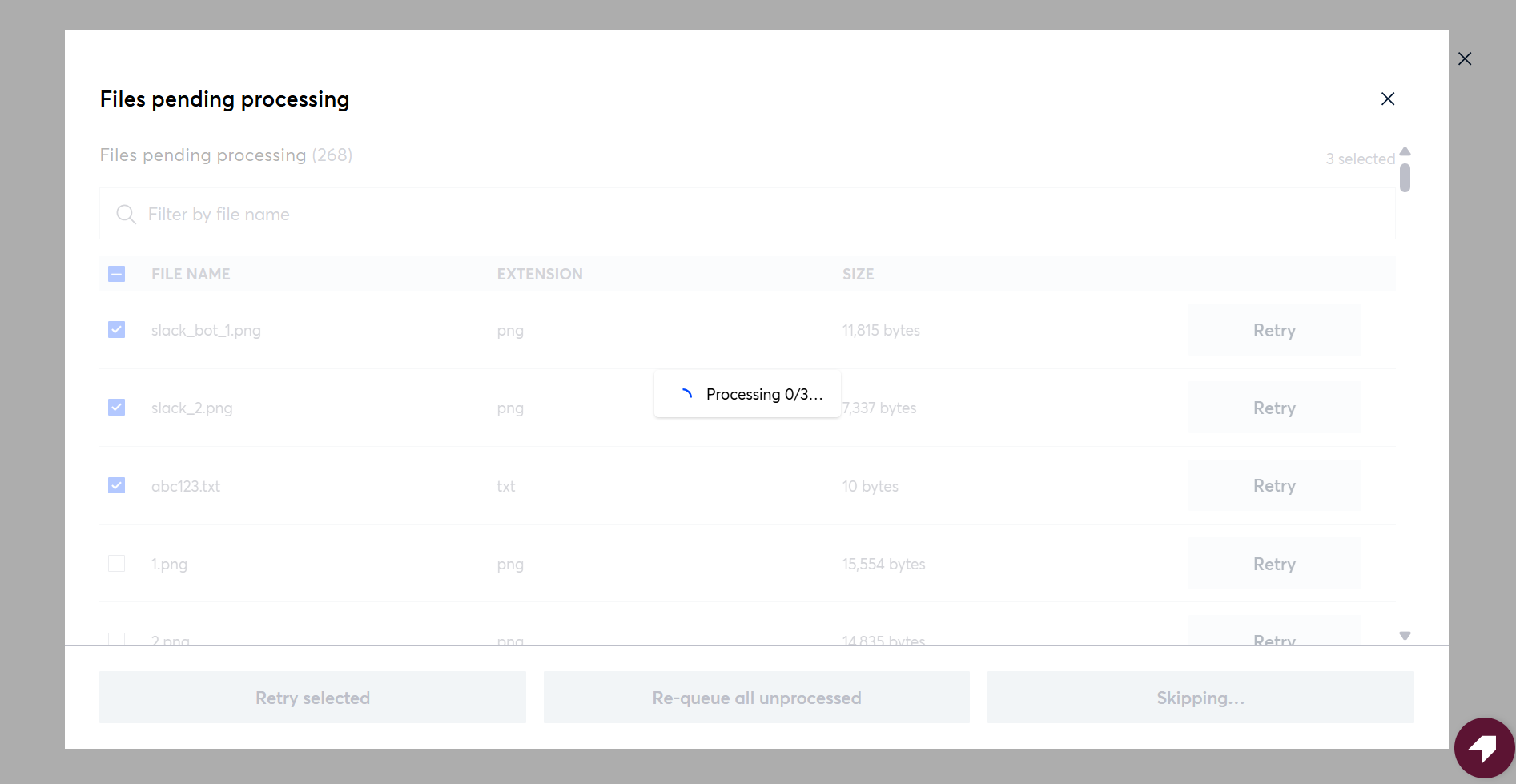
A Processing Note of Processing Skipped by user is applied to each skipped resource.
Note
It is possible for a skipped resource to be fully processed at a later point if it was already queued for a retry before the skip was triggered. When this happens, Onna automatically applies the full set of extracted metadata and full-text search to the resource, and removes the Processing Skipped by user processing note. No manual action is required.
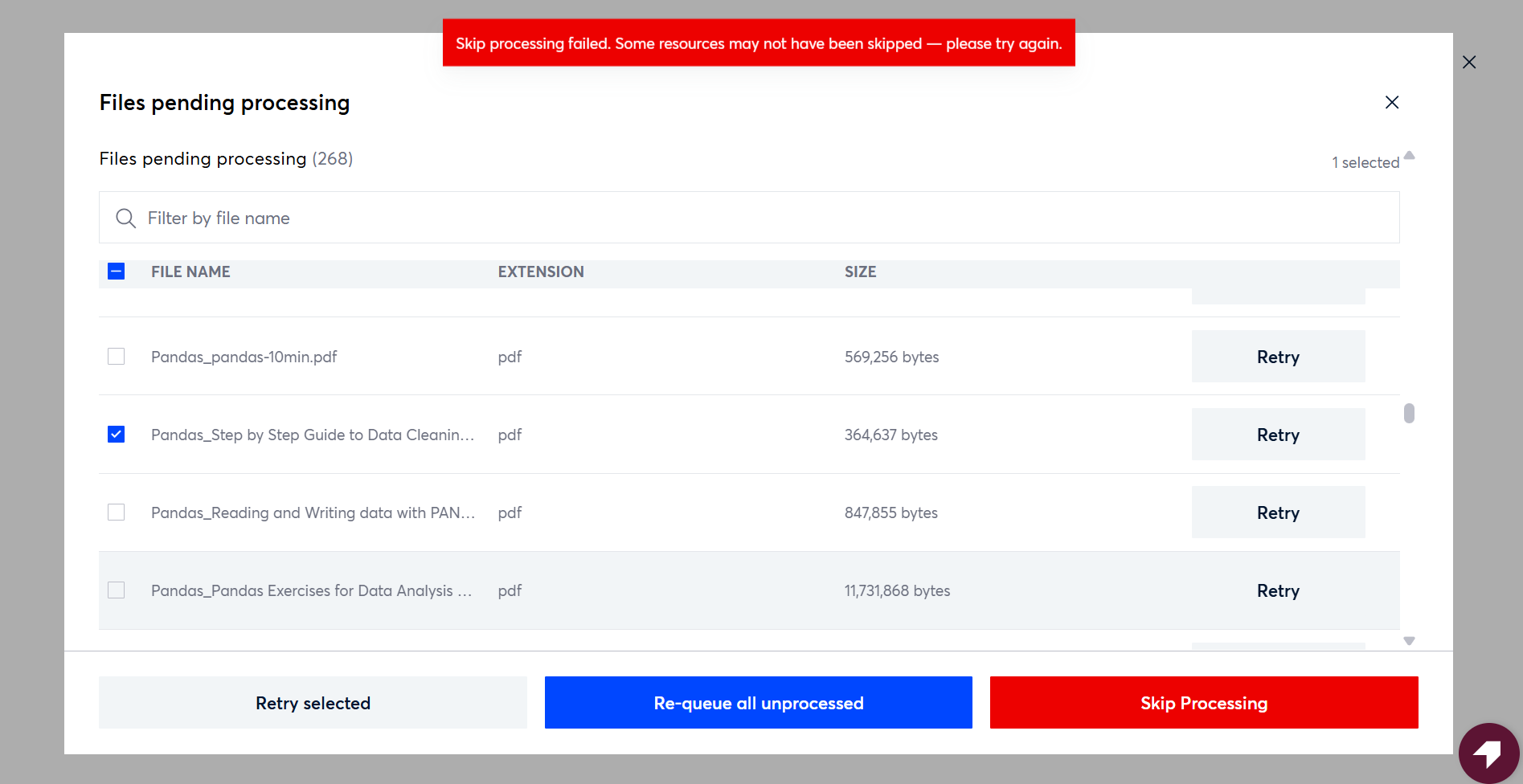
Step 5 — Review the Confirmation Notification
After initiating the skip, Onna returns a confirmation notification. You may see a message indicating that some files were not skipped — this is expected behavior. It means those files were already processed by the time the skip sequence was executed and do not require any further action.
Frequently Asked Questions (FAQs)
1. What happens to a resource after it is skipped?
Skipped resources are handled as follows:
Processing Note: Each skipped resource receives a Processing Skipped by user note, which is filterable in the Processing Note filter.
Searchability: Skipped resources will not have any text extracted. They can only be searched by name or by origin metadata associated with the resource.
Native File: The native file is preserved. Skipped resources remain downloadable and exportable from the Onna platform.
Export of Skipped Resources: You can download a CSV export of all skipped processing resources for a datasource from the Details side panel.
Retention Policies: Skipped resources continue to live in Onna and are subject to the same retention policies as all other resources in the datasource.
2. How can I track who initiated a Skip Processing request?
Onna maintains a full audit trail for skip actions:
Audit Log Entry: An audit log entry is generated for every resource that is skipped, capturing the user, resource, and datasource targeted by the skip action.
Filter by Code: In the audit log, filter by Code DS016 to retrieve a full listing of all skipped processing resources in your environment.
Details Panel Export: You can also refer to the datasource's Details panel to download a CSV of all skipped resources for that specific datasource.
3. Why was a skipped resource still processed?
This is expected behavior in certain scenarios:
Resources that are pending processing are already queued in the processing pipeline when a skip is initiated.
Skipping processing does not cancel an already-queued processing request for a resource.
If a resource completes processing after being skipped, Onna will:
Update the resource with the full set of extracted metadata and full-text search.
Automatically remove the Processing Skipped by user processing note.
No action is needed — the resource is now fully processed and treated the same as any other completed resource.
4. What is the difference between Retry Processing and Re-queue All Unprocessed?
Retry Processing: Targets individual resources you select manually, useful when you want to retry specific items.
Re-queue All Unprocessed: Resubmits every pending resource in the datasource at once, useful when you want to attempt a bulk recovery before resorting to skipping.