In this article:
Miro Connector Overview
What the Miro Connector Collects
Miro Connector Requirements
Miro Account Requirements
How to Connect and Collect Using Miro Connector
How to Create a Miro Source
How to View Synced Miro Resources
How to Monitor Sync Progress and View Details
What to Expect of Larger Syncs
How to Handle Failed Resources
Miro Connector Overview
The Miro Connector for Onna allows users to seamlessly collect, process, and analyze content from their Miro boards. Once connected, Onna automatically syncs boards, users, comments and associated metadata, making the information fully searchable and easier to manage for eDiscovery, compliance, and knowledge-management workflows.
Note
The Miro Connector requires a Miro Enterprise plan. Enhanced eDiscovery functionality is available with the Miro Enterprise Guard add-on.
Key capabilities include:
Secure authentication through Miro's OAuth integration.
Flexible, customizable syncs based on user selection and time range.
Support for both continuous (ongoing) and one-time data collection.
Enhanced metadata visibility for all synchronized resources.
Collection of board comments, captured as readable conversation threads.
What the Miro Connector Collects
Boards
Each board is collected as a rendered document. PDF is the default format; SVG and HTML are also available. Multi-page boards are split into a parent resource with individual pages collected as child sub-resources.
Board Metadata
The following metadata fields are captured for each board:
Board name and description
Board type
Created date and modified date
Created by and modified by
Team
Board URL
Sharing and permission settings
Collaborator and member list
Comments
Each comment thread is collected and presented as a readable conversation. Captured fields include:
Author name and email
Timestamp
Comment text
Threaded replies
Reactions
Resolved or unresolved status
Note
Miro boards are visual whiteboards. Onna does not run OCR on board imagery. Typed content, metadata, and comments are fully captured and searchable, but text embedded inside drawings or images on a heavily visual board may not be full-text searchable.
Miro Connector Requirements
Before setting up the Miro Connector in Onna, confirm your organization meets the following Miro plan requirements:
Miro Enterprise plan — required to use the Miro Connector. The connector relies on Miro's API capabilities that are only available on Enterprise.
Miro Enterprise Guard add-on — enables enhanced eDiscovery functionality including legal holds, board export at scale, and content logs.
Note
Enterprise Guard is a paid add-on to Miro Enterprise. For more information, see Miro Enterprise Guard. Contact your Miro account team to enable it.
To add a Miro board to Onna, you must also ensure that an authorized connection for the Miro data source is configured. Follow the steps below to complete the setup.
Miro Account Requirements
The Miro account used to authorize the connection must be:
A Company Admin, and
Hold at least one content admin role: Content Admin, Data Governance Admin, Sensitive Content Admin, or eDiscovery Admin (any one is sufficient — they're interchangeable for the connector).
Without Company Admin, the sync fails immediately at start. Without a content admin role, boards in teams the connecting admin doesn't belong to — or boards not directly shared with them — are missing from the sync with no error shown. Other Miro admin roles (User Admin, Security Admin, Brand Center Admin, Team Admin) have no effect on what the connector can see.
Note
Miro does not offer password sign-in on the authorization page — the connecting account must sign in via SSO, Google, or Microsoft, or an email link. Authorization must be completed within 10 minutes of clicking Connect, or the flow will need to be restarted.
To add a Miro board to Onna, you must also ensure that an authorized connection for the Miro data source is configured. Follow the steps below to complete the setup.
How to Connect and Collect Using Miro Connector
To add a Miro board to Onna, you must also ensure that an authorized connection for the Miro data source is configured. Follow the steps below to complete the setup.
Step 1: Access Authorized Connections
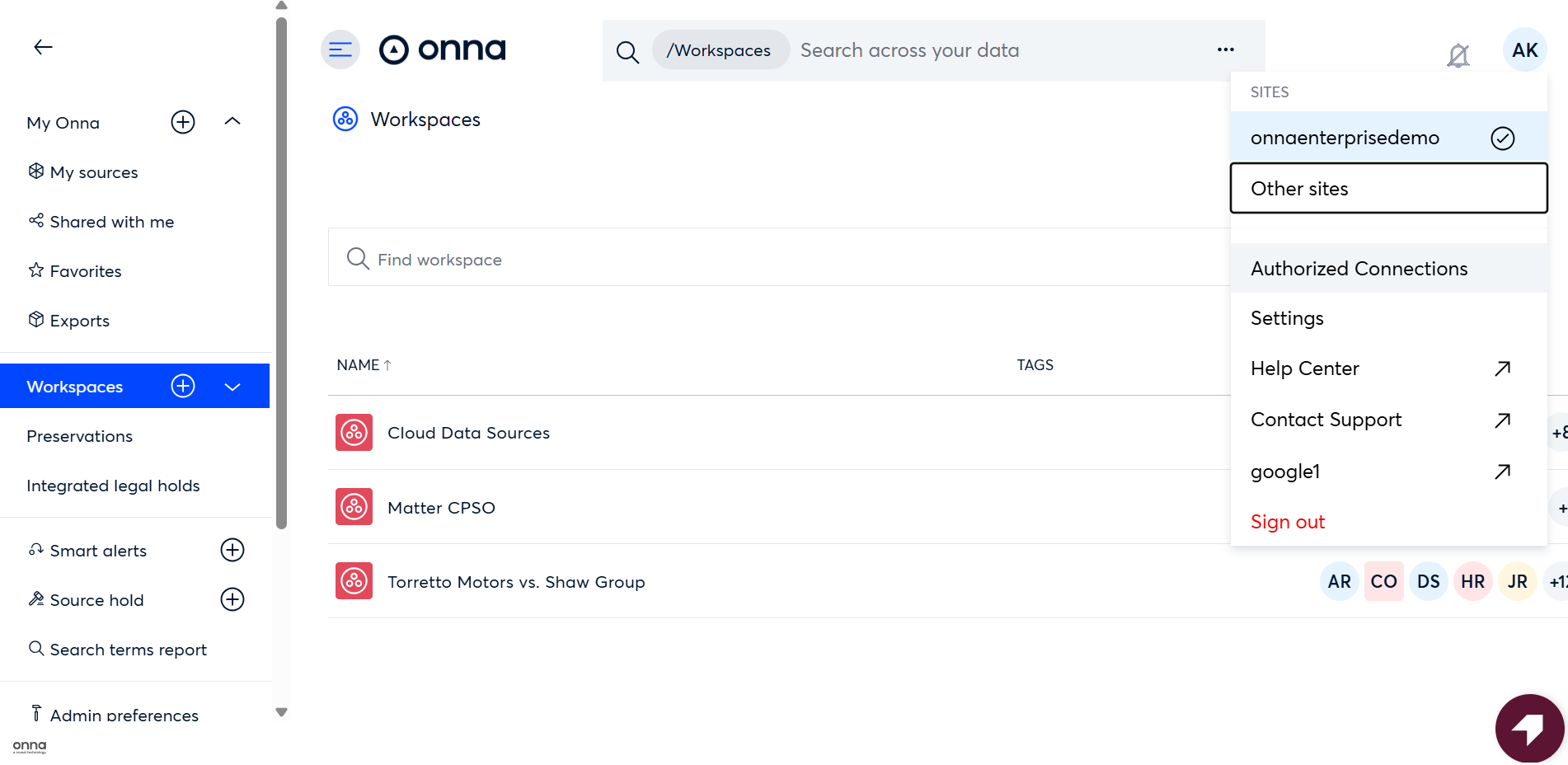
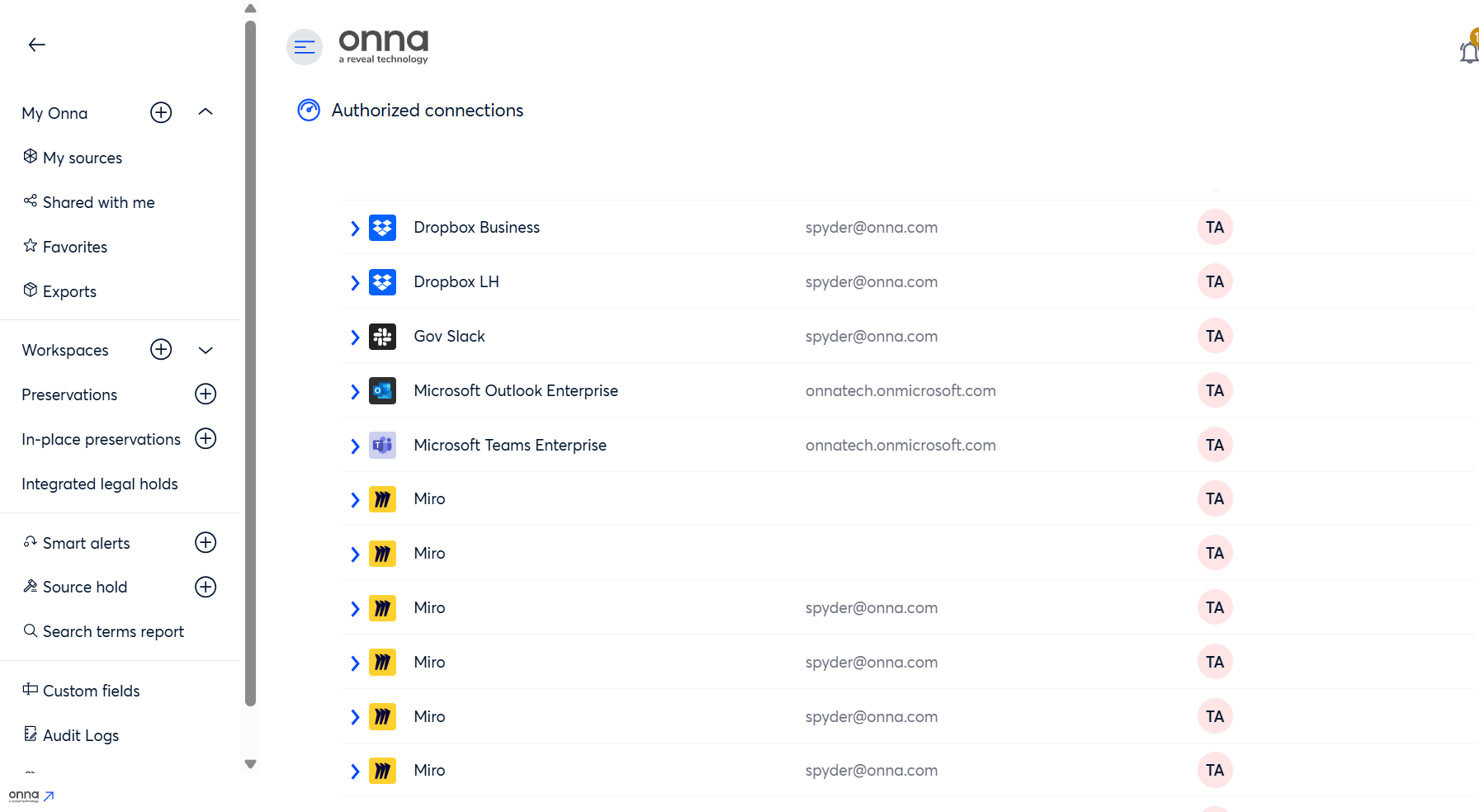
Open the User Menu. And navigate to Authorized Connections.
Step 2: Add Miro Admin Credentials
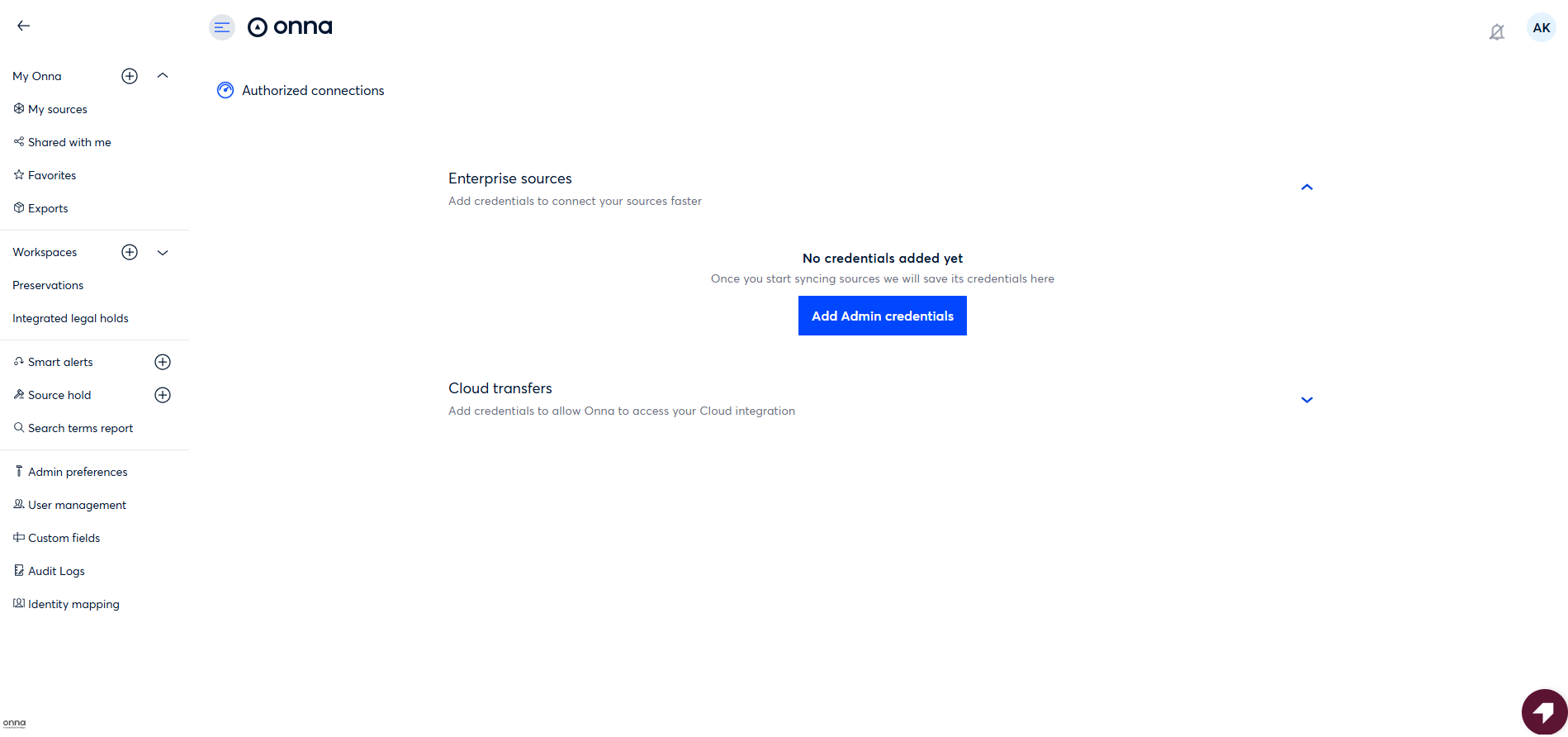
On the Authorized Connections page, click Add Admin Credentials.
The Add Admin Credentials modal will appear, displaying all available data sources.
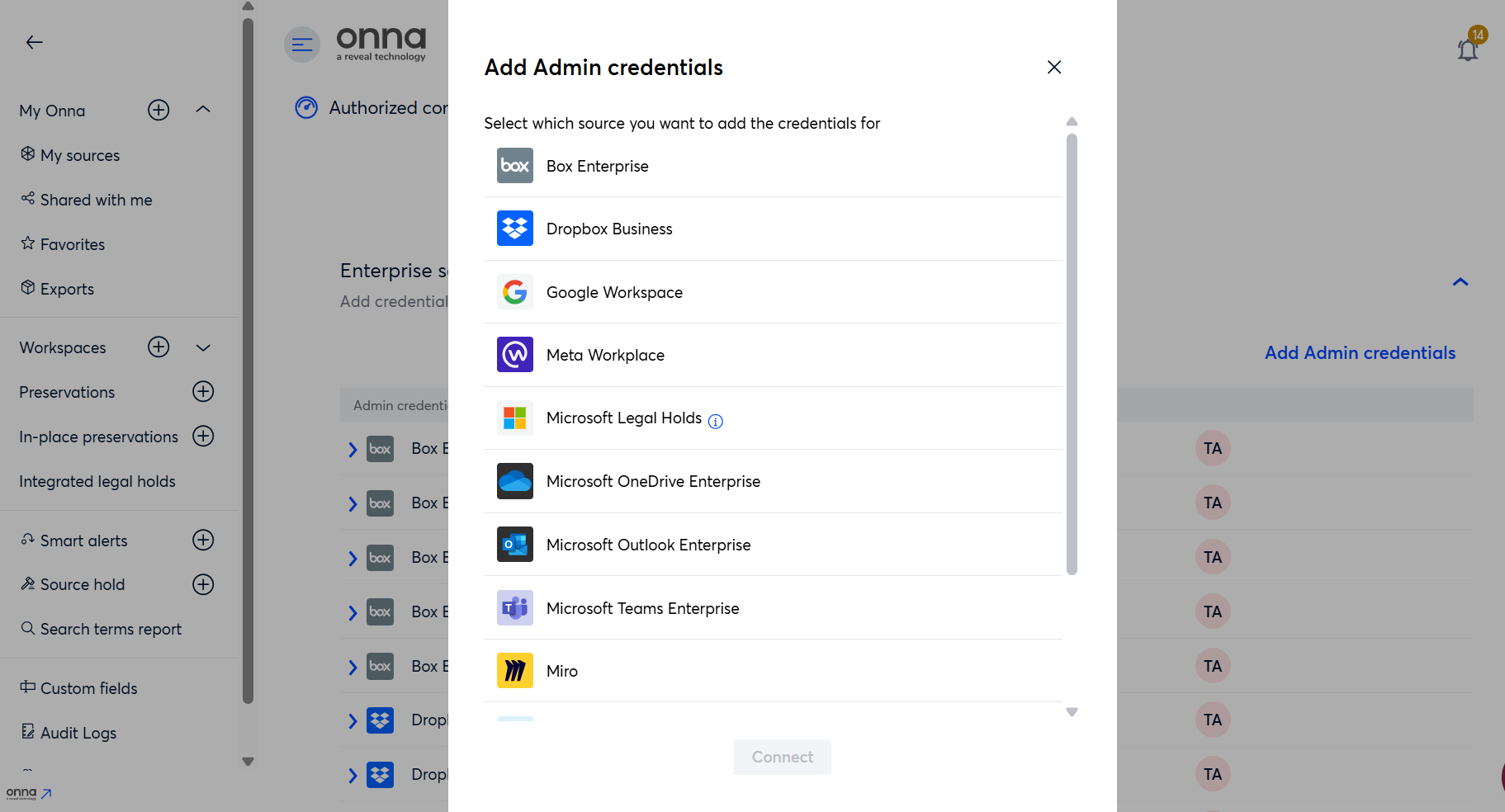
Select Miro from the list.
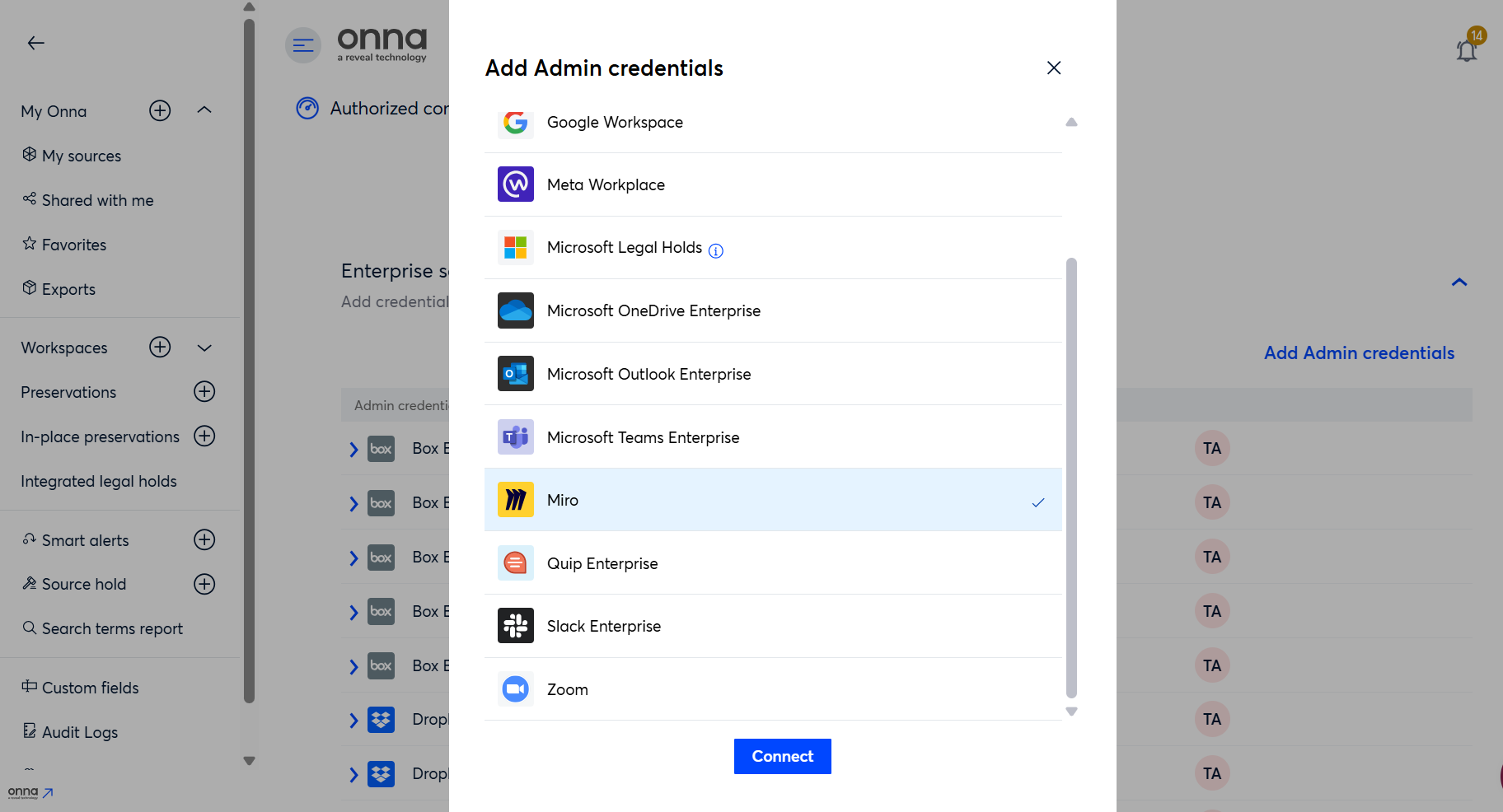
Click Connect to begin the authorization flow.
Step 3: Authorize Onna in Miro
On the Miro sign-in page, enter the email address of your Miro Company Admin account, then click Continue.
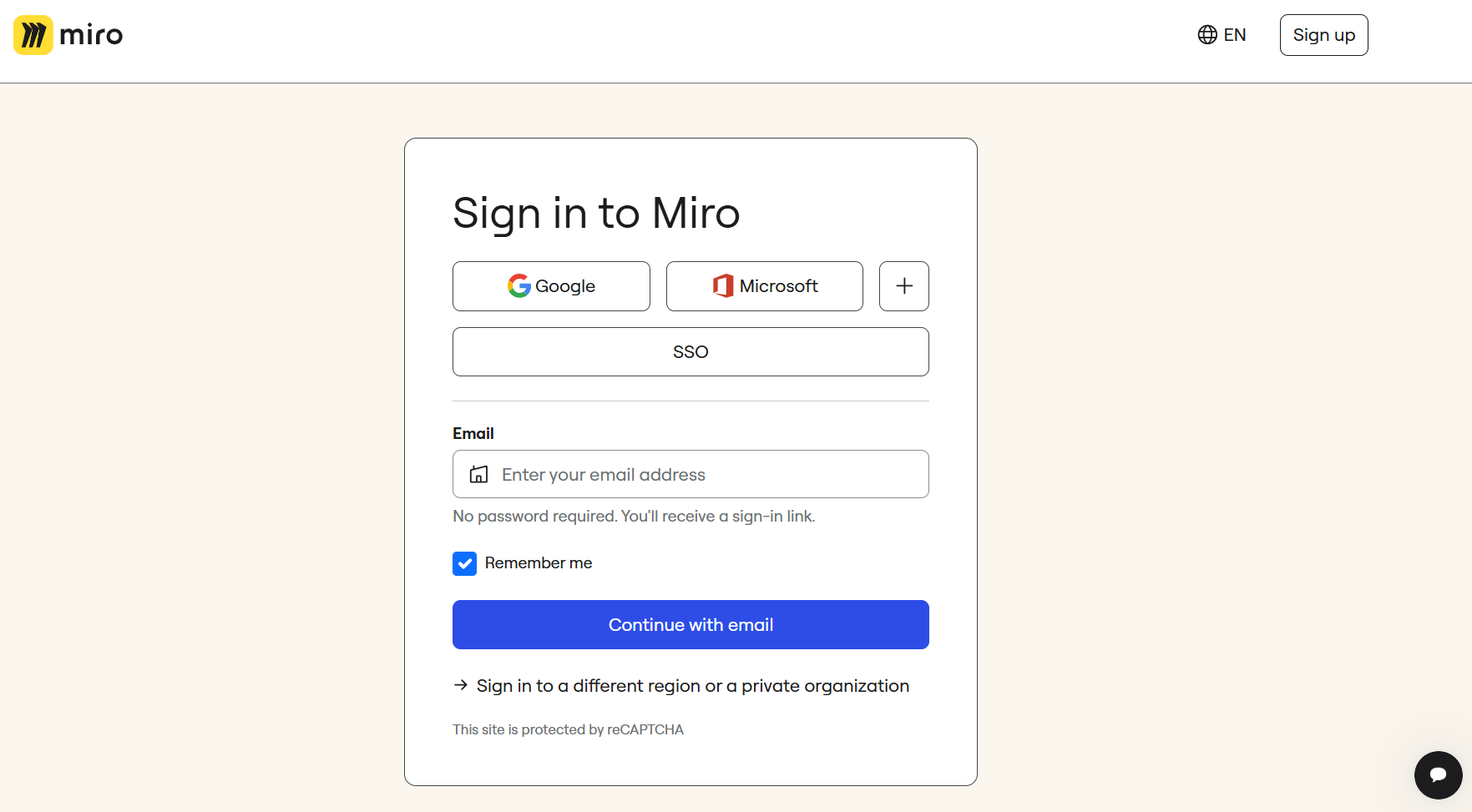
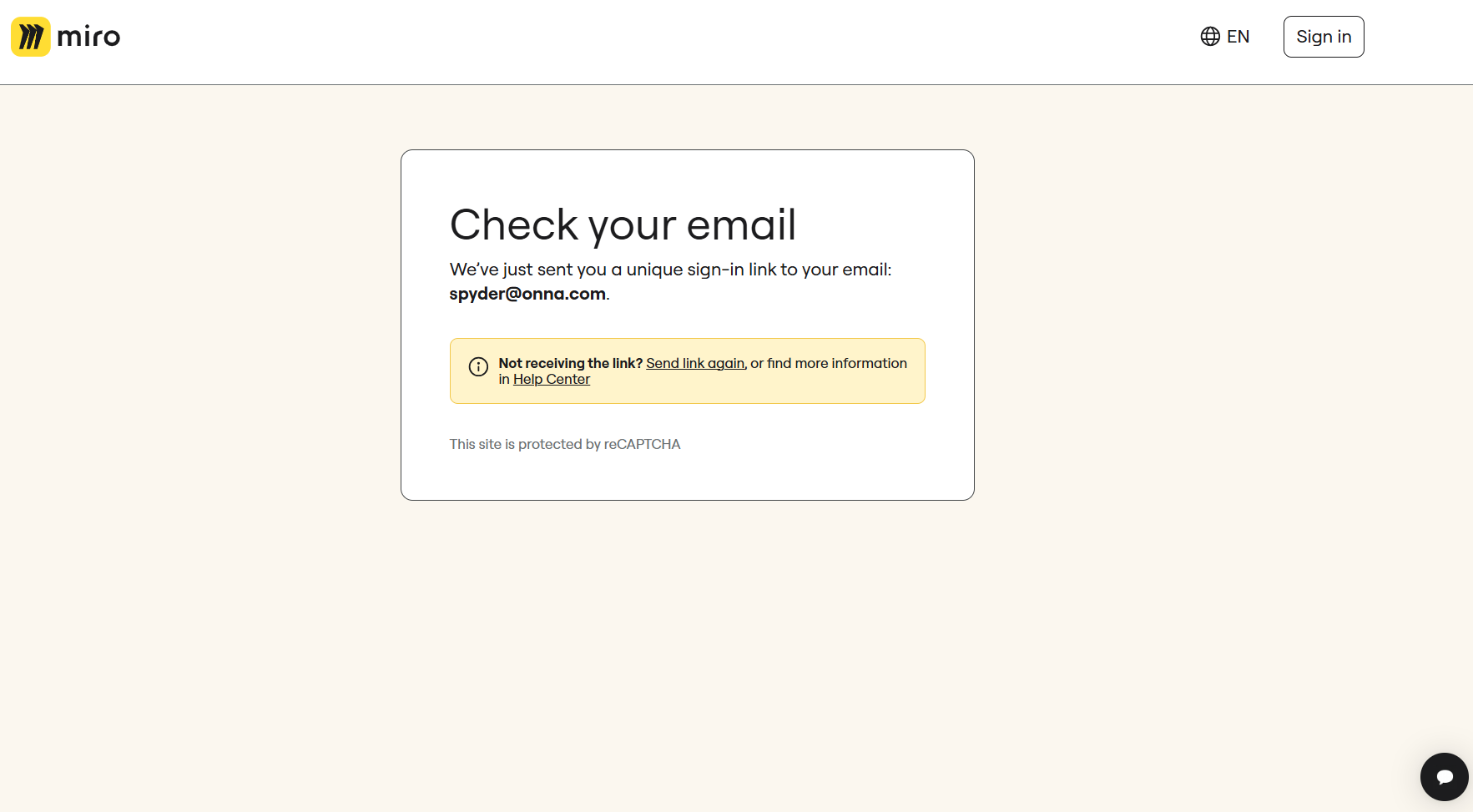
Miro sends a one-time sign-in link to that address. Open the email and click the link to sign in.
Note
If the email doesn't arrive within a few minutes, check your spam or junk folder, or click Send link again on the Check your email page.
Select an organization. Only Enterprise plan organizations can continue.
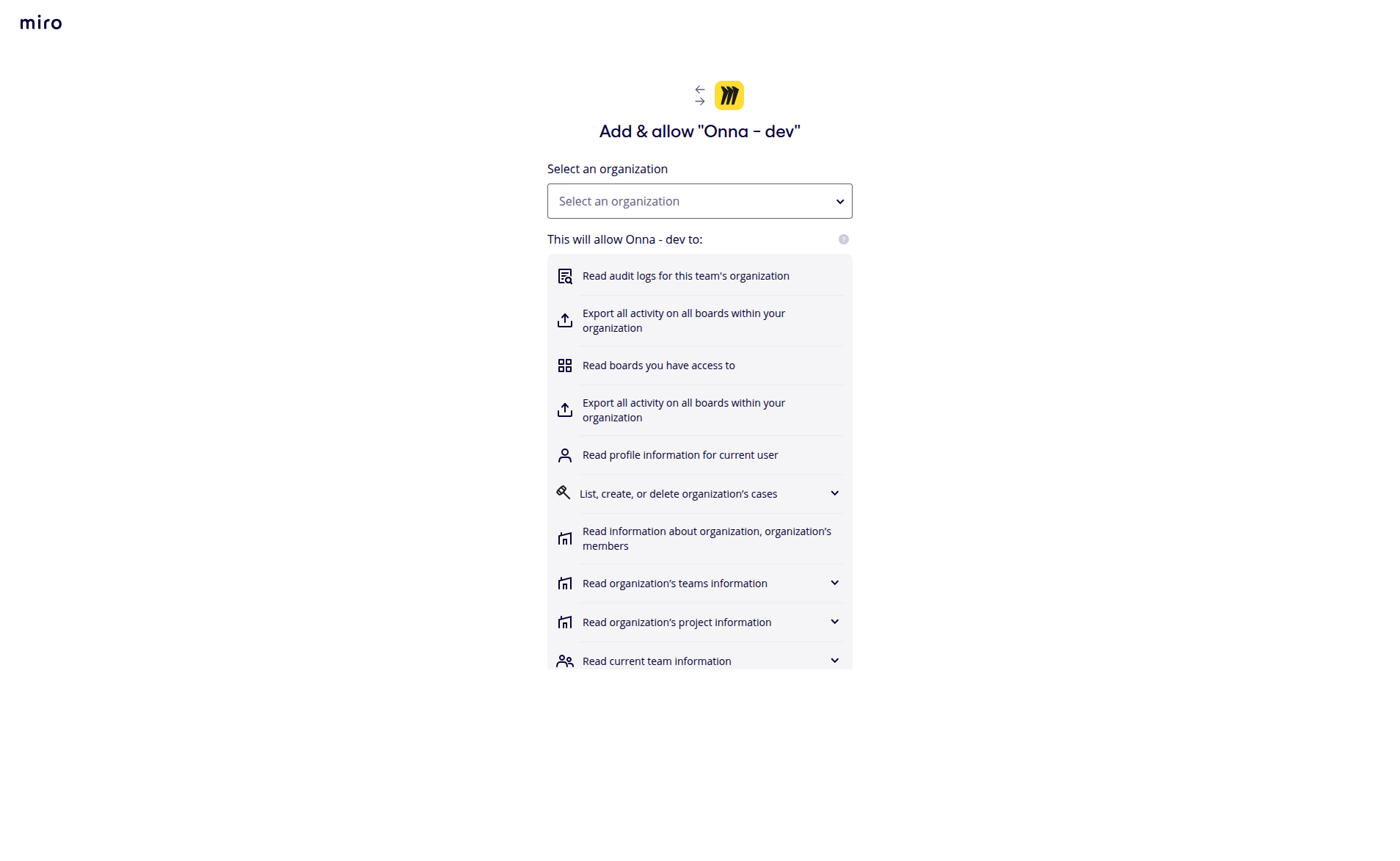
Select a team. The list shows the teams you belong to.
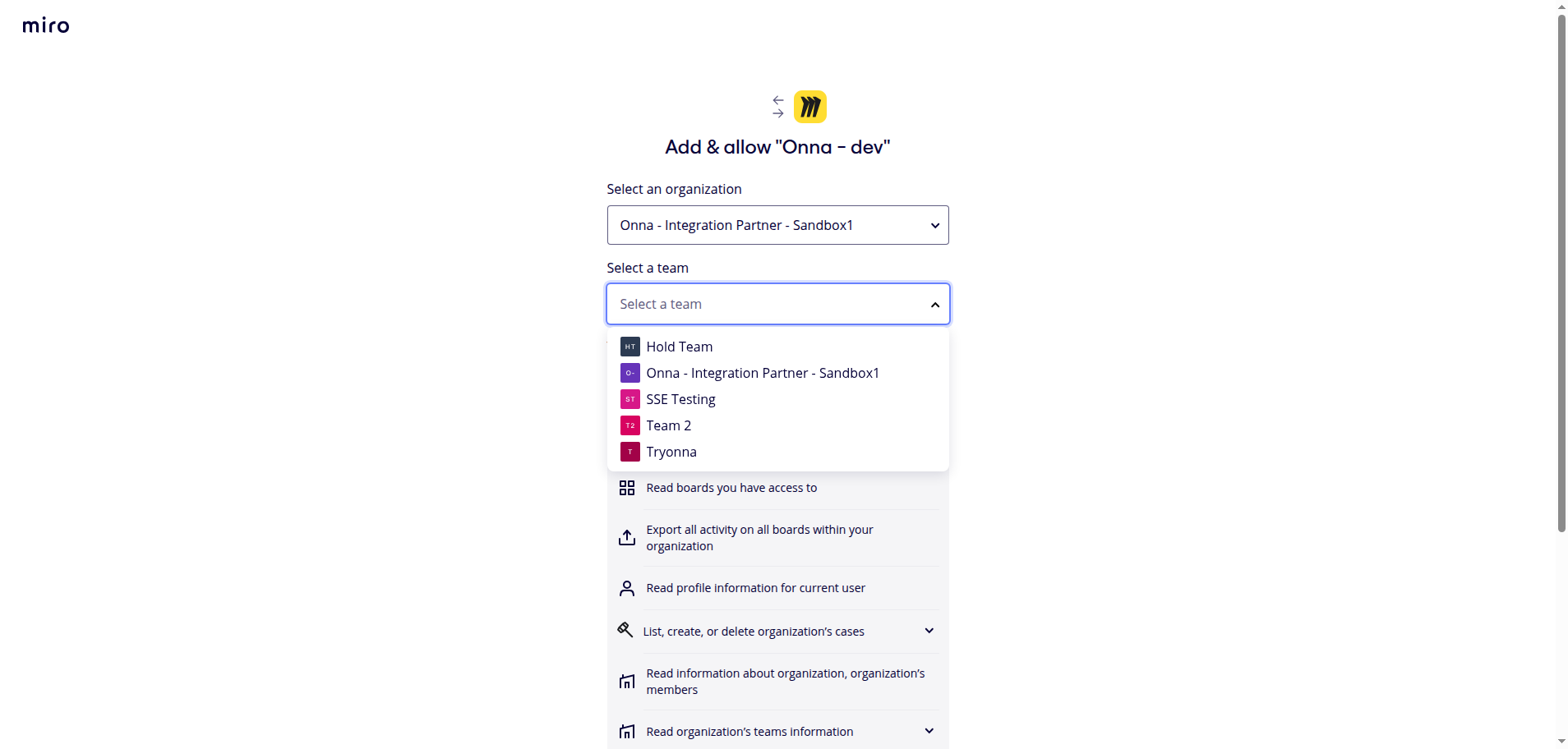
Click Add.
After authorization, you will automatically be redirected back to Onna.
A success notification will appear, confirming that your Miro credentials have been successfully connected and are now listed in Authorized Connections.
How to Create a Miro Source
Once the authorization is complete, you can add Miro as a new data source inside your desired Workspace or under My Sources.
Step 1: Navigate to Your Workspace
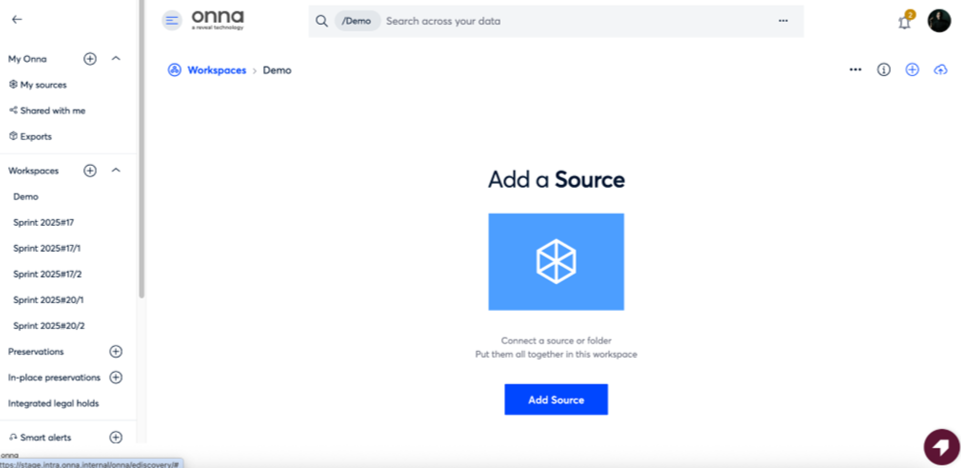
Navigate to your desired Workspace and click the Add Source button.
Step 2: Select Miro Data Source
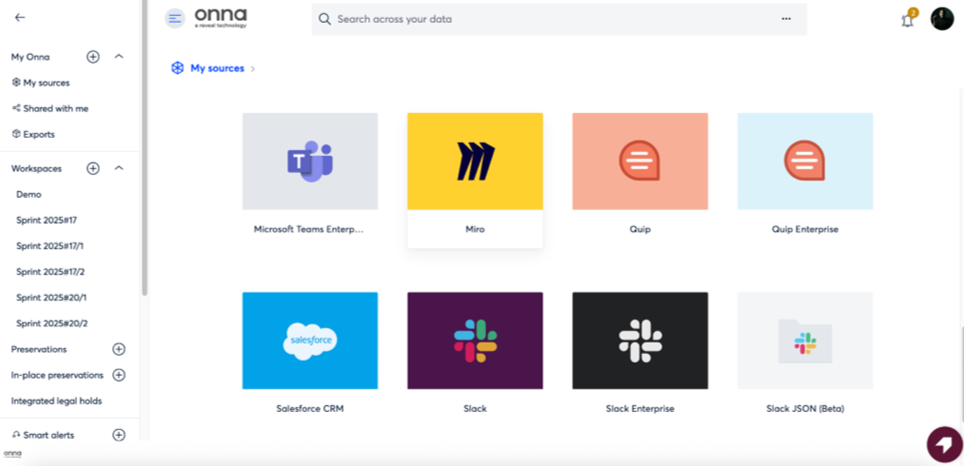
From the list of available data sources, select Miro.
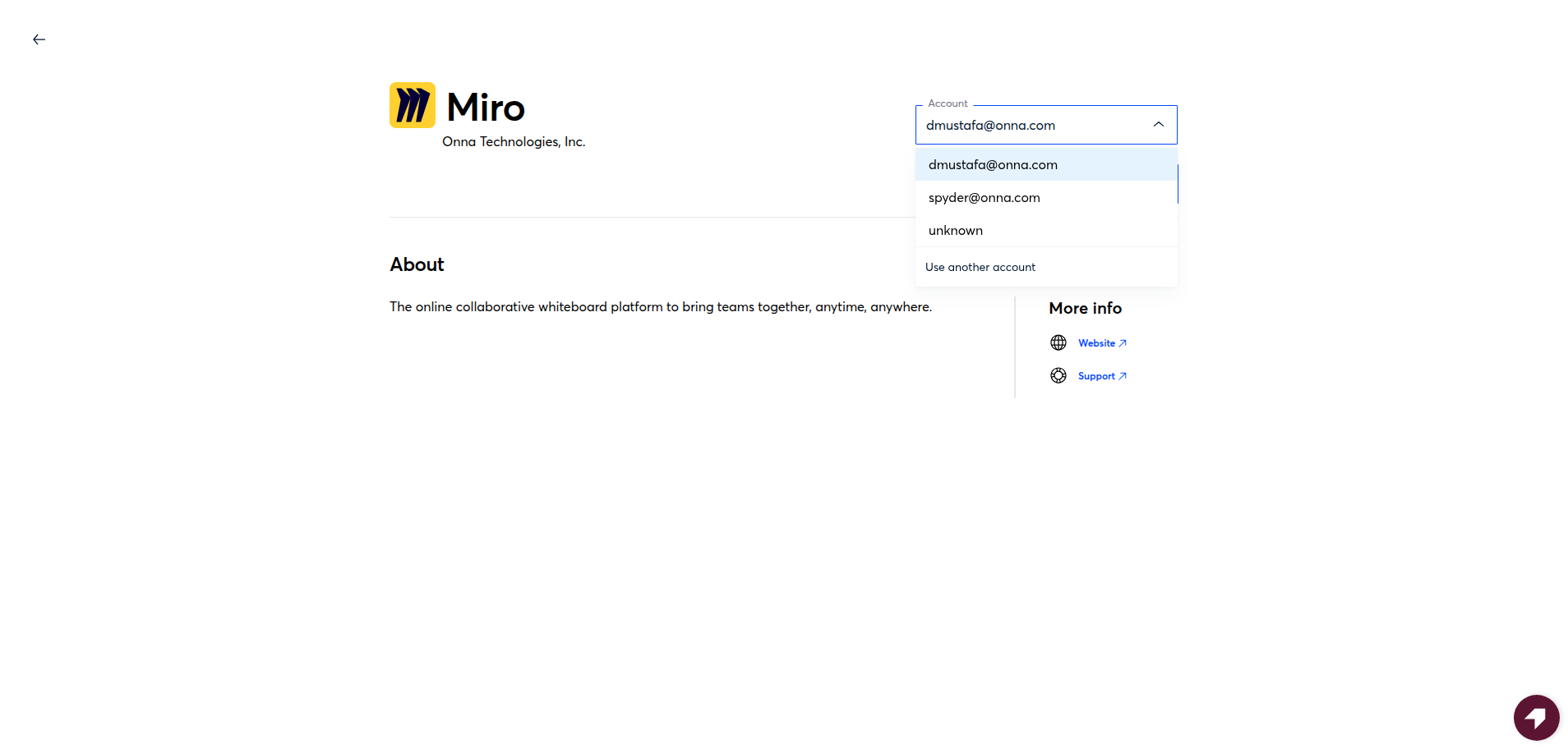
Step 3: Connect Your Miro Account
You will be redirected to the data source creation flow. Select the Miro account that you added through the Authorized Connection, then click Connect.
Step 4: Configure Source Settings
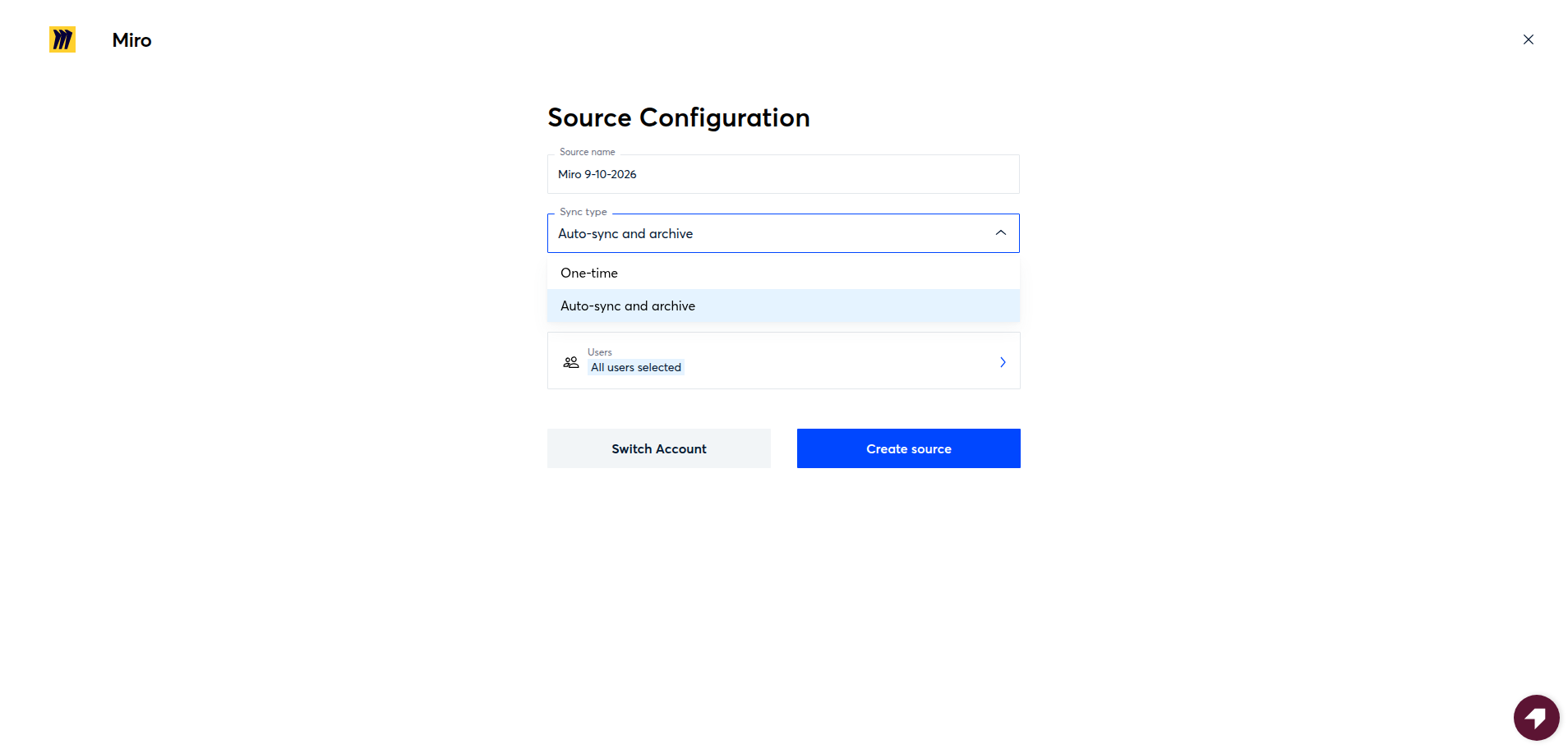
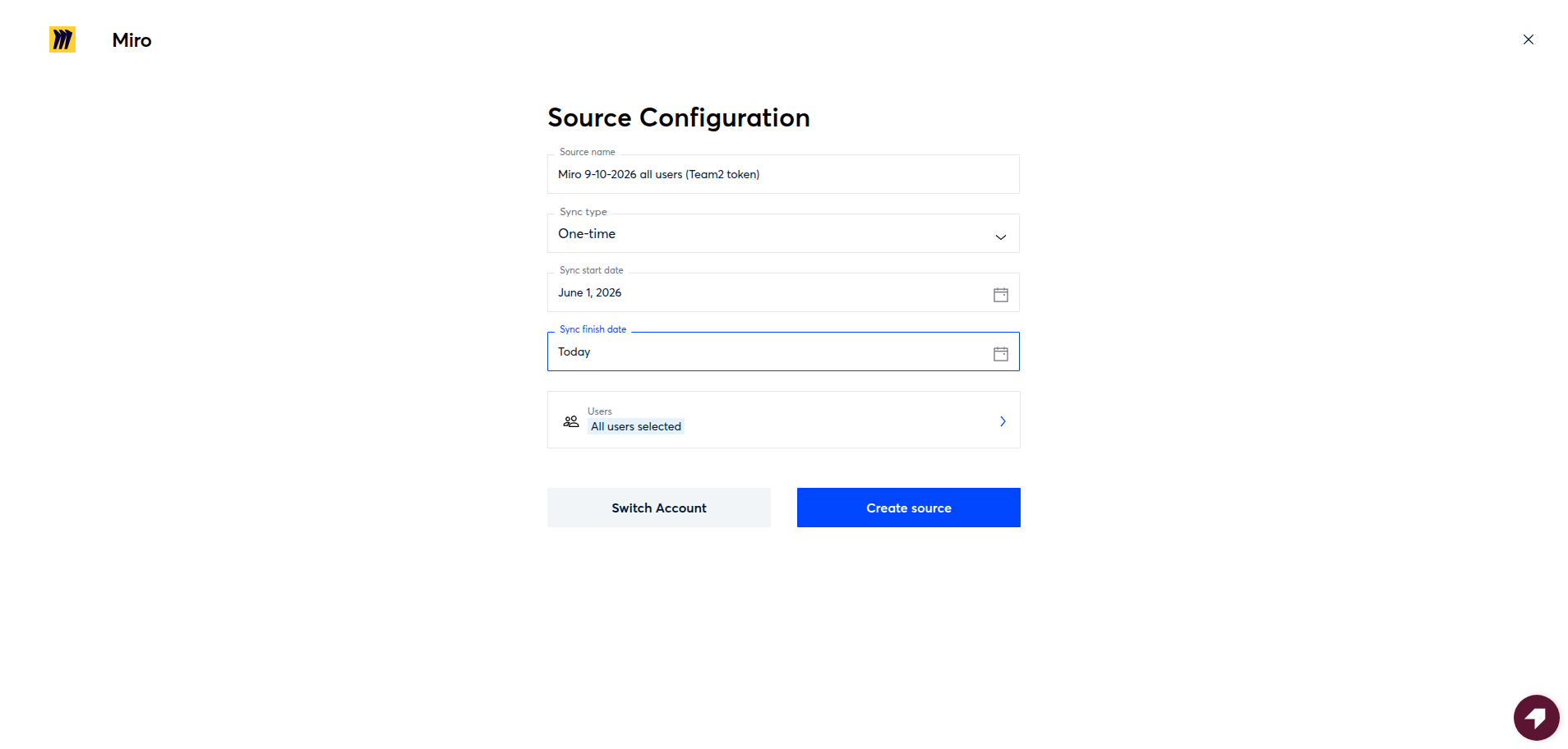
On the Source Configuration page, specify these configurations:
Sync Type
Date Range
Users
Sync Type
One-time — collects once between a start and finish date. Deleted boards stay in Onna.
Auto sync and archive — meant to collect on an ongoing schedule from the last processed board onward, keeping deleted boards.
Note
At present, this sync type only collects on its first run — later scheduled runs complete and show as "synced" but do not collect new content. If you need ongoing collection, contact support or plan for periodic one-time syncs until this is resolved.
Date Range
For a one-time sync, both a start and finish date are shown. For Auto sync and archive, only a start date is shown. An empty start date means collection starts from the beginning of time.an empty finish date means up to now. Dates are interpreted in your browser's timezone.
Start Date – End Date
Click the date range option to open the Select Period page.
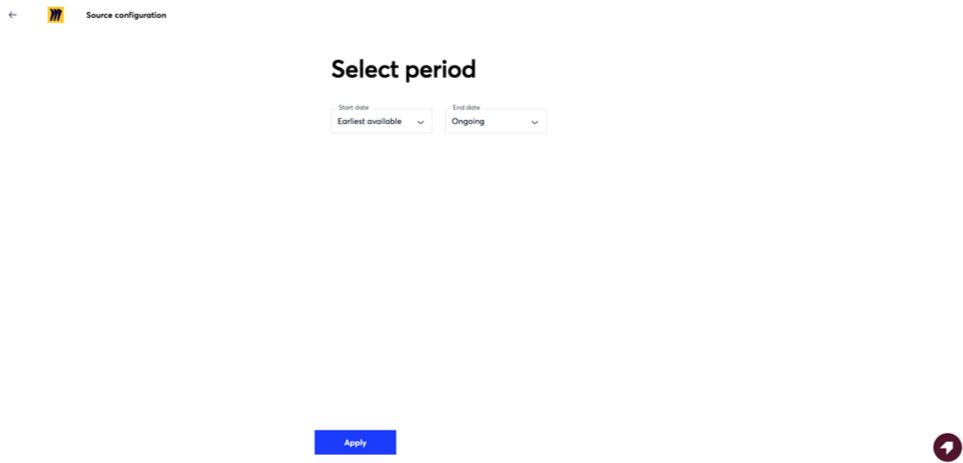
Start Date options:
Earliest available – includes all data from the earliest Miro activity
Custom – select a specific date from the calendar
Note
Last Modified Date is considered when selecting dates, except when Created Date = Last Modified Date.
End Date options:
Ongoing – continues syncing new data up to the current date
Today – includes data up to the current day
Custom – allows a specific end date selection
Note
If both Start and End Dates are selected manually, the sync will default to One-time sync mode.
Users
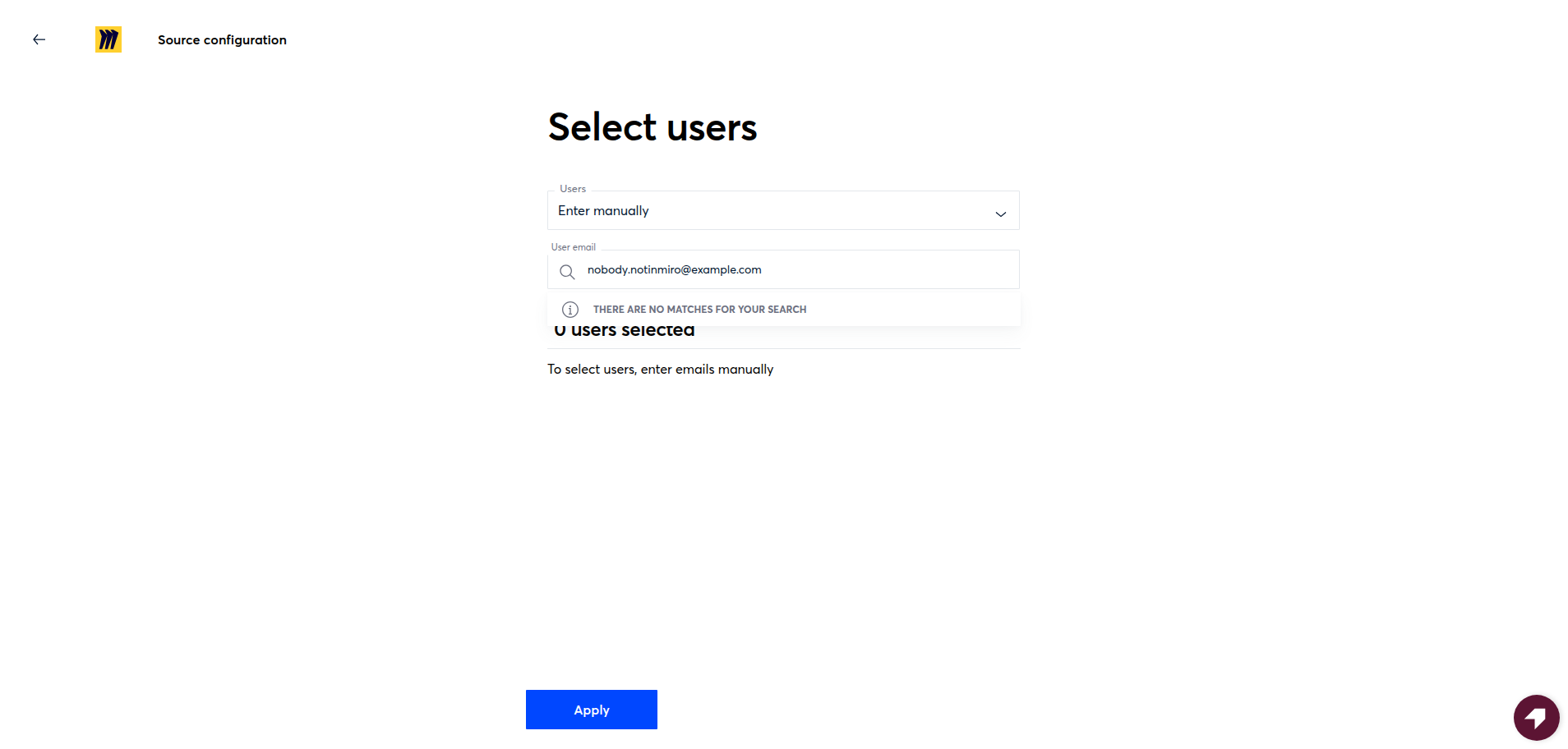
To define which users' data will be included, click the Users option. This redirects you to the Select Users page.
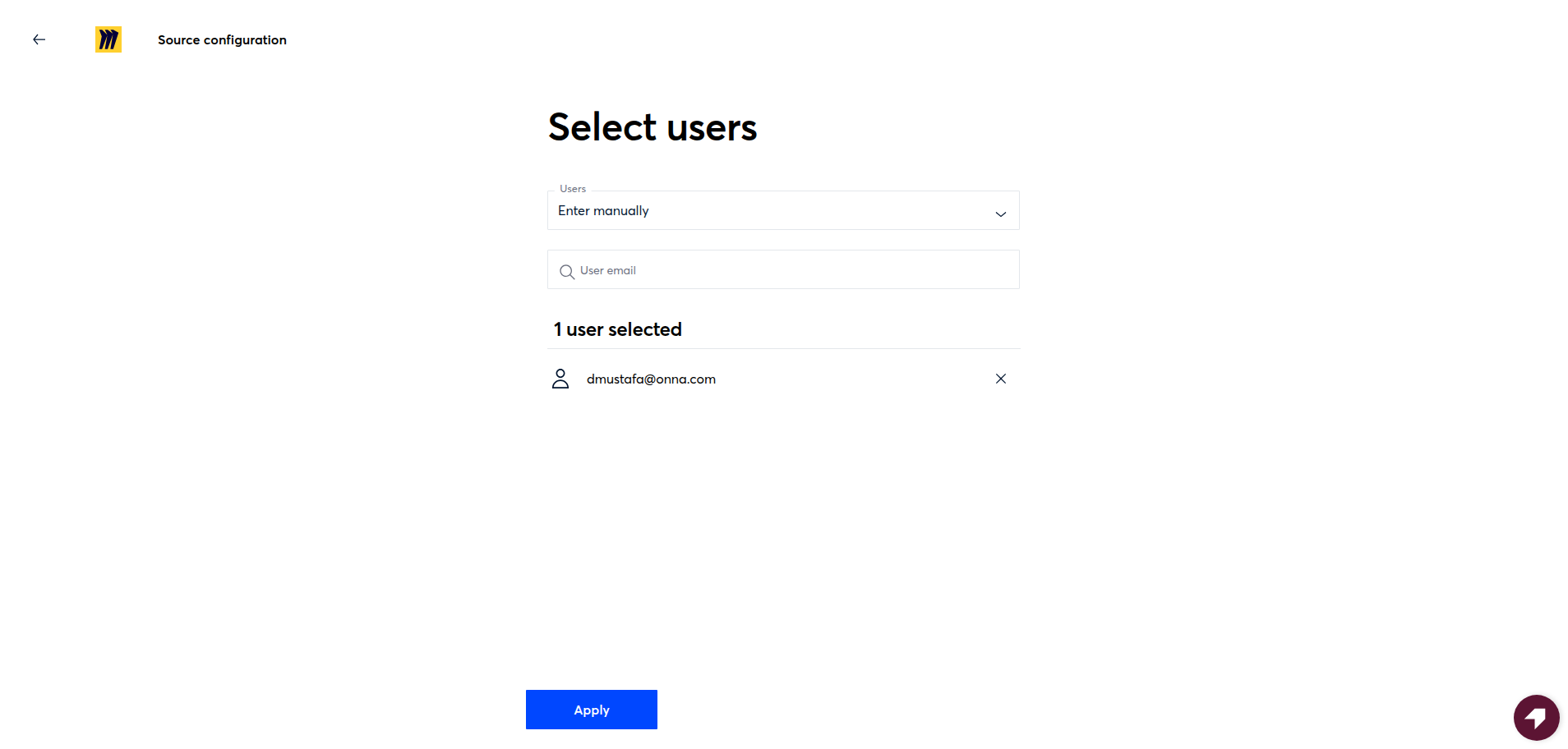
Where you can select one of these two options:
All users — every board modified inside the date range is collected. A custodian membership isn't checked.
Enter manually — type a user's email and select the match. Onna validates the address against the Miro organization's members through the credential, so an address that isn't a Miro user of that organization can't be added.
Board Scoping
A board is collected only when both of the following are true:
The board's last modified date (set by whoever made the last edit, regardless of who that is) falls inside the sync date range.
At least one selected custodian is a member of the board, in any role — owner, co-owner, editor, commenter, or viewer. If several custodians are selected, any one of them qualifying is enough.
Board ownership does not affect scoping. A board a custodian owns or created, but that nobody edited inside the date range, is not collected. Likewise, a custodian does not need to have made the edit themselves — a board where they're only a viewer, edited by someone else inside the range, is collected.
Access through team-wide or organization-wide sharing does not count as membership. If a custodian can only open a board because it's shared with their whole team, that board is not collected unless they're also an explicit member.
Note
Deactivated Miro users can still be selected as custodians; the sync will complete normally but return zero boards for them, with no warning shown.
A board the connecting Miro admin cannot see (see Requirements, above) will not appear at all — nothing in Onna indicates it exists, so if boards seem to be missing, check the connecting account's roles before assuming a scoping issue.
Step 5: Create Source
After setting the sync type, date range and user selection, click Create Source.
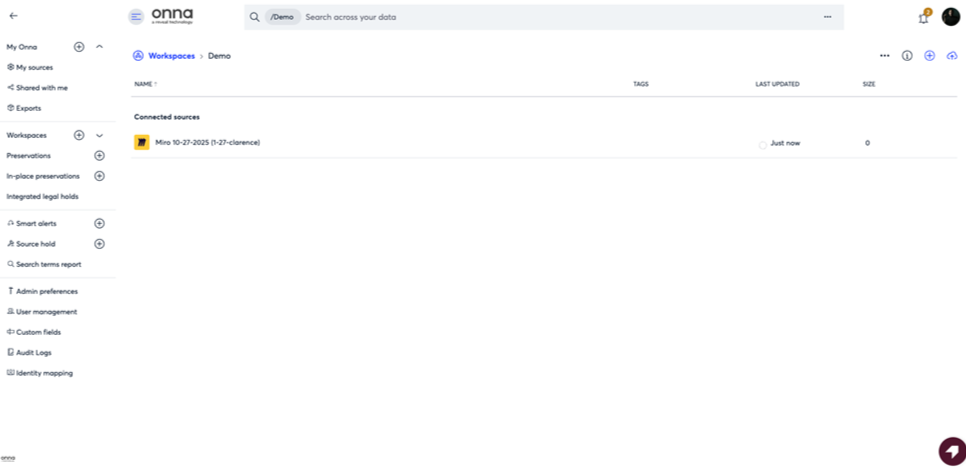
You will be redirected back to your Workspace, where the new Miro data source will appear in the source list.
How to View Synced Miro Resources
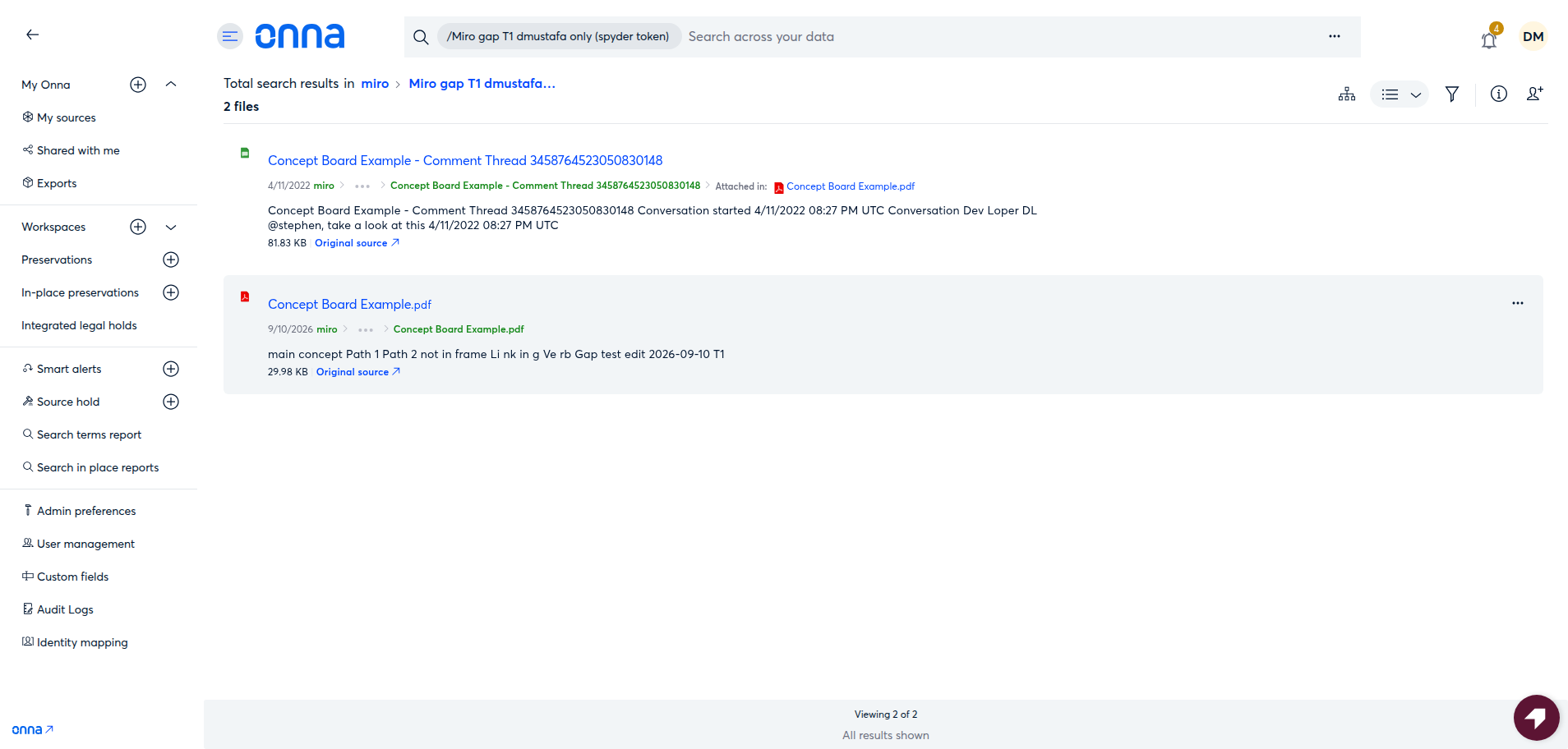
Once the sync process completes, navigate to the Miro data source within your Workspace.
Here you can view all synced resources with details such as:
Resource name
Description
Date synced
Size
Original source
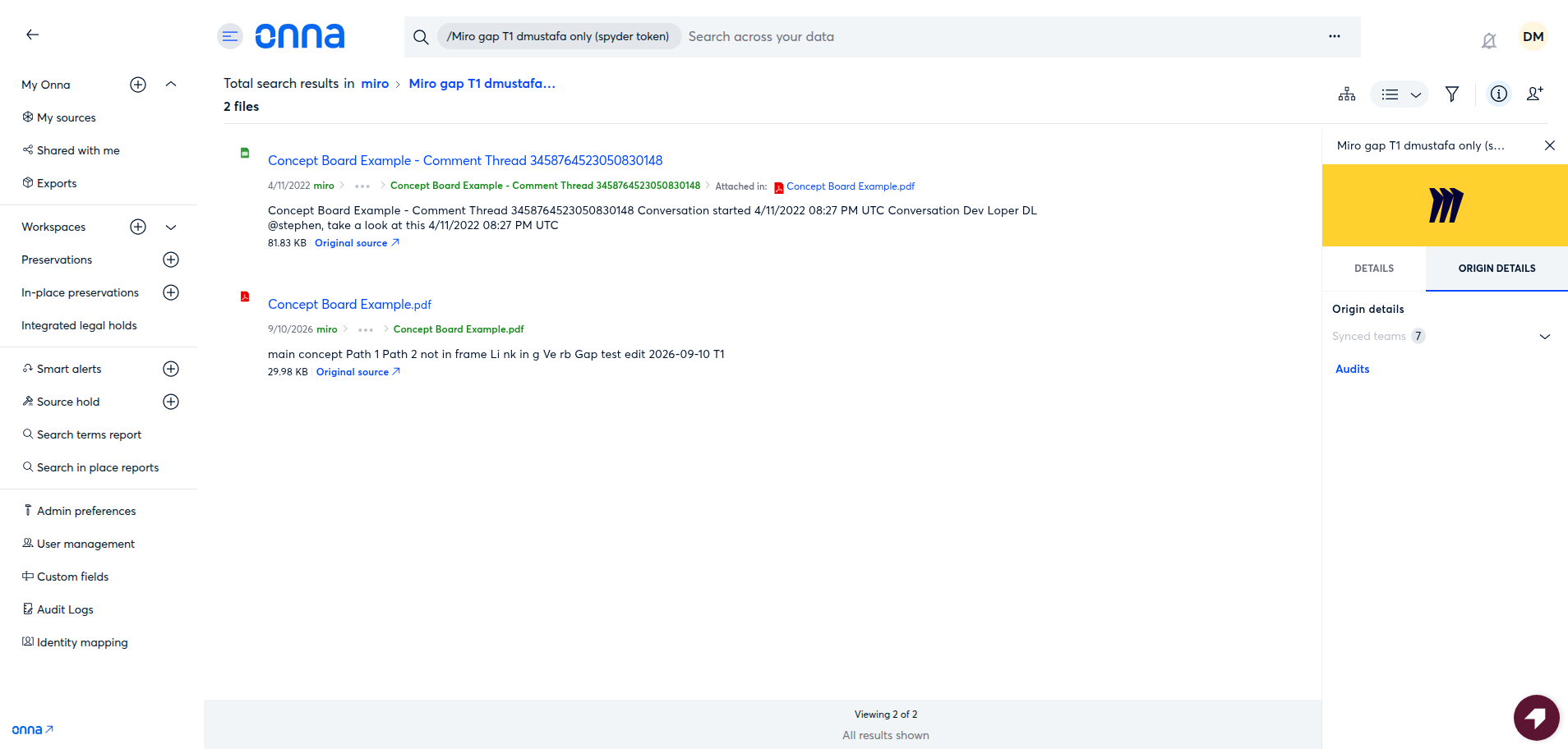
To view resource details:
Click the three-dot menu (⋮) beside a resource.
Select View Details to open a modal displaying metadata related to both Miro and Onna.
How to Monitor Sync Progress and View Details
To check the status of a Miro data source, click the three-dot menu next to the data source:
Select View Details.
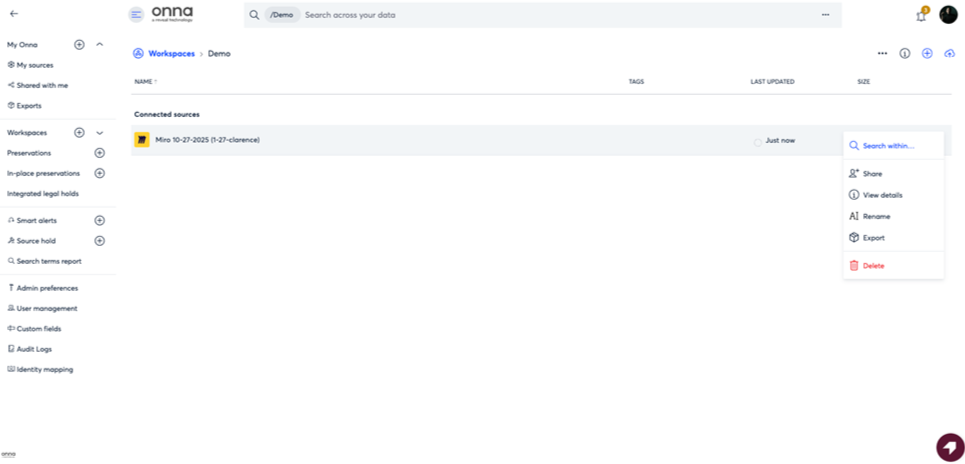
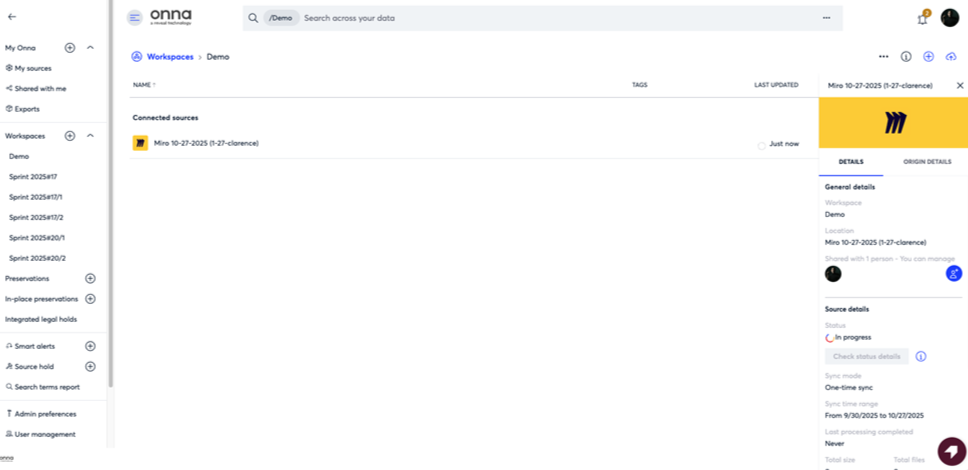
You will see two tabs:
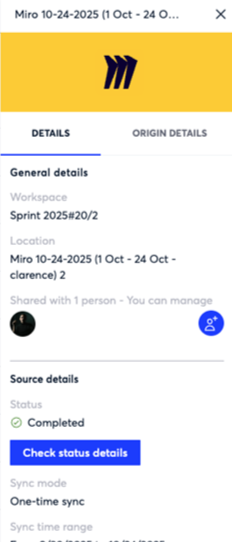
Details Tab – Displays Workspace, Location, Status, Sync Mode, Sync Time Range, Last Processing Completed, Total Size, Total Files, and Date Added to Onna.
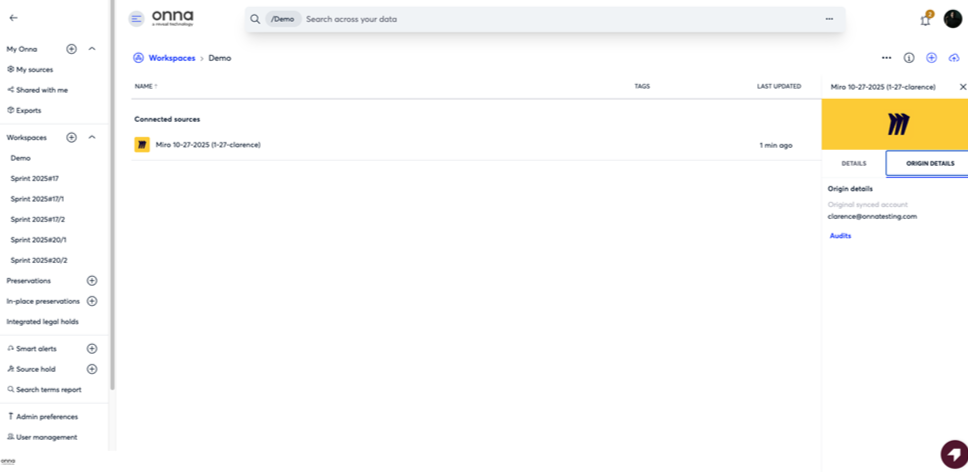
Origin Details Tab – Displays Original Synced Account and Synced Teams.
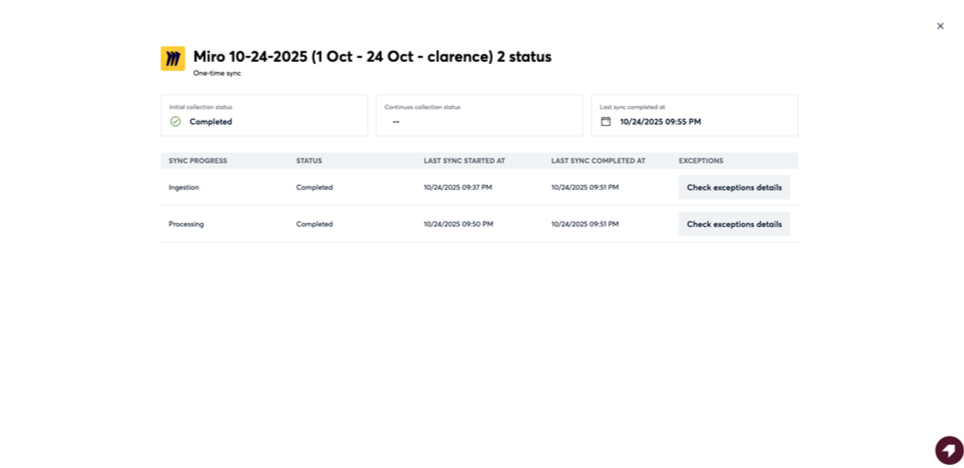
For more technical insights, click Check Status Details to access:
Ingestion and processing progress
Start and completion timestamps
Any exception details if errors occurred
The Status page displays the progress of ingestion and processing, along with their corresponding status, last sync start time, and last sync completion time. You can also check for exception details if any errors occurred during ingestion or processing.
On Synced Team is a report of which teams the sync walked through, not a setting. It lists every team in the organization the connector processed — including teams where nothing matched the date range or selected users — regardless of which team was picked at authorization, and it will not shrink on later runs.
What to Expect on Larger Syncs
For a large team (1,000+ boards), listing boards and checking membership can take 10–15 minutes before the first file appears, independent of date range. Individual board exports on Miro's side can also take an hour or more to complete for a single large board. Both are normal and not signs of a stalled sync — check Last Processing Completed as the more reliable signal if Status appears not to be moving.
How to Handle Failed Resources
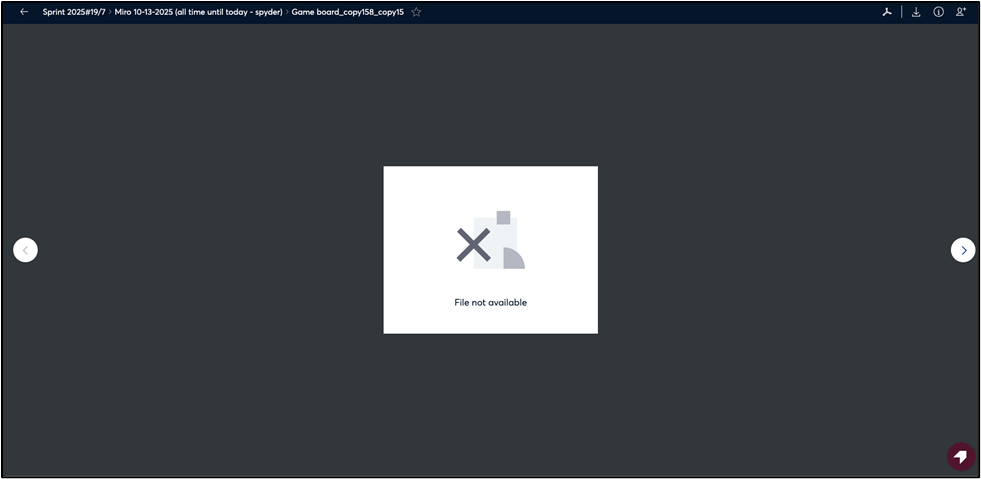
If certain Miro boards fail to sync correctly, they will appear as ".html" files that cannot be previewed within Onna. Opening these files will show "File not available," but you can still view their original content in Miro by following the Original Source URL.
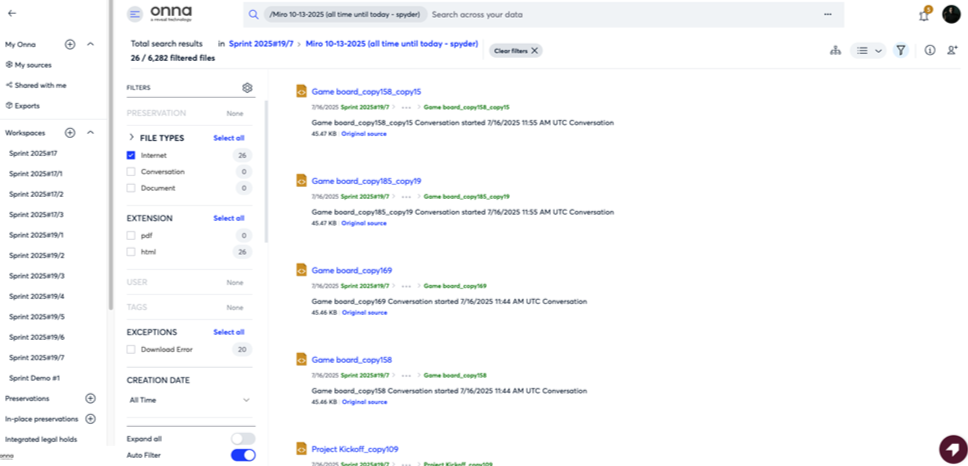
Despite being inaccessible in Onna, failed resources retain their metadata, which can still be viewed by selecting View Details from the three-dot menu.