In this article, you’ll learn how to perform a Google Vault integration.
Creating Google Vault Integration
Go to the Subscription screen.
Click on Integrations.
Select the +Create Integration button. The Create Integration modal will appear.
In the Integration Type dropdown, select Google Vault.
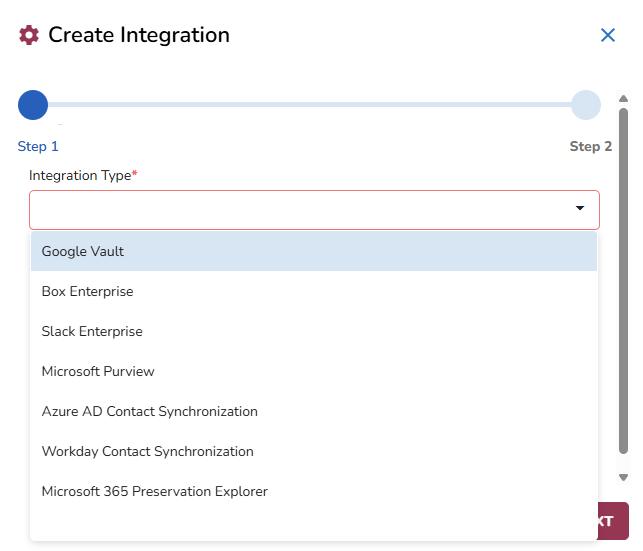
Click on Next.
Add the Admin Mail, Domain, and Certificate.
Click on Save.
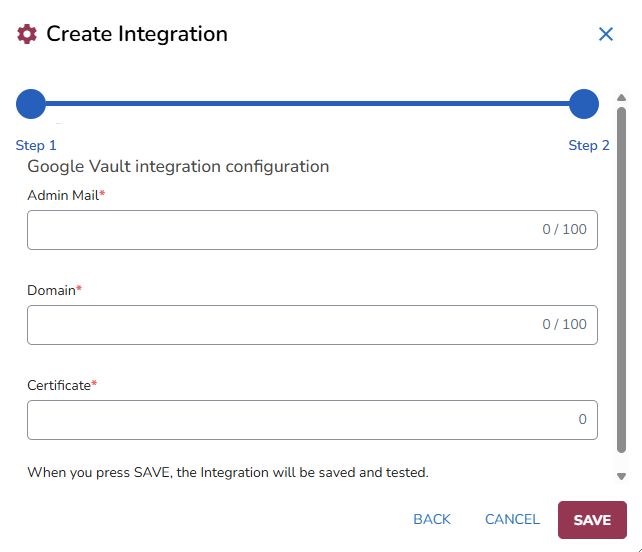
Visit the Notes for Administrators on Google Vault Integration article for instructions on how to fill these fields.
Creating Google source in location
Go to Locations and click on
.png)
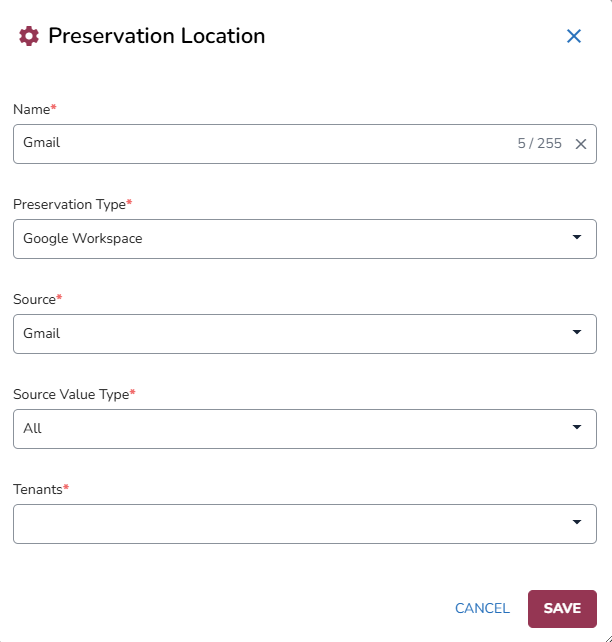
In the Preservation Location modal:
Fill out the Name.
Choose Google Vault in the Preservation Type dropdown.
When choosing this preservation type, a new Source Value Type field will be added below the Source field.
Choose your Source.
When choosing Gmail, there will be an “All” option in the Source Value Type field.
When choosing Google Drive, the Source Value Type field will list two options: Files (personal files) and Include Shared (personal, Shared files.)
Select Tenants.
Click Save.
Note
When a hold is created, a corresponding Matter and its related source are automatically generated in Google Vault, and the Google location is added to preservation and issued.