The Microsoft 365 Shared Email integration allows organizations to send legal hold notifications from a shared mailbox instead of individual users' email accounts. Configured at the subscription level, it provides a consistent sender address for all Global Hold Managers and Matter Managers.
Because notifications no longer depend on individual mailboxes, email delivery can continue even when a Hold Manager or the administrator who configured the integration leaves the organization. Custodian replies can also be managed through the shared mailbox.
Only one shared mailbox can be configured per subscription. Reveal Hold continues to record the user who initiated each notification.
Prerequisites
Before the integration is created in Reveal Hold, the customer’s Microsoft 365 administrator must complete the following:
Create a shared mailbox in the Microsoft 365 tenant, for example legalhold@company.com. Shared mailboxes are created in the Microsoft 365 admin center or the Exchange admin center.
It must be a true shared mailbox. A regular user mailbox, distribution list, or room mailbox cannot be used.
The mailbox address must use a domain that belongs to the organization’s Microsoft 365 tenant.
Make sure the mailbox can send mail. The mailbox must be enabled and must not be at its storage quota.
Check application access restrictions. If the organization uses an application access policy to limit which mailboxes applications can use, the policy must include this shared mailbox. Otherwise Reveal Hold has permission to send mail, but not from this mailbox.
Arrange for an administrator to grant consent. During setup, a Microsoft Entra ID Global Administrator must approve the permissions Reveal Hold requires. This is a one-time action per tenant. The person creating the integration can grant consent if they also have the Global Administrator role. Otherwise, a Global Administrator must be available during setup.
Create a Microsoft 365 Shared Email integration
A System Administrator creates and manages the shared mailbox integration from the subscription’s integration settings.
Navigate to Admin Center > Subscription > Integrations.
Click

In the Integration Type dropdown, select Microsoft 365 Shared Email.
Click Next.
In step 2, fill in the Shared Mailbox Address. This address will be used to send legal hold notifications.
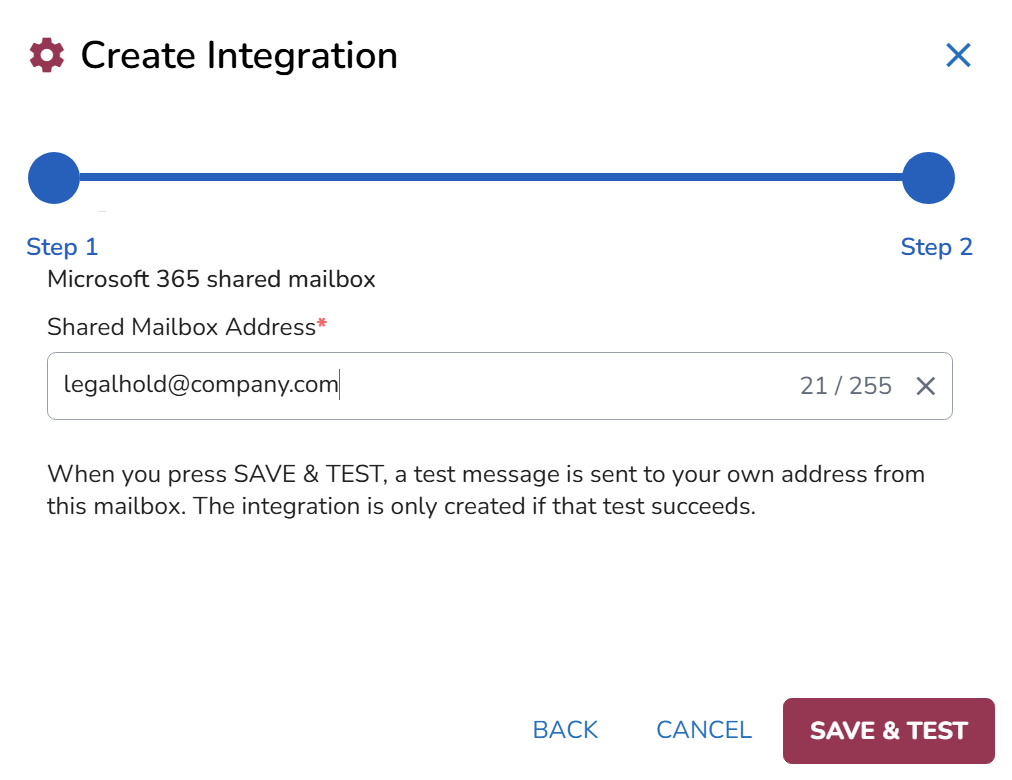
Click SAVE & TEST to save the configuration and send a test message.
If permissions have not yet been granted, the wizard displays Requesting the permission grant and opens a Microsoft sign-in window:
Sign in with a Microsoft Entra ID Global Administrator account, if prompted.
Review the Permissions requested screen and click Accept.
Wait for Microsoft to confirm that the required permissions have been granted. The window closes automatically, and the wizard updates.
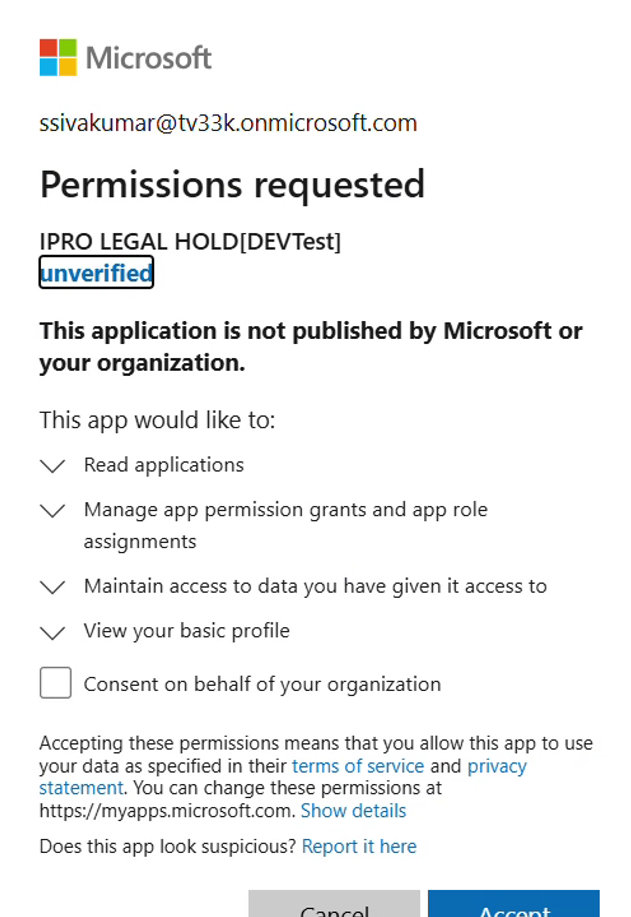
Once the wizard displays Permissions granted, click SAVE & TEST again to verify the mailbox and send a test message.
When the test succeeds, a confirmation message is delivered to the administrator creating the integration.

Click DONE to complete the setup.
The integration appears in the Integrations grid, with the administrator who created it listed in the Owner column.
Note
The integration cannot be enabled until a test message has been sent successfully. If the test fails, review and resolve the issue, and run the test again.
Enable the shared mailbox for the subscription
After creating the integration, enable Microsoft 365 Shared Email in the subscription settings.
Navigate to Admin Center > Subscription > Settings.
Under Allowed Email Integrations, click Edit.
Select Microsoft 365 Shared Email.
Click Save.
Once enabled, Microsoft 365 Shared Email becomes the default and only available email integration for all users, without requiring individual authorization. Other email integrations become unavailable, but their configurations are preserved.
If Microsoft 365 Shared Email is later disabled, the administrator must select which email integrations to allow instead. Existing Gmail or Microsoft 365 connections can be reused without re-authentication, provided their authentication is still valid.
For further information, see Settings.
Email preferences for Hold Managers
Global Hold Managers and Matter Managers can view the shared mailbox used to send their notifications.
Open the user menu in the upper-right corner.
Select Profile Settings.
Locate Email Preferences.
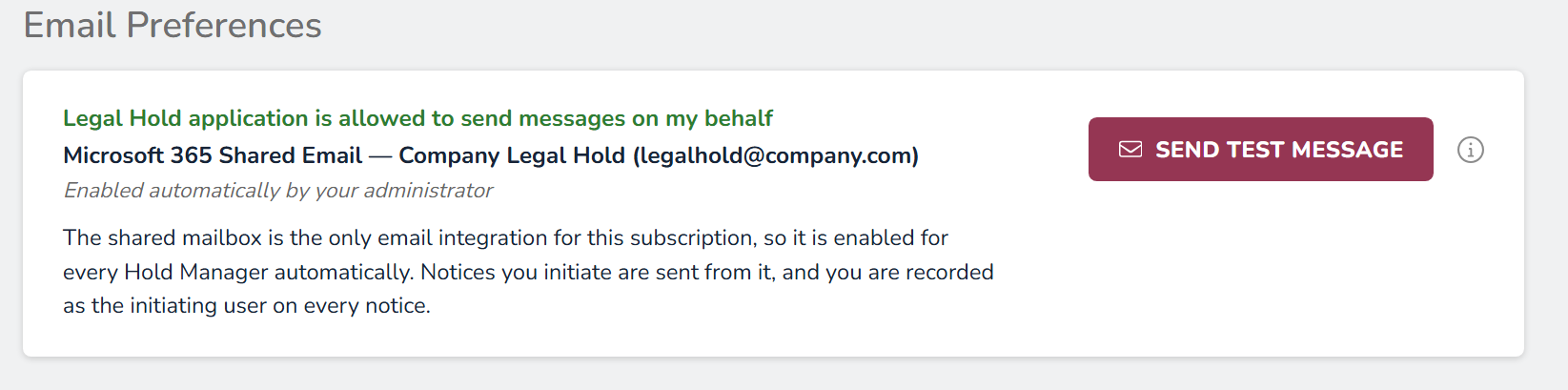
The Email Preferences section displays the shared mailbox address and indicates that the integration was enabled automatically by the administrator.
Users can also click SEND TEST MESSAGE to test the currently active email integration. When Microsoft 365 Shared Email is enabled, the test uses the shared mailbox.
Troubleshoot shared mailbox integration issues
Important
When the shared mailbox is unavailable, notifications are queued rather than sent through another email integration. Reveal Hold does not automatically fall back to a previously configured email integration.
To review the issue:
In the Integration Issue Detected alert, click Go to Health Status.
Open the Email Delivery tab.
Locate the shared mailbox integration to review its status and affected holds.
Alternatively, navigate to Admin Center > Subscription > Settings and locate Allowed Email Integrations. When an issue is detected, this section displays the reason for the failure and the number of affected Hold Managers, matters, and queued notices.
The integration test identifies the following mailbox errors:
Error | What to do |
|---|---|
Permissions not granted | Grant the required permissions when prompted in the integration wizard. |
Insufficient permissions | Check that the integration has the required Microsoft 365 permissions. |
Mailbox not in scope | Ask your Microsoft 365 administrator to include the shared mailbox in the application access policy. |
Mailbox not found | Check the mailbox address and confirm that the mailbox exists in Microsoft 365. |
Not a shared mailbox | Use a shared mailbox instead of a regular user mailbox or distribution list. |
Mailbox disabled | Ask your Microsoft 365 administrator to enable the mailbox. |
Mailbox at storage quota | Ask your Microsoft 365 administrator to free up mailbox storage. |
Temporary error | Wait a few minutes and run the test again. |
After resolving the issue:
Navigate to Admin Center > Subscription > Settings.
Under Allowed Email Integrations, click Run test.
Once the test succeeds, queued notifications begin processing.
Changes to Microsoft 365 permissions are checked when the integration is created, edited, or tested. If permissions are updated, run the test to confirm that Reveal Hold can use the shared mailbox.
Audit trail
Reveal Hold records both the user who initiated a legal hold notification and the mailbox used to send it.
To view these details, navigate to Admin Center > Audit and open a Hold Notice: Send event.
Initiated By identifies the user who initiated the notification.
Sent From shows the shared mailbox.
The original initiating user remains recorded even if the notification is sent after an integration outage.
To delete a shared mailbox integration, navigate to Admin Center > Subscription > Integrations, locate the integration, and click the Delete icon. The integration must first be disabled under Allowed Email Integrations.
Change the shared mailbox address
You can change the shared mailbox address without disabling or deleting the integration. Before making the change, ask your Microsoft 365 administrator to grant Reveal Hold access to the new shared mailbox.
Navigate to Admin Center > Subscription > Integrations.
Edit the Microsoft 365 Shared Email integration.
Enter the new Shared Mailbox Address.
Click SAVE & TEST.
If the test succeeds, the new address becomes the sending address. If it fails, notifications continue to be sent from the existing address until the issue is resolved and the test succeeds, or the change is discarded.
The change is recorded in the audit log, including the previous and new addresses. Previously sent notices retain their original sender.