On the Preservation tab, select the locations where you can put, for example, email on hold. These locations have been previously defined by your Administrator via the Subscription option in the menu.
Edit Preservation Settings
In Draft or Issued state, select Edit Preservation Settings.
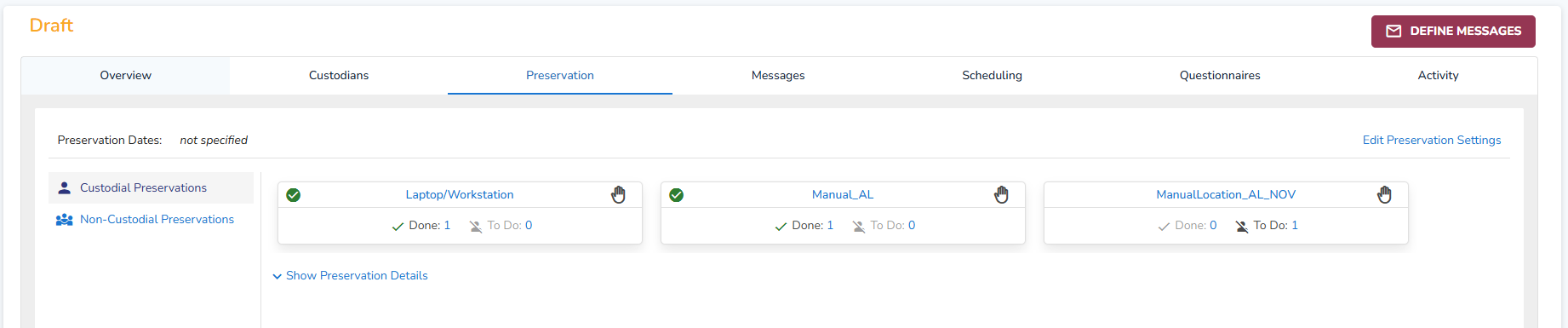
The Hold Preservation Settings window will open.
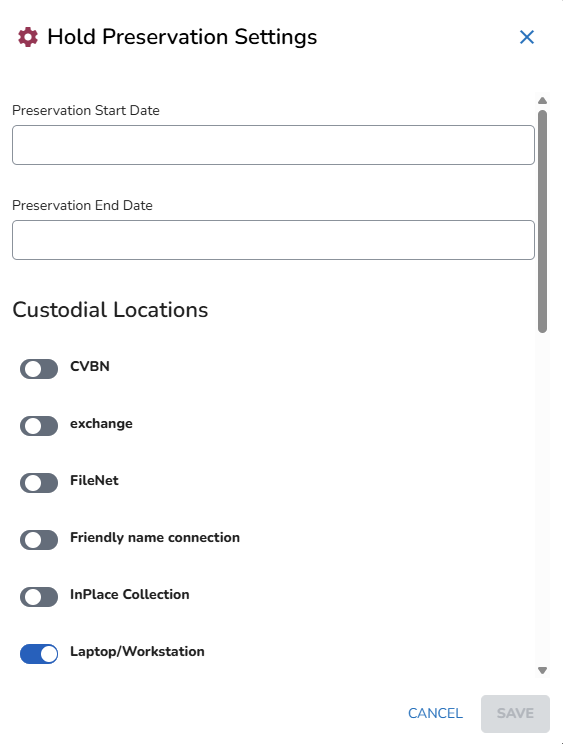
Here you can:
Define a Start and End date.
Select the locations from which data needs to be preserved.
Custodial: Turn on or off for specific custodians.
Non-Custodial: Turn on or off for groups of custodians. If turned on, click
 to select which sites to include.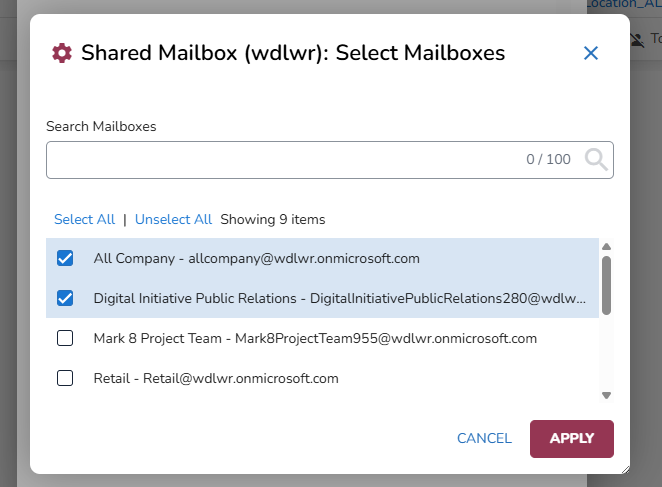
Click Save.
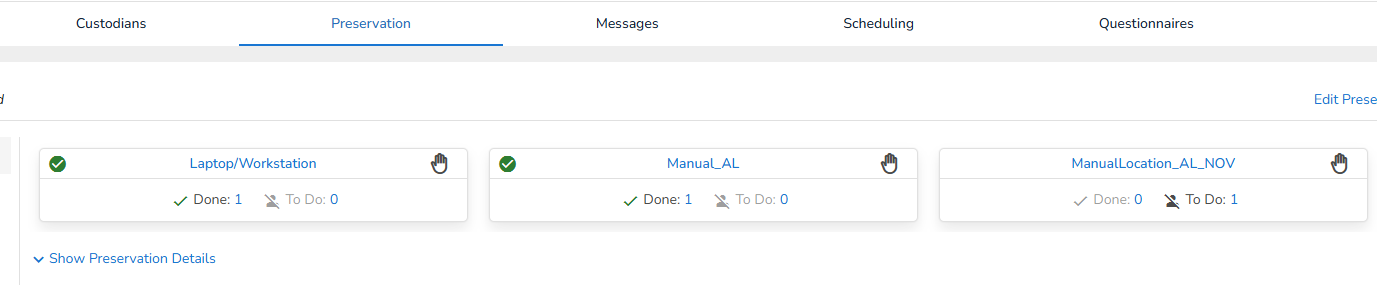
When defined, you will see an overview of all locations from which data will be preserved.
Each location is displayed on a card. Also, the number of custodians that are preserved (Done), that are 'In Progress' and that are still 'To Do' is shown.
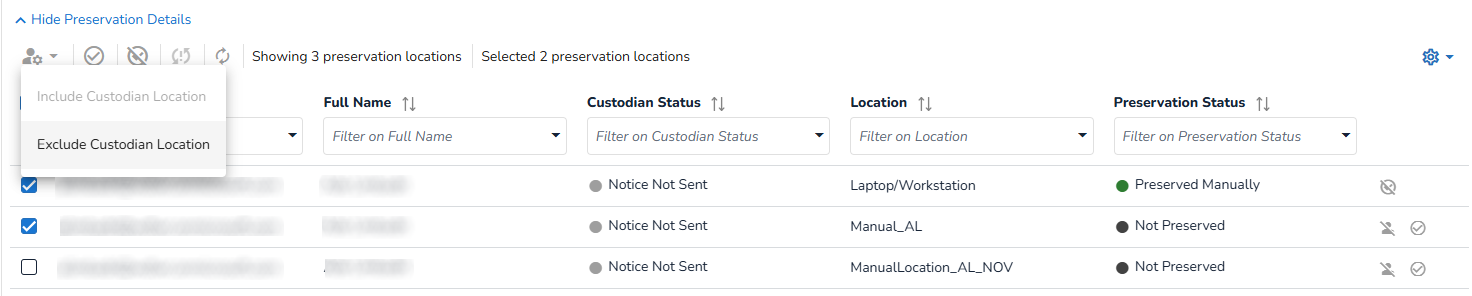
By default, all custodians are added to each selected location to secure their data. Via the Custodian Details (select Show Custodian Details below the cards), you can exclude one or more custodians per location.
Select any of the blue links in each card to show the Custodian Details and filter the grid at the same time (for example, click the number behind 'To Do' to only view the remaining preservations for that location).Exclude multiple custodian/location-combinations via the button in the top left corner, or exclude a single custodian/location-combination via the Exclude Custodian Location button at the end of the row
 :
:
With the icons in the top right corner of each card you can see if the preservation is done manually or automatically (with an in-place hold). With automatic preservation, the system will secure the data. With manual preservation, a person must perform an action (for example, create a forensic image of a laptop). Locations that are manually preserved (secured), can be marked as such via the menu or the button Set Custodian Location status to Preserved at the end of the row in the grid
 .
.
Preservation Status
Even when the hold has been issued, the preservation status can be changed by adding or lifting a custodian (in the Custodians tab). For example, when lifting the hold for a custodian, the Preservation Status will change to 'Automatic/Manual Preservation Lift Pending'.
Enabling the Manual Preservation Manager role (for existing subscriptions)
For existing subscriptions, the Manual Preservation Manager role is not enabled by default. An administrator must explicitly add it to the tenant’s trusted roles.
Prerequisites
You must have permission to manage subscription settings in Reveal Hold. Your organization should have identified which users or groups in your directory will be assigned the Manual Preservation Manager role.
Sign in to Reveal Hold with an account that has admin privileges.
Navigate to Subscription settings.
Go to the Tenants section and select the tenant you want to configure.
Activate or check the option for Manual Preservation Manager for your tenant.
Click Save.
To assign the role to users in your directory in your identity platform / directory (e.g., Azure AD/Entra ID or your equivalent directory system), assign the Manual Preservation Manager role to the appropriate users or groups, according to your internal policies.
Once assigned, those users will be recognized by Reveal Hold as Manual Preservation Managers for that tenant.
What users with the Manual Preservation Manager Role Can Do
Once enabled and assigned, users with the Manual Preservation Manager role can:
Access the subscription for the configured tenant
Set and update the preservation status for manual preservation locations, for example:
Confirm that technical steps to preserve data have been completed
Update status when preservation is modified or released, in line with legal instructions.
This allows IT to accurately reflect the technical state of preservation, while ensuring Legal has a complete, centralized view of coverage across both automated and manual locations.
Important
Manual Preservation Managers do not define legal scope or legal instructions. Those decisions remain with Legal / the Legal Hold administrators. Their responsibility is to ensure the technical implementation and status of manual locations is captured correctly in Reveal Hold.