At the most basic level, indexing scans through your project’s data to locate and map words, which in turn makes it possible to search your data using keywords or phrases. Reveal also runs additional processes during this time (e.g. conversion into html, text extraction, and color detection).
The first index you perform on your project should be through Review Manager (see Index Data – Review Manager). Afterward, further indexing can be performed in the Review Grid.
Indexing in the Review Grid
Once Document Metadata is indexed, these entries will appear in the Review Grid. From the grid, you can perform further Index jobs to add searchable material which may have been overlaid or skipped.
For certain document views, indexing through the Review Grid is needed in order to access these views. See Generate Native PDF and Spreadsheet Views for further instructions.
Search, filter, or directly select documents to index from the Review Grid.
Click Index from the Grid toolbar.
In the Index Documents modal, click the Act On tab.
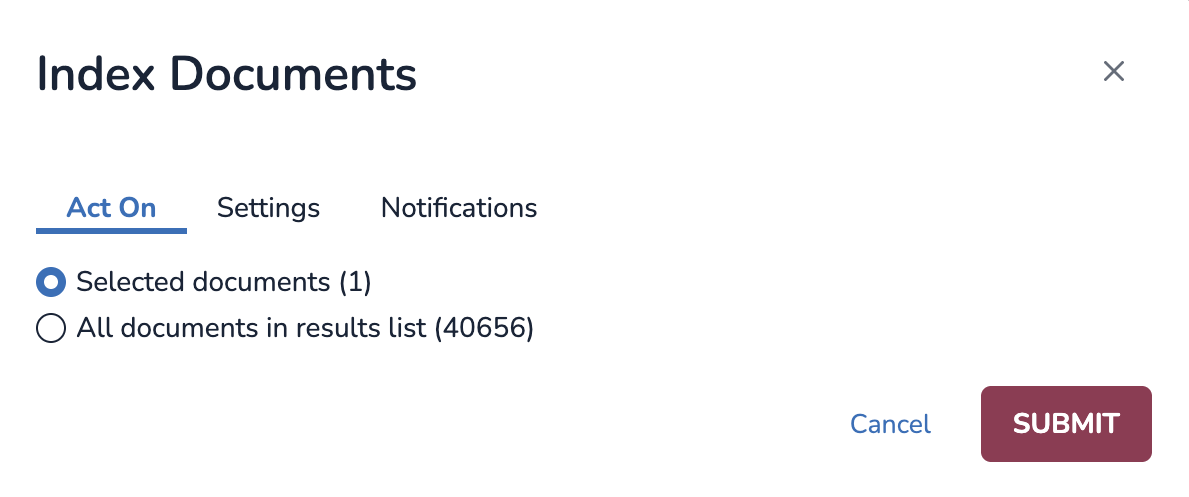
Choose which documents to index.
Selected documents – Only index documents you’ve
 checked in the Review Grid.
All documents in results list – Index all documents currently listed in the Review Grid.
Click the Settings tab.
.png)
Job Name: Name your job. This will help track its progress.
Native Views: Choose native views to index, if desired.
Native Views Template: Choose an imaging template for your native views.
Text Sets: Choose text sets to index, if desired.
HTML HD Mode: Set to All or PDF only. HTML HD mode allows for a higher definition rendering of the HTML view for documents that aren't indexed as text. This may result in better fidelity to the original native document, but also slows processing and increases index size. Since HTML is always indexed in high definition, this setting defaults to PDF only.
Generation Options:
Detect color – run the color detection process on your document.
Add alerts for unindexed documents – Populates the “alert” field that flags a document as unindexed.
Documents Filter:
All Documents – Index all documents from your selection.
Warning
Selecting “All Documents” will overwrite your document’s existing index for the specified text set. Overwritten text sets cannot be recovered.
Unindexed and Errored Documents – Only index unindexed or errored documents from your selection.
Skip redacted or annotated documents: Don’t index documents that are redacted or have annotations.
Warning
If “skip redacted or annotated documents” is unchecked, the indexing job will remove any pre-existing redactions or annotations in your documents. Overwritten redactions or annotations cannot be recovered.
Click the Notifications tab.
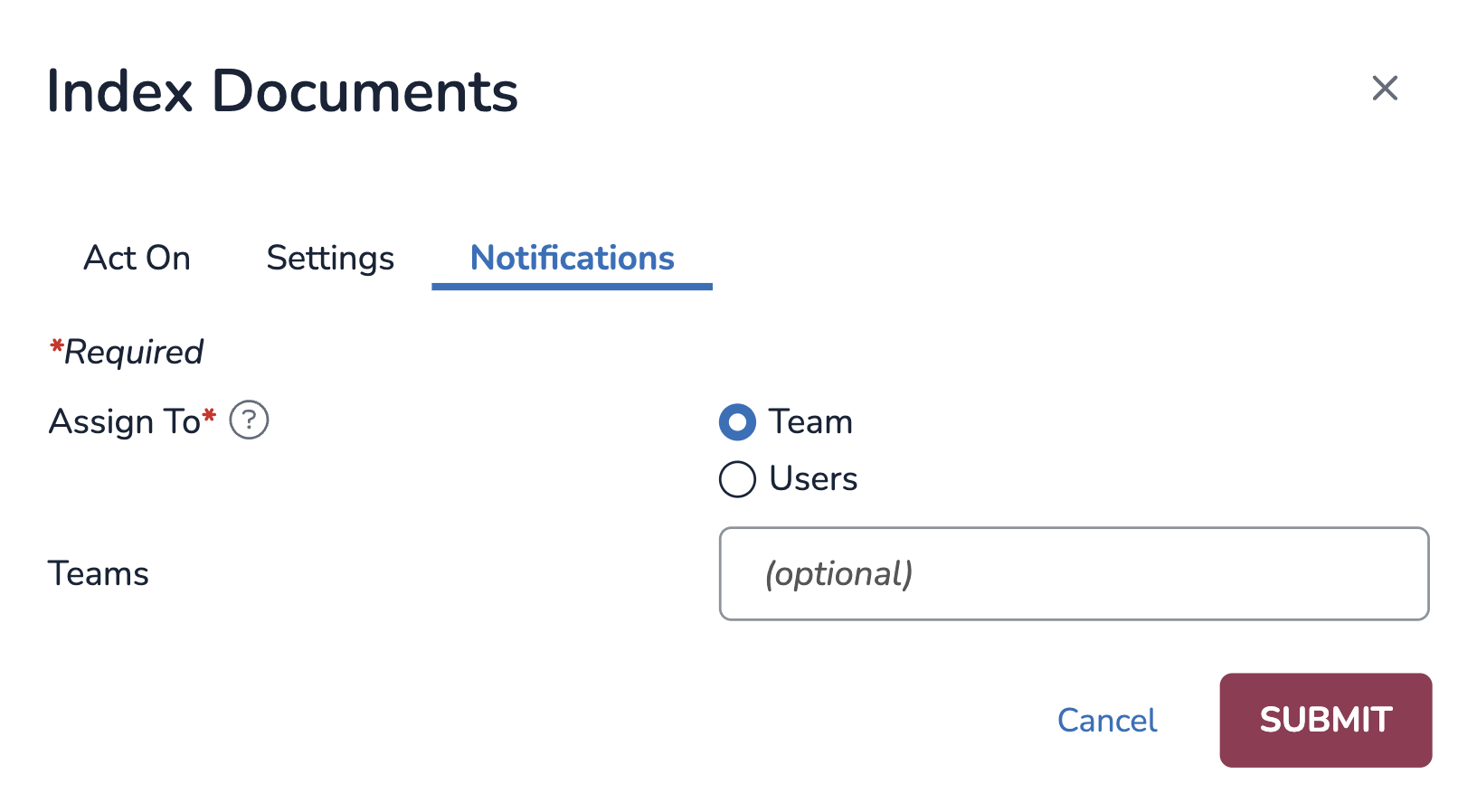
Assign To: Choose whether to notify team(s) or user(s) about the status of the Index job.
Click SUBMIT to start the Index job.