Brainspace analytics settings in Review Manager System Settings can be set for individual projects. A project-level setting replaces the instance (MSA) default for that project only, and every other project keeps the MSA default. This makes it possible to turn off analytics a project does not need, which shortens AI Document Sync build times and reduces Brainspace resource use on large projects, especially in private deployments (RPD).
Important
We strongly recommend consulting Reveal Support before changing system settings.
For an overview of the System Settings screen, see System Configuration in Review Manager.
Default values and overrides
MSA default: The All Projects row for the setting in Review Manager System Settings (Setting_Case = 0). It applies to every project in the MSA. This is the default.
Override: Add a project-level setting, a second row for the same setting scoped to one project (see Add a project-level setting). It replaces the MSA default for that project only. All other projects keep the MSA default.
Return to default: Delete the project-level setting. The project goes back to the MSA default on its next sync.
If neither row has a value, the built-in value shown in the tables below is used.
Settings per project
These settings are read for each project at the start of every AI Document Sync.
Setting | Built-in value | What it controls |
|---|---|---|
BrainspaceAnalyticsOptions | All analytics on | Which Brainspace analytics are built for the project. See BrainspaceAnalyticsOptions values below. |
BrainspaceExtractEntities | true | Entity extraction (Person, Organization, Location, Money, etc.) and the entity facet widgets on the Dashboard |
BrainspaceIncrementalIngestThreshold | 50 | The percentage of new documents, compared with the existing document count, above which a full build runs instead of an incremental build |
BrainspaceAutoOverlay | Removed | Turned off. Changing the setting has no effect. |
Note
BrainspaceUrl and BrainspaceAPIKey can only be set at the MSA level.
Add a project-level setting
Adding a project-level setting does not change the MSA default, which stays in effect for every other project.
Log in to Review Manager as an Administrator, expand Advanced Options, and click System Settings.
Select the All Projects row for the setting, for example BrainspaceAnalyticsOptions. The setting name and current value pre-fill.
Click Add.
In the Add dialog, change the Project selector from All Projects to the target project. Leave Server blank.
Enter the Value. For BrainspaceAnalyticsOptions, list every option as semicolon-separated option:value pairs. A project-level value replaces the whole list rather than merging with the MSA default. This example turns off sentiment and emotional intelligence for one project:
Brains:true;EmailThreading:true;CommunicatorReport:true;CommVizReport:true;EmotionalIntelligence:false;Sentiment:false;RevealAIVectors:true;GraphData:false;DocIndex:false;DocIndexFields:false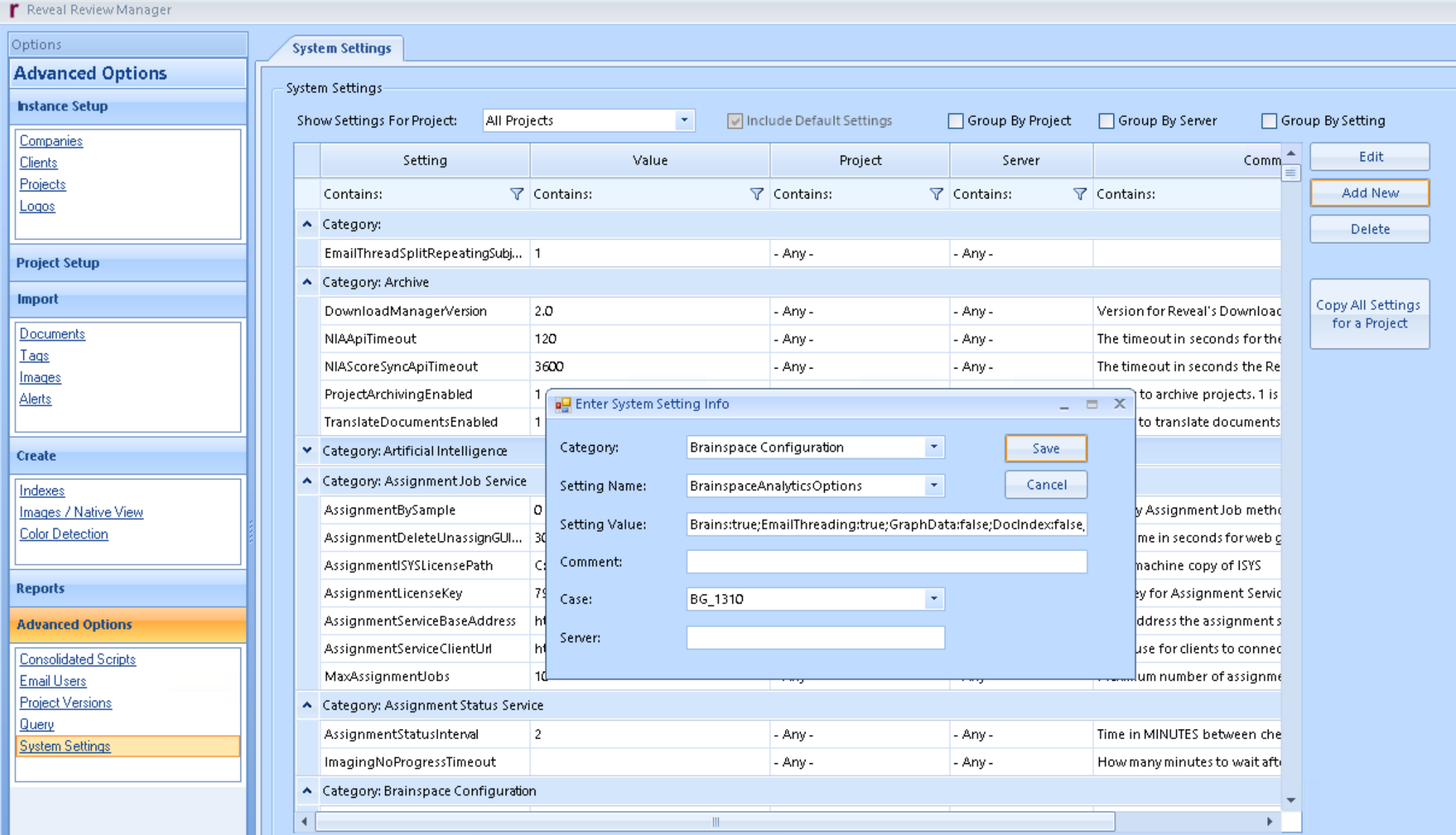
Click Save. The project-level setting shows in green in the grid.
Repeat steps 2–6 for BrainspaceExtractEntities or BrainspaceIncrementalIngestThreshold if needed.
Wait a few minutes for the Review API and index services to refresh their settings cache, then run an AI Document Sync for the project.
To confirm the options were applied, check the index service log. Each sync writes a line starting with
Analytics Options for BRS:, followed by the options used for that build.
To see which projects have their own settings, select a project in the System Settings grid filter and check include default settings. The project-level setting and the MSA default show side by side.
To apply the same project-level settings to another project, use Copy Settings. It copies all project-level settings to the target project.
For environments where SQL access is preferred (RPD), you can insert the row directly:
Setting name: BrainspaceAnalyticsOptions
Setting_Case: the project's case ID
Setting_ServerName: empty
Setting_Value: the option string
Services pick up the new row on their next cache refresh.
BrainspaceAnalyticsOptions values
Every option takes true or false. When the setting has a value, it replaces the whole list below, so include every option. If neither a project-level setting nor the MSA default has a value, the built-in values apply.
Separate options with semicolons. A comma-separated value is read as one invalid pair, and the built-in values stay in place.
Option | Built-in value | Effect when false |
|---|---|---|
Brains | true | No concept search, Cluster Wheel or Brain Explorer |
EmailThreading | true | Email threading metadata is not generated, and thread fields stay empty |
CommunicatorReport | true | No sender and recipient communicator data, and the top sender/recipient Dashboard widget is empty |
CommVizReport | true | No Communications tab. CommunicatorReport must be true for this tab to show data. |
EmotionalIntelligence | true | Emotional Intelligence score fields and visualizations are not populated |
Sentiment | true | Positivity and negativity score fields and visualizations are not populated |
RevealAIVectors | true | Vector files for Reveal AI classifiers and GenAI hybrid mode are not generated. Leave true. |
GraphData | false | Legacy Brainspace standalone option. Leave false. |
DocIndex | false | Legacy Brainspace standalone option. Leave false. |
DocIndexFields | false | Legacy Brainspace standalone option. Leave false. |
Text partitions (the input for Ask and embeddings), is not controlled by this setting.
Notes
When changes apply: Settings are read when a sync starts. A change applies to the next AI Document Sync, not to builds already running.
Settings cache: Review services cache system settings and refresh them on a background timer, so allow a few minutes between saving a setting and starting a sync. Review Manager refreshes its own cache immediately.
Turning an option off on a project that already has analytics built: The next sync sends the new option list to Brainspace. Run a full sync (not incremental) after reducing options on an existing project so stale fields and visualizations are removed. Confirm with the
Analytics Options for BRS:log line.Empty values: A project-level setting with an empty value does not fall back to the MSA default. It uses the built-in values. To return a project to the MSA default, delete its project-level setting.
Add, not Edit: Only Add creates a project-level setting. Editing the All Projects row changes the value for every project without its own setting.
RevealAIVectors: Turning this off disables supervised learning features, including Reveal AI classifiers and GenAI hybrid mode, for the project. Leave it on unless the project will never use them.
Entity extraction: Entity extraction is controlled by the separate BrainspaceExtractEntities setting, not by BrainspaceAnalyticsOptions.