This article provides guidance for identifying and resolving common issues encountered during production jobs in Reveal, including imaging failures, numbering problems, missing output, and performance concerns.
Preproduction
When a Production Job is created, running the Preproduction function allows you to gain information about the job, such as total documents, pages and, most importantly, draw attention to any documents that may error during production.
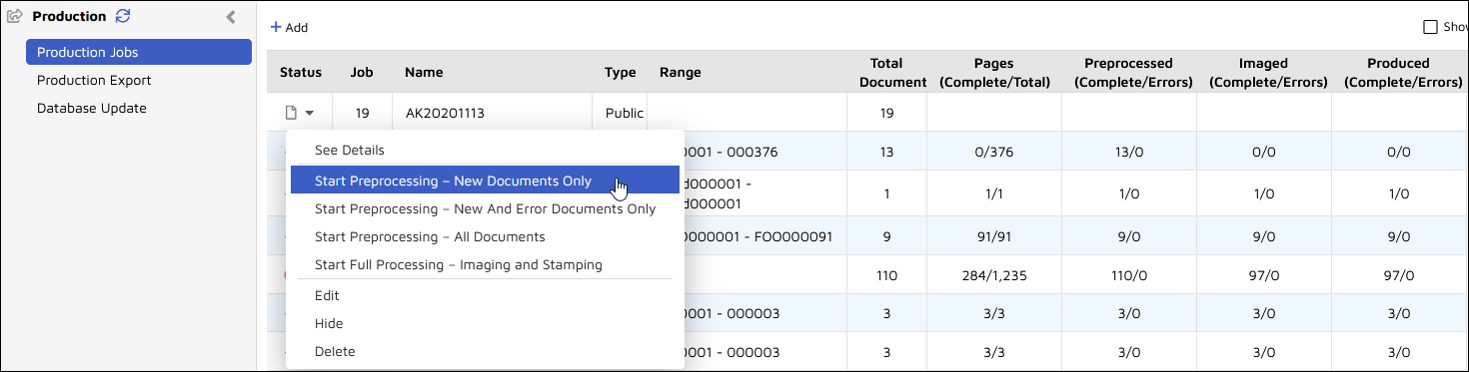
To start the preproduction process, select the dropdown arrow next to your new Production Job and choose Start Preprocessing - New Documents Only. You will be asked to confirm on start. You also see the ability to reprocess errors from earlier production jobs’ preprocessing.
If preprocessing runs perfectly, a green checkmark will appear next to the processing job.

Most common errors noted during preprocessing require:
Checking links to native files,
Replacing corrupt native files, or
Adjusting excluded documents settings referencing either file extension or work folder.
After fixing any errors or choosing to exclude error causing documents, opening the dropdown arrow again you can choose Start Preprocessing - New and Error Documents Only for the production job to determine whether fixes were successfully applied.
Imaging Errors in Production Jobs
Imaging errors can be reviewed in the production Summary Report or Error Log. These reports identify affected documents and list error types such as missing natives, imaging timeouts, page count mismatches, etc.
Use the error report to run searches on BEGDOCs to determine course of action. Based on the issue, remediation may include replacing or adding natives, bulk imaging documents, applying slipsheets, etc. If no remediation is performed, affected documents will be added to the Failed to Generate slipsheet.
Numbering Issues
New Sequence
If page numbers are incorrect or suffixes are missing, confirm whether numbering is set at the Document Level or Page Level. Ensure the correct selection and suffix clearly shown for Document Level. Selecting a space or underscore assists in clearly viewing the suffix separate from the bates number.
Existing Numbering
If documents receive generic numbering instead of originally assigned Bates numbers, verify that:
Documents were included in a prior production
A Database Update was completed using an Image Set
Documents belong to the same Image/PDF Set
The correct Image/PDF Set is selected under Production Job > Numbering > Existing Numbers
Important
Existing Number option will not work from a Native production (No Images). Previously used Production Numbers are identified from an existing production image in a Production Image/PDF Set.
Workaround for Native-Only Productions
Select the Image/PDF option in Production Job and slipsheet the full production to assign one production number per document
Export the production without images
Create a Database Update job and apply the slipsheets to an Image/PDF set
Run an Existing Number production for previously produced documents
If including images for formerly produced Native documents, each additional pages will receive the same Begin Production Number with a suffix starting at _00002
Next Number Not Assigned
If the next Bates number does not advance as expected, confirm that the last production job was selected in the Numbers dropdown menu. It will display the next number to be assigned.
Privileged Imaged or Text and Native Content Issues
Privileged behavior is controlled by the Privileged setting on the tag, not by the tag name itself. Verify that:
The tag is marked as privileged in Project Administration
A privileged slipsheet condition is included in the production job
Export settings include the appropriate native and text options
Privileged – Imaged or Text and Native Present
Project Administration – Tags
Privileged status is determined by the Privileged flag on the tag, not by the tag name itself.
Verify the tag used to identify privileged documents has the Privileged option selected.
Production Job
Confirm that the slipsheet condition selected is the Privileged type and not the Tag type.
Production Export
Verify that the export settings for Native and Text output are selected appropriately.
Missing Text or Native Files in Exports
If text or native files are missing from the export, review the following for each section settings.
Error Status
If errors are flagged in the production job, review the documents with errors to determine whether text or native files exist.
Review the load file for indicators such as:
“No Text Available” in the Text Location field
“No Native Available” in the Native Location field
Export Settings
Confirm that the export settings for Native and Text output are configured correctly. Available options include:
None
All
Custom
Note
For native exports, the Custom option appears as an ellipsis (three dots). Use this menu to select which categories, including specific slipsheet conditions, should be exported as natives.
Text or Native Export Order
Review the export order settings to confirm which text or native set is prioritized. This setting allows additional text or native sets to be specified if the first selected option does not contain a text or native file.
Missing Redacted Spreadsheets
If redacted spreadsheets are missing from the export, confirm that:
The production job was set to PDF + Spreadsheets and that redacted spreadsheet natives are included in a slipsheet rule
The production export job native file rules:
Check the appropriate Export selection is made for Native File Rules which would be the slipsheet rule with the redacted spreadsheet natives.
Confirm the Native Spreadsheet View Path is included and the first option for Native Files selection. Exported Native File should be the second for original natives that do not have redactions.
Ensure First Native Found is selected.
Spreadsheet view path is included and the first option for Document Text Set Order. Extracted and OCR/Loaded should remain for the texts that do not have redactions
Important
All conditions must be met for redacted spreadsheets to export correctly.
Production Job Delays and Performance
Production pages do not automatically refresh. Select Refresh to update job progress and statistics.
While there is no strict limit on production size, Reveal recommends keeping production jobs under 250,000 documents or 500,000 pages for optimal performance. If production jobs remain stalled or delayed, contact Reveal Support to review backend job queues.