Even though each agency has its own default notifications, you can customize your own notification preferences to fit your workflow needs. Navigate to .png) (user menu) >
(user menu) >  Profile >
  Notifications for notification settings.
Change notifications
To edit your notification preferences…
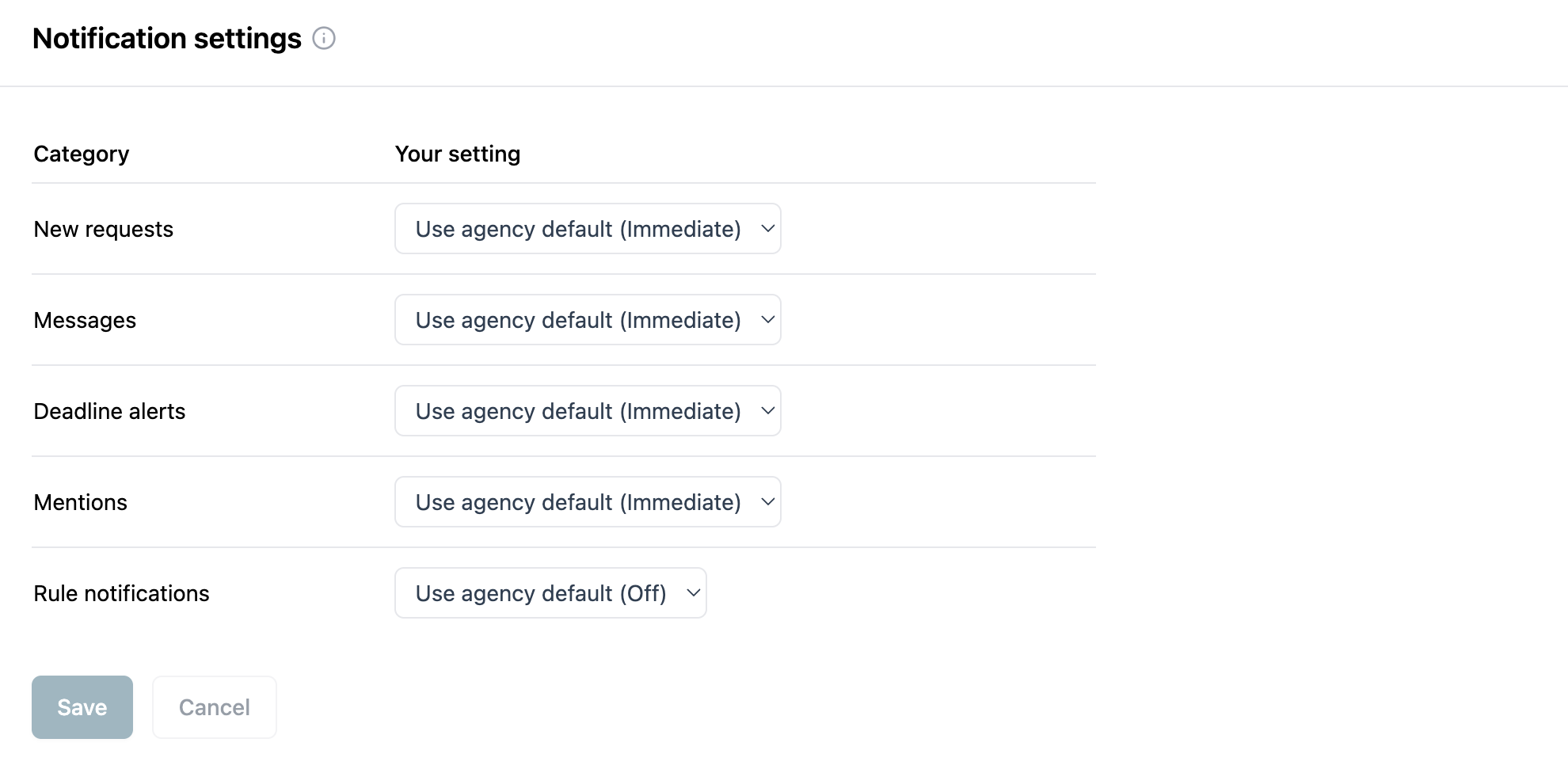
Click each dropdown and change your preferences.
Use agency default: Align your notifications with the agency’s default, in parentheses.
Immediate: Receive immediate notifications for this category.
Off: Receive no notifications for this category.
Click Save.
Notification categories
See the below table for descriptions of each notification category.
Category | Description |
|---|---|
New requests | Receive an alert when a new request has been submitted. |
Messages | Receive an alert when a new message has been submitted by the requester. |
Deadline alerts | Receive an alert when a request deadline is approaching. |
Mentions | Receive an alert when someone mentions (@) you in the system. |
Rule notifications | Receive an alert when a routing rule notifies you. If turned off, you won't get these alerts even if a rule is set to notify you. |