Passwords can be managed from your user menu (profile picture or monogram) at the upper right corner of the screen. Navigate to .png) (user menu) >
(user menu) >  Profile >
  Security.
Change your password
To change your password…
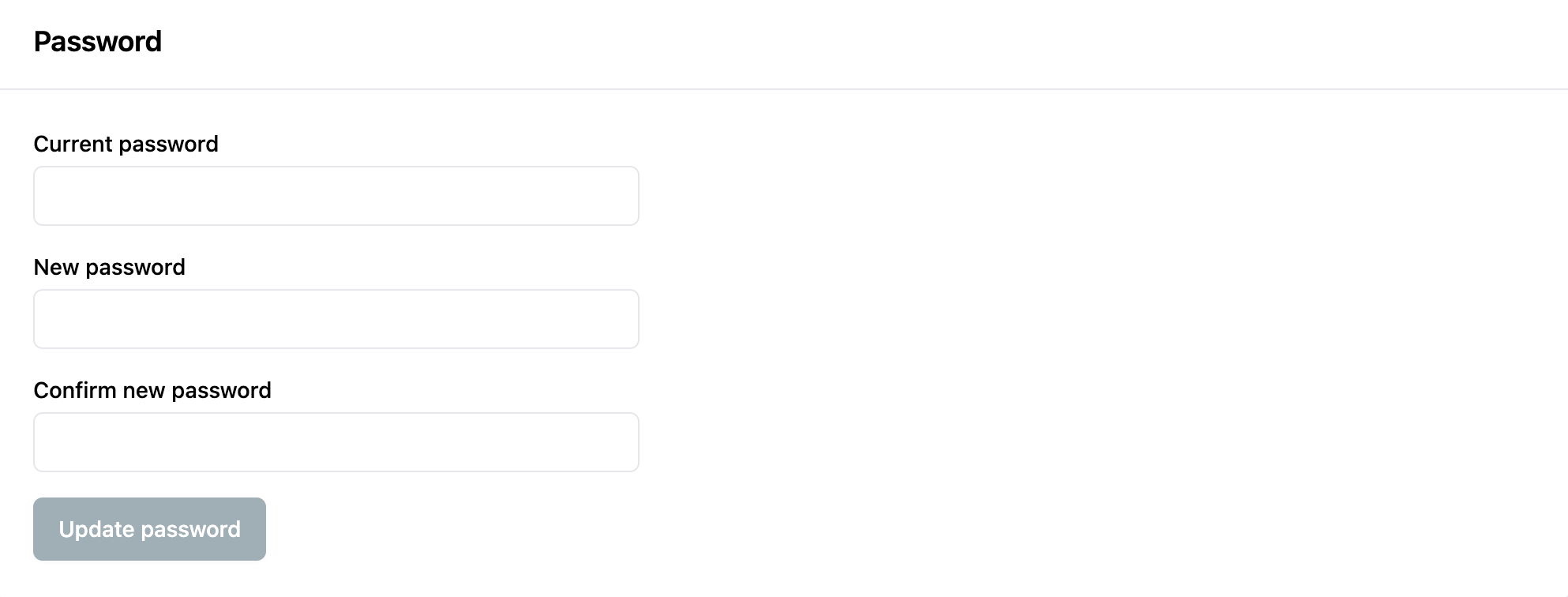
Current password: Type your current password
New Password: Type your new password.
Note
Passwords must be 8 characters or longer and have at least one upper case, one number, and one symbol.
Confirm new password: Re-type your password. The system will tell you if your password doesn’t match.
Click Update Password.
Changing password with SSO
If your organization uses SSO, you won’t be able to change your password through Logikcull for Public Records, and instead see the below message in your Security tab.

For more information about single sign-on, see SSO Configuration.