The Profile tab lets you access a variety of account settings from your user menu (profile picture or monogram) at the upper right corner of the screen. To see this account information, navigate to .png) (user menu) >
(user menu) >  Profile.
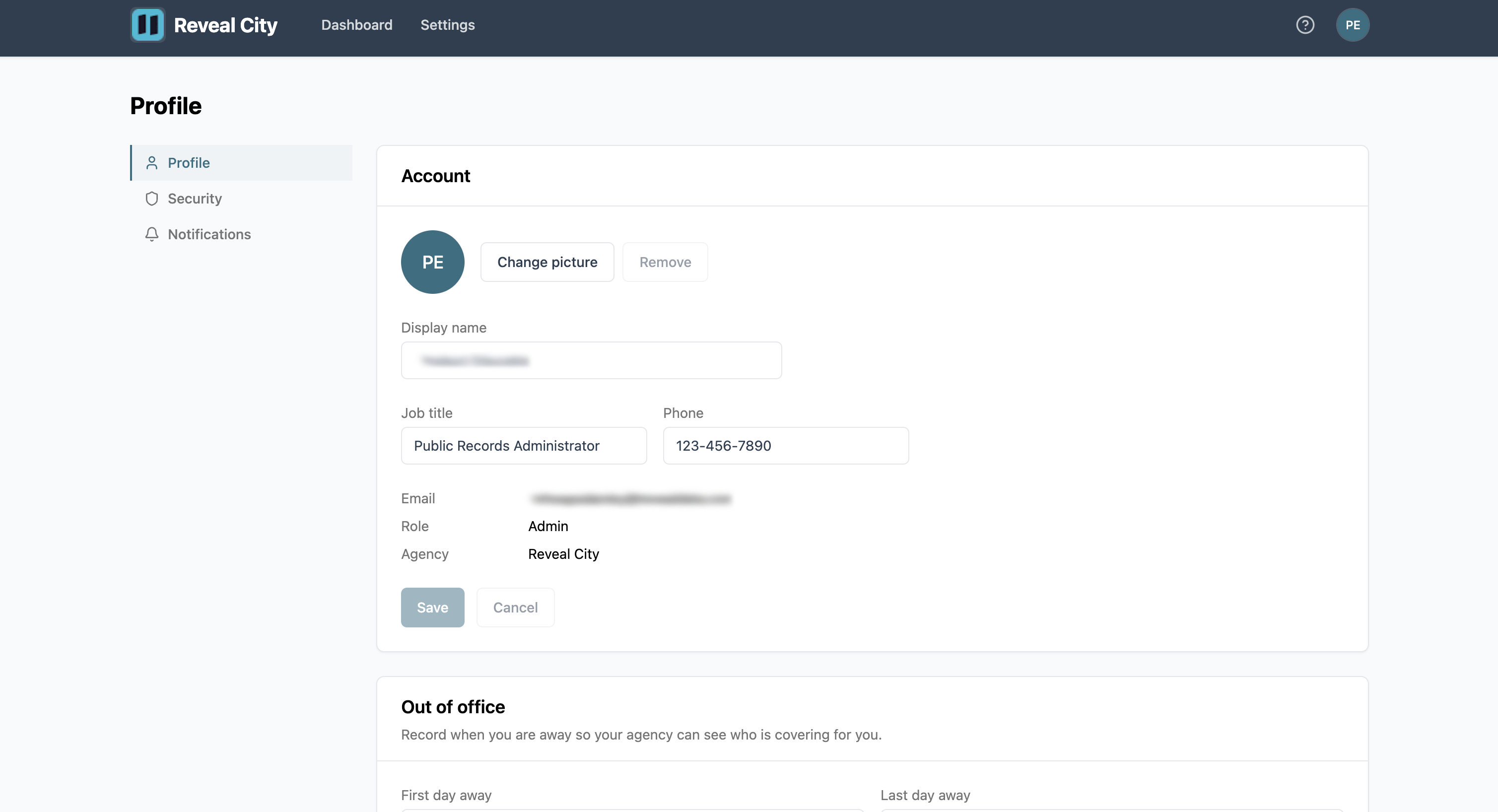
Account
Your account information contains basic information about your profile, some of which can be edited.
.png)
Editable account information
Display name: Optional. The name you want displayed in tables and interfaces across the product. If left empty, your name will default to your email.
Job title: Optional. The position in your agency.
Phone: Optional. Your phone number.
When you’re done editing your information, click Save.
Non-editable account information
Email: The email associated with your account.
Role: Your permission level, which is set by Admins.
Admin – Full access. Can configure agency settings, and view and manage all requests.
Officer – Manages assigned requests, updates statuses, notes, and assignments.
Viewer – Read-only access to requests.
Agency: The agency your account belongs to.
Change profile picture
You can choose to upload a profile photo for your account, which is visible in areas of the interface that list your display name. If no photo is uploaded, your picture will default to a 2-letter monogram that is based off your display name (or email, if your display name is empty).
To upload a picture…
Click Change picture.
Upload your file. Your photo must be a PNG or JPG/JPEG and under 512 KB.
Click Save.
To remove a picture…
Click Remove.
Click Save.
Out of office (OOO) status
If you’re an Officer or Admin, you can set yourself as out of office (OOO) between a custom or open-ended date range through your account settings.
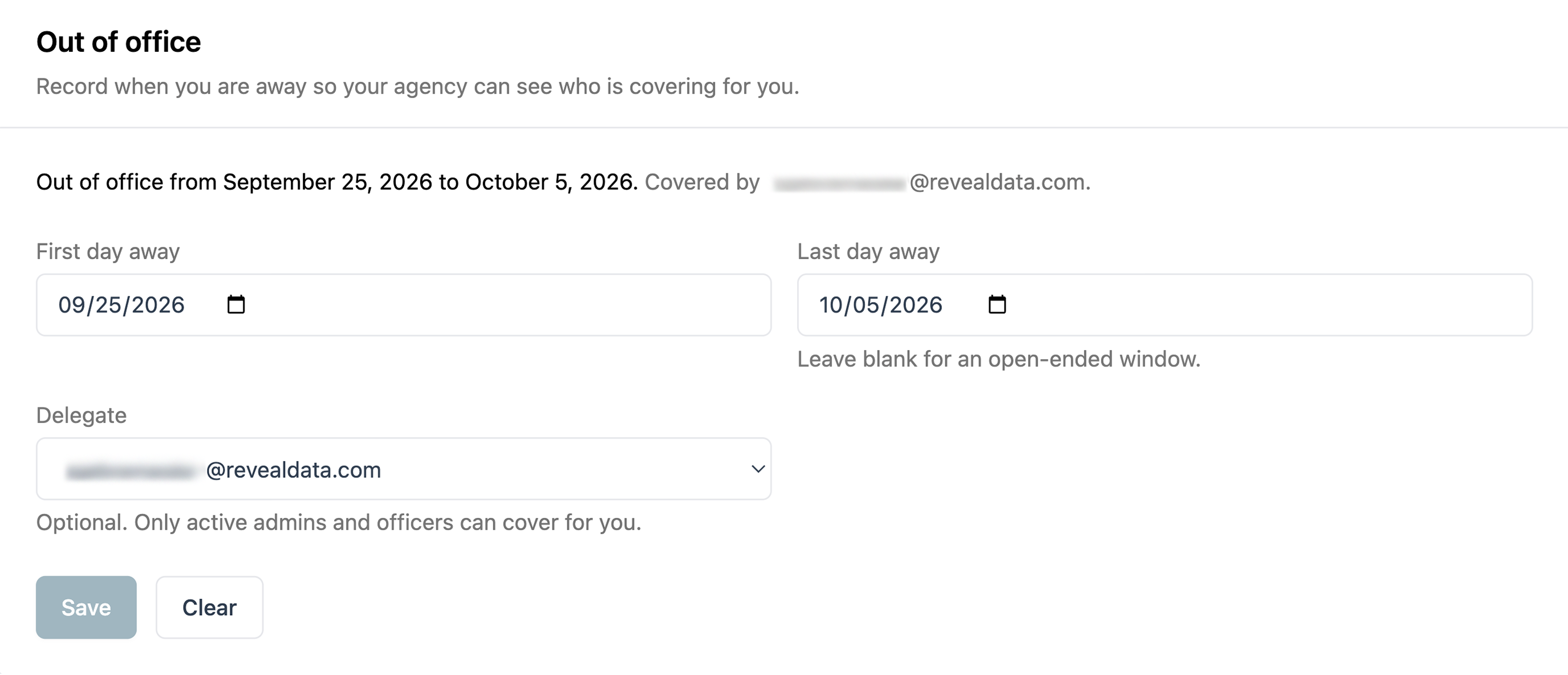
First day away: Click the
 calendar icon and choose your first OOO day, or type the date in manually.
Last day away: Optional. Click the
calendar icon and choose your last OOO day, or type the date in manually. If you’re not sure when you’re returning, you can leave the last day blank for an open-ended window. Requests will reroute accordingly until you clear your OOO status.Delegate: Optional. Choose an Officer or Admin from the dropdown to receive your requests while you’re away.
Click Save to set your OOO date.
Your OOO status can be ended early by pressing the Clear button.
OOO delegation and rerouting
Typically, setting a delegate during your OOO window will reroute and assign new requests to that delegate. However, certain conditions, like your delegate also setting themselves as out of office during your same dates, can change where requests are routed to.
See Routing Flow Chart for a diagram of how the routing process works, which also takes into account request location and fallback assignees.