The Requests tab is the default view when you open the Agency Dashboard. It lists every public records request submitted to your agency and gives you tools to search, filter, and navigate to individual requests.
Viewing requests — All, My Requests, and Unassigned
Three tabs filter the request list. The list columns and search/filter controls are identical across all three tabs.
All - Displays every request submitted to your agency regardless of assignment or status. Use this tab to get a full picture of agency request volume or to find any specific request.
My Requests - Displays only the requests assigned to you. Use this as your personal work queue.
Unassigned - Displays requests that have not yet been assigned to any staff member. Use this tab to pick up new requests and assign them for handling. When the Unassigned tab is active, an Unassigned filter chip appears below the search bar.
Clearing the Filters
Click the × on the chip or Clear all to remove the filter.
Summary metrics
Five counters appear at the top right of the page. They update dynamically based on which tab is active.
New — requests that have been submitted but not yet actioned.
Processing — requests currently being processed.
Review — requests currently under review.
Overdue — requests that have passed their response deadline. Shown in red.
Due soon — requests approaching their deadline. Shown in orange.
Searching and filtering
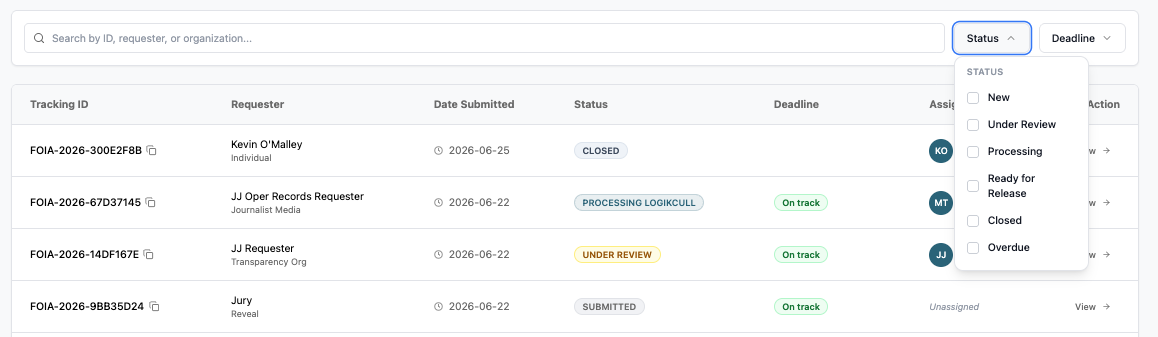
Use the search bar and filter dropdowns to narrow the request list to the requests you need.
Search bar — search by tracking ID, requester name, or organization name.
Status — filter by request status: New, Under Review, Processing, Ready for Release, Closed, Overdue.
Deadline — filter by deadline proximity: On track, Due soon, Overdue.
Request list columns
Each row in the request list shows the following information:
Tracking ID — the unique identifier for the request (e.g. FOIA-2026-67D37145). A copy icon lets you copy the ID to clipboard.
Requester — the requester's name and organization type (e.g. Individual, Journalist Media, Transparency Org).
Date Submitted — the date the request was received.
Status — the current status of the request, shown as a color-coded badge.
Deadline — the response deadline, shown as a color-coded badge.
Assigned To — the avatar initials of the assigned staff member, or Unassigned in italic if no one has been assigned.
Action — a View → link that opens the Individual Request view for that row.

Request statuses
Requests move through the following statuses as they progress through the fulfillment workflow:
New / Submitted — the request has been received and not yet actioned. New is the filter label; Submitted is the row badge. Shown in grey.
Under Review — the agency is reviewing the request. Shown in yellow/amber. Corresponds to Agency Review in the Individual Request stage bar.
Processing / Processing Logikcull — the request is in active processing. The row badge displays as Processing Logikcull when the Logikcull integration is active; the filter label is simply Processing. Shown in teal.
Ready for Release — the request has completed processing and is awaiting final release to the requester. Corresponds to Final Approval in the Individual Request stage bar.
Closed — the request has been closed.
Overdue — a cross-cutting filter surfacing requests past their deadline regardless of workflow status. Not a workflow status in its own right.
Deadline badges
The Deadline column shows a color-coded badge indicating how close the request is to its response deadline:
On track — the deadline has not been exceeded and is not approaching. Shown in green.
Due soon — the deadline is approaching. Shown in orange.
Overdue (N days) — the request has passed its deadline by the number of days shown (e.g. Overdue (7 days)). Shown in pink/red.
