When it’s time to ask for payment from your requester, you’ll need to send a fee notice. Fee notices are configured and sent through a request’s Messages tab.
Create and send fee notice
To send a fee notice…
Navigate to the Messages tab from within your request.
In the message type dropdown, choose fee notice. This will make additional fields appear related to payment.
.png)
Configure your payment settings.
Amount: Choose an amount to charge.
Description: Provide a short description of the purpose of the charge
Due date: Select a due date from the calendar, or type one in.
Choose from one of the available payment options. If any are missing on your screen, this is because an Admin has disabled that kind of payment method through agency settings.
Send an invoice – An invoice is sent via email to the requester directly from your payment carrier.
Generate a link – A link is automatically generated by your connected payment carrier and inserted into your message.
Paste a payment link – This gives you the most flexibility in terms of payment. You have the option to manually paste an existing 3rd-party payment link, or forgo the link altogether if the preferred payment method is offline, like in person or through mail.
Payment link: Optional. Paste your payment link, if you’re using one.
Pause the clock when this is sent: Check to pause the in-app deadline clock as you’re waiting for payment.
Warning
Logikcull for Public Records lets you pause the deadline clock while waiting on payment. But whether waiting for payment legally extends your statutory deadline varies by jurisdiction. Confirm with your agency's legal counsel before using this pause feature.
Reveal does not provide legal advice, and using this feature doesn't guarantee compliance with your deadline requirements.Reason for pausing: State the reason the clock is being paused. This is pre-filled with “Awaiting fee payment” for convenience.
Compose your message. A Fee Notice message preset is built in to the application for use. The fields you filled in step 3 will autofill the {variables} in the message.
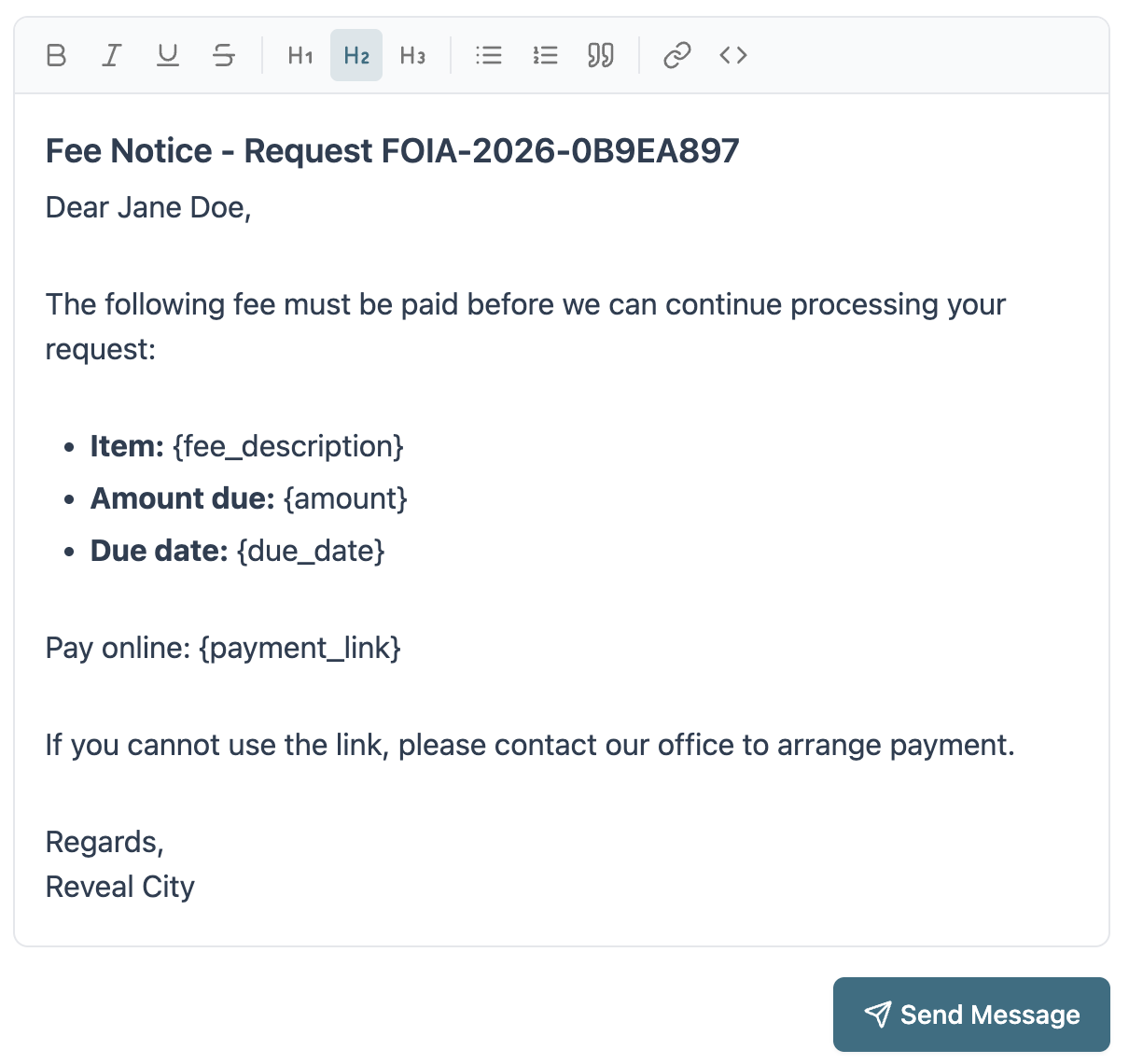
Click Send Message to send your fee notice.
After sending a payment, regardless if the clock is paused, the request will receive an additional Pending payment status, shown below.

Mark payment as paid
Even if payments are made through your payment carrier, a member is still required to manually mark each payment as paid in order to remove the “Pending payment” status and restart the clock (if it was paused).
In your request’s Messages tab, from directly within the fee notice itself, click the underlined Mark as paid link.
.png)
Important
After marking a request as paid, always check your request’s clock to make sure it’s unpaused.