After submitting a request, you can check its current status and communicate with the agency through the portal. There are two ways to access your request: by entering your tracking number, or through the My Requests tab if you are signed in.
Before you begin
You'll need your tracking number. It was displayed on the confirmation screen when you submitted your request, and also sent to your email in a Request received confirmation email. Tracking numbers follow the format FOIA-YYYY-XXXXXXX (for example, FOIA-2026-67D37145).
Option A: Track by tracking number
Use this option if you are not signed in or want to look up a specific request directly.
From the agency's portal homepage or the top navigation, click Track Status.
In the tracking number field, enter your tracking number (for example, FOIA-2026-67D37145).
Click Track.

Option B: View My Requests
If you submitted your request during this browser session or have previously verified your email on this device, you will be signed in automatically. Click My Requests in the top navigation to see all requests you have submitted.
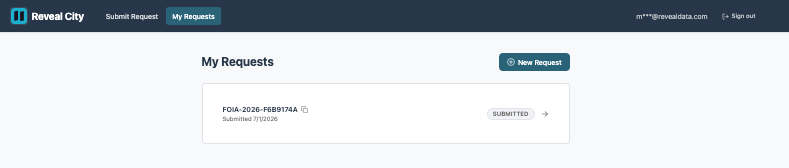
Each row shows the tracking number, submission date, and current status. Click the → arrow on any row to open the full request detail.
Your request status
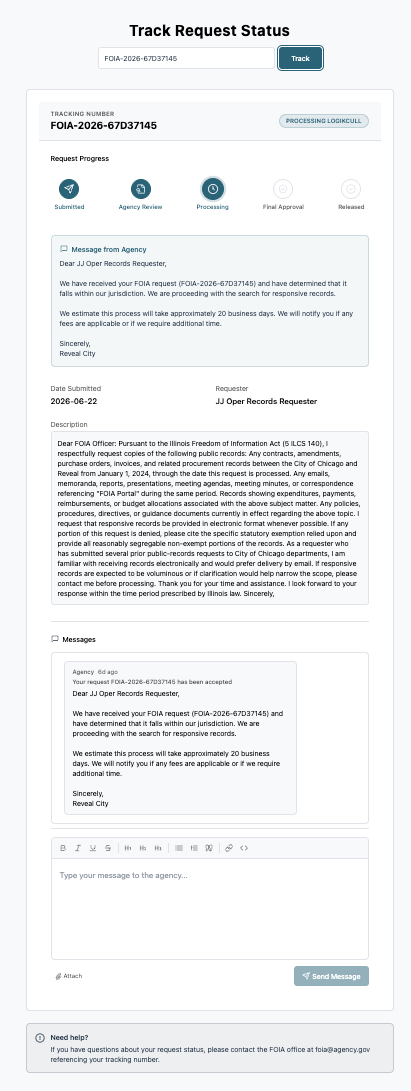
Whether you arrive via tracking number or My Requests, the request detail screen shows the full status and details of your request.
The result screen shows:
Tracking number — displayed at the top of the card with the current status badge.
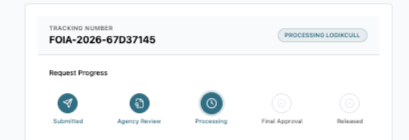
Request Progress — a five-stage progress bar showing where your request currently sits in the fulfillment process. Completed stages are filled; future stages are greyed out.
Message from Agency — the most recent message sent to you by the agency.
Date Submitted and Requester — key details about the original submission.
Description — the full text of the records description you submitted.
Messages — the full history of all communications between you and the agency, in chronological order. This includes acceptance notices, clarification questions, and any other messages the agency sends. Shows "No messages yet." until the agency sends a message. You can reply directly in the compose area below the thread.
Need help? — the agency's contact information for questions about your request.
Understanding your request progress
Your request moves through the following five stages, shown on the progress bar:
Submitted — your request has been received by the agency.
Agency Review — the agency is reviewing your request to determine whether to accept or decline it.
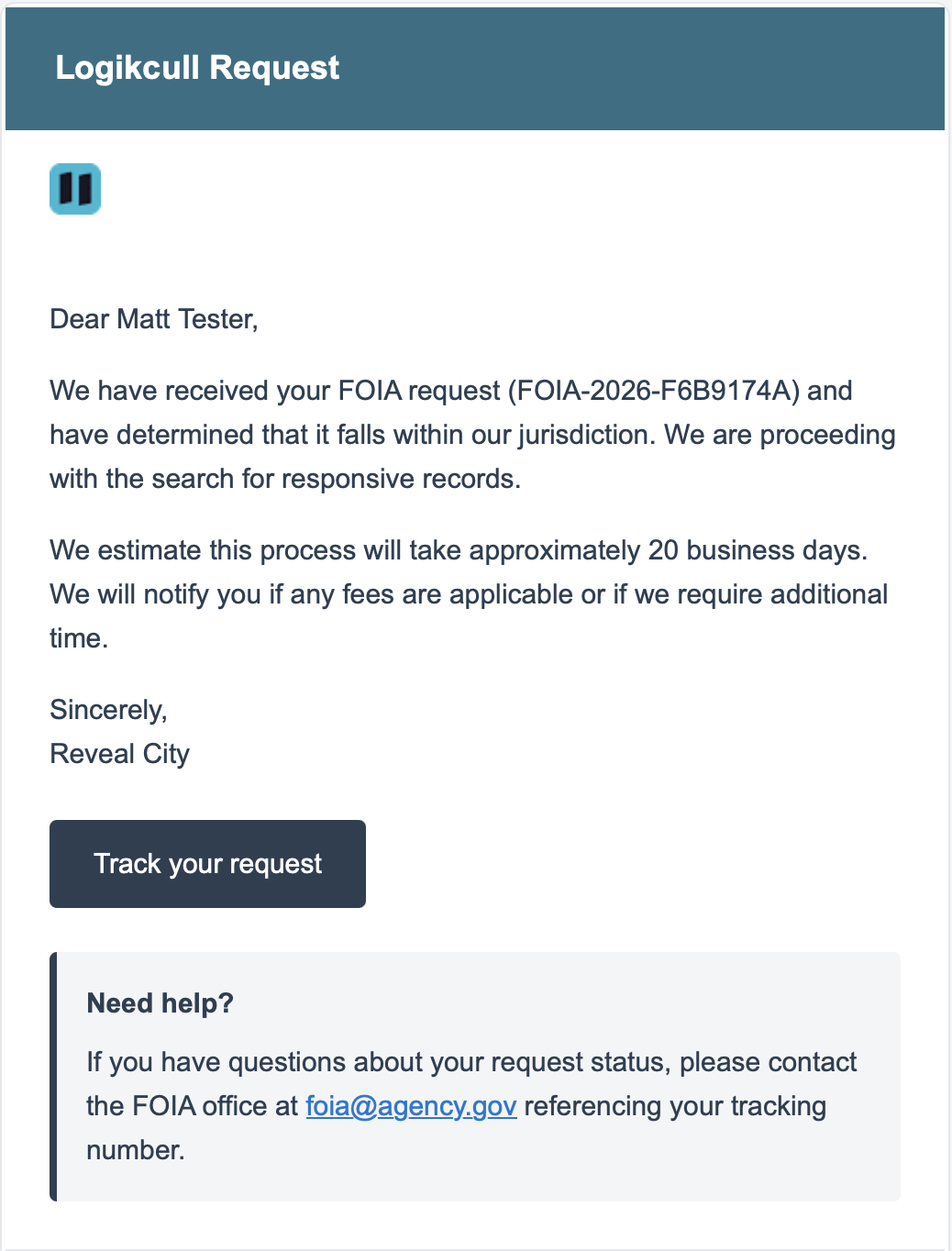
When the agency accepts your request, you'll receive an email notification confirming they have determined it falls within their jurisdiction and are proceeding with the search for responsive records.
The email includes an estimated response timeline and a Track your request button.
Processing — the agency is searching for, reviewing, and preparing the requested records.
Final Approval — the agency is conducting a final review before releasing records to you.
Released — your request has been completed. The agency's responsive records are available through the portal.
Each time your request moves to a new stage, you'll receive an email notification. The agency's message will also appear in the Messages section of the result screen.
Communicating with the agency
The Messages section on your request screen is the main channel for all communication between you and the agency. This is where you'll see agency updates, respond to clarification questions, or reach out with questions of your own.
The Messages section shows the full history of communications in chronological order. All messages — acceptance notices, clarification questions from the agency, and your replies — appear in the same thread.
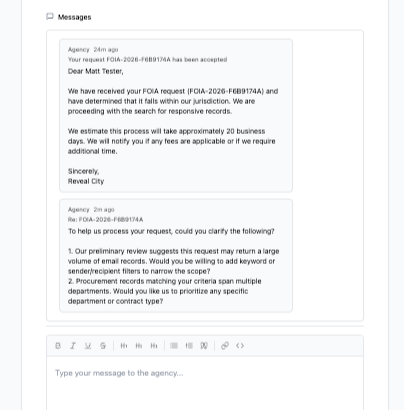
To send a message or reply to the agency:
In the compose area below the message thread, type your message.
To attach a file, click Attach. Supported file types are PDF, DOCX, XLSX, and images. Maximum file size is 10 MB.
Click Send Message.
The agency will be notified by email when you send a message and can reply. Their reply will appear in the thread and you'll receive a New message available email notification with a View messages button linking back to your request.
Getting help
If you have questions about your request status, contact the agency's FOIA office at the email address shown in the Need help? section at the bottom of the result screen. Reference your tracking number in your message.
Next steps
Submit a Request — submit a new public records request