You can request records from an agency in just a few steps.
Once a request is submitted, you'll get a tracking number immediately and can check your status any time.
When to use this guide
Use this guide when you need to formally request government records or documents from an agency.
Use this guide when you've been directed to an agency's FOIA portal by an agency representative.
Before you begin
You'll need two things:
The agency's portal URL — this looks like
requests.agency.govor similar. The agency provides this on their website.A valid email address — this is where your tracking number, confirmation, and any agency messages will be sent. You'll also use it to verify your submission.
Step 1: Start your request
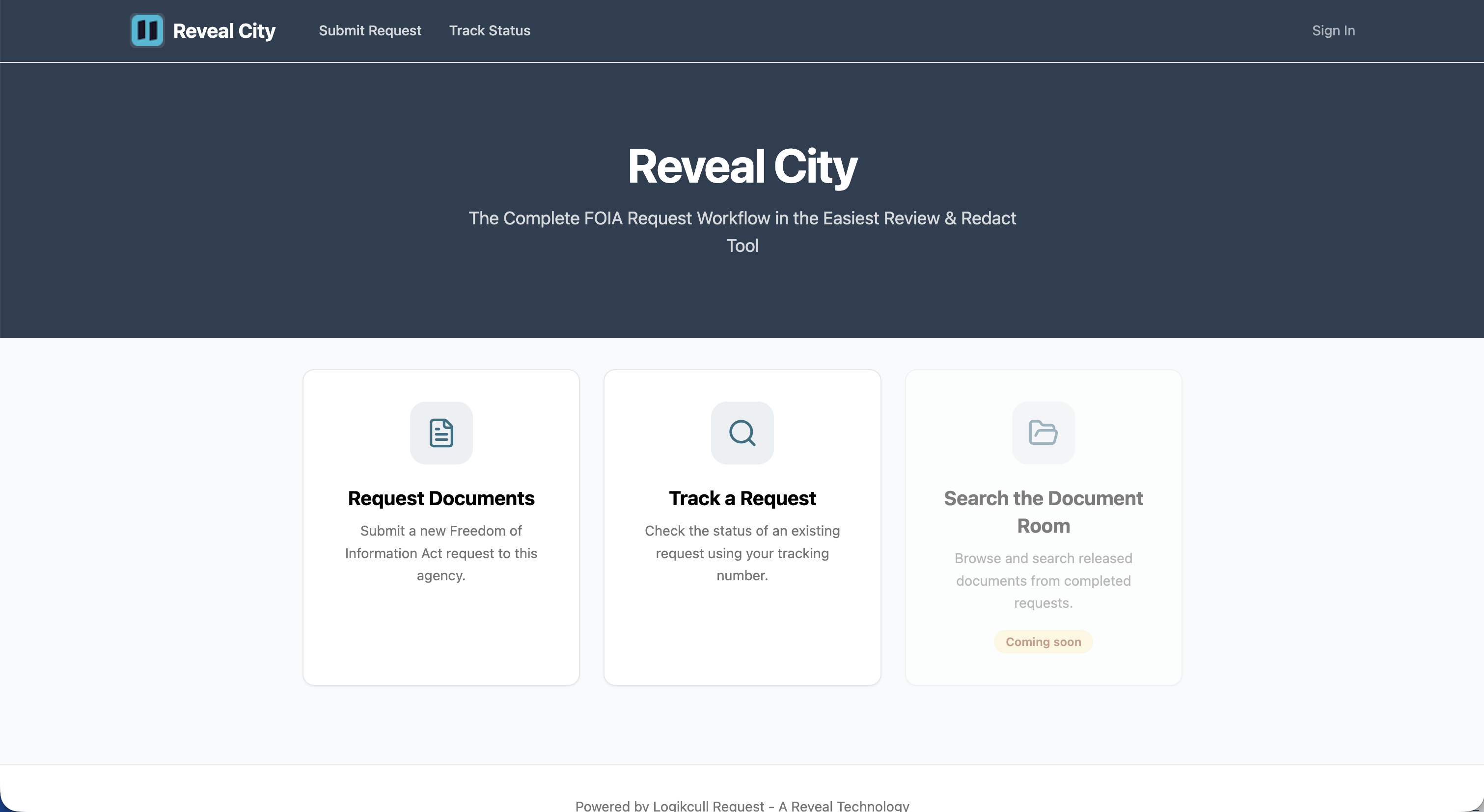
Go to the agency's portal URL in your web browser.
On the homepage, click Request Documents.
Step 2: Complete the request form
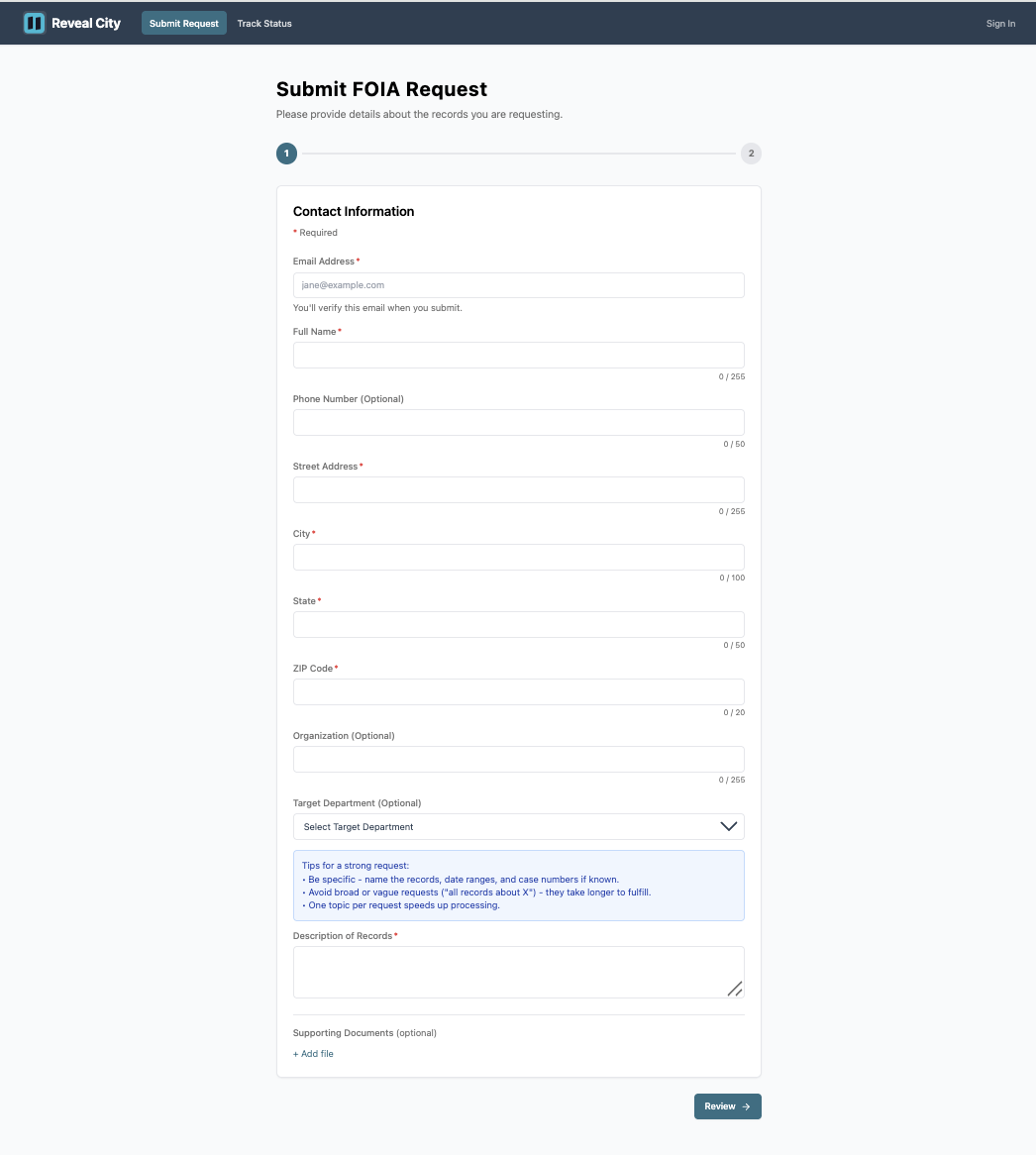
The form takes about five minutes to complete. Be as specific as possible — clear descriptions help the agency locate records faster.
Fill in your contact information. Fields marked with an asterisk are required:
Email Address* — you'll verify this when you submit.
Full Name*
Phone Number — optional.
Street Address*
City*, State*, ZIP Code*
Organization — optional.
Target Department — optional.
Select the department you believe holds the records, if known.
In Description of Records, describe the records you're requesting. This field is required. Include date ranges, department names, or person names if you know them — specifics narrow the search and help the agency respond faster.
Optionally, attach supporting documents under Supporting Documents. Accepted file types are PDF, DOCX, XLSX, and images up to 10 MB.
Click Review to continue.
Step 3: Review and submit
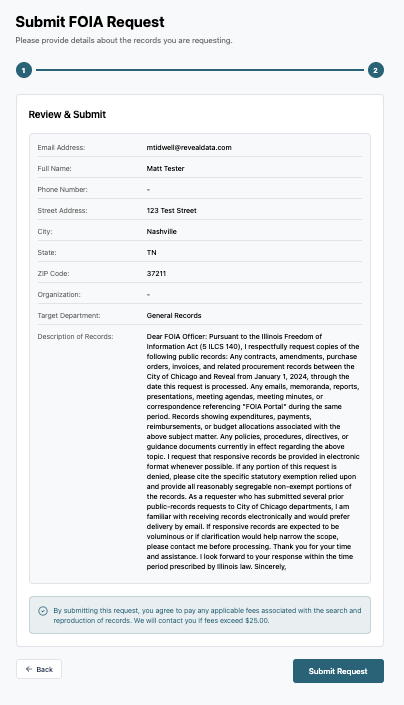
Step 2 shows a summary of everything you entered. Check your details — if anything needs correcting, click Back to return to the form.
A notice at the bottom reads: "By submitting this request, you agree to pay any applicable fees associated with the search and reproduction of records. We will contact you if fees exceed $25.00."
Click Submit Request.
Step 4: Verify your email
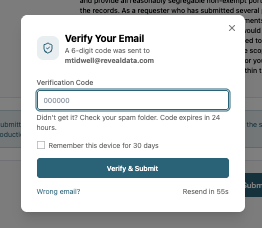
A Verify Your Email prompt appears. The system sends a 6-digit verification code to the email address you provided.
Check your inbox for an email from Logikcull Request containing your verification code.
Enter the 6-digit code in the Verification Code field.
Optionally, check Remember this device for 30 days to skip verification on future submissions from this device.
Click Verify & Submit.
If you don't receive the code, check your spam folder. The code expires in 24 hours.
Click Resend if you need a new one. If the email address is wrong, click Wrong email? to go back and correct it.
Step 5: Confirmation
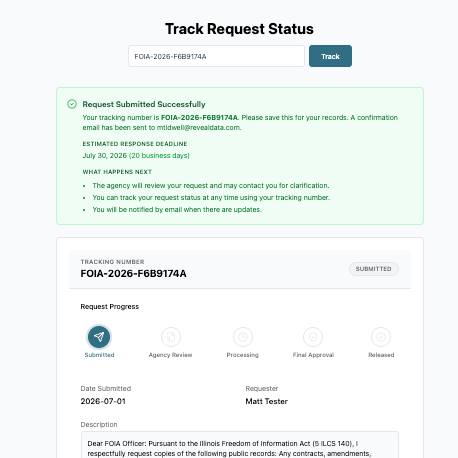
Your request is submitted. The screen shows a confirmation with everything you need to know.
Your tracking number — for example,
FOIA-2026-F6B9174A. Save this — you'll need it to track your request.Confirmation email — a Request received email is sent to your email address with your tracking number and a Track Request button.
Estimated response deadline — calculated automatically based on the agency's jurisdiction and response requirements.
What happens next — the agency will review your request, you can track status any time using your tracking number, and you'll be notified by email when there are updates.
My Requests
You are also signed in to the portal.
Click My Requests in the top navigation to see all requests you've submitted.
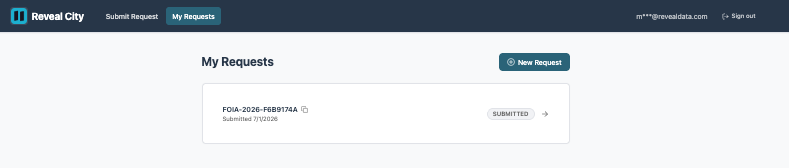
Multiple Requests
You can submit more than one request. Each submission gets its own tracking number and is handled independently.
What to expect
Agency response time — varies by agency and jurisdiction. Many agencies are required by law to respond within a set number of business days. Your confirmation email may include the statutory deadline.
Follow-up from the agency — a records officer may contact you to clarify your request. You'll receive a New message available email with any messages from the agency. Respond directly from your request status page.
Troubleshooting
I didn't receive a confirmation email
Check your spam or junk folder first. If it's not there, verify the email address you entered was correct. You can re-submit the request with the correct address.
The form won't let me submit
Required fields are marked with an asterisk (*) on the form. Make sure all required fields are filled in before clicking Submit Request.
Next steps
Track Request Status — check the current status of your submitted request and communicate with the agency