Get valuable insights into your Logikcull account, projects, and users
Note
Account Owners and Account Admins have access to this feature.
The Reports tab
The Reports Tab in your Account Settings has a number of reports you can run to create CSV reports that will give you detailed information and insight into your projects, users' activity, uploads, downloads, and more!
To access the Reports Tab, you'll want to be in Account Settings > Reports:
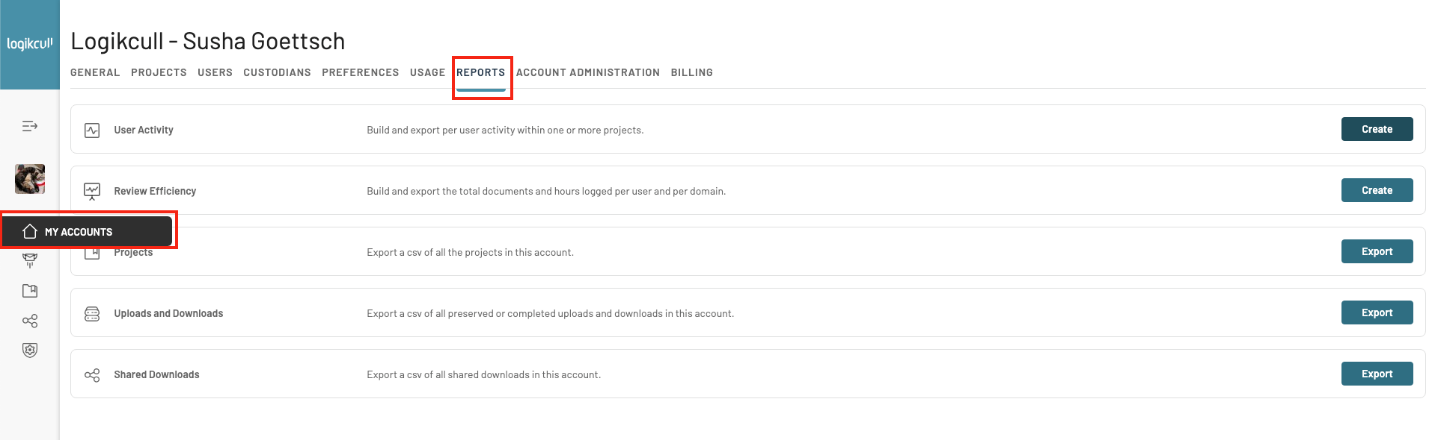
The Available Reports are:
Walkthrough Video
User Activity report
This specific report is only available on a subscription plan
User Activity Reports deliver valuable information about user activity in your Logikcull account. With just a few clicks, you can retrieve data on any combination of date range, projects, and users associated.
Creating User Activity Reports can help you monitor the activity and progress of a review team, or validate billable hours accumulated by other parties in your Logikcull account.
To create a User Activity Report, navigate to User Activity > Click Create > Set your date rage, project, and users:
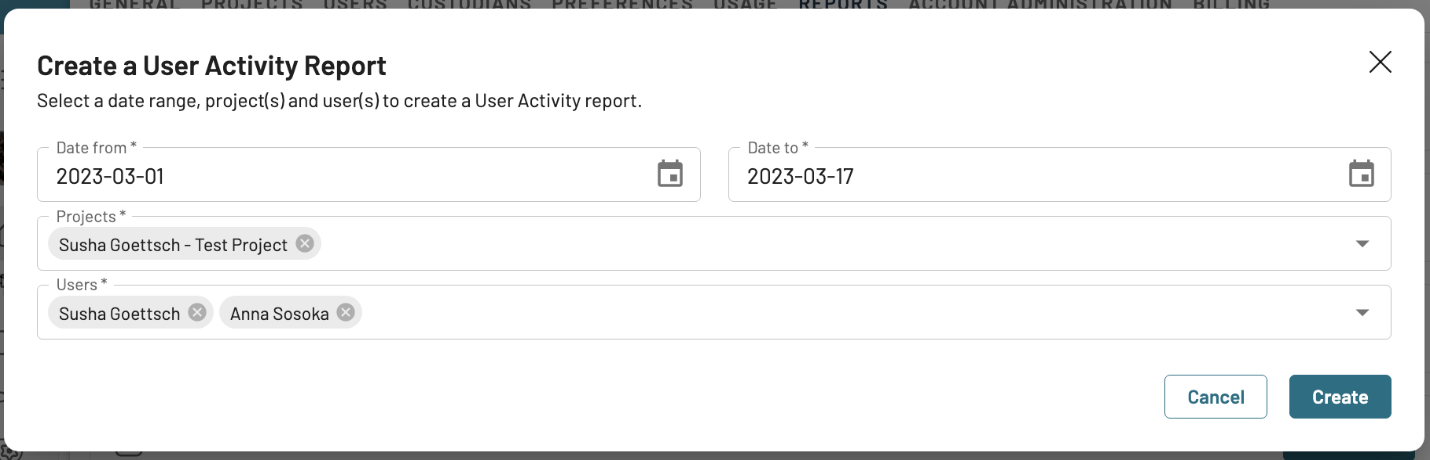
After clicking Create Report, a CSV document will be generated for download to your computer. Please note that all user activity reflected in the report will be scoped to the selected date range. Each row in the report reflects total activity for a single user in a single project.
Fields – User Activity Report
Field name | Description |
|---|---|
Name | User's full name |
User's email address | |
Project Name | Name of the project |
Project Labels | Project labels, if any |
Project ID | ID of the project |
Project Role(s) | List of access level(s) that user had during date range |
Date Added to Project | Date the user was added to the project |
Date of Last Activity in Project | Date of the last event performed by this user in this project |
Total time in the Project (Hours) | Total hours spent in the project |
Total Sessions in Project | Total number of user sessions in the Project |
Average Session Length (Hours) | Average length (in hours) of each session in the Project |
Current Docs Assigned | Number of documents assigned to user in project at time of report |
Total Docs Viewed in Project | Total number of times any document was opened in the document viewer |
Unique Docs Viewed in Project | Number of unique documents viewed |
Unique Docs Individually Tagged | Number of unique (not new) documents individually tagged. Not reflective of bulk tags |
Total Bulk Tag Operations | Number of bulk tag jobs applied by user |
Total Tags Applied in Bulk | Number of Tags (by name) applied in bulk |
Total Document Tag Events | Total number of tagging events (adding and/or removing tags) |
Total Tags Applied in Project | Total tags applied to all documents. Does not reflect bulk tags |
Total Docs Commented on in Project | Number of documents on which user added a comment |
Total Docs with Notes added in Project | Number of documents on which user added a note |
Total Docs with Fields added in Project | Number of documents on which user updated a custom field |
Docs Tagged as Privileged | Unique number of privileged documents with the tag applied directly. Does not count bulk tags |
Docs Tagged as Responsive | Unique number of responsive documents with the tag applied directly. Does not count bulk tags |
Docs Tagged as Unresponsive | Unique number of unresponsive documents with the tag applied directly. Does not count bulk tags |
Docs Tagged as Confidential | Unique number of confidential documents with the tag applied directly. Does not count bulk tags |
Docs Tagged as Hot | Unique number of hot documents with the tag applied directly. Does not count bulk tags |
Total Docs Redacted in Project | Number of unique documents redacted |
Docs Individually Culled in Project | Number of unique documents culled. Will not count documents bulk culled |
Total Documents Downloaded | Number of documents individually downloaded as PDF, native, or text. Does not reflect bulk downloads |
Unique Docs Redacted/Hour | Documents redacted per hour spent in project during selected date range |
Redactions Applied/Hour | Redactions saved per hour spent in project during selected date range |
Unique Docs Tagged/Hour | Documents tagged per hour spent in project during selected date range |
Unique Docs Commented/Hour | Documents with comments added per hour spent in project during selected date range |
Unique Docs Notated/Hour | Documents with notes updated per hour spent in project during selected date range |
Unique Docs Fielded/Hour | Documents with fields updated per hour spent in project during selected date range |
Unique Docs Viewed/Hour | Documents viewed per hour spent in project during selected date range |
Unique Docs Culled/Hour | Documents culled per hour spent in project during selected date range |
Unique Docs Reviewed/Hour | Number of unique documents updated with work product per hour spent in project during selected date range |
Review Efficiency report
This specific report is only available on a subscription plan
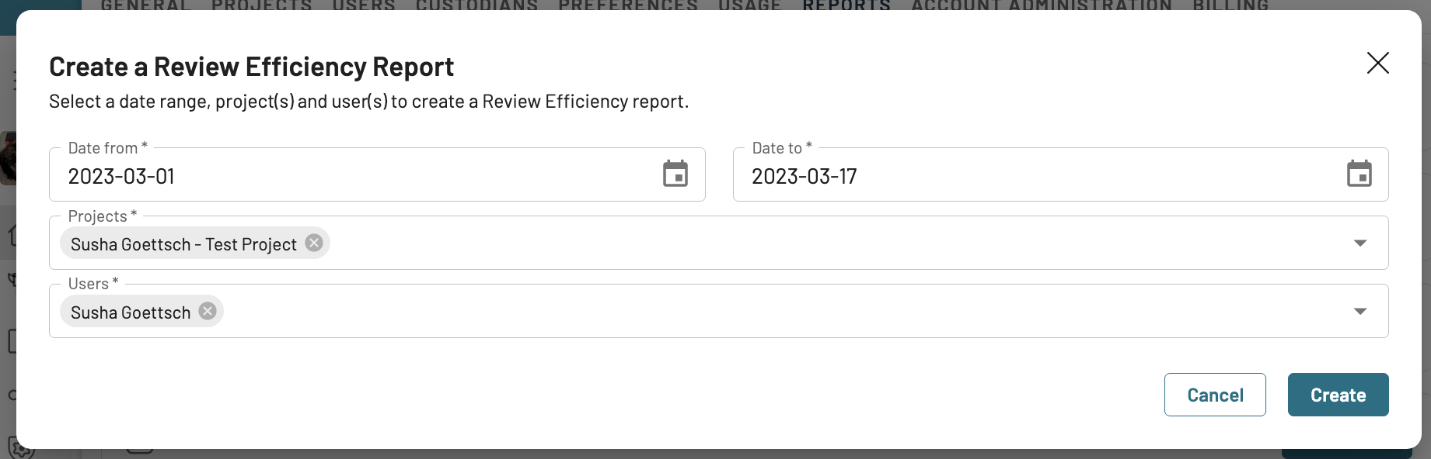
The Review Efficiency Report is a simplified version of the User Report. This report is a breakdown of the amount of time selected users spent in a project (Total Time in the Project (Hours)) as well as the number of unique document viewed in the project (Unique Docs Viewed in Project).
To create a a Review Efficiency Report, navigate to Review Efficiency > Click Create > Set your date range, project, and users. A CSV will be downloaded to you computer.
Fields – Review Efficiency report
Field name | Description |
|---|---|
Year and month | Month and year that the row’s metrics apply to. If you’re report spans multiple months, then individual users may appear more than once in the report for different months/years. |
User's email address | |
Project ID | ID of the project |
Project Name | Name of the project |
Project Labels | Project labels, if any |
Domain | Domain that the project is in |
Unique Docs Viewed in Project | Number of unique documents viewed |
Total Time in the Project (Hours) | Total hours spent in the project |
Projects report
The Projects Report is a CSV with a detailed report on all of the projects in your account. This report includes information about who created a project, when it was created, total bytes stored, total documents stored, archive or deletion date, and more. The Projects Report is an efficient way of tracking your projects and also helps you keep track of what was deleted and when.
To create a Project Report, navigate to Projects Report > Click Export. A CSV will be downloaded to you computer.
Fields – Projects Report
Field name | Description |
|---|---|
Project Name | Name of the project |
Project Labels | Project labels, if any |
Date Created | Date the project was created |
Created By | Email of the user who created the project |
Total Users | Total count of users currently in the project |
Total Storage (GB) | Current storage size of the project |
Total Documents | Number of documents currently in the project |
Total Pages | Number of pages in your project’s documents |
Status | Current status of the project:
|
Date Deleted | Date the project was deleted, if applicable |
Deleted By | Email of the user who deleted the project, if applicable |
Date Archived | Date the project was archived, if applicable |
Archived By | Email of the user who archived the project, if applicable |
Uploads and Downloads report
The Uploads and Downloads Report is a CSV with information on uploads and downloads in all projects in the account. The report is easily filterable in a spreadsheet tool so that each project's uploads and downloads can be narrowed in on.
To create an Uploads and Downloads Report, navigate to Uploads and Downloads > Click Export. A CSV will be downloaded to you computer.
The report provides valuable information on every upload and download in a project, the sizes of those uploads/downloads, if it was deleted, and when and who did the deletion, and much more.
Fields – Uploads and Downloads report
Field Name | Description |
|---|---|
Project Name | Name of the Project the upload / download is in |
Project ID | ID of the Project the upload / download is in |
Type | Type of upload (i.e. file upload, production upload, etc) or if it's a download |
Name | Name of the upload / download |
Created Date | Date the upload / download was created |
Created Time | Time the upload / download was created |
Created By | Email of the user who created the upload / download |
Upload Store ID | Store ID for the upload / download |
Custodian Name | Name of the custodian assigned to an upload; this value will be blank for downloads |
Billable Size (GBs) | Sum size of the native, extracted, and/or rendered size of the upload / download |
Original Size (GBs) | Size of original uploaded file |
Docs | Number of documents uploaded / downloaded |
Pages | Number of pages in the upload / download |
Status | Status of the upload / download (i.e. if it's completed or deleted). |
Deleted Date | Date the upload / download was deleted, if applicable |
Deleted By | Email of the user who deleted the download, if applicable |
Notes | Description entered by the user when creating an upload / download |
Shared Downloads report
The Shared Downloads report is a comprehensive list of all downloads shared via ShareSafe
Easily track what downloads were shared, with whom they were shared, date the shared download was accessed, if the share is expired, and more. This report allows you to keep track of who has or had access to your data via downloads, as well as confirm if recipients accessed the shared downloads.
To create a Shared Downloads, click on Shared Downloads > Export. A CSV will be downloaded to your computer.
Fields – Shared Downloads report
Field name | Description |
|---|---|
Download Name | Name of the shared download |
Project Name | Name of the project the download is in |
Project ID | ID of the project that the download is in |
Shared With | Email address of the user who received the shared download |
Date Created | Date the shared download was created |
Date Shared | Date the download was shared |
Docs Shared | Number of documents in the shared download |
Pages Shared | Number of pages in the shared download |
Size (GB) | File size of the shared download |
Date Accessed | Date the recipient opened the download. If the cell is blank, it wasn’t accessed |
Expired | Whether the shared link has passed its expiration window |
Date Expires | Date the download expires |
Download Status | Current status of the shared download:
|
Date Deleted | Date the download was deleted, if applicable |
Deleted By | Email of the user who deleted the download, if applicable |