Easily print your search results to PDF from a single menu to download and share files with colleagues or have PDFs at the ready. Need to create a production version of your search results (e.g., create Bates or other endorsements)? See Download Productions for a guide on producing documents.
Why use Quick PDF?
Users may want to use Quick PDF for various purposes, including:
Exporting a copy of documents to a local folder on your computer
Downloading documents to use as deposition or trial exhibits
Providing bates-numbered documents to an expert
Previewing redactions on an image before saving or “burning” redactions
Downloading documents marked as Privileged for internal reference alongside a privilege log
Downloading a compilation of documents into one PDF
Quick PDF is available for Pro Users and above.
Uses and limitations
Quick PDF enables easy downloading of PDF copies of files in your Logikcull database. However, it does not support creating new or custom endorsements, nor using ShareSafe to distribute PDFs outside of your account. For these options, the 4 Step Download process is available (read our guide for downloading productions here).
Important
Logikcull currently limits PDF Downloads to 20,000 documents. If your download is too large, try splitting it across multiple searches or creating a full production download.
Download search results
To download your search results, begin by searching or filtering your documents. Then, press the  PDF button just under the search bar and fill out the Download Search Results as PDF (instructions below).
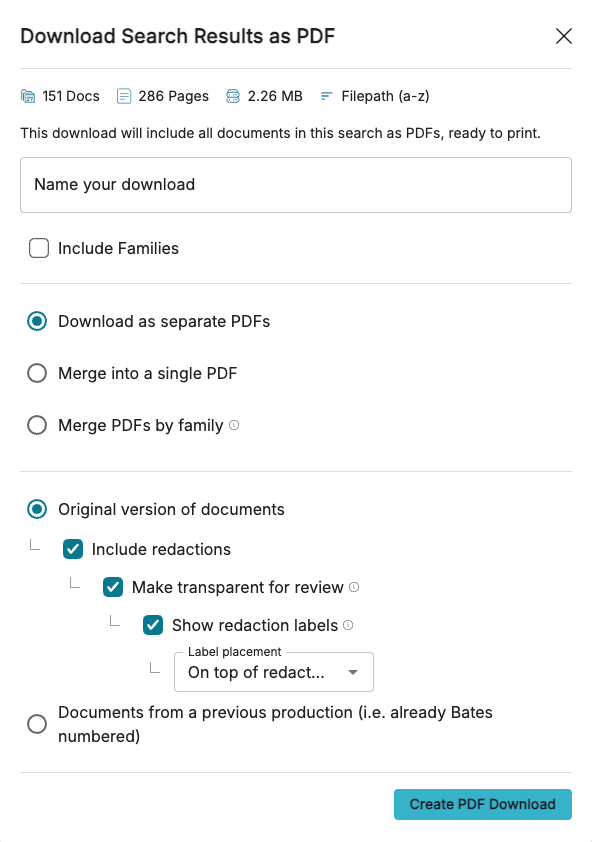
Name your download: This is the name it will receive in the Downloads tab and when you download the zip to your local machine.
Include Families: Check the box to include family members (attachments, embedded docs) that are not part of the current search results.
Choose from a variety of merge options.
Download as separate PDFs: Each document will download as a separate PDF, in the order seen in the search results.
Merge into a single PDF: Combine all documents in the download into a single PDF in the order they appear in the search results.
Merge PDFs by family: Documents will be combined as families, with the parent document appearing first followed by any children.
Choose what version you want to download.
Original version of documents: Download the original version of the document.
Include redactions: Check this box to include saved redactions and redaction labels, if applicable.
Make transparent for review: Check this box to present redactions as a transparent, red-outlined box.
Show redaction labels: Check this box to show redaction labels along with the transparent redactions, then pick label placement using the dropdown.
On top of redaction area.
In left margin.
Note
See Download Productions for a visual depicting how transparent labels are shown in text for each option.
Documents from a previous production (i.e. already Bates numbered): Download imaged versions from a specific production volume, including associated document endorsements and redactions.
Downloaded PDFs are named using the native filename with a numeric prefix (e.g., 000000_filename.doc; 000001_filename.xlsx; etc.). To download PDFs with Bates numbers as file names, use our 4 step download process form and select “Yes, include previously downloaded images” in Step 3.
Important
Selecting “Documents from a previous production” for documents that are not previously produced will result in placeholder documents (slip sheets).
Export / progress bar
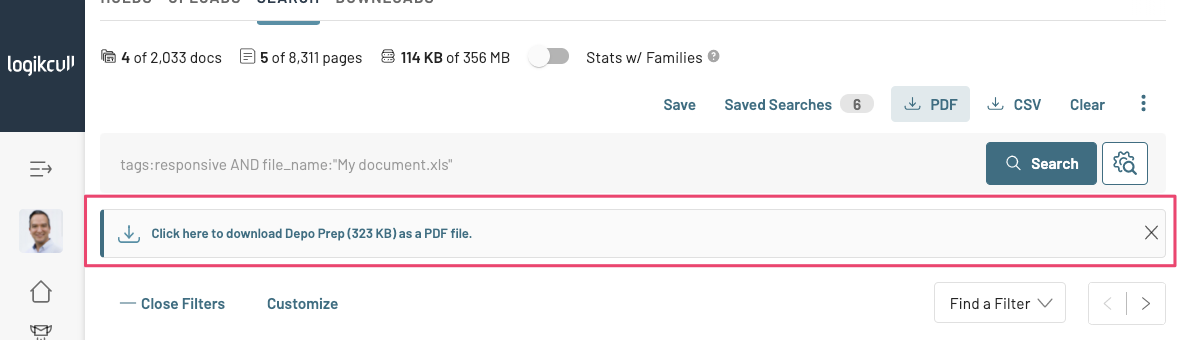
Your saved PDF downloads will be visible as a progress bar from the search page.
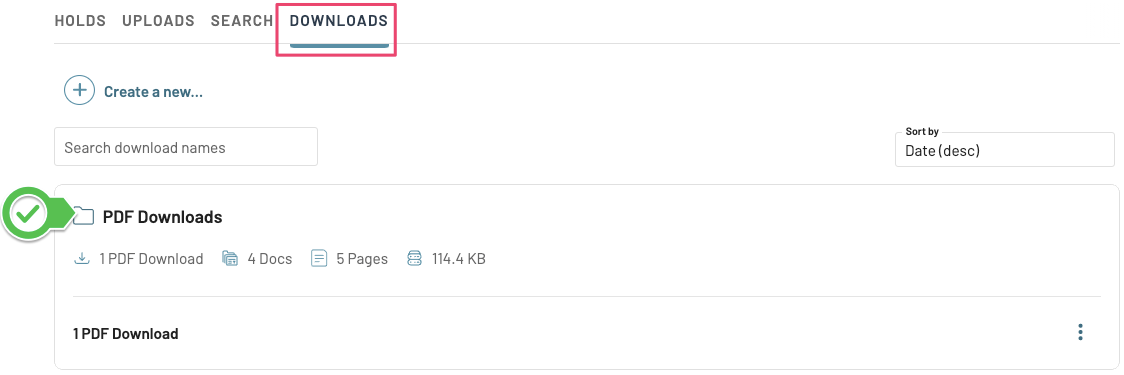
Downloads can also be accessed and exported from the Downloads tab in a folder named “PDF Downloads”.