Single Sign-On (SSO) allows users to access multiple applications with a single set of credentials, improving security and simplifying login management. This guide walks you through configuring SSO in Google, including setup steps for both U.S. and EU Logikcull instances.
Step 01: Open Google Admin Console
In the Admin console, navigate to Apps. Click SAML apps.
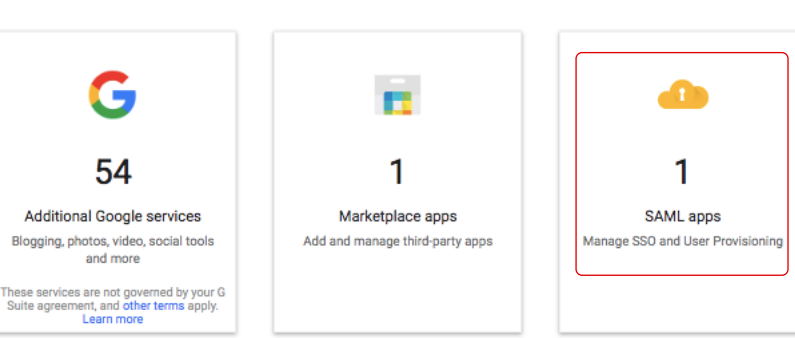
In the bottom-right corner, click the + icon to add a new SAML app. Then select Setup My Own Custom App.
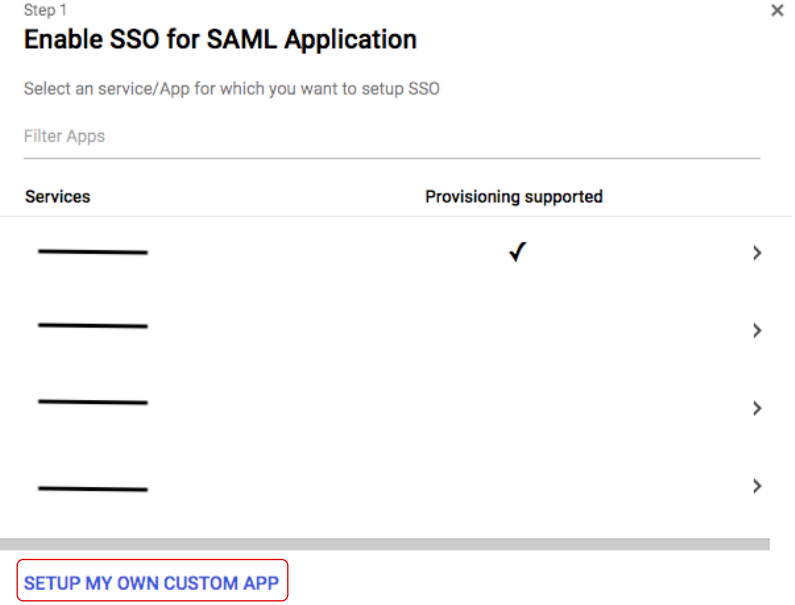
Step 02: Download SSO Information
Copy the SSO URL provided. Click Download Certificate (this file will be required later in Logikcull).
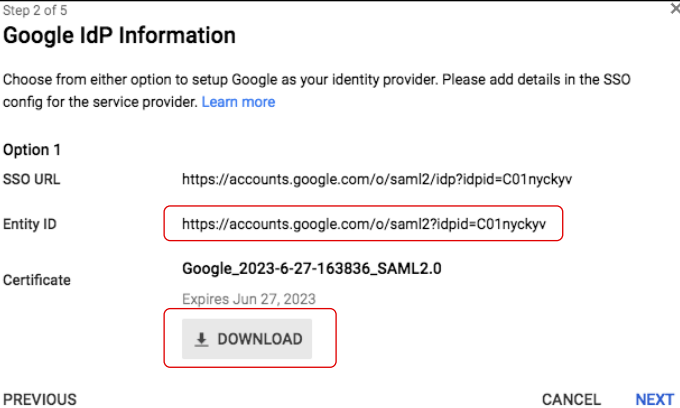
To continue click Next.
Step 04: Configure ACS URL and Entity ID
Enter your URLs and entity IDs while replacing [CONNECTION ID] with your ID provided by the Logikcull team. For example, a U.S. instance with the ID 12345 would have a URL of https://login.logikcull.com/login/callback?connection=12345
Under ACS URL enter:
For U.S. instances:
https://login.logikcull.com/login/callback?connection=[CONNECTION ID]For EU instances:
https://eu-central-1.logikcull.com/login/callback?connection=[CONNECTION ID]
Under Entity ID enter:
For U.S. instances:
urn:auth0:logikcull:[CONNECTION ID]For EU instances:
urn:auth0:logikcull-prod-eu-central-1:[CONNECTION ID]
Leave the Start URL blank
Check the Signed Response box
Under Name ID select Basic Information and Primary Email
Under Name ID Format select X509_Subject
Click Next to continue.
Step 05: Attribute Mapping
Complete the Attribute Mapping as shown below:
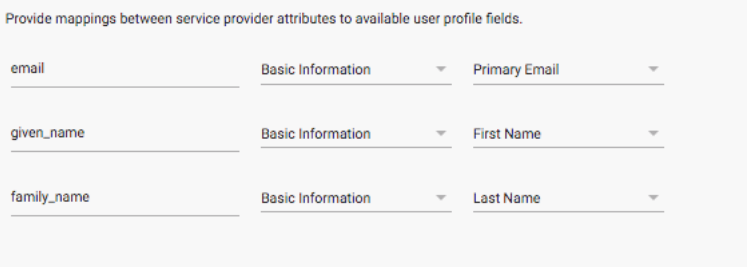
Click FINISH to finalize.
Important Notes
Note
Domain user - a domain user is a user with a username/email that is managed through your company domain. e.g. if your company “Example” uses the email domain “example.com”, then “jane.doe@example.com” would be a domain user.
New domain users must be assigned to the Logikcull app in Google and added to your Logikcull account in the Logikcull (https://app.logikcull.com)
All domain users will be required to login through SSO and therefore must be authorized Logikcull users in your IdP.
If you invite users to your Logikcull account that are not domain users, such as external counsel, they will log into Logikcull directly using a username and password.
If you have enforced 2FA on your Logikcull account, which is recommended, all users will be required to enter a second factor regardless of login method.