Single Sign-On (SSO) allows users to access multiple applications with a single set of credentials, improving security and simplifying login management. This guide walks you through configuring SSO in Okta, including setup steps for both U.S. and EU Logikcull instances.
Step 01: Log in to Okta
Log into your Okta tenant. From the top menu bar, select Applications. Click Add Application.
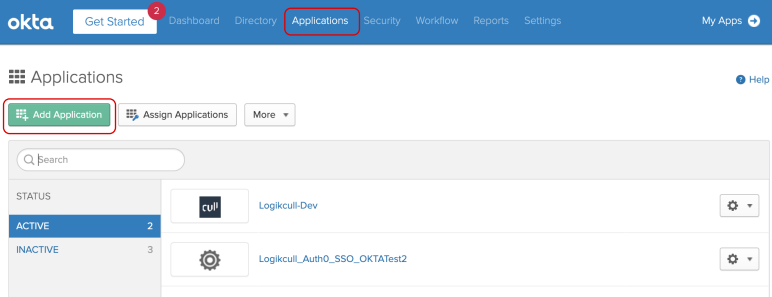
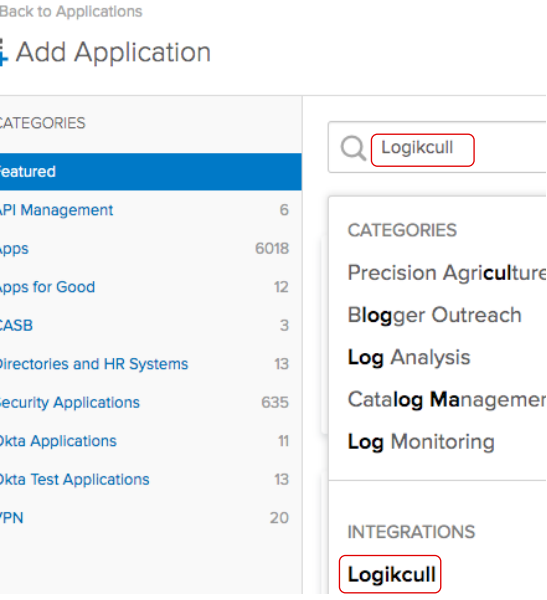
Step 02: Search for Logikcull
In the search bar, type Logikcull. Select Logikcull from the search results under Integrations.
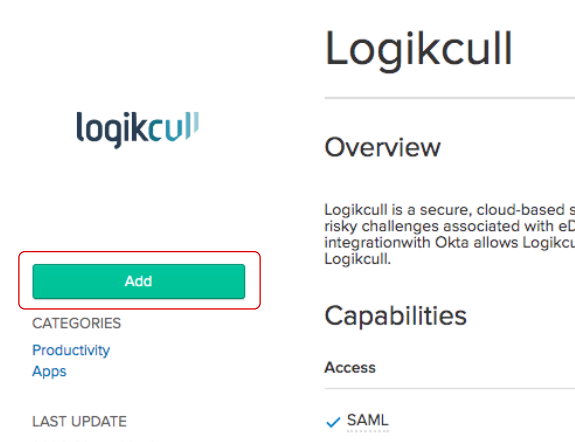
Click Add.
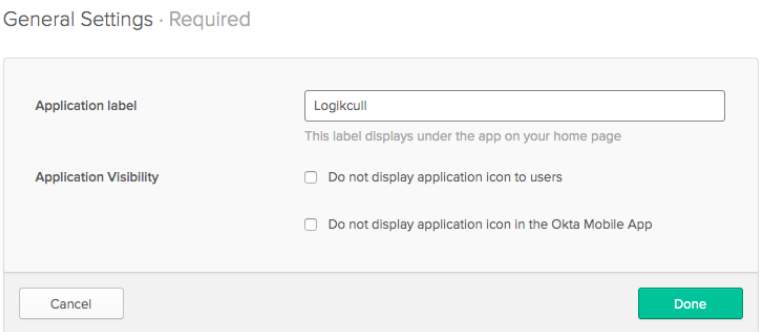
Step 03: Configure the Application Label
Under Application Label, you will see Logikcull.
Leave the label as-is or edit it according to your internal naming conventions.
Click Done.
Step 04: Set up Sign-On
Go to the Sign On tab. Click Edit.
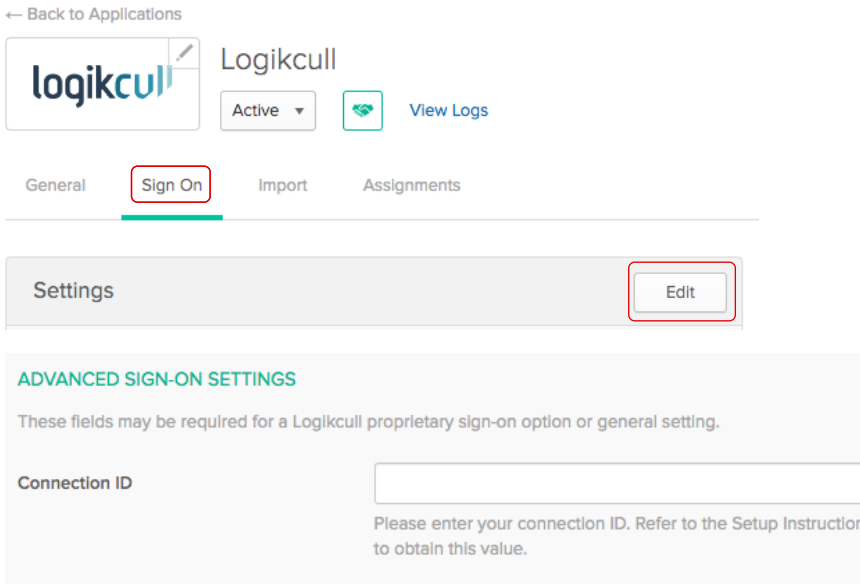
Scroll down to Advanced Sign-On Settings. Under Connection ID, enter the Connection ID provided by Logikcull.
Step 05: Assign Users
Navigate to the Assignments tab. Assign users or a test account to the application to verify the SSO setup
Step 06: View Setup Instructions
In the Sign On tab of the Logikcull application window, click View Setup Instructions.
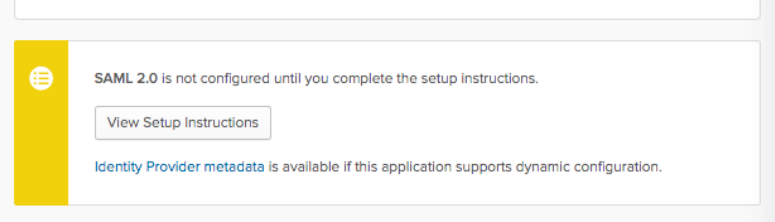
You will need the Identity Provider Single Sign-On URL and X.509 Certificate when configuring SSO in your Logikcull account under Preferences.
Note
Under Assignments assign your test user (this should NOT be the administrative user identity in Logikcull) to your new Logikcull app in OKTA.
Important Notes
Note
Domain user - a domain user is a user with a username/email that is managed through your company domain. e.g. if your company “Example” uses the email domain “example.com”, then “jane.doe@example.com” would be a domain user.
New domain users must be assigned to the Logikcull app in OKTA and added to your Logikcull account in the Logikcull (https://app.logikcull.com)
All domain users will be required to login through SSO and therefore must be authorized Logikcull users in your IdP.
If you invite users to your Logikcull account that are not domain users, such as external counsel, they will log into Logikcull directly using a username and password.
If you have enforced 2FA on your Logikcull account, which is recommended, all users will be required to enter a second factor regardless of login method.