Configuring your exports to Logikcull's production specifications will help ensure they're loaded without complications.
Production Upload Requirements Video
Acceptable format for Logikcull Production Uploads
In order to initiate a Production Upload to Logikcull, please make sure the following conditions are met:
The database volume must be compressed with a .zip extension.
If the zip file is password-protected, you will have to copy the database volume contents into a zip file without a password.
If the zip file has multiple parts (e.g. .zip, .z01, .z02, etc…), the partitioned zips must be fully extracted, combined into a single volume, and compressed into a single .zip file.
We recommend that the database volume is no larger than 50GB and recommend asking that larger productions be split into smaller, 50GB productions.
If you’re uploading RSMF files, make sure there’s an accompanying load file. RSMF files alone cannot be uploaded into Logikcull.
Include images, natives, and text in your uploads so that your RSMF is viewable in Document Viewer and searchable.
Production Upload Folder Structure
Directory structure typically includes the following folders within a top-level volume folder:
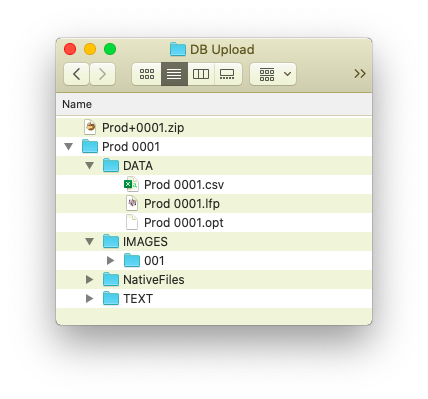
DATA
Contains the required metadata load file (DAT, CSV, or TXT) and an image load file (OPT or LFP). Logikcull accepts the following encoding formats for these load files:
UTF8
UTF16
ISO-8859-1 (Latin 1 - also sometimes referred to as Western European)
IMAGES
Supported formats:
Single page black and white TIFF and color JPEG
Multi-page black and white TIFF
Multi-page PDF (black and white, or color)
NATIVES
If Natives are included, Native path must be provided in the DAT file
TEXT
If Text is included, Text path must be provided in the DAT file
Load File Structure
The sort order between the metadata load file and the image load file must be aligned.
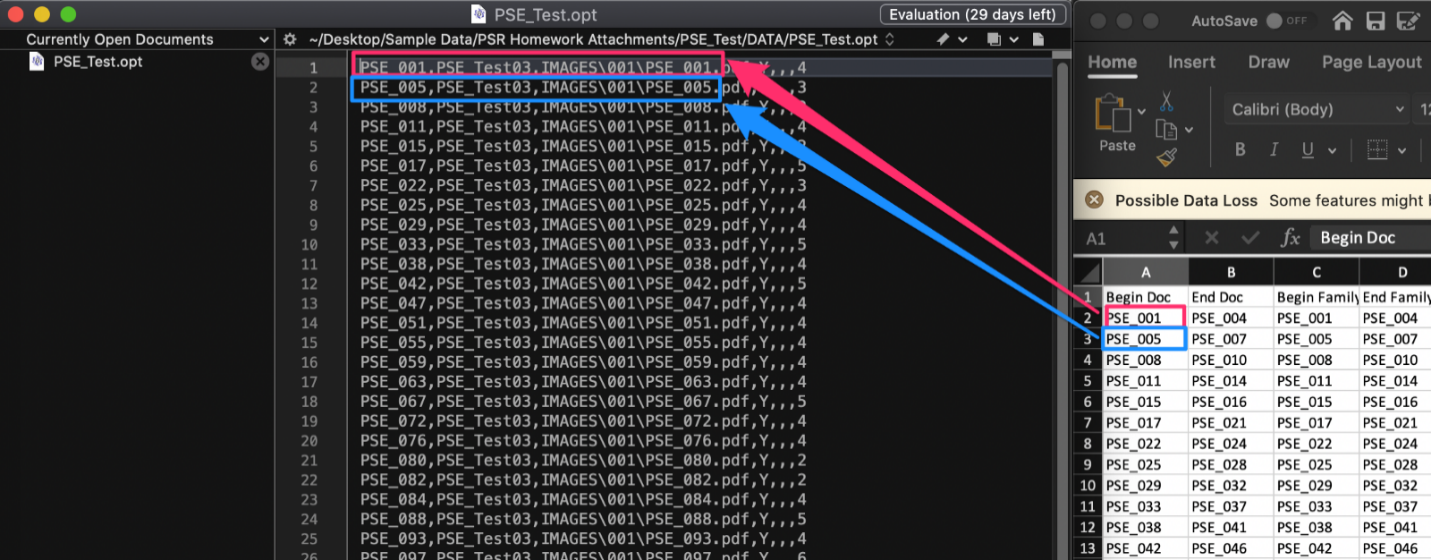
Metadata load file must have a header row with unique/clear field names so that they can be mapped properly.

Metadata load files must be in delimited text format, but you can choose which delimiters to use in the load file. Metadata load file makes use of three (3) main delimiters:
Column/Field delimiter: Denotes the separation between column/fields
Quote/Text Qualifier: Used to separate actual field data from the delimiters around it (especially useful when your field delimiter is a common character, such as a comma)
Newline: Code to denote a newline within the data encompassed by your quote delimiter (most often seen in extracted text fields or other long text fields)
We recommend these characters as delimiters, by default:
Column (separates load file columns) – ASCII 020 (¶)
Quote (marks the beginning and end of each load file field) – ASCII 254 (þ)
Newline (marks the end of a line in any extracted or long text field) – ASCII 174 (®)
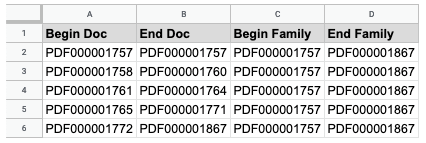
Metadata load file must include at least an Identifier field (in the picture below, this is the “Begin Doc” field.) You can provide any additional fields in the load file. Fields that cannot be mapped to Logikcull directly can be imported in as new fields, or not imported at all.
Date and Time Field Formatting
Date and time fields in the metadata load file are preferably separate fields, and should be formatted as follows:
Date:
mm/dd/yyyy
m/d/yyyy
m/dd/yyyy
mm/d/yyyy
mm-dd-yyyy
m-d-yyyy
m-dd-yyyy
mm-d-yyyy
yyyy-mm-dd
yyyymmdd
Time:
hh:mm:ss [AM|PM]
hh:mm [AM|PM]
hh:mm:ss
hh:mm
h:mm [AM|PM]
h:mm:ss [AM|PM]
hhmmss
Date-Time:
12/31/2019 1:13:30 PM
12/31/2019 1:13 PM
12/31/2019 1 13 30 PM
12/31/2019 1 13 PM
12-31-2019 1:30 PM
12-31-2019 13:13:30
12-31-2019 13:13
2019-12-31 13:13:30
2019-12-31 13:13
20191231 131330
20191231 1313
2019-12-31T13:13:30-06:00
2019-12-31T13:13:30Z
Months (mm), days (dd), and hours (hh) may all be denoted by a single digit except for yyyy-mm-dd and yyyymmdd formatting.
If the time is in military format, the AM/PM indicator is not required.
Fields available for direct mapping in a Production Upload
Table Filtering
Hover over the upper-right corner of “Field Type” to filter or sort the column.
Field | Field Type |
|---|---|
Begin Attach* | Control Numbers |
Begin Doc (minimum required) | Control Numbers |
Begin Family* | Control Numbers |
Custodian | Special Field |
Custom Tags | File Metadata |
Document Date | File Metadata |
Email BCC | Email Metadata |
Email CC | Email Metadata |
Email Date Received | Email Metadata |
Email Date Sent | Email Metadata |
Email From | Email Metadata |
Email Subject | Email Metadata |
Email Time Received | Email Metadata |
Email Time Sent | Email Metadata |
Email To | Email Metadata |
End Attach* | Control Numbers |
End Doc | Control Numbers |
End Family* | Control Numbers |
Family ID* | Control Numbers |
File Author | File Metadata |
File Company | File Metadata |
File Comments | File Metadata |
File Date Created | File Metadata |
File Date Last Modified | File Metadata |
File Keywords | File Metadata |
File Last Saved By | File Metadata |
File Name (preferably with extension) | File Metadata |
File Path | File Metadata |
File Revision Number | File Metadata |
File Size | File Metadata |
File Subject | File Metadata |
File Time Created | File Metadata |
File Time Last Modified | File Metadata |
File Title | File Metadata |
Full Text | File Metadata |
Image File Link | Special Field |
Native File Link | Special Field |
Text File Link | Special Field |
Thread ID | Control Numbers |
Establishing Family Relationships
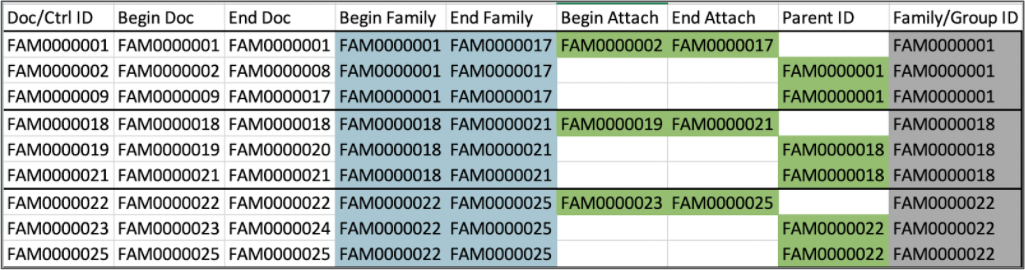
“Family ID”, “Begin Family” and “End Family”, or “Begin Attach” and “End Attach” fields are utilized to establish a family relationship. This can only be accomplished during the initial upload. Family relationships cannot be overlaid. An example of supported metadata information for family members is shown below.
Custodian Field
The custodian field cannot be overlaid and must be included in the initial metadata load file used to upload a production, if you'd like to populate our existing custodian field. The Custodian names in the field must be < 50 characters and restricted to letters, numbers, spaces, and [,._-"()]
Native, Text, and Image Links
Native File Link and Text File Link in the metadata load file must be properly mapped and match the relative file paths in the volume directory. The Image File Link in the image load file, if provided, also must match the relative file path to images in the volume directory.