Redaction exclusions are key to preventing specific keywords or phrases from being redacted manually by reviewers or Logikcull’s automatic redacting features, like auto-redactions or the PII toggle. This reduces a reviewer's need to look through documents and delete unnecessary redactions, while also making it possible to create broad auto-redactions with built-in limitations.
For example, it may make more sense in your project to auto-redact all names (PII auto-redaction) except for a list provided in the redaction exclusions, such as the names of public officials or a records requestor's own name. That way, your redaction rules can stay broad and aggressive without sacrificing accuracy on the handful of names that shouldn't be caught.
When redacting, what happens to terms in the exclusions list?
If a keyword or phrase is enabled in the Redaction Exclusions list:
When entering a document, Auto-Redactions will trigger and automatically redact all content except for the excluded keywords or phrases. A message will alert users with the number of skipped terms (see below).

Users who drag any sized box over an excluded term will be prevented from applying that redaction. An error message will display to alert users that their redaction covers an excluded word (see below).

Warning
If redactions (manual or automatic) were already applied to a keyword or phrase before it was added to the exclusion list, those existing redactions will remain in place. Logikcull will not flag or notify you that redactions exist on now-excluded terms.
Create exclusions
Redaction exclusions are created and managed in the Redactions tab via My Projects > [your project] >  Project Settings > Redactions.
.png)
Click + Add Exclusion.
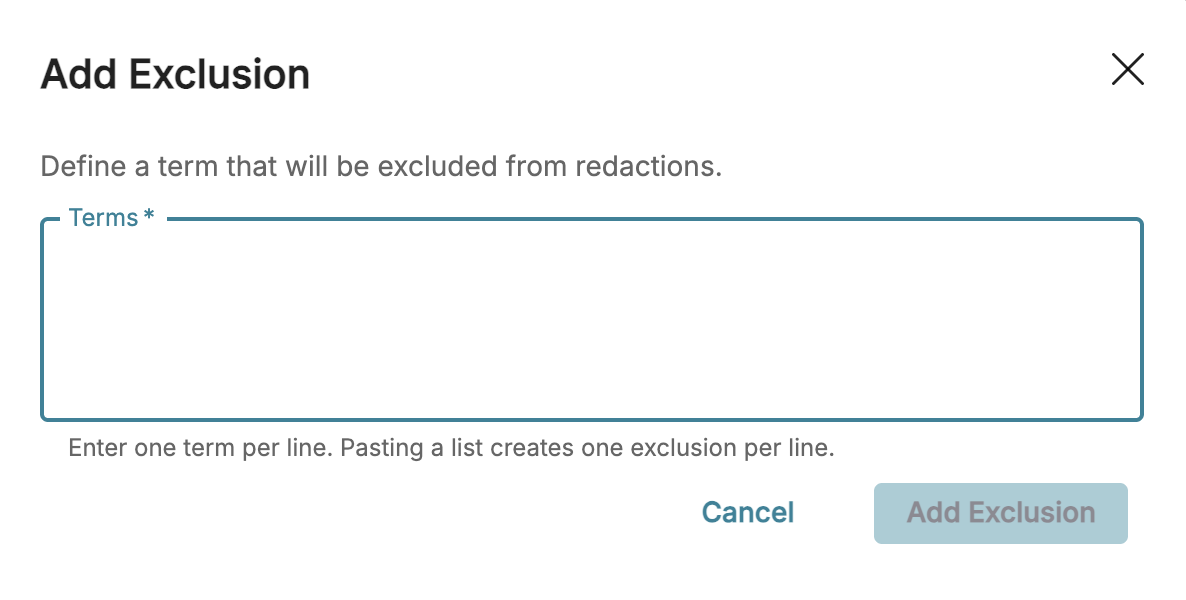
In the text box, enter words and phrases that you would like excluded from redactions. You can enter multiple exclusions at a time by listing each exclusion on its own line.
Click Add Exclusion to add the exclusions to your list.
The list will populate with your new terms, and they will all be set to “enabled” by default.
Toggle, edit, or delete exclusions
You can also perform the following actions in the Redaction Exclusions list:
Toggle exclusions
Edit exclusions
Delete exclusions
Edit redaction exclusions
On the same row as the excluded term, click the
 ellipses icon.
Click Edit.
In the Edit Exclusion popup, adjust your term.
Click Save.
Important
Editing a redaction exclusion has no effect on any of your previously reviewed documents. Text that was skipped under the old term won't automatically be redacted just because the term was edited.
Delete redaction exclusions
Redaction exclusions can be deleted individually or in bulk.
To delete individually:
On the same row as the excluded term, click the
ellipses icon.Click Delete.
A Delete Exclusion popup will appear. Click Delete.
To delete in bulk:
Click the check boxes to the left of your terms. Select as many terms as you’d like.
Above the checkboxes, click Delete.
A Delete Exclusions popup will appear and list the number of exclusions you’re deleting. Click Delete.
Important
Deleting a redaction exclusion has no effect on any of your previously reviewed documents. Text that was skipped under the term won't automatically be redacted just because the term was deleted.
Toggle redaction exclusions
Redaction exclusions can be enabled or disabled by pressing the  toggle icon next to your term.

A popup should appear, confirming your redaction status changed.