Once you’ve defined your search range in Step I: Scope, it’s time to write your query and submit it to Ask. You can also provide additional instructions to shape Ask’s response or request certain types of information.
How to write an effective question
Ask can process almost any natural-language question. However, the way you phrase your query strongly influences the quality of the response.
Best practices
Ask one question at a time – Break down complex or multi-part queries into separate questions.
Be explicit and specific – Avoid vague terms or pronouns. The clearer your wording, the clearer the response.
Match your query to your goal – Use broader queries for high-level overviews, and narrow ones for detail-oriented answers.
Less effective approaches
Relying on metadata queries – Ask only analyzes document content, not metadata. Use LGK search to filter metadata first, then submit to Ask.
Asking for “all” information – Ask is designed for precision, not exhaustive recall.
Expecting intuition – Ask cannot infer beyond the evidence in your dataset.
Requests spanning massive document sets – Ask builds narratives from a limited number of highly relevant documents, not full-scale aggregation (e.g., across hundreds of spreadsheets).
Providing additional instructions
Press  More Details to open the additional instructions search bar.
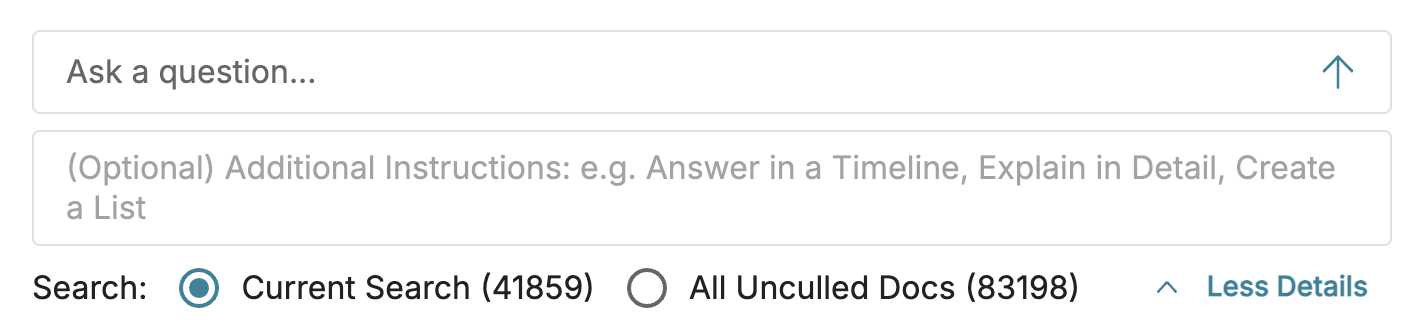
If needed, you can guide Ask’s output further with custom formatting or content instructions. Use this feature to adapt responses to your workflow:
“Create a summary.”
“List the names of people found in the documents.”
“Translate the response into German.”
“Format the answer in a timeline.”
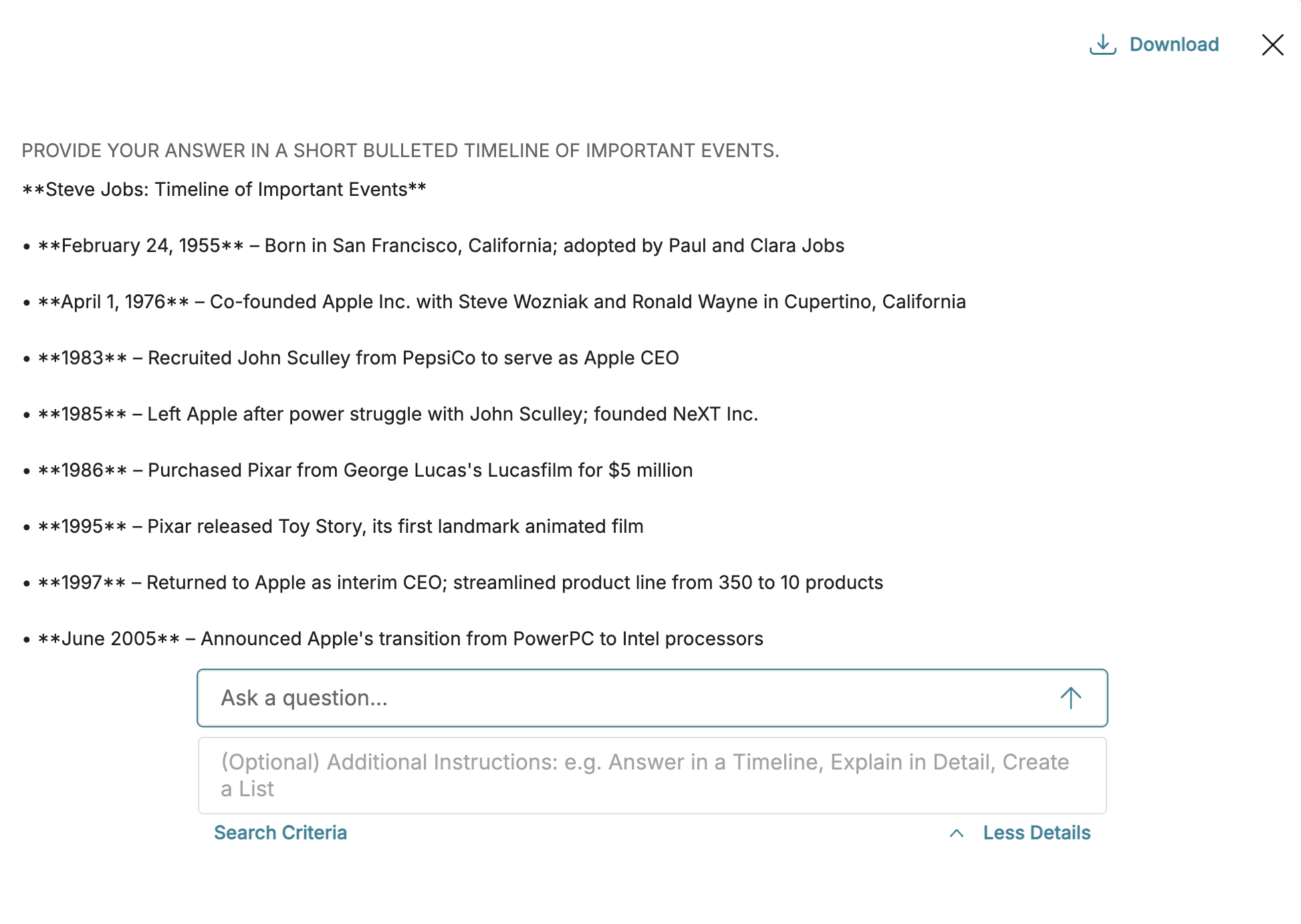
If you submitted your question with additional instructions, Ask will provide you with two answers:
Response with citations: Ask’s traditional paragraph-style response with in-text citations.
“Tailored” response: Ask’s answer tailored to your instructions. This can be found at the very bottom of the entire response, just under the Semantic Matches bar.
Submitting a question
After filling in the search fields, your query can be submitted by either:
Pressing Enter on your keyboard.
Clicking the
 arrow icon.
Once you submit your query, Ask will formulate its response – but it may take some time. You can close Ask at any time by clicking the X in the upper-right corner. Closing the window does not end your Ask session, and Ask will still run your query in the background if the window is closed.
If Ask finishes its response while you are out of the Ask window and still on the Search page, a red notification button will appear on the Ask AI button.