
In this article:
Zoom Overview
Zoom Requirements
Zoom Legal Hold Requirements
How to Connect and Collect Using Zoom
Zoom Considerations
AI Meeting Notes
Zoom Overview
Zoom is a communication platform that offers meetings, chat, phone, webinars, and online events services. Onna uses Zoom’s API to collect data from your entire company’s Zoom account or from specific user accounts. Additionally, you can export the data collected in an eDiscovery-ready format. Below, you can learn more about how Onna’s Zoom connector works.
Connector Features | |
Authorized Connection Required? Yes | Is identity mapping supported? No |
Audit logs available? Yes | Admin Access? Yes |
Supports a full archive? Yes | Custodian based collections? Yes |
Preserve in place with ILH? No | Resumable sync supported? Yes |
Supports Onna preservation? No | Syncs future users automatically? Yes |
Sync modes supported:
| Is file versioning supported? No |
Note: Source Holds are supported by our Zoom connector. | |
Types of Data Collected | Metadata Collected |
|
|
Zoom Requirements
In addition to enabling Zoom from your list of enterprise sources in the ‘Admin preferences’ section of your Onna site, the following requirements must be met to connect to and collect from Zoom.
Cloud recording enabled (to collect in-meeting data).
Access to authorized connection credentials in Onna. To learn more about how to set up and share an authorized connection visit the article, Creating and Managing Authorized Connections in Onna. In order to set up an authorized connection for Zoom, you will need log-in credentials to a Zoom service account set up with the Owner role.
Zoom Legal Hold Requirements
Account level
Legal Hold for Zoom Chat is supported on any paid Zoom plan — Pro, Business, or Enterprise. See Zoom's Legal Hold for Chat data article for more detail.
Preservation (Legal Hold)
Onna’s Legal Hold support for Zoom is limited to Zoom Chat. Other Zoom content types are not covered by Legal Hold preservation.
Archiving and DLP APIs
Onna does not use Zoom's Archiving API or Data Loss Prevention (DLP) API. Neither is required to use Onna's Zoom connector.
OAuth Scopes
When authorizing the Zoom connector, Onna requests the full set of scopes below. There is no way to select a subset — the connector requires all listed scopes to function.
All connections
role:read:admin— View all user roles. Used to determine a user's roles for collection filtering.user:read:admin— View all user information. Used to collect user data.
Meeting/Recordings Collection
meeting_summary:read:admin— View all user meeting summaries. Used to collect meeting summaries for eDiscovery.meeting:read:admin— View all user meetings. Used to collect meeting data.recording:write:admin— View and manage all user recordings. Used to collect meeting recordings.
Chat
report_chat:read:admin— View your team chat history report. Used to collect chat history for users.chat_channel:read:admin— View all users' team chat channels. Used to collect chat history filtered by channel selection.chat_message:read:admin— View all users' team chat messages. Used to collect chat history for users.
Legal Hold
chat_history_legal_hold:write:admin— Manage Chat History Legal Hold Info. Used to create legal holds based on a custodian list before collection.chat_history_legal_hold:read:admin— View Chat History Legal Hold Info. Used to read the status of legal holds created before a collection is created.
How to Connect and Collect Using Zoom
Once you have the authorized connection credentials necessary you can set up a new sync by following the steps below:
Step 1
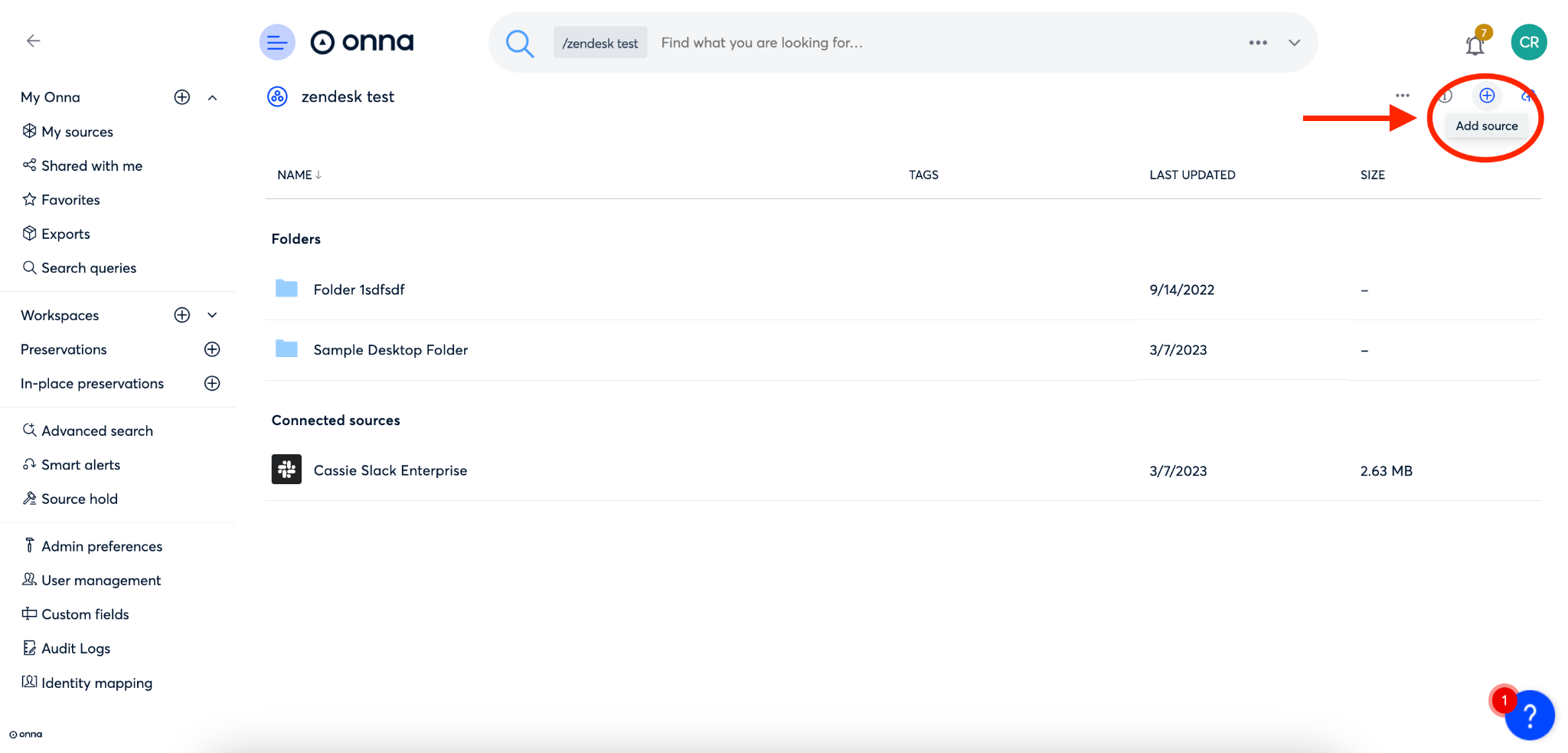
Navigate to the workspace where you want to set up your sync.
Inside that workspace click on the ‘+’ icon in the upper right corner of the screen to ‘Add source’.
Step 2
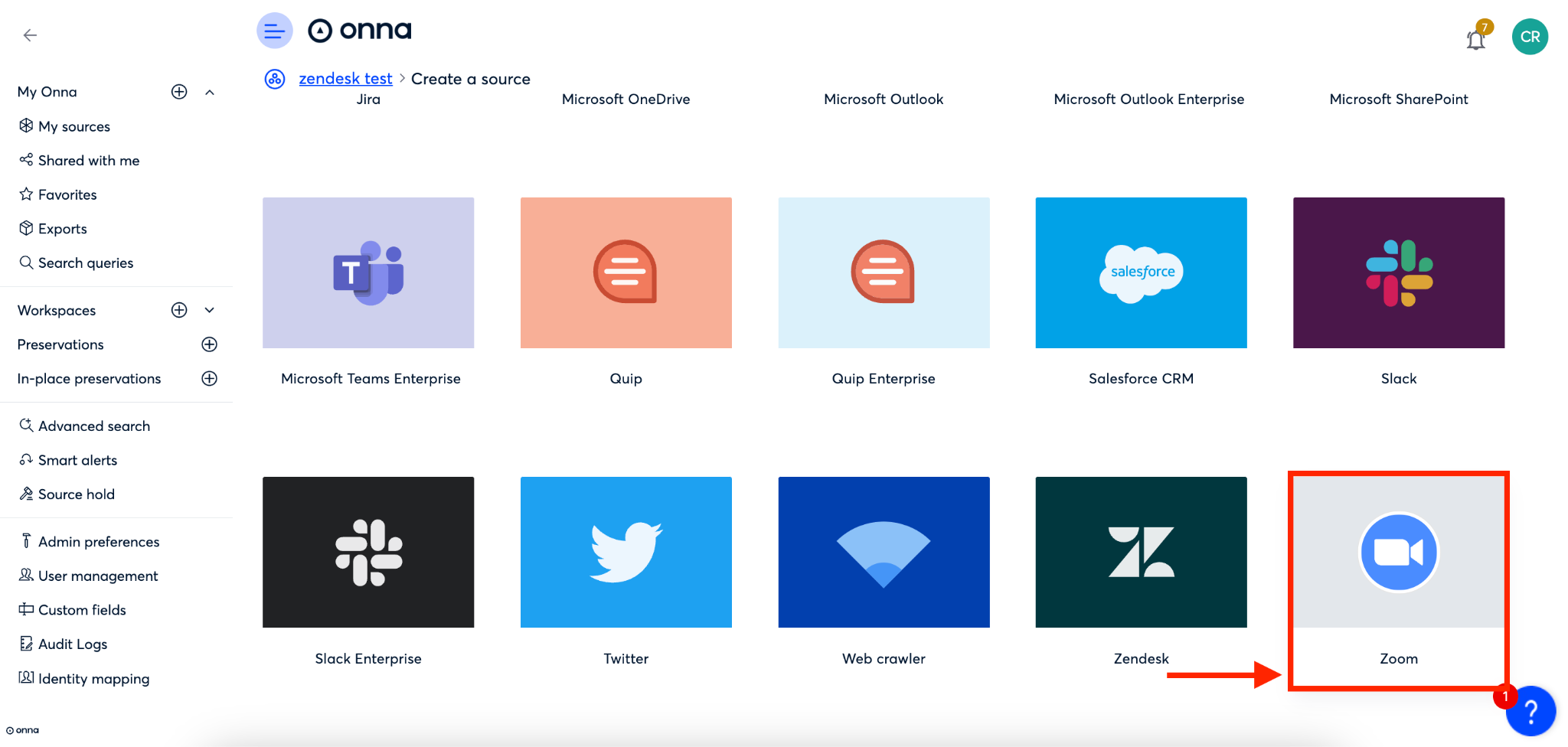
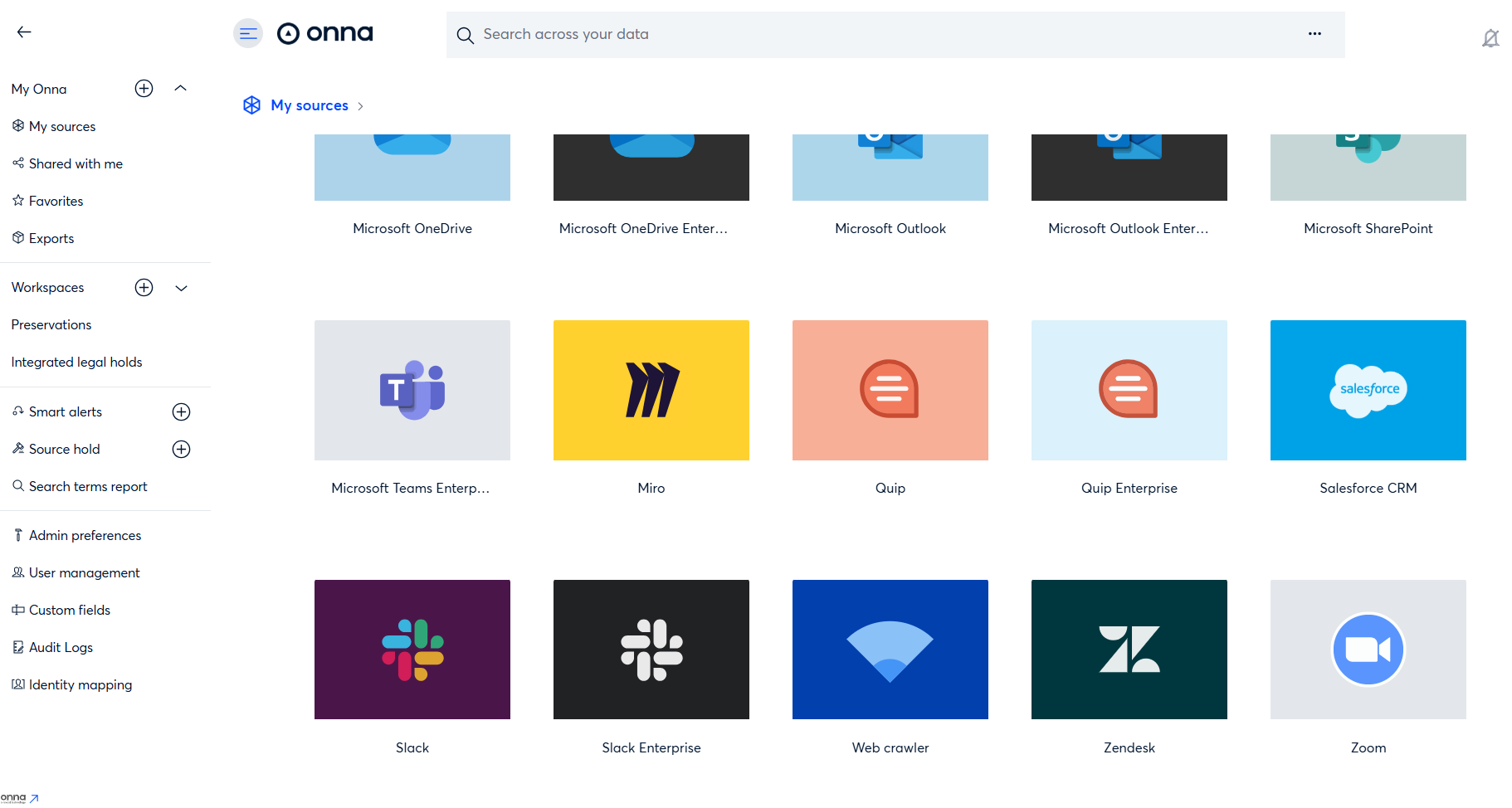
You will now see a list of all sources enabled for your organization. Find and select the ‘Zoom’ source.
Step 3
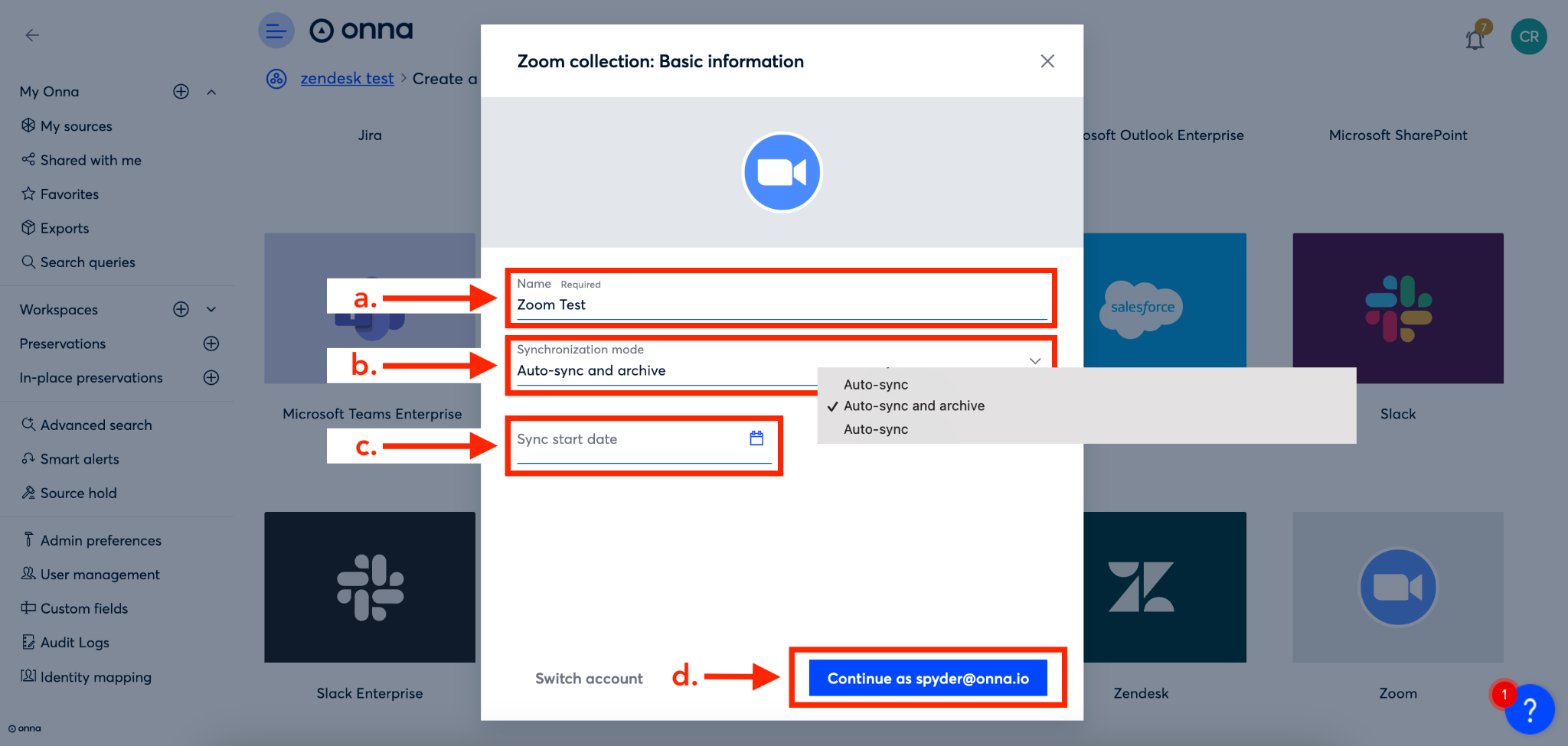
You’ll now define the basic information for your new sync, including:
The name of your sync (We will autofill this field with the name of your source, but you can change it)
The sync mode you’d like to use
The start date for your sync (Note: If you’re choosing a one-time sync you’ll enter an start and end date for your sync)
Once you’ve selected the right account select the blue ‘Continue as...’ button
Step 4
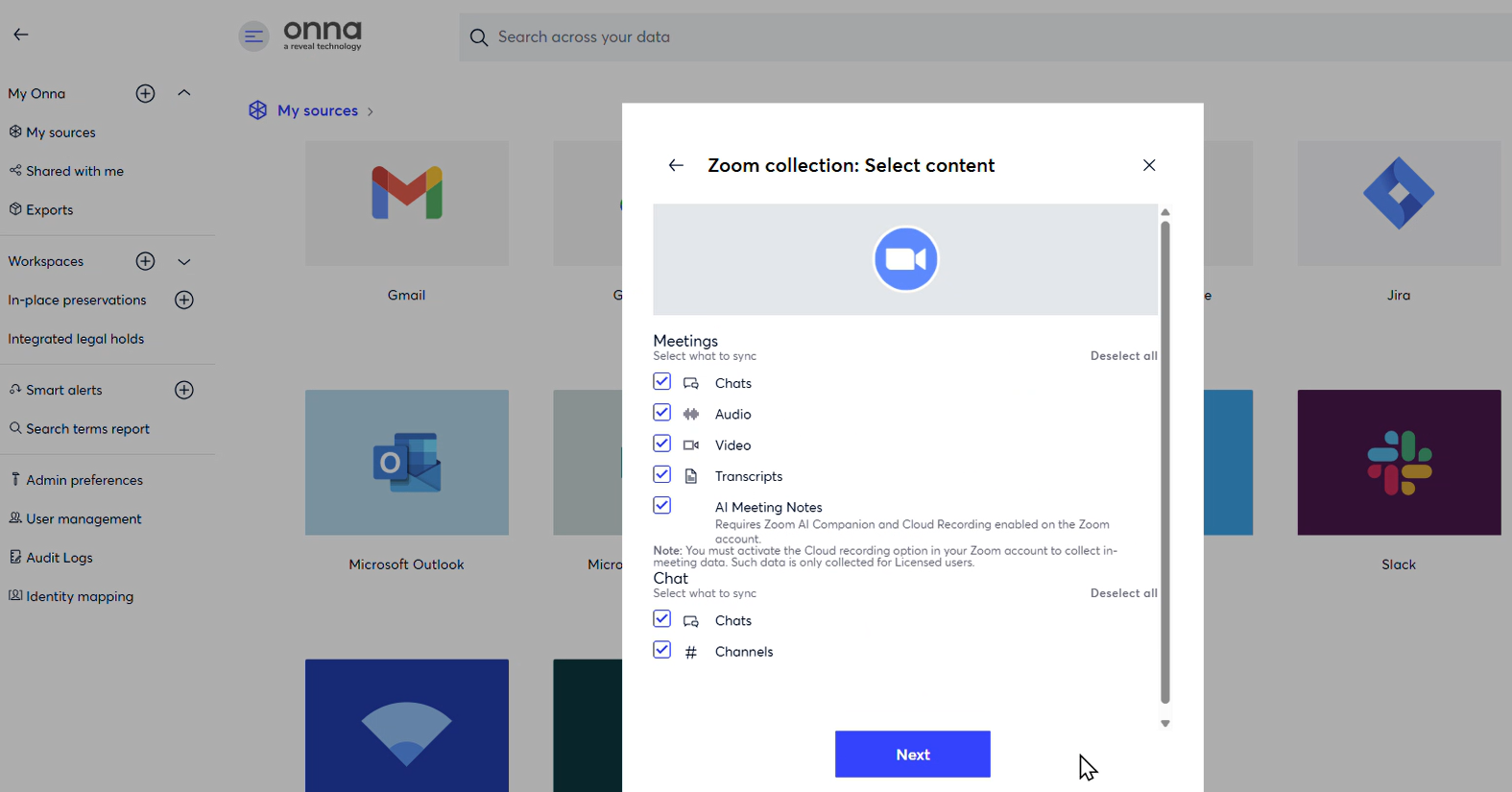
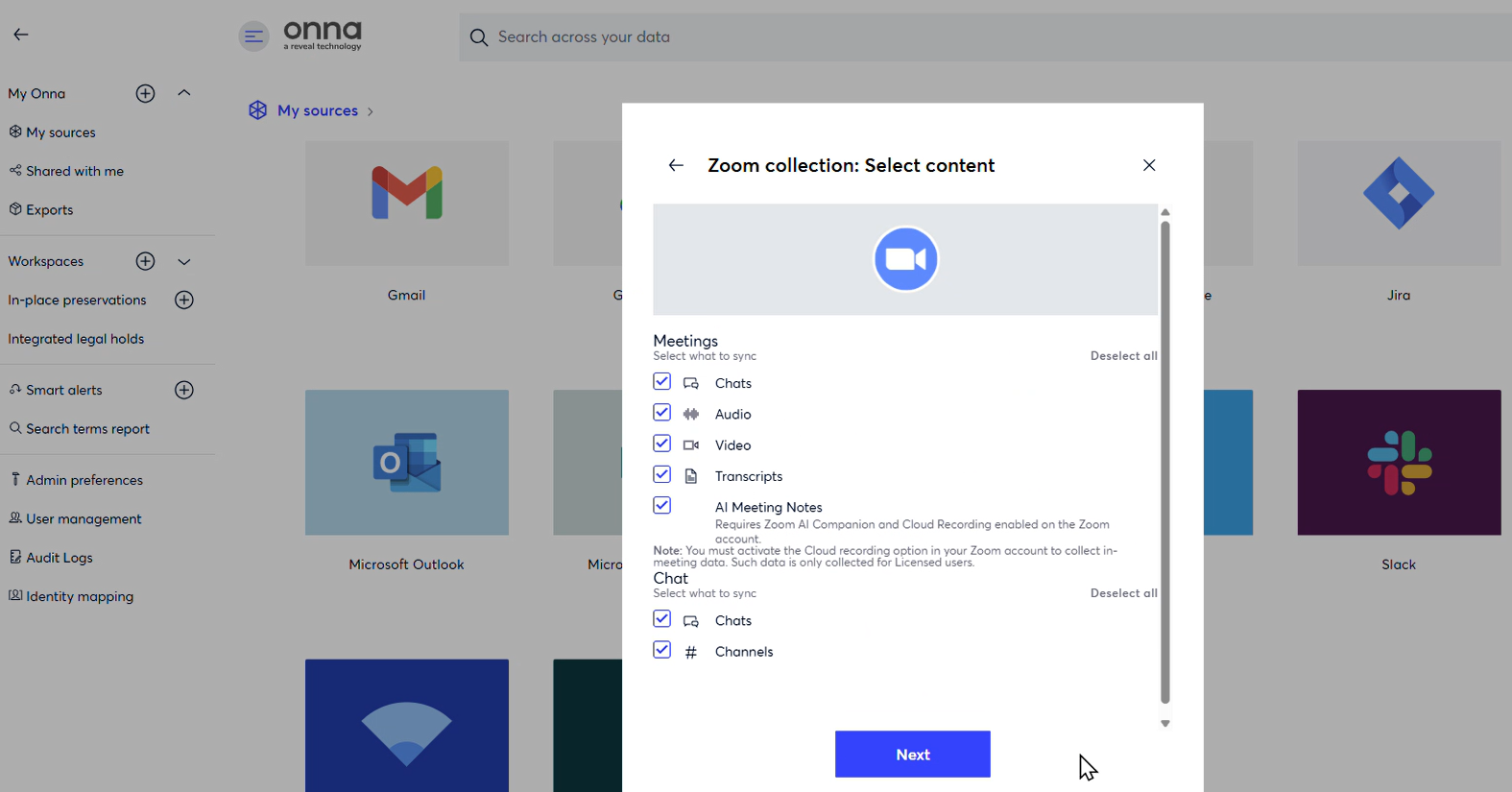
Next, you will select the content you want to include in the sync. To do so you will:
Select the type of ‘Meeting’ features you’d like to include in your sync.
Select the type of ‘Chat’ features you’d like to include in your sync.
Click the blue ‘Next’ button.
Step 5
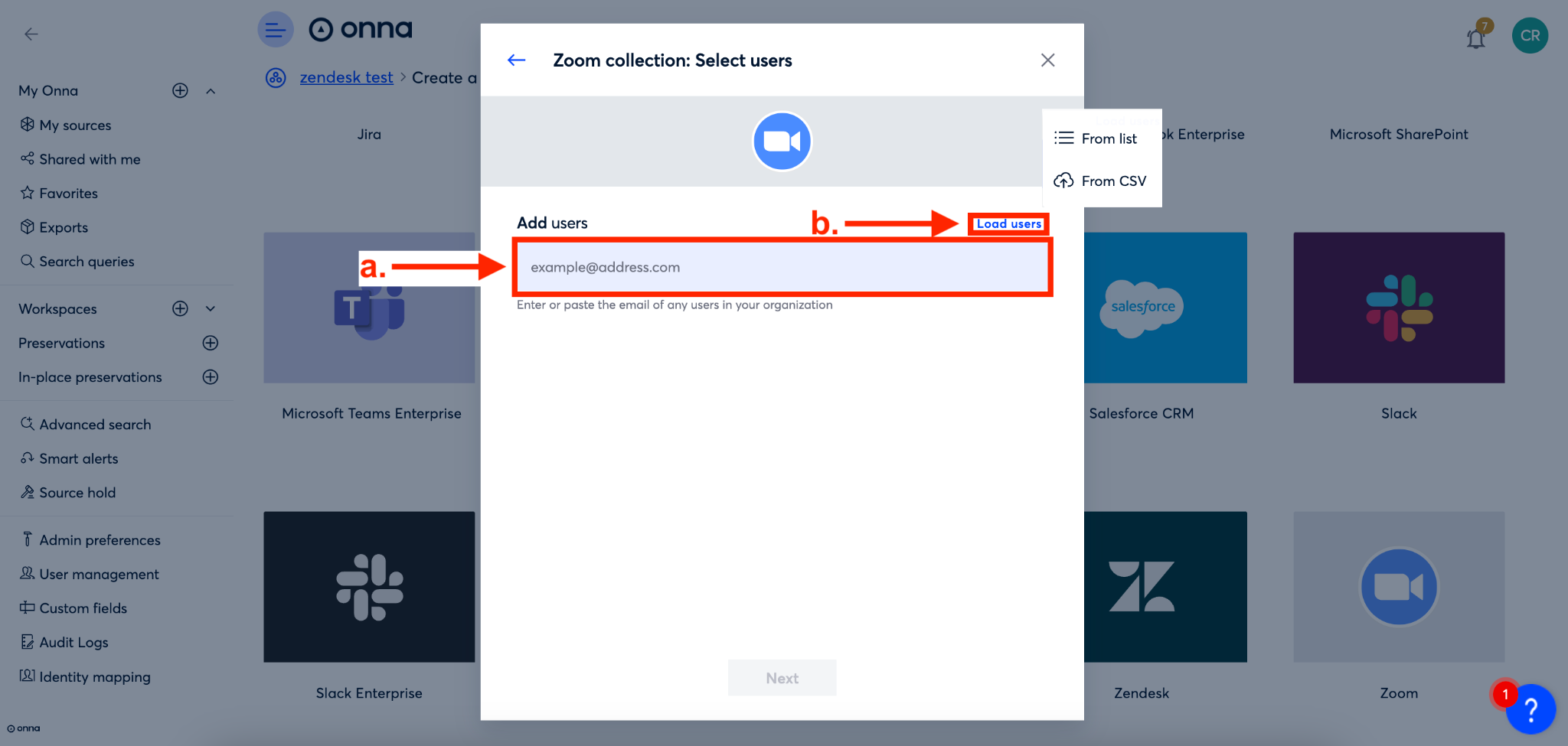
You’ll now add the users you’d like to include in your sync. You can do this by either:
Manually adding users' email addresses. Or,
Loading users via a list or from a CSV by clicking ‘Load users’.
Step 6
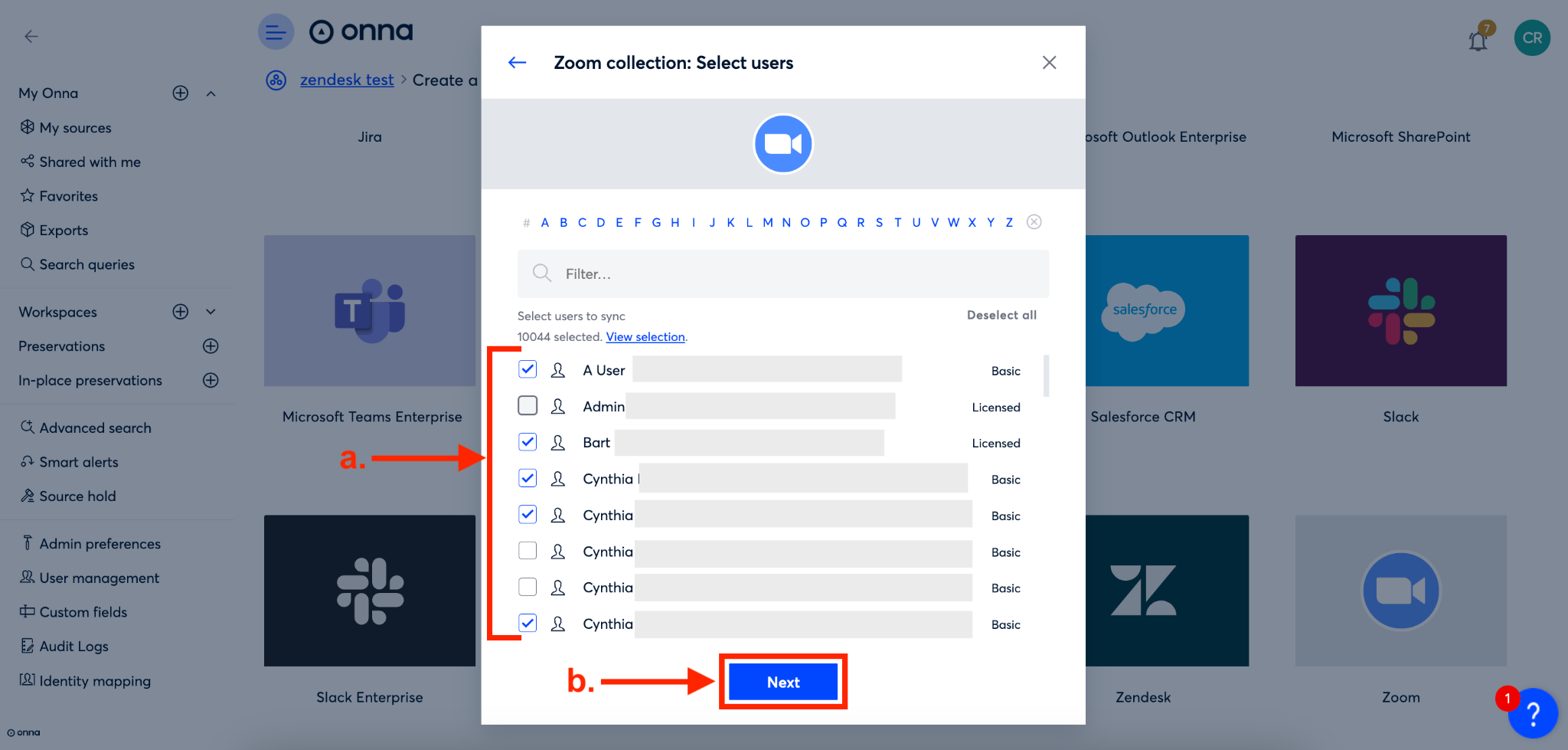
If you select users from a list you will be directed to a screen where you can:
a. Select the users you want to include or click ‘Select all’ to include all users.
b. Click the blue ‘Next’ button (b).
Step 7
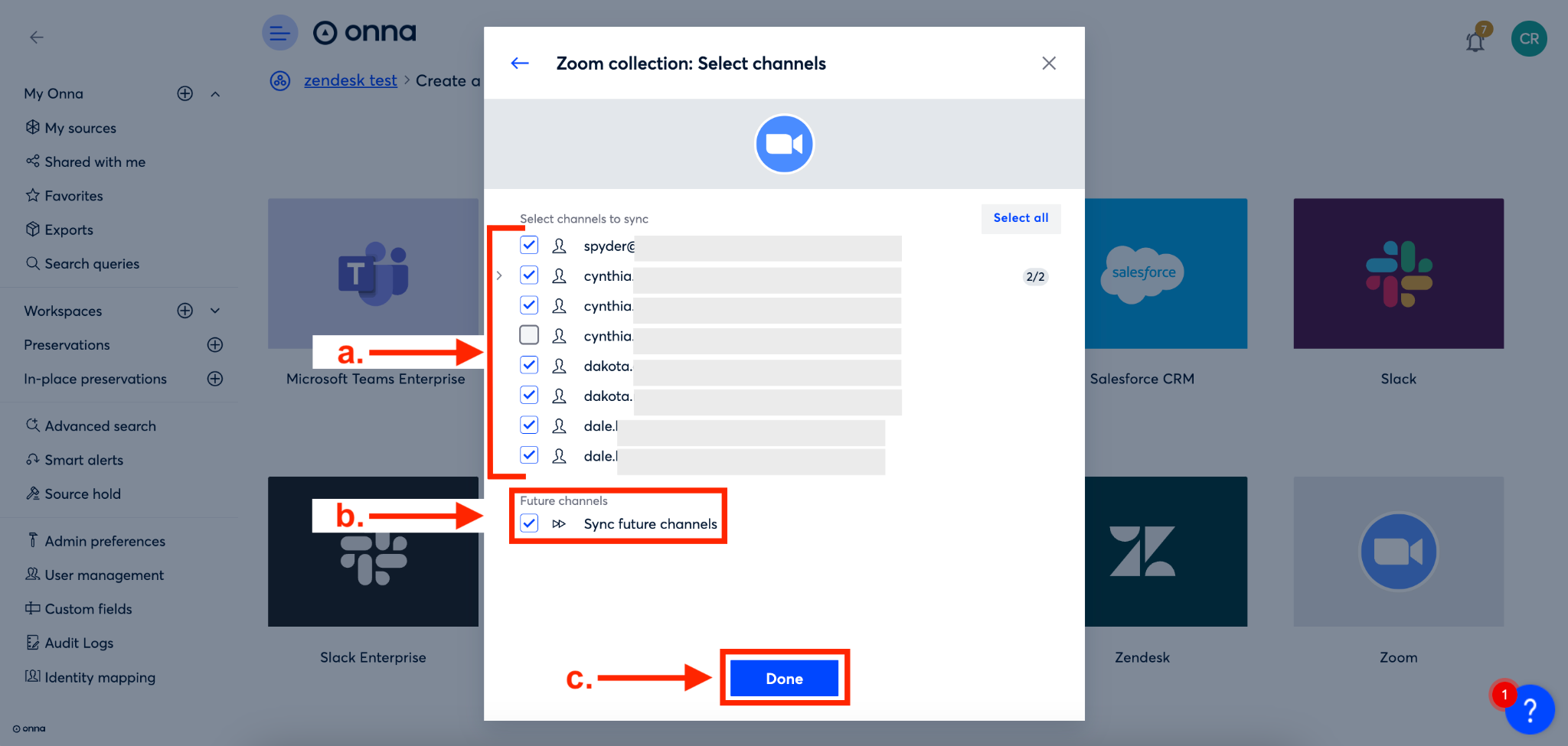
Your next step is to select the channels you want to include in your sync.
Select the channels from the list or click ‘Select all’ to include all channels.
To sync future channels that are added, make sure the option to ‘Sync future channels’ is checked.
Click the blue ‘Done’ button
Step 8
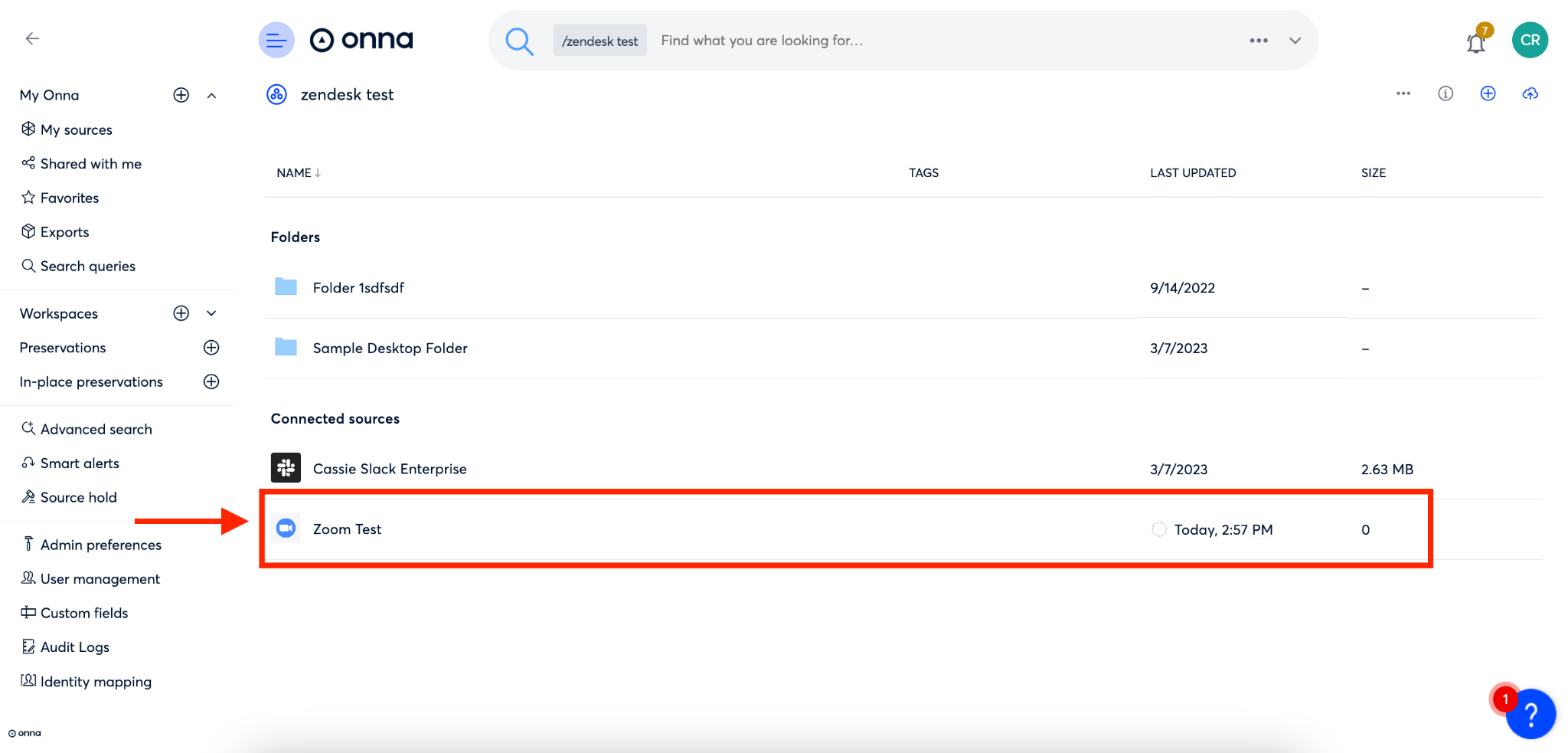
Your sync is now in progress and visible inside the workspace you added it to. See the article “How to Monitor Your Source Sync Status” to learn more.
Zoom Considerations
Connecting
Only one authorized connection can be active for each Zoom account. Creating more than one authorized connection for the same Zoom account will cause the previous authorization to become invalid.
Collecting
Onna doesn't collect the following data from Zoom:
Individual chats where one of the two users is inactive (didn’t send any message)
Reactions to chat messages
Recordings for meetings with only one participant
Recordings that are in trash
Webinars, polls, and private in-meeting chat messages (not sent to everyone)
Instant meetings
Basic users' meeting data
Files shared in a chat session during a meeting
Onna can’t collect data from Zoom On-Premise deployments
Onna can only collect chats within the last six months from the collection creation date
Zoom meetings audio and video must be recorded to the cloud to be collected
Mirroring Zoom’s retention policies is not supported
Searching
Onna can track edits and deletions for Zoom chats. Since conversations are grouped by day, edits and deletions appear on the day the edit and deletion occurred.
Zoom’s API doesn’t allow you to query deleted messages, so there’s no way for Onna to mark such changes on the original ones. For example, if a message is collected on January 1st, but the message is deleted on January 2nd, the message will show as deleted in the thread for January 2nd, but the message won’t show as deleted in the thread for January 1st.
AI Meeting Notes
Onna collects AI-generated meeting summaries produced by Zoom's AI Companion as part of your existing Zoom sync. No additional connector setup is required.
Once collected, meeting summaries become searchable within Onna along side your other Zoom data, giving your team fast insight into what was discussed, key points raised, and next steps, without needing to replay recordings or read through full transcripts.
AI Meeting Notes are available to users who need:
Quick visibility into meeting outcomes across their organization
Improved discoverability of collaboration data captured in Zoom
A searchable record of conversations from Zoom meetings
Requirements
To collect AI Meeting Notes in Onna, the following must be in place:
An active Zoom data source already connected in Onna.
Zoom AI Companion enabled on your Zoom account.
The meeting host must have AI Companion enabled and active during the meeting
Cloud recording is not required for AI Meeting Notes — only the AI Companion feature.
Note
AI Meeting Notes are collected as part of your standard Zoom sync. No additional configuration steps are needed within Onna once the above requirements are met.
What Gets Collected
When a Zoom meeting summary is available, Onna collects it as a dedicated resource linked to the corresponding meeting. The following content is ingested:
Content | Details |
|---|---|
Summary text | The AI-generated meeting summary, including key points and next steps |
Meeting identifiers | Meeting UUID, ID, and topic |
Timestamps | Meeting start and end times |
Host information | Details about the meeting host |
Note
Optional summary fields such as action item lists, overview sections, or edited summaries may not always be present, depending on what Zoom provides for a given meeting.
How AI Meeting Notes are Collected
AI Meeting Notes are ingested automatically during your Zoom sync. Here is what to expect:
When a summary is available: Onna collects it and stores it as a searchable resource linked to its parent meeting. You can find and search across AI Meeting Notes the same way you would any other content type in Onna.
When a summary is not yet available: Onna will automatically retry on subsequent syncs. Because Zoom's AI Companion can take time to generate a summary after a meeting ends, a brief delay before the summary appears in Onna is normal.
When a summary will never be available: Onna skips the meeting silently without affecting the rest of your sync. This applies to meetings that do not produce summaries. See the Considerations section below for specific cases.
In all cases, the meeting itself is fully collected regardless of whether an AI summary is available.
AI Meeting Consideration & Limitations
Delayed Availability
AI Meeting Notes may not appear immediately after a meeting ends. Zoom can take time to generate the summary, and Onna will retry automatically on subsequent syncs until the summary becomes available.
Meetings That Will Not Produce a Summary
Some meetings will never have an AI summary, and no summary will be ingested for these. This includes:
End-to-end encrypted (E2EE) meetings
Meetings without sufficient audio or transcript data
Meetings where the required Zoom AI Companion permissions or scopes are not in place
Updates to Summaries
If a summary is edited in Zoom after it has been collected by Onna, the update will only be reflected in Onna on the next sync. Real-time updates are not supported.
Content Format
Summary content is ingested as plain text and is fully searchable within Onna. No additional formatting or parsing is applied.