The Google Workspace integration allows organizations to collect Google Drive and Gmail data from custodians as part of a legal hold. For Google Drive, Hold Managers can select specific My Drive folders, shared folders, and Team Drives for each custodian before a collection starts, so only relevant content is collected instead of the custodian's entire account. Collections are processed through Onna, with their status tracked in Reveal Hold.
Google Workspace collection uses the same integration as Google preservation. If Google preservation already works for your subscription, no extra setup is needed. To create the integration, see Integrate with Google Vault.
Before collecting, make sure that:
Each custodian in the hold has an email address.
The hold has not been lifted.
Create a Google Workspace collection location
After configuring the integration, create a location for each Google source you want to collect.
Navigate to Admin Center > Subscription > Locations.
Click Create.
Enter a Name for the location.
Under Preservation Type, select Google Workspace.
Under Source, select Google Drive. To collect a mailbox, select Gmail instead.
Under Source Value Type, select what the location covers:
Files: the custodian's own My Drive only.
Include Shared: My Drive plus files shared with the custodian. This option also allows Team Drives to be collected.
For a Gmail location, select All.
Select the Tenants and click Save.
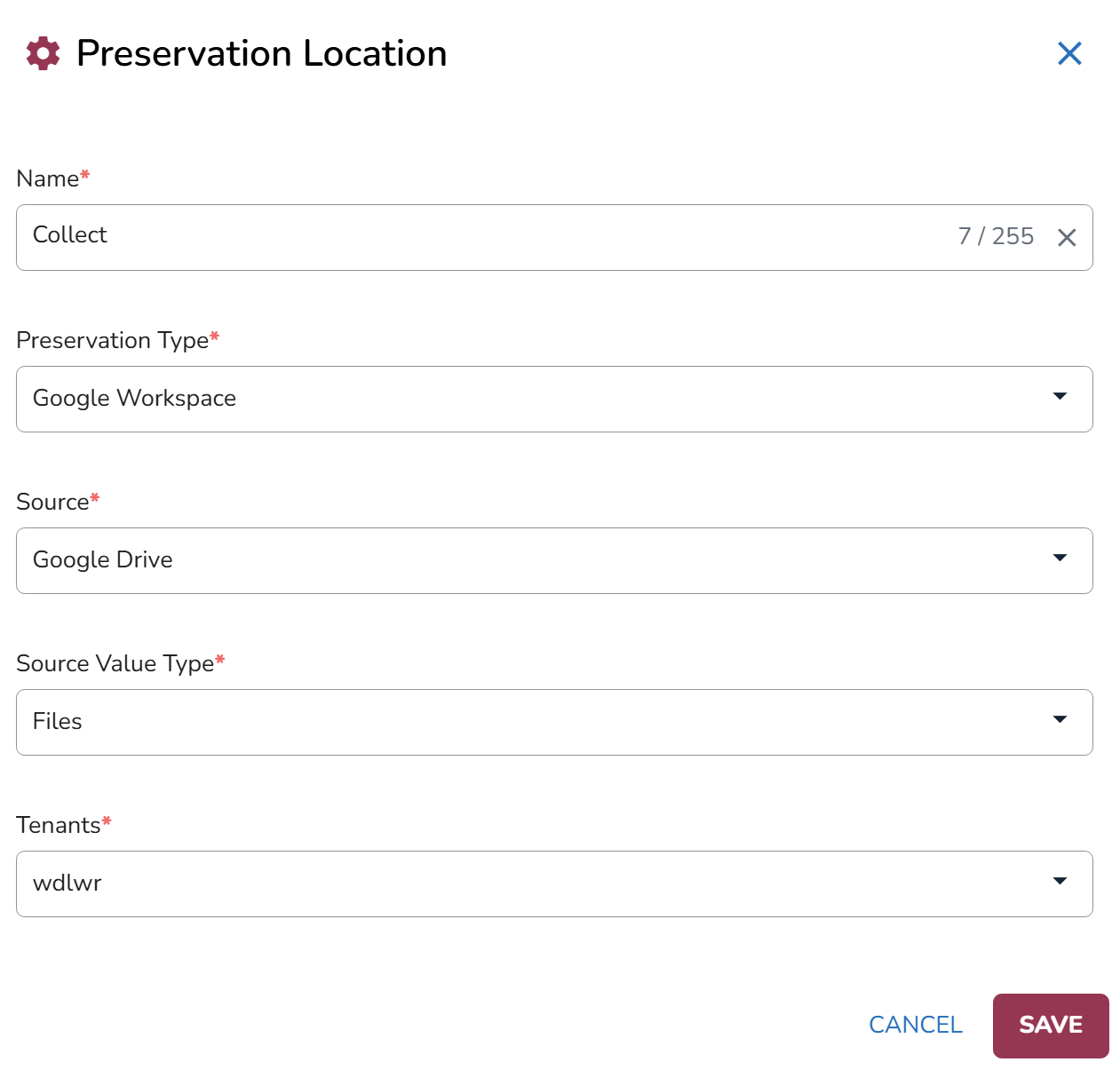
The new location will appear in the Locations grid.
Configure Google Workspace collection settings
Once the integration and location are configured, you can enable Google Workspace collection for a hold.
Create or open a hold and add the custodians whose data needs to be collected.
Navigate to the Collection tab.
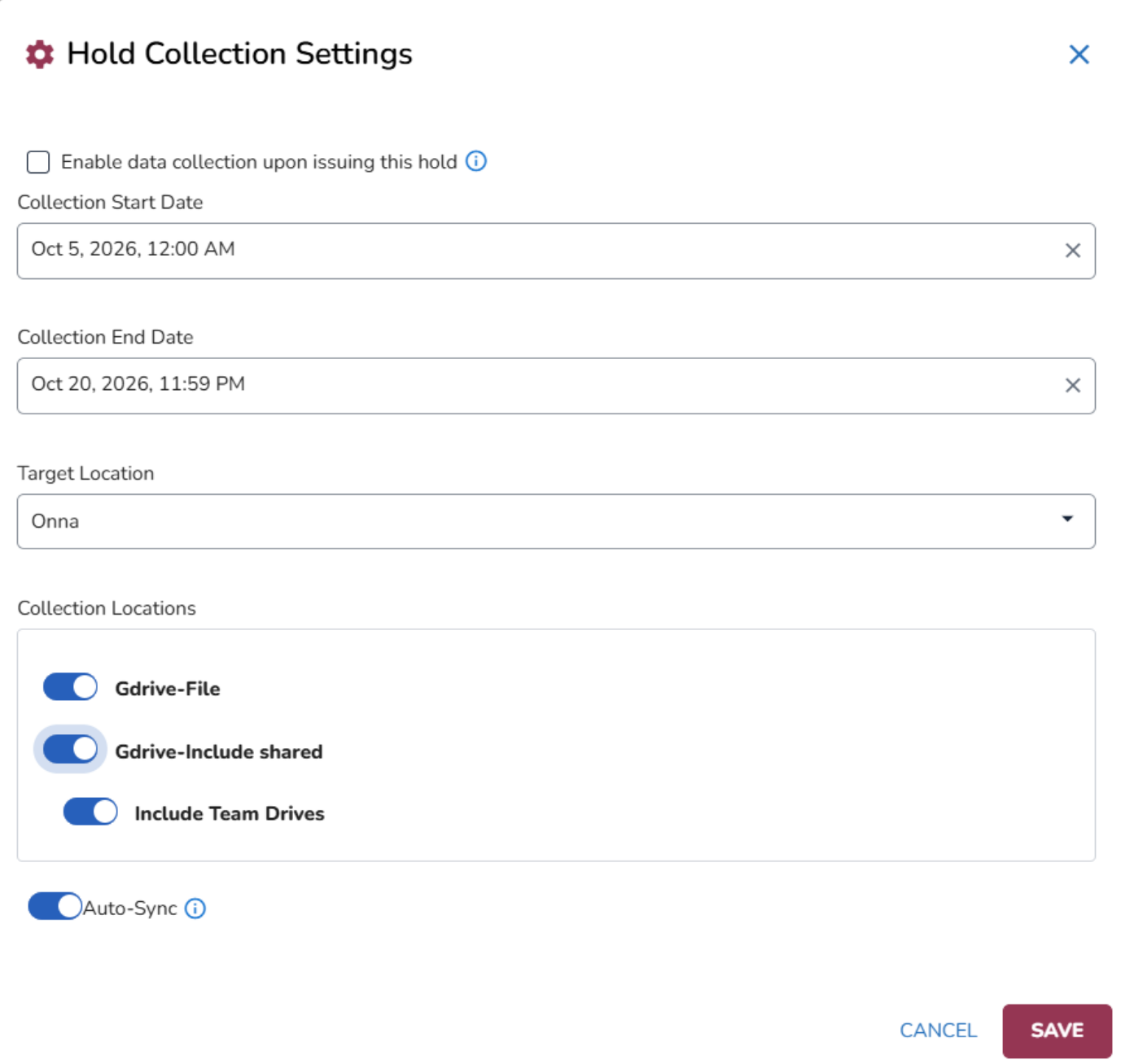
Click Edit Collection Settings. The Hold Collection Settings modal opens.
Set the Collection Start Date and Collection End Date.
Onna is selected as the Target Location by default.
Under Collection Locations, enable each Google location you want to collect.
For an Include Shared location, enable Include Team Drives to also collect the custodian's Team Drives (Shared Drives in Google). This option appears only under Include Shared locations.
For a Gmail location with Source Value Type All, enable Sync Drafts, Spam and Trash to also collect those folders.
Enable Auto-Sync if the collected data should continue to be updated. Enabling it after a collection has finished has no effect.
Click Save.
Important
If Enable data collection upon issuing this hold is selected, collection starts automatically for every custodian when the hold is issued. Automatic collections do not open Folder Selection, so they collect each custodian’s whole account for every location. To choose folders, leave this option cleared.
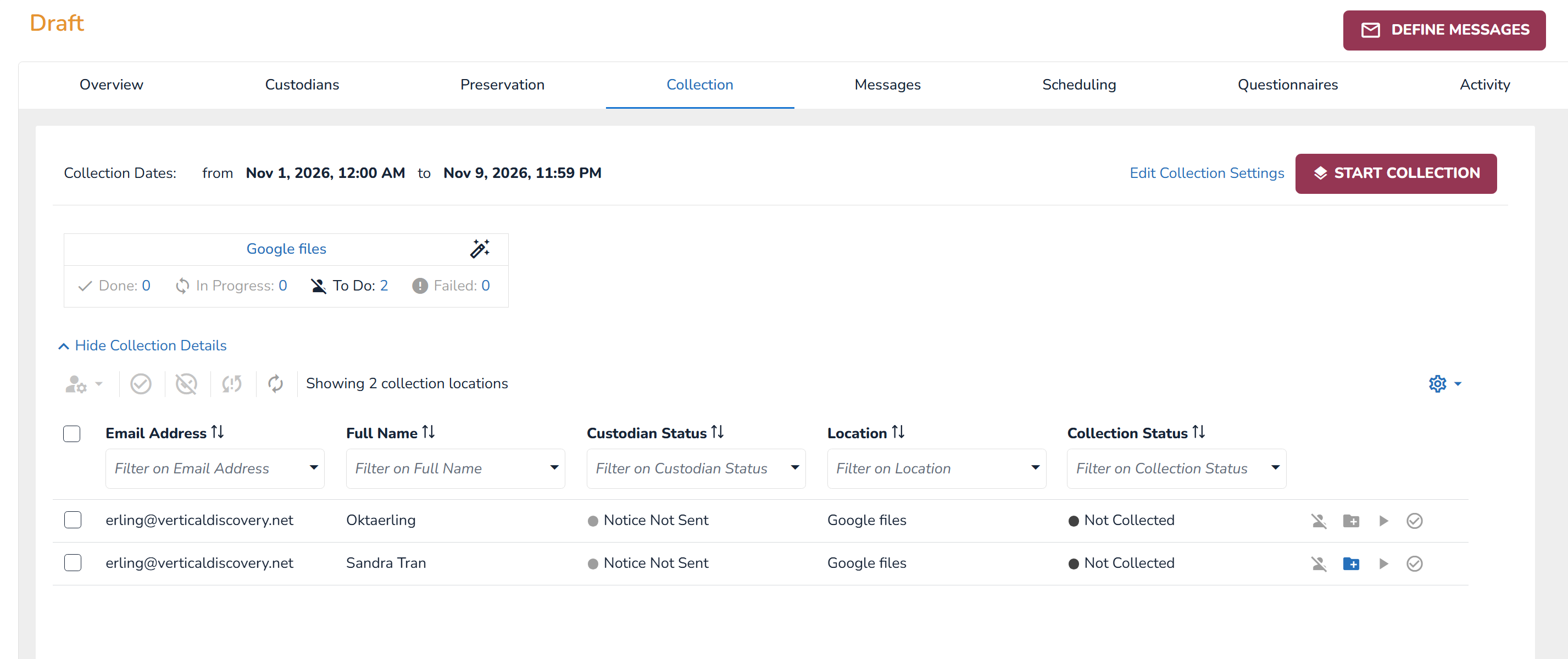
The Google locations appear on the Collection tab, displaying the number of custodians with Done, In Progress, To Do, and Failed statuses.
Select Google Drive folders to collect
For Google Drive locations, you can choose which folders to collect for each custodian before the collection starts. Gmail locations always collect the whole mailbox within the date range.
On the Collection tab, find the row for the custodian and the Google Drive location you want to collect. You can select folders only while its Collection Status is Not Collected.
Click the Pick folders to collect icon
 in that row.
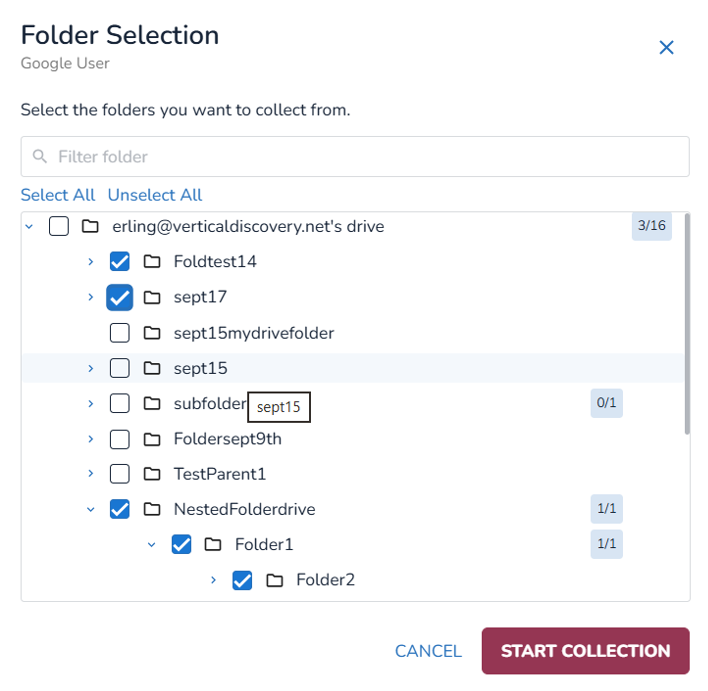
After the Folder Selection modal opens, select the folders to collect. The steps in the modal depend on the location’s Source Value Type:
Files: shows the custodian’s My Drive folders.
Include Shared: includes the custodian’s My Drive folders and the folders shared with them. If Include Team Drives is enabled, their Team Drives folders are also included. Click Next and Back to move between steps.
To find folders, expand a folder to see its subfolders, type in Filter folder, or use Select All and Unselect All. The counter next to each drive shows how many of its folders are selected.
Optionally, enable Auto-Sync in the modal. Any new top-level folder created later automatically triggers a collection.
Lastly, click Start Collection.
Note
You can’t change the selected folders after the collection starts. To see them, click View selected folders. This read-only list is available once the collection is pending, collected, or failed.
To collect a custodian’s whole account instead, click the Start full collection icon  in the custodian row. To start collection for all custodians at once, click Start Collection at the top of the Collection tab.
What gets collected
The date range from the collection settings always applies. Within that range:
A selected folder: everything inside it, including all subfolders.
Only some subfolders selected: the files directly in the parent folder, plus the selected subfolders.
No folders selected: Start Collection is unavailable. A custodian with no Drive folders at all can still start a collection.
A collection started without Folder Selection (the Start full collection icon, the Start Collection button, or automatic collection): the custodian's whole account, based on the location's Source Value Type.