The Zoom integration allows organizations to collect Zoom data from custodians as part of a legal hold. Administrators can configure the integration at the subscription level, create a Zoom collection location, and enable collections for individual holds. Collections are processed through Onna, with their status tracked in Reveal Hold.
Create a Zoom integration
A System Administrator can configure the Zoom integration from the subscription settings.
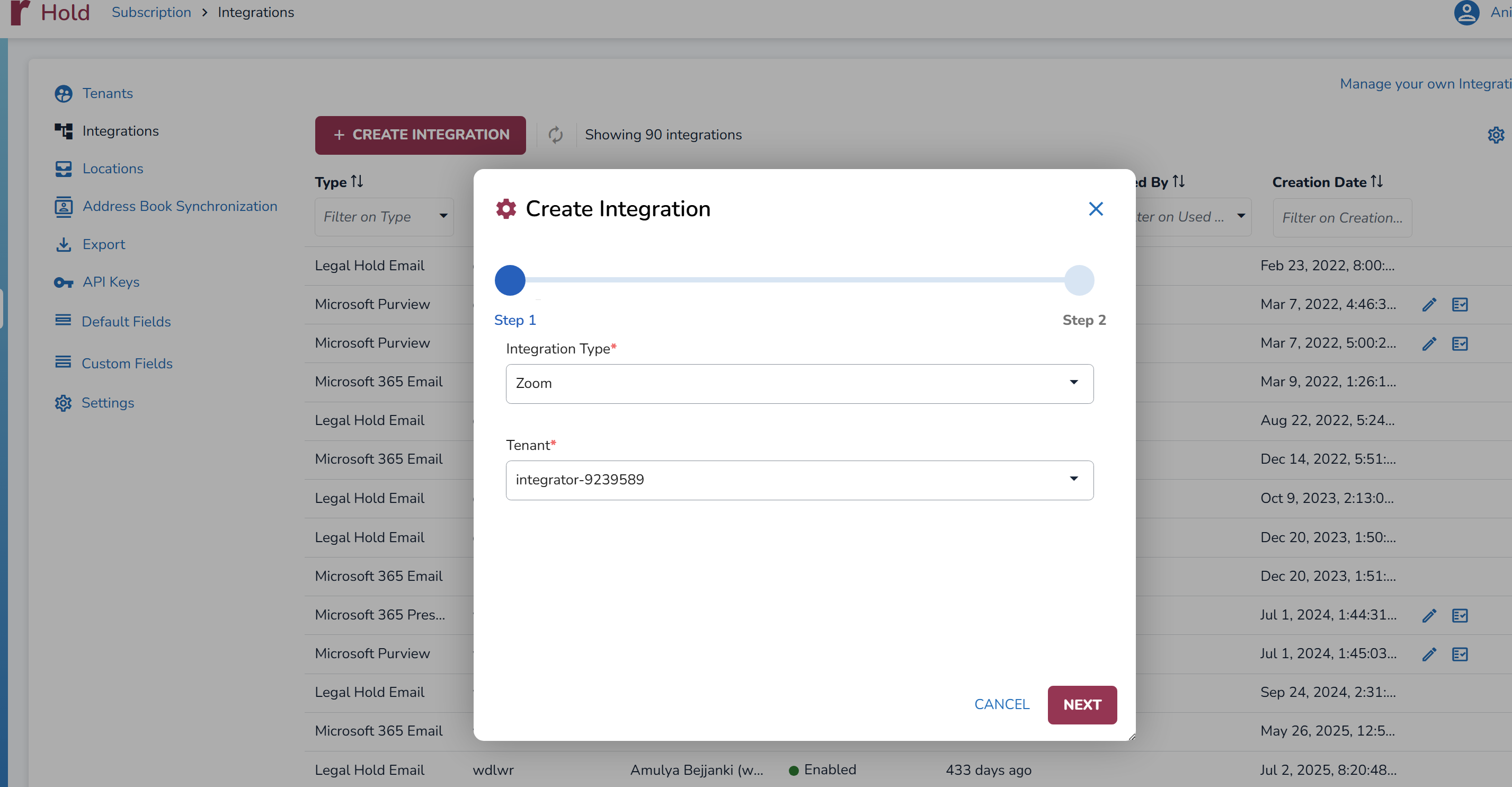
Navigate to Admin Center > Subscription > Integrations.
Click
 .
.In the Integration Type dropdown, select Zoom.
Select the Tenant and click Next.
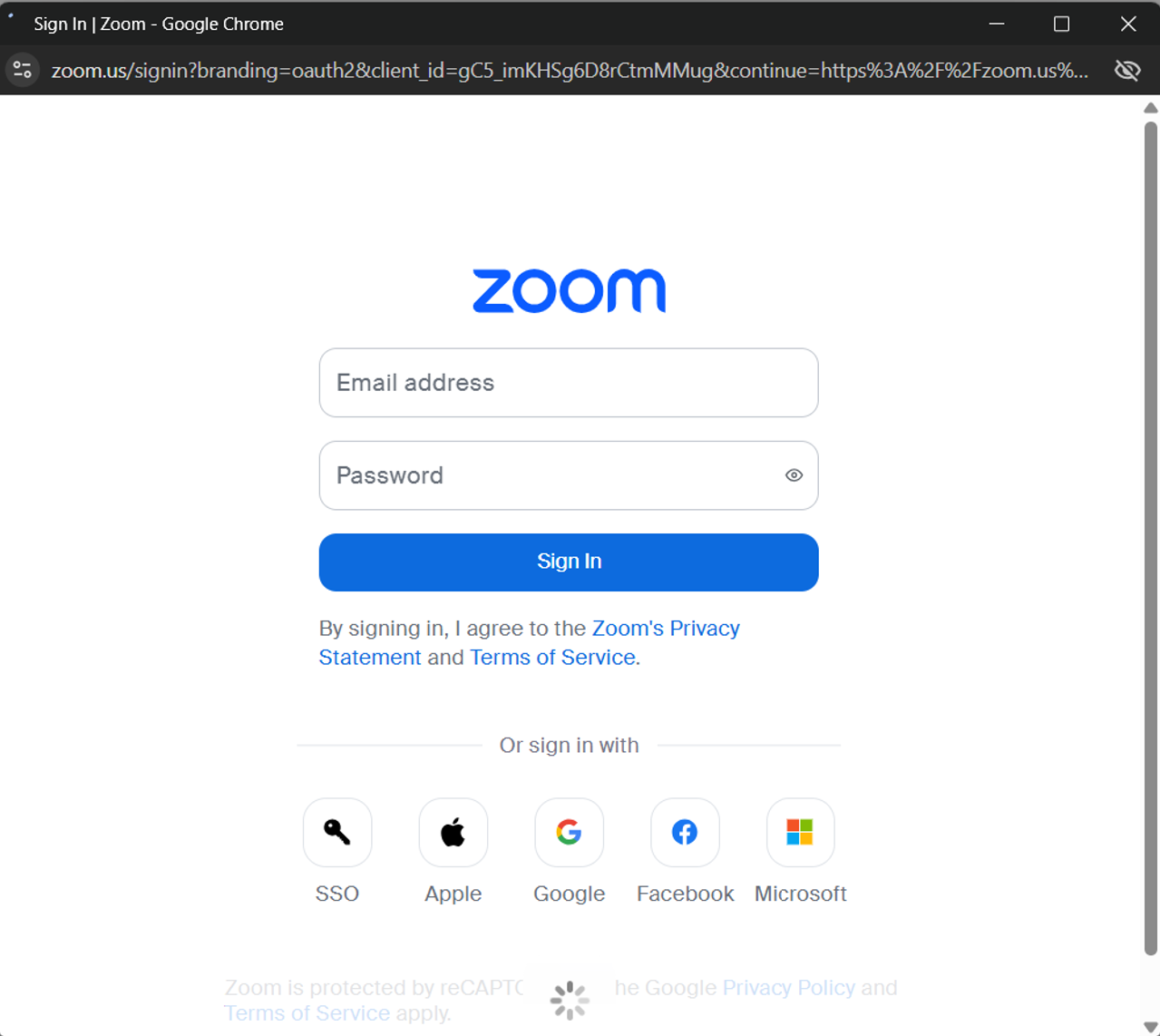
In the Zoom sign-in window, enter the Zoom administrator’s email address and password, then click Sign In.
If two-step verification is enabled, enter the code from your authenticator app and click Verify.
Grant the requested permissions to authorize the integration.
Return to Reveal Hold and click Save.
A confirmation message indicates that the Zoom integration was saved successfully. The integration appears in the Integrations grid with its status set to Enabled.
Important
A Zoom integration created before this feature was released does not have legal hold access. Edit it and repeat the Zoom sign-in, otherwise preservation will fail.
Create a Zoom collection location
After configuring the integration, create a location to identify the Zoom source for collection.
Navigate to Admin Center > Subscription > Locations.
Click
.png) .
.Enter a Name for the location.
Under Preservation Type, select Zoom.
Verify that Zoom is displayed as the Source.
Select the Tenant and click Save.
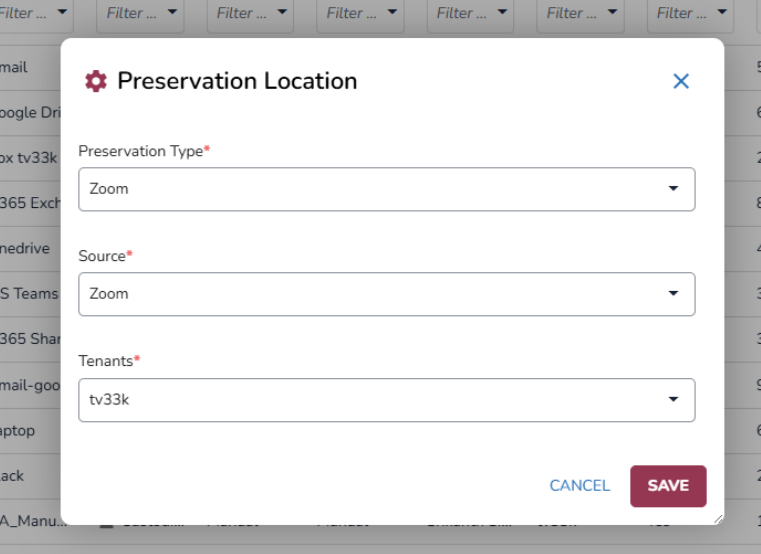
The new location appears in the Locations grid.
Note
Only tenants with an existing Zoom integration are available for selection.
Configure Zoom collection settings
Once the Zoom integration and location are configured, you can enable Zoom collection for a hold.
Create or open a hold and add the custodians whose Zoom data needs to be collected.
The custodian's email in the Address Book must be the same as their Zoom user email (the email they sign in to Zoom with). Capital letters do not matter. If the email does not match a Zoom user, the custodian shows Not Present and nothing is held in Zoom.
Navigate to the Collection tab.
Click Edit Collection Settings.
Verify that Onna is selected as the Target Location.
Under Collection Locations, enable Zoom.
.png)
Enable Auto-Sync if the collected data should continue to be updated.
Click Save.
The Zoom collection location appears on the Collection tab, displaying the number of custodians with Done, In Progress, To Do, and Failed statuses.
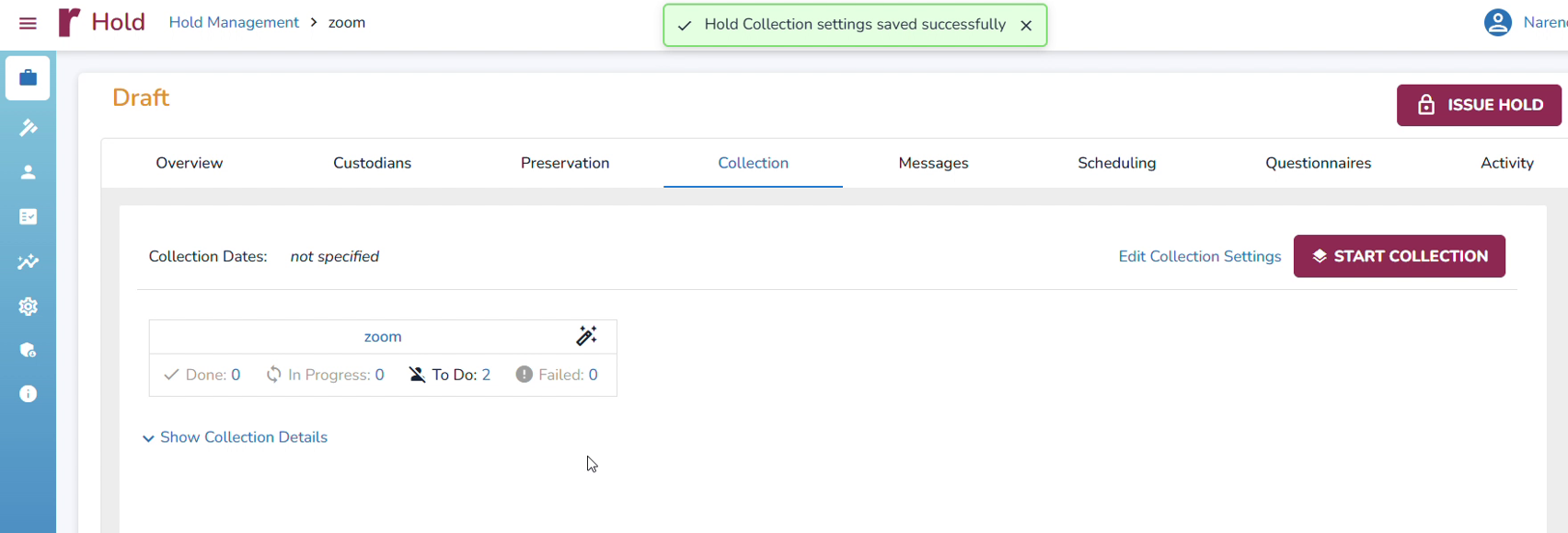
To start collecting Zoom data for the custodians included in the hold, click Start Collection. After the confirmation dialog appear, click Yes. This will starts the collection in Onna. The Collection Status initially displays Not Collected until the collection is completed.
To start a collection for an individual custodian, click the Start icon  in the corresponding custodian row.
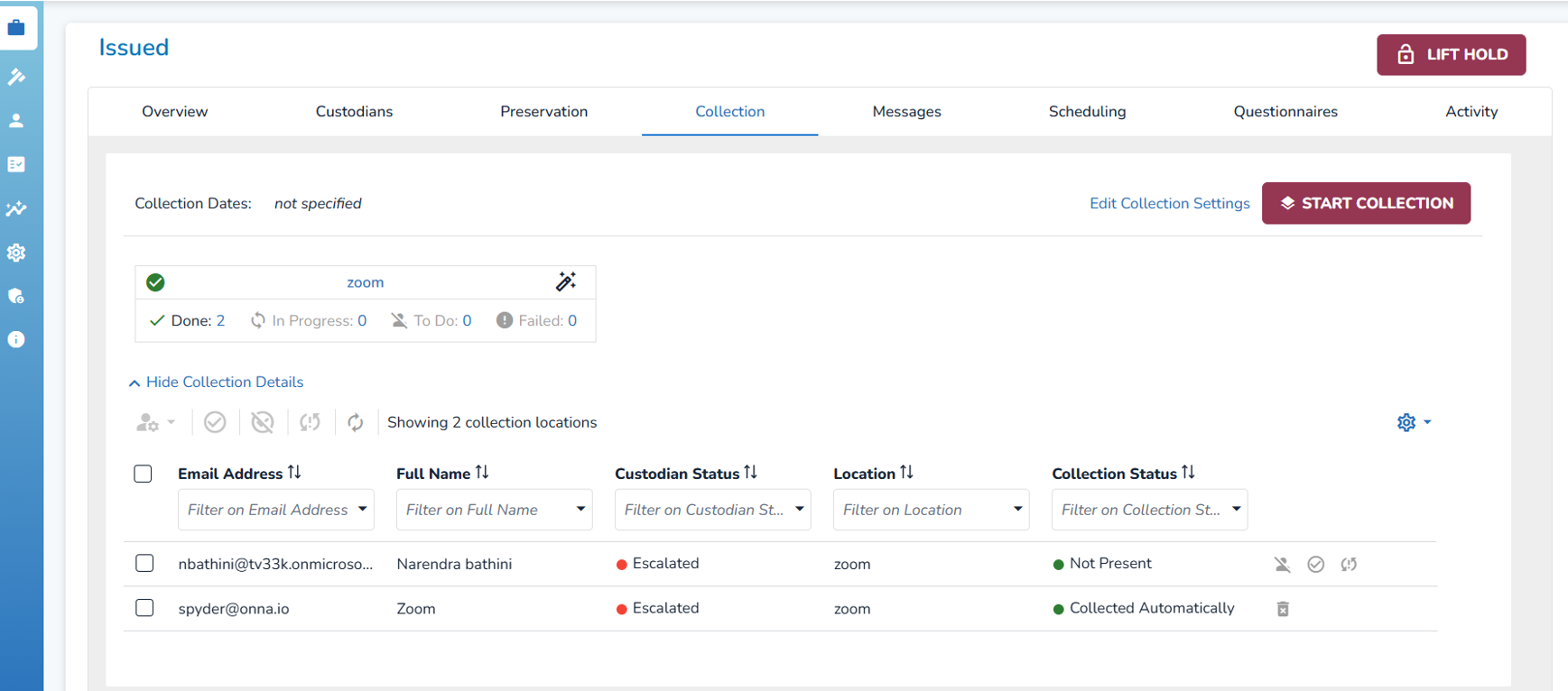
Reveal Hold retrieves Zoom collection statuses through the Onna integration. These statues can be:
Status | What it means |
|---|---|
Not Collected | Collection has not started for this custodian yet. |
Automatic Collection Pending | Reveal Hold asked Zoom for the data and is waiting for a response. |
Collected Automatically | The custodian was found in Zoom and their data was collected successfully. The Delete action is available |
Collected Manually | A user manually marked the Zoom location as collected for this custodian. |
Not Present | No Zoom user has the custodian's email address. There is nothing to collect; this is not an error. The available actions are Exclude, Set to Collected, and Retry |
Excluded | The Zoom location was excluded for this custodian before collection started. |
Failed | The collection request failed. The error appears under Health Status > Activity Errors. After resolving the issue, the collection can be retried from the Activity or Collection grid. |
Use the collection status and available actions to manage individual custodian collections.