Custom Fields allow administrators to add fields to Matters and Holds when the built-in fields do not capture the information their organization needs. Custom field values are available in Matter and Hold grids, reports and the Reporting API, Message Templates as placeholders, and Subscription Import/Export.
Subscription Import/Export preserves the custom field configuration, including field types, groups, dropdown options, and ordering, when moving between subscriptions. Hidden fields are excluded from these areas until restored.
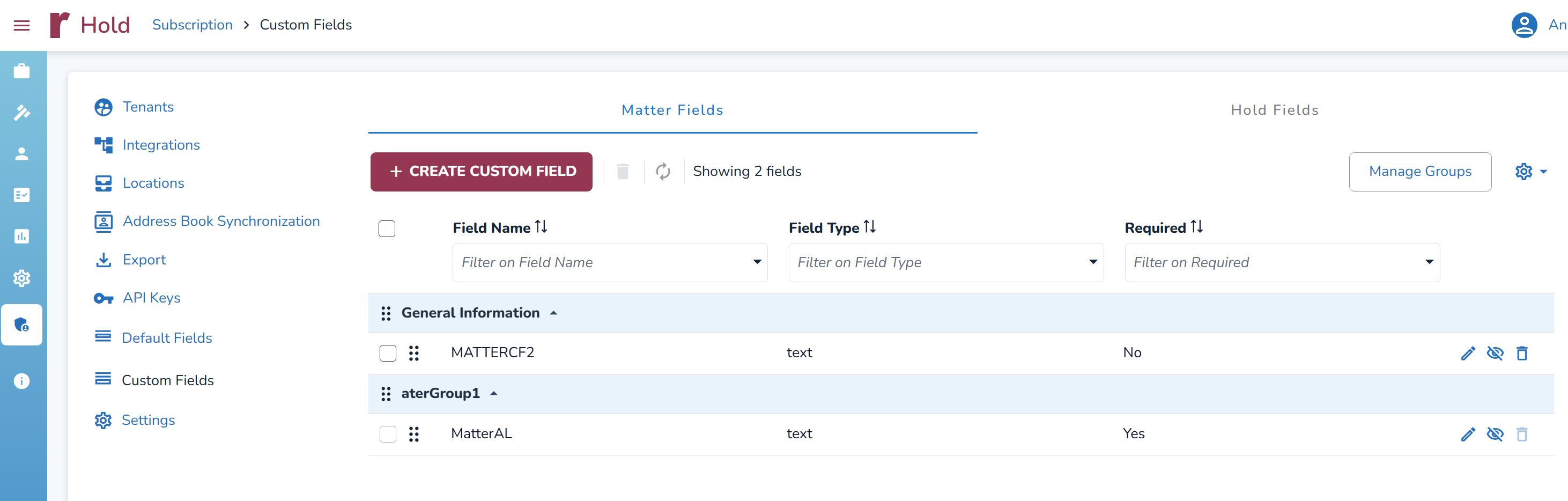
Use the Matter Fields and Hold Fields tabs to view and manage custom fields for each entity type. Each tab has its own grid, where you can create, edit, organize, hide, or delete custom fields.
The grid displays the Field Name, Field Type, and Required status for each field. You can search, filter, and sort fields by column, or use the Setting .png) to export and save views.
to export and save views.
Create a custom field
Select
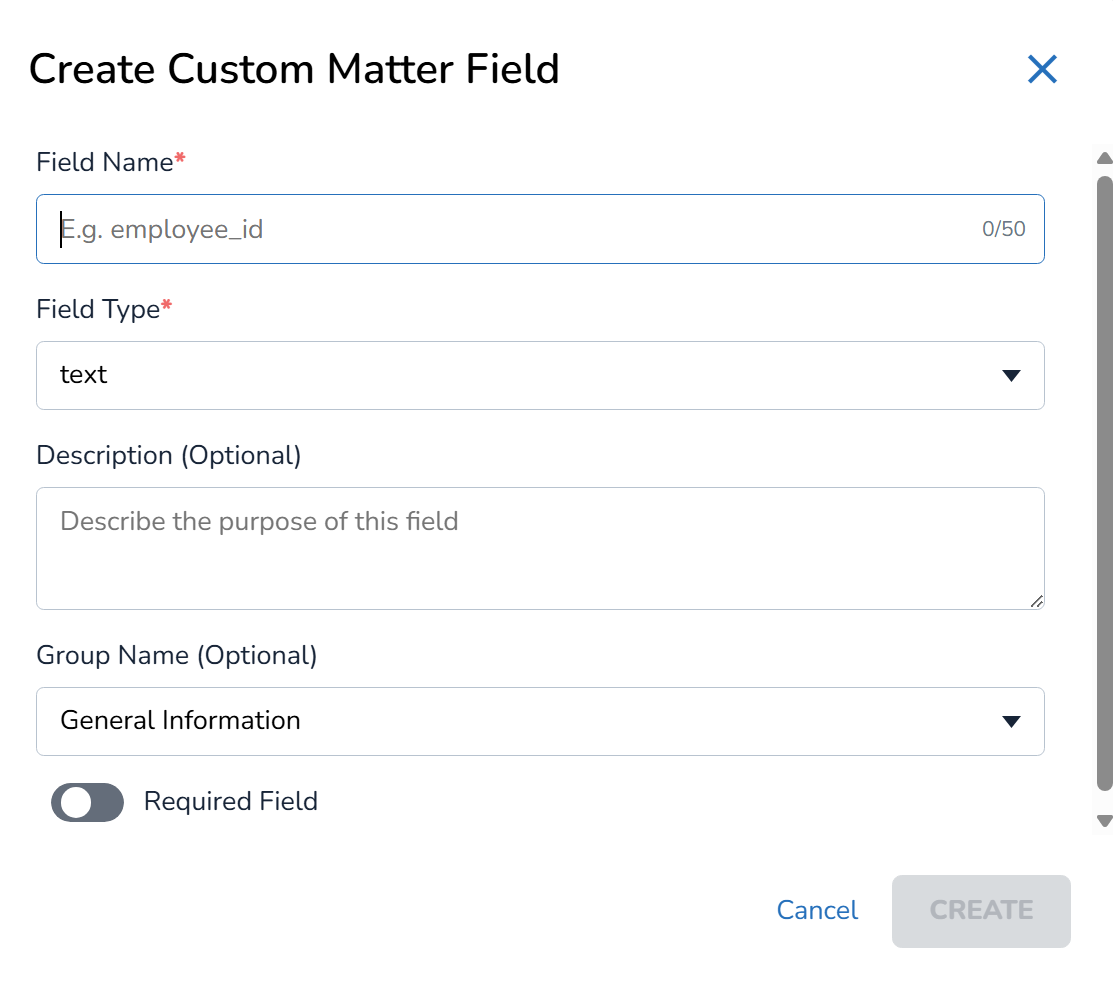
 to open the Create Custom Matter Field or Create Custom Hold Field modal, depending on the selected tab.
Enter a Field Name. Field names must be unique and can contain up to 50 characters.
Select from the following Field Types. These cannot be changed after creation.
Text
Numeric
Date
Dropdown
Email
Enter a Description for the field.
Select a Group Name to determine where the field appears. If no group is selected, the field is added to the default General Information group.
If you selected Dropdown in the Field Type, a new option field will appear. Here, you can enter an option under Add Dropdown Options, then select + to add it. Repeat this step to add additional options as needed (allows up to 255 options). After creation, you can add new dropdown fields, but you cannot delete the existing ones.
Enable Required Field if users must complete the field.
Select CREATE.
A maximum of 20 custom fields can be created per entity type for each subscription. When this limit is reached, + Create Custom Fields is disabled.
Note
Adding a new custom field does not require existing Matters or Holds to be updated. The field appears on existing records with no value, even when it is configured as required.
Each custom field includes these actions:
 – Allows you to edit the Field Name, change the Required setting, or assign the field to a different group. Field order is managed directly from the grid by dragging fields into the required position.

– Show or hide the field in the user interface. Hidden fields do not appear on the Matter and Hold creation screens and are identified as hidden in the Matter or Hold Fields grid.
 – Delete a custom field that has no stored data. Fields containing data cannot be deleted and must be hidden instead. Deleting a field also removes its placeholder from Message Templates and frees the field slot for reuse.
Custom fields can be organized by dragging them to reorder fields within a group or move fields between groups. You can also change a field's group using the Edit action.
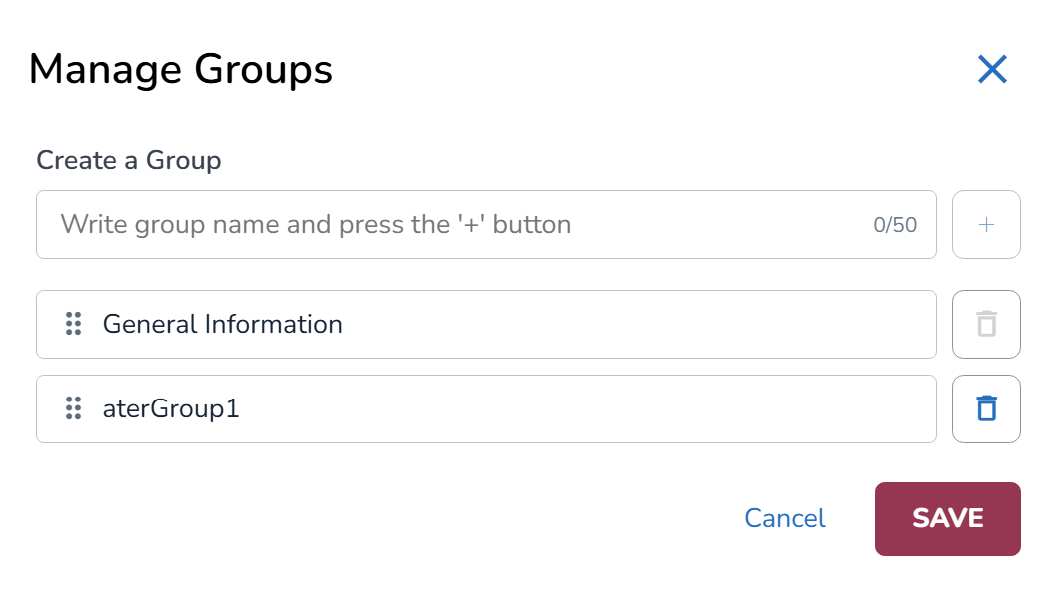
Click on .png) to add, rename, reorder, or delete groups. The default General Information group can be renamed but cannot be deleted. If you delete a group that contains custom fields, the fields are moved to the default group and their stored data is preserved.
to add, rename, reorder, or delete groups. The default General Information group can be renamed but cannot be deleted. If you delete a group that contains custom fields, the fields are moved to the default group and their stored data is preserved.
Note
On Matter and Hold forms, fields appear according to the group order and the field order within each group. This order applies across the subscription for all users.