Default Fields allow administrators to customize the built-in Matter and Hold fields to align with their organization’s terminology and processes. Administrators can rename fields, make fields required or optional, and control whether fields are visible.
Configure default fields
Use the Matter Fields and Hold Fields tabs to view and configure the default fields for Matters and Holds:
Field Name – Change the label displayed for the field. Renaming a field changes its display label only. The underlying system field identifier and existing data remain unchanged. The new field name applies to both existing and new Matters and Holds.
Field Type – Specifies whether the field is populated by text, dates, or numerics. This cannot be changed.
Required – Specify whether the field must be completed. Making a field required does not invalidate Matters or Holds created before the change. Existing records remain valid and are not required to be updated.
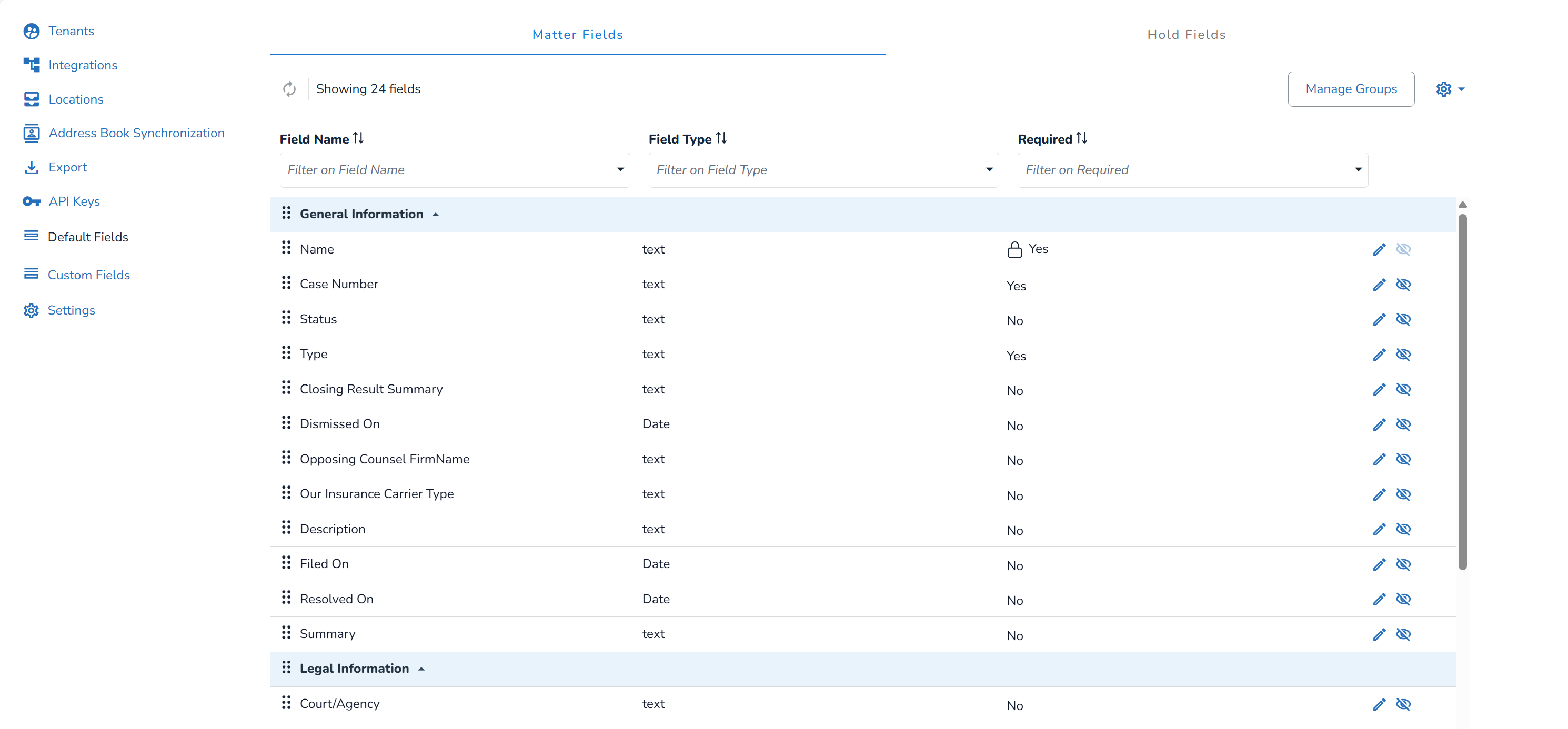
On the far right, each row has two action buttons:
 – Allows you to edit the Field name, and specify if the field is Required or not.
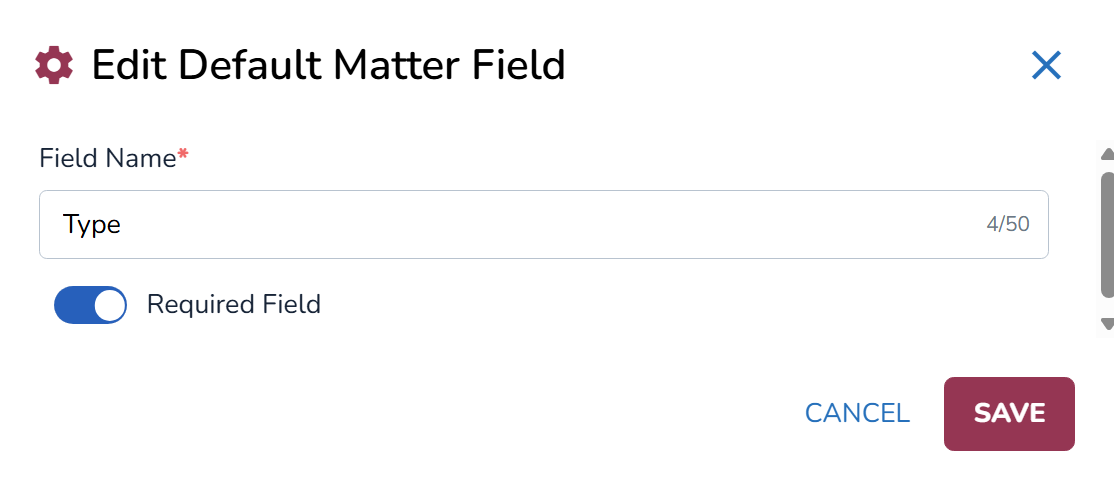
When renaming a default field:
Field names must be unique.
Field names can contain a maximum of 50 characters.
Only supported special characters can be used in field names.
Renaming a field updates its label throughout Reveal Hold, including Matter and Hold creation popups, summary pages, grid column headers and views, exports, Message Template parameters and placeholder lists, Matter and Hold report titles, CSV and Excel report downloads, and Subscription Import/Export. However, its contents do not modify the underlying field type or stored data.

– Show or hide the field in the user interface. Hidden fields do not appear on the Matter and Hold creation screens and are identified as hidden in the Default Fields grid.
System-mandatory fields are identified by a lock icon  in the Default Fields grid.
Note
System-mandatory fields can be renamed, but they cannot be made optional or hidden.
Matter fields are organized into groups, such as General Information, Legal Information, Parties, Financial/Risk, and Administrative. Each group appears as a separate section on the Matter Fields tab.
The Hold Fields tab has only one group, General Information.
Click .png) to rename groups, move fields between groups, or reorder the groups. Group names must be unique. These groups cannot be deleted from the Default Fields page.
to rename groups, move fields between groups, or reorder the groups. Group names must be unique. These groups cannot be deleted from the Default Fields page.
Manage Groups is available on both the Default Fields and Custom Fields pages and applies only to the groups on the page where it is selected.
.png)
Grab the  icon to move them around. The same can be applied in the Default Fields grid.