When you integrate Reveal Hold with Google Workspace, your users sign in to Reveal Hold with their Google account, and you control access to Reveal Hold centrally from your Google organization. The integration also enables synchronization of your employee directory into the Reveal Hold address book, so contacts stay current automatically.
Setting up the integration consists of two parts: this article covers creating the Google Cloud project and OAuth client that Reveal Hold uses for single sign-on. The follow-up article, Create a Google Service Account to Synchronize Users, covers the service account used for address book synchronization.
Prerequisites
A Google Workspace subscription for your organization.
A Google account with permission to create projects in the Google Cloud console (console.cloud.google.com) for your organization.
A Super Admin (or equivalent) account for the Google Admin console (admin.google.com), required for the service account steps in the follow-up article, which are needed for both role mapping and address book synchronization
The URL of your Reveal Hold environment, as provided by Reveal.
Create a Google Cloud project
Reveal Hold is registered in your Google organization as an OAuth application inside a dedicated Google Cloud project.
Go to console.cloud.google.com and sign in with an account in your organization.
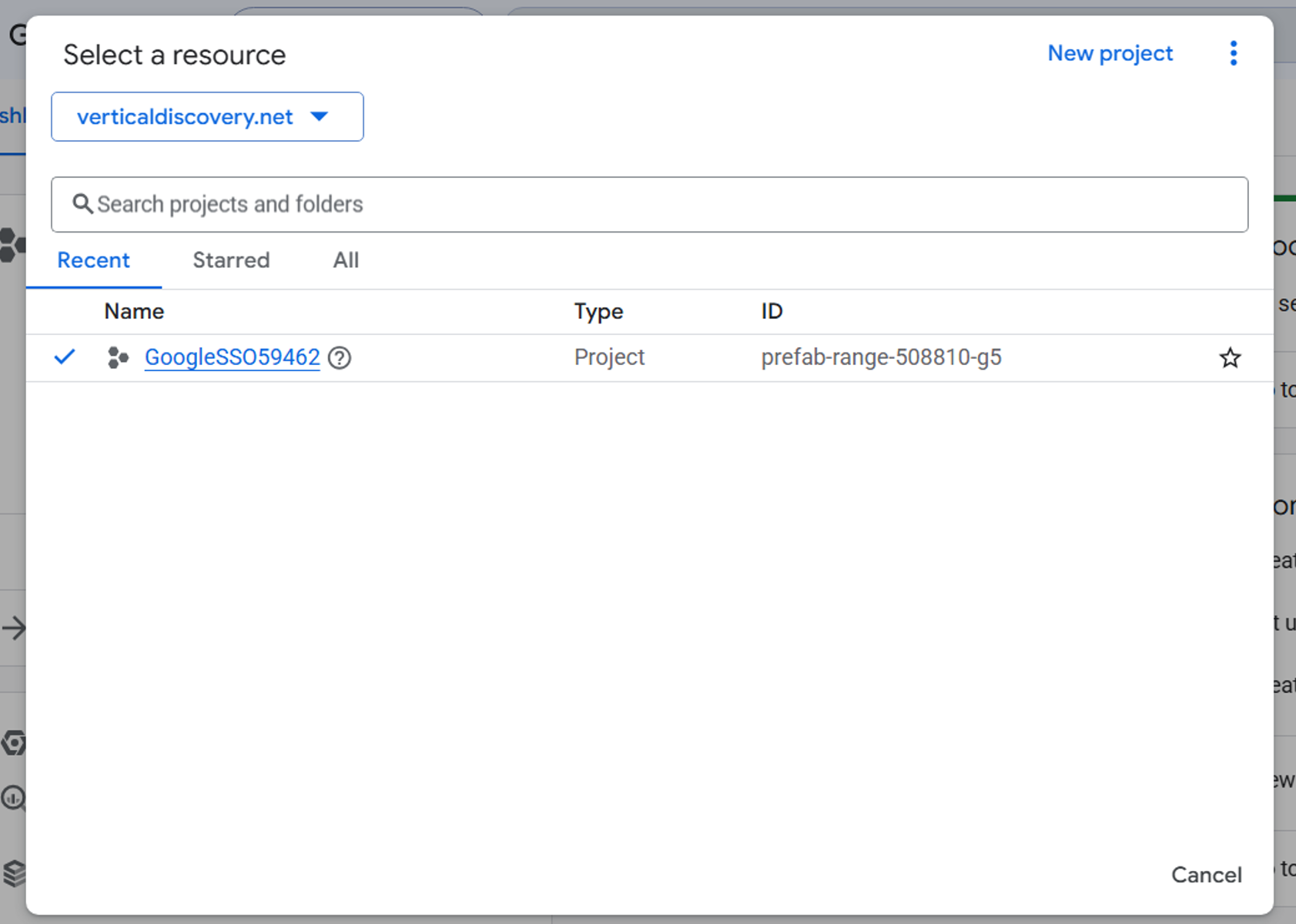
Select the project selector drop-down at the top of the page and select New project
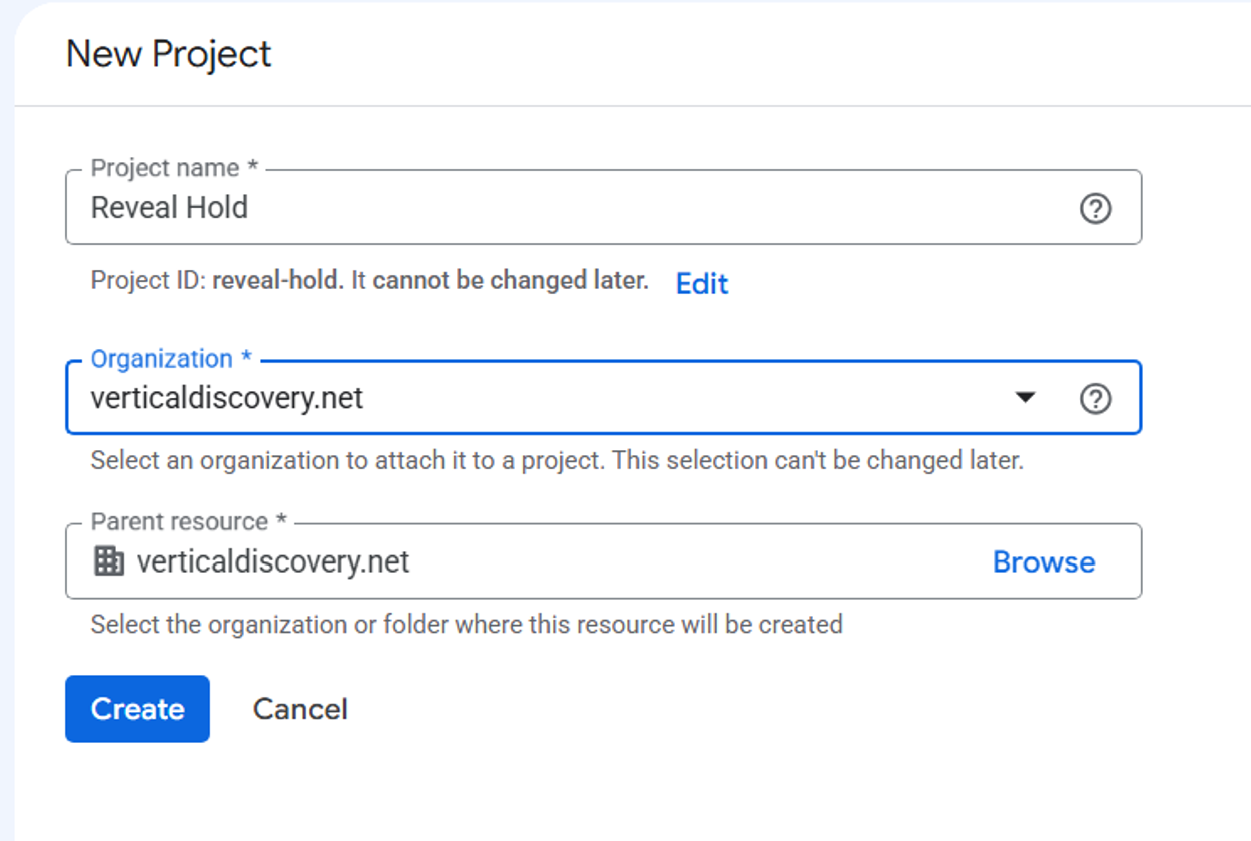
Enter a Project name, for example “Reveal Hold”.
Select your organization’s domain as the Organization and as the Parent resource (or use a specific folder if your organization requires this), then select Create
Configure the OAuth consent screen
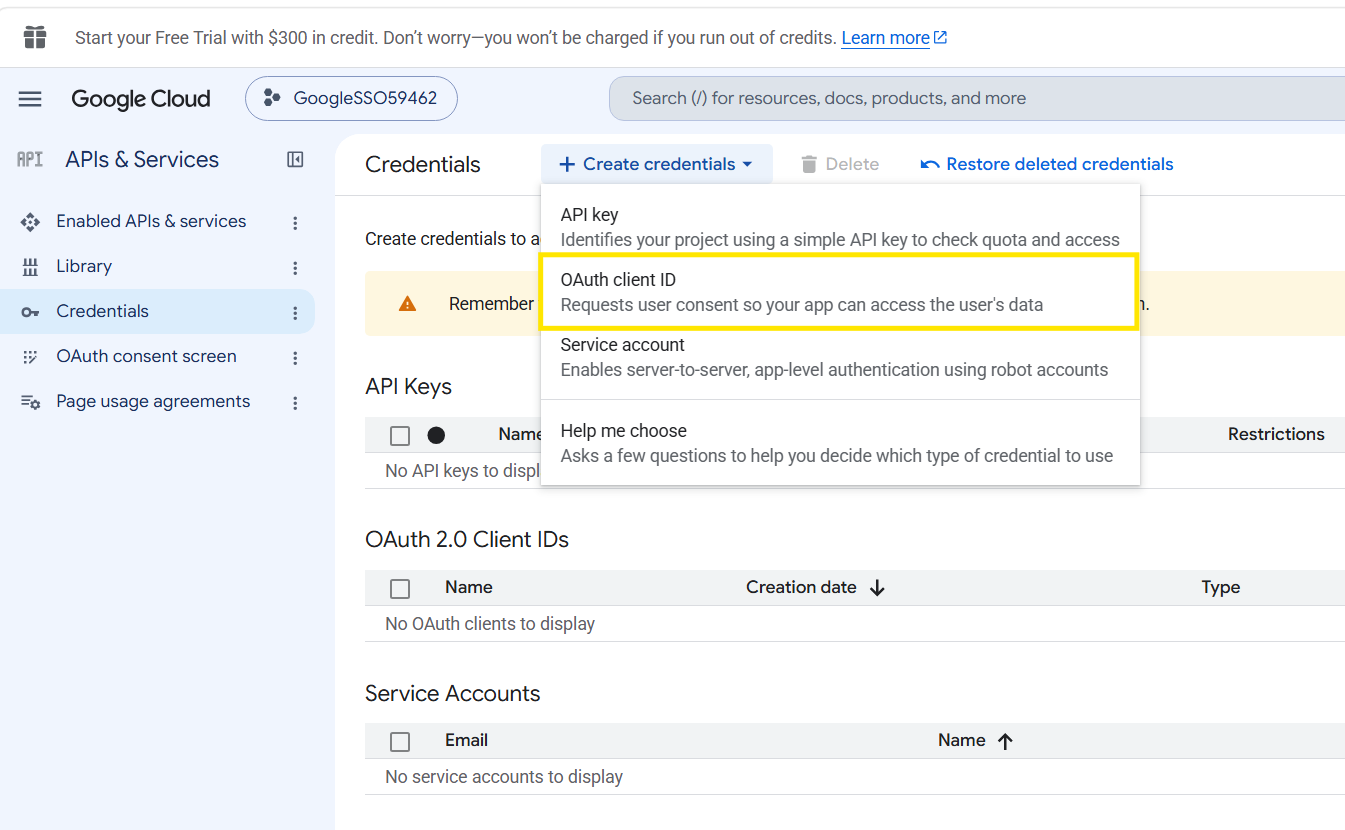
In the new project, go to APIs & Services > Credentials.
Select Create credentials > OAuth client ID. Google will prompt you to configure the OAuth consent screen first.
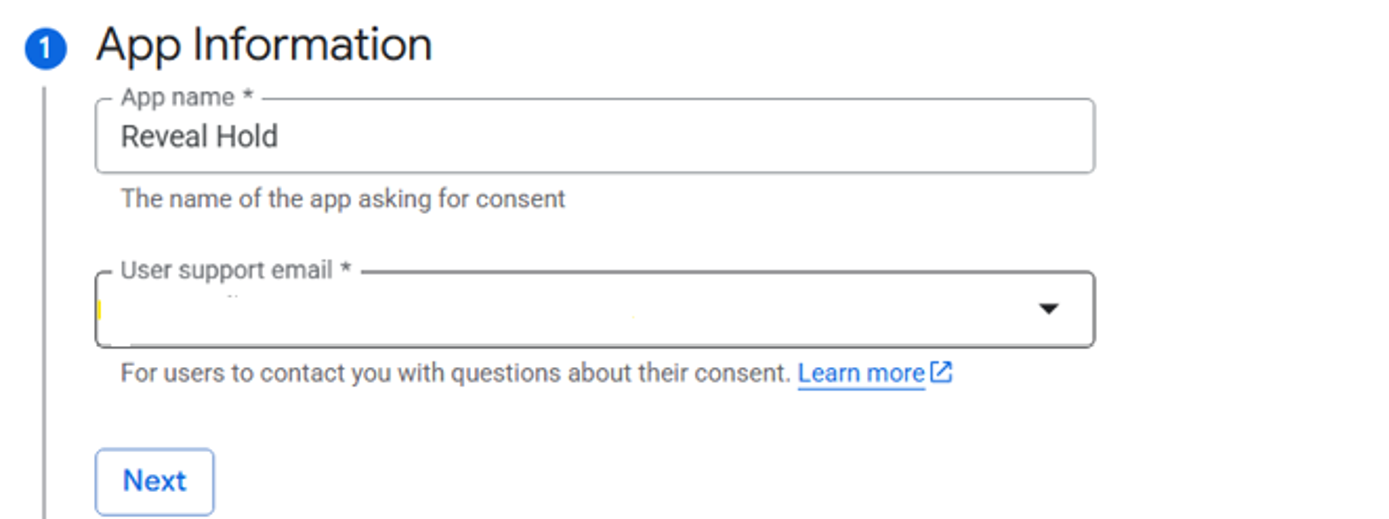
Under App Information, enter an App name (for example “Reveal Hold”) — this is the name your users see on the Google sign-in consent screen — and select a User support email. Click Next.
Under Audience, select Internal, then select Next.
Note
Internal means only users within your Google Workspace organization can sign in to Reveal Hold with this application. No Google app verification submission is required for internal applications.
Under Contact Information, add a developer contact email address and select Next.
Under Finish, agree to the Google API Services: User Data Policy, select Continue.
Finally, select Create.
Create the OAuth client ID
On the OAuth Overview page, select Create OAuth client.
Select Web application as the Application type and enter a name.
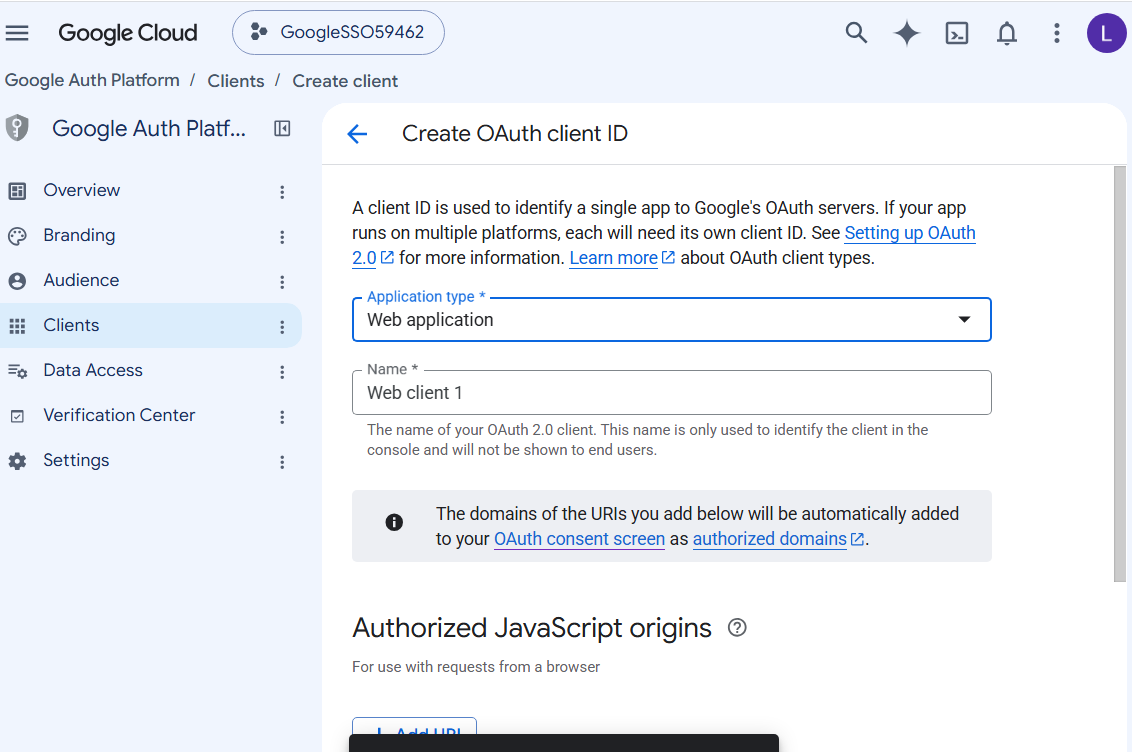
Under Authorized JavaScript origins, add the URL of your Reveal Hold environment: https://<your Reveal Hold URL>
Under Authorized redirect URIs, add https://<your Reveal Hold URL>/signin-mt-oidc/
Select Create.
Note
It may take from 5 minutes to a few hours for these settings to take effect on Google’s side.
Copy the Client ID and Client secret shown after creation. You will need these when configuring the integration in Reveal Hold.
Add data access scopes
Reveal Hold only requests non-sensitive sign-in scopes; it does not request access to your users’ data through the OAuth client.
In the left sidebar, select Data Access, then select Add or remove scopes.
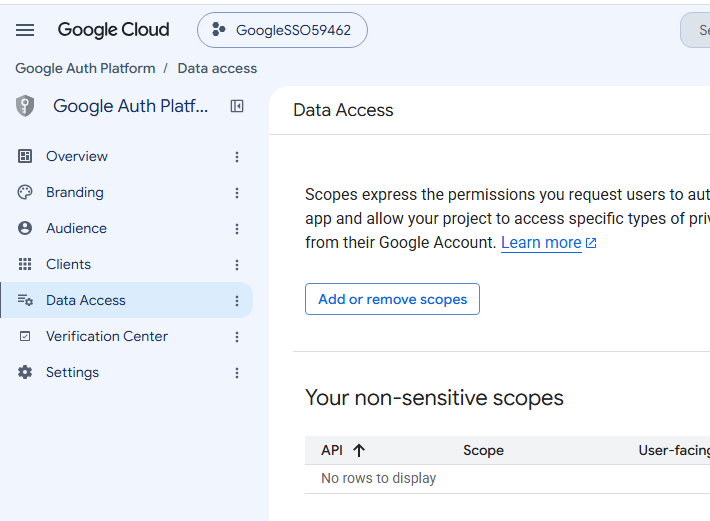
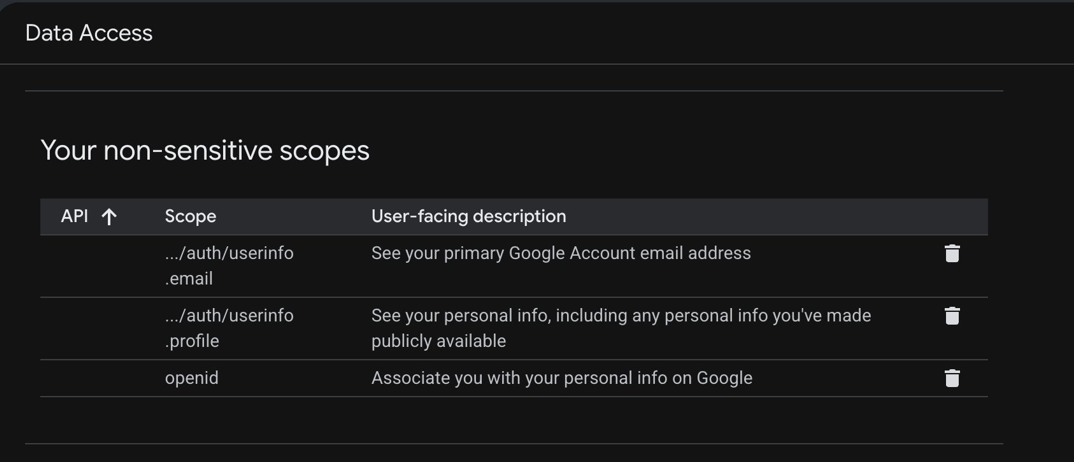
Select the three sign-in scopes:
.../auth/userinfo.email,
.../auth/userinfo.profile, and
openid.
Click Update, then Save. All three scopes will appear under Your non-sensitive scopes.
Configure the integration in Reveal Hold
Google integration is configured by Reveal Support, not self-service. Unlike the Ping Identity flow, there is no screen where a customer enters a Client ID / Client secret / domain directly in Reveal Hold.
Complete the steps in Create a Google Service Account to Synchronize Users.
Provide your Google Workspace Client ID, Client secret, domain, and service account details to Reveal Support through a secure channel. Reveal Support configures the integration and enables group-based role mapping.
Once Reveal Support confirms the setup, synchronize your contacts as described in Create a Google Service Account to Synchronize Users.
Assign users and roles
Roles are mapped via a GroupsMapping configuration set up by Reveal Support. At login, Reveal takes the user’s Google Workspace Admin Directory groups and maps matching group names to Reveal roles (e.g., a group named "Reveal Hold - System Administrator" maps to the System Administrator role). Mapped roles are further capped by the tenant's trusted-roles allow-list.
At minimum, make sure that:
one Google Group is mapped to System Administrator, to configure the integration and synchronize contacts, and
one Google Group is mapped to Global Hold Manager, to test sending preview emails.
Synchronize contacts
To keep the Reveal Hold address book up to date with your Google directory, create a service account with domain-wide delegation as described in Create a Google Service Account to Synchronize Users, and see Address Book Synchronization for how synchronization works.