Address book synchronization keeps the contacts in Reveal Hold current with your Google Workspace directory. Reveal Hold reads your directory through the Google Admin SDK API, using a dedicated service account with domain-wide delegation that is limited to read-only directory access. This follows the same principle as the Okta service account article: a purpose-built account with the minimum permissions needed for synchronization.
Complete the steps in Integrate with Google Workspace first — the service account is created inside the same Google Cloud project.
Create the service account
In the Google Cloud console, open the project you created for Reveal Hold and go to IAM & Admin > Service Accounts.
Select + Create service account.
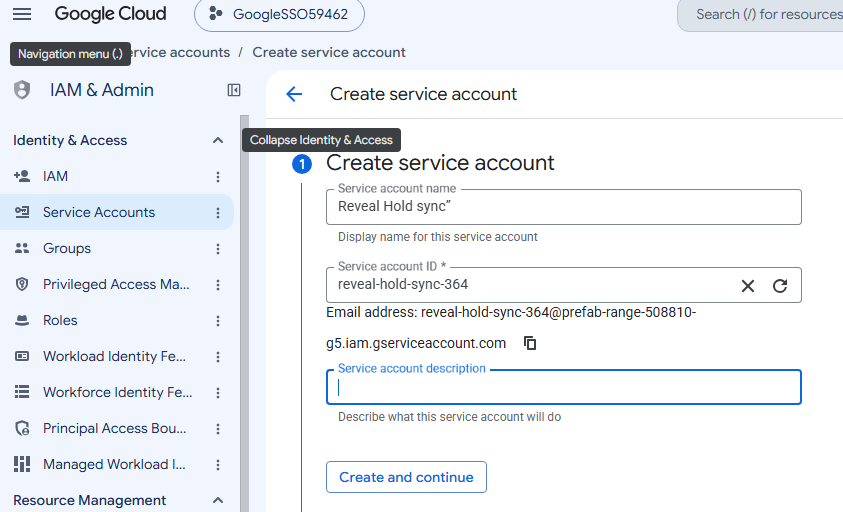
Enter a Service account name, for example “Reveal Hold sync”. The Service account ID is generated automatically. Select Create and continue.
Skip Permissions (optional) by selecting Continue — the service account does not need any project roles.
Skip Principals with access (optional) and select Done. The service account is created and appears in the list.
Copy the Unique ID and create a key
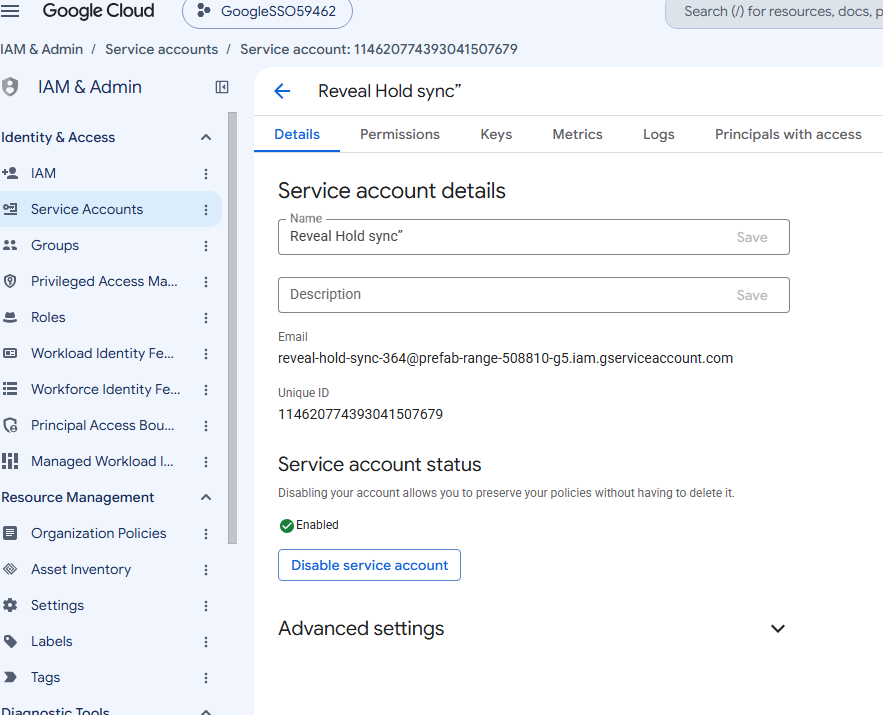
Select the service account name to open its details.
On the Details tab, copy the Unique ID. You will need it for domain-wide delegation in the next section.
Go to the Keys tab and select Add key > Create new key.
Select JSON as the key type and select Create. The JSON key file downloads automatically. Save this file securely. You will provide this file to Reveal Support when configuring the integration.
Note
Treat the JSON key file like a password: store it securely, share it only through a secure channel, and never commit it to source control. Google’s console shows a recommendation to avoid service account keys where possible; this integration uses a key with read-only directory scopes.
Grant domain-wide delegation
Domain-wide delegation authorizes the service account to read directory data in your Google Workspace organization. This step requires a Super Admin account.
Go to admin.google.com and sign in as a Super Admin.
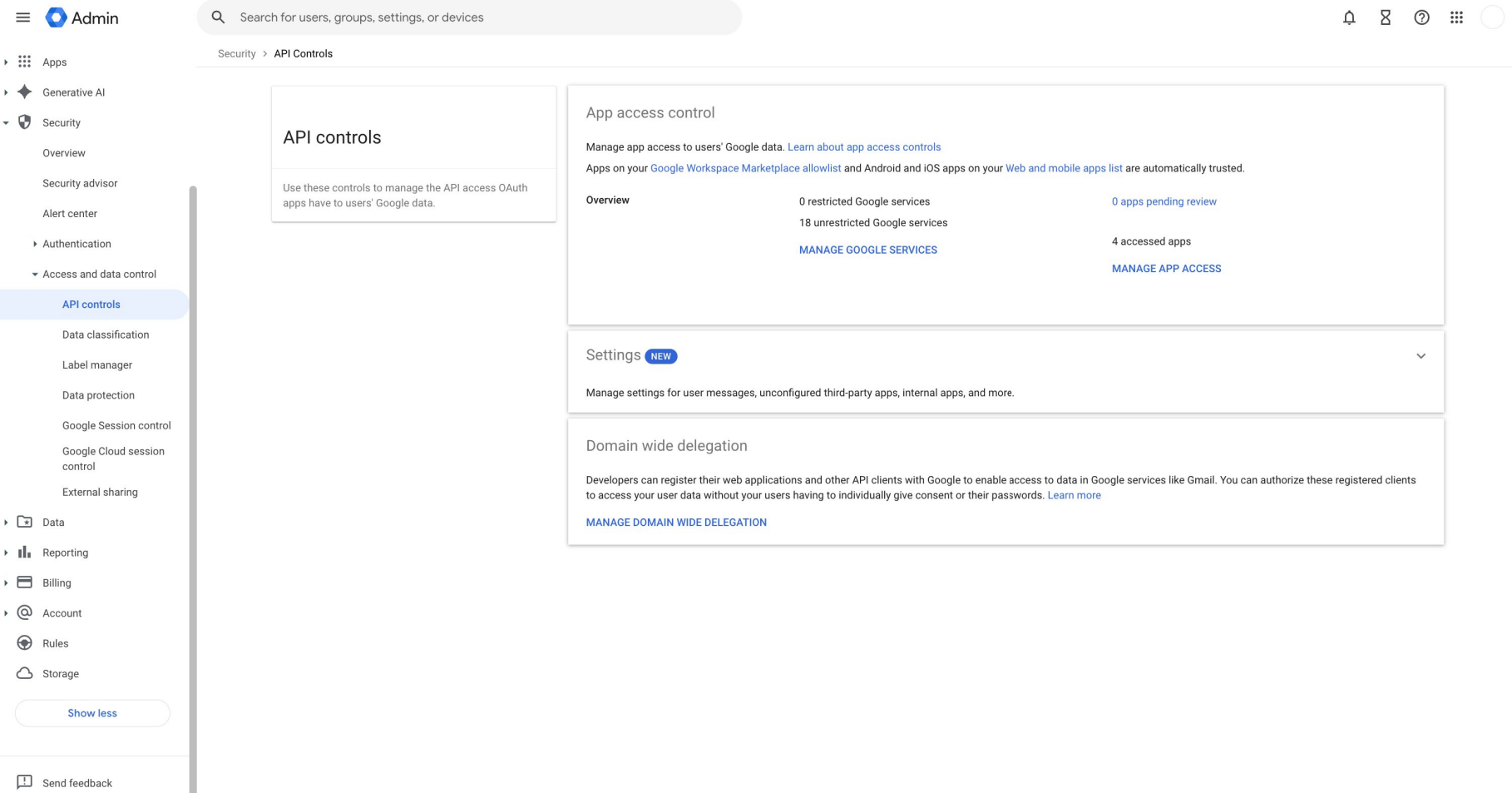
Go to Security > Access and data control > API controls.
Under Domain wide delegation, select Manage Domain Wide Delegation.
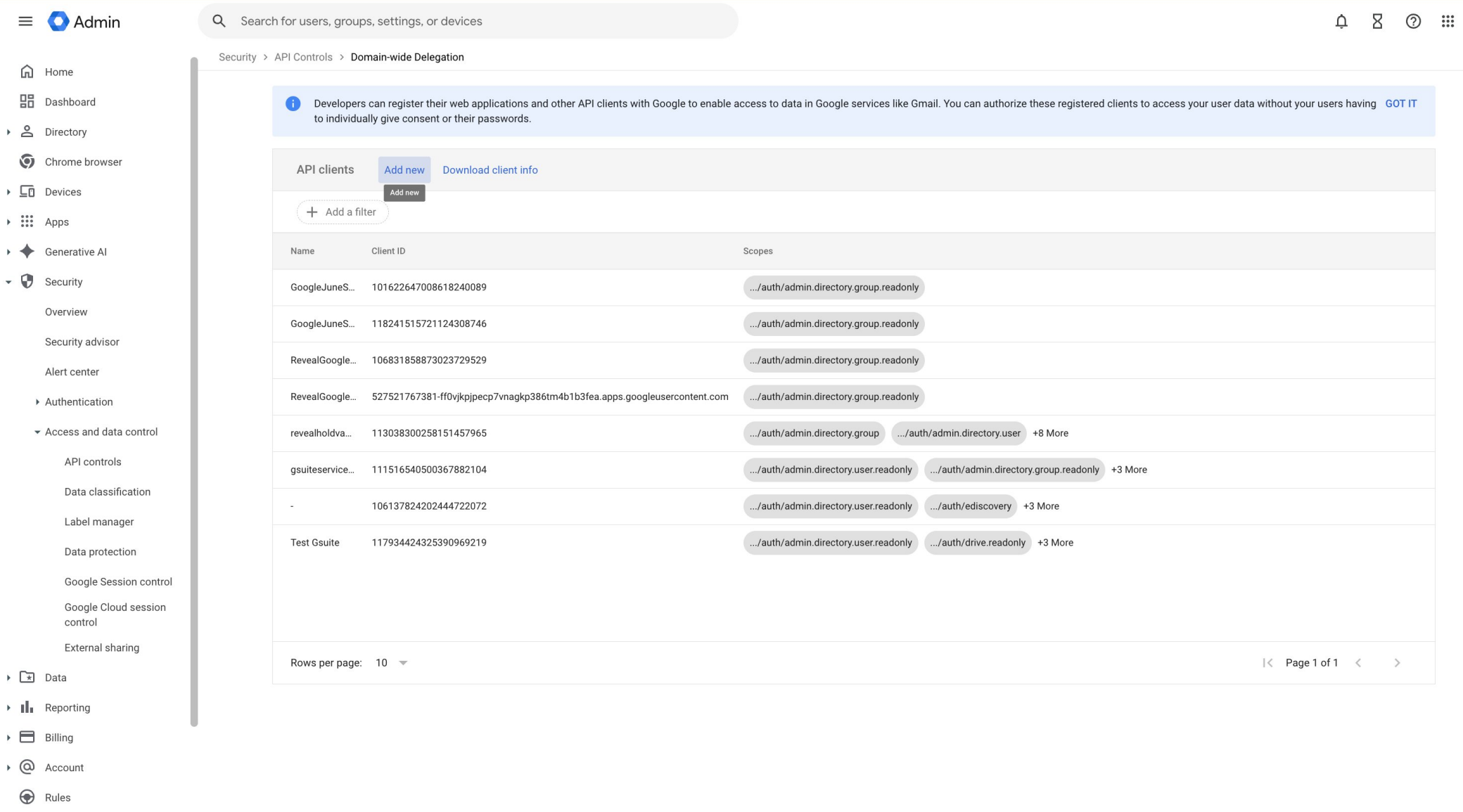
Select Add new.
In Client ID, paste the service account’s Unique ID you copied earlier.
In OAuth scopes, enter: https://www.googleapis.com/auth/admin.directory.group.readonly and https://www.googleapis.com/auth/admin.directory.user.readonly
Select Authorize. The service account now appears in the domain-wide delegation list.
Enable the Admin SDK API
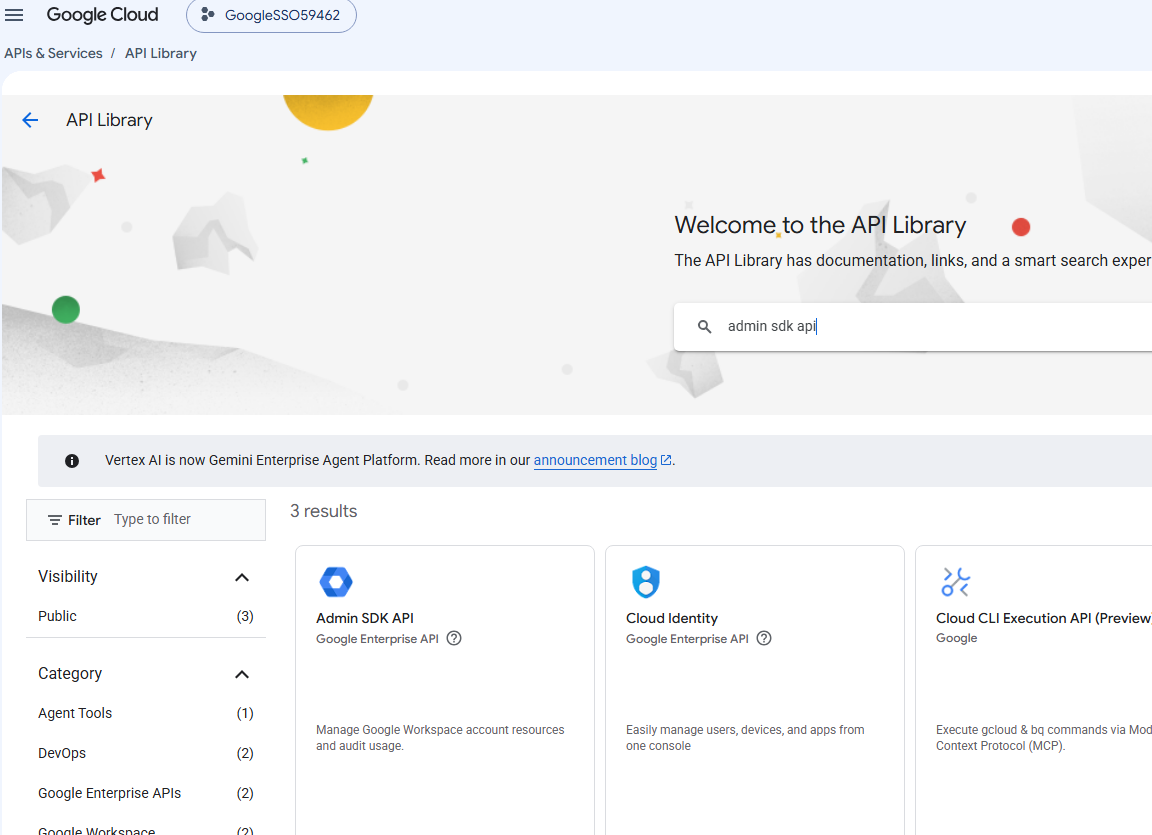
Back in the Google Cloud console, go to APIs & Services > Library.
Search for “Admin SDK API” and select it in the results.
Click Enable.
Assign the Groups Reader role
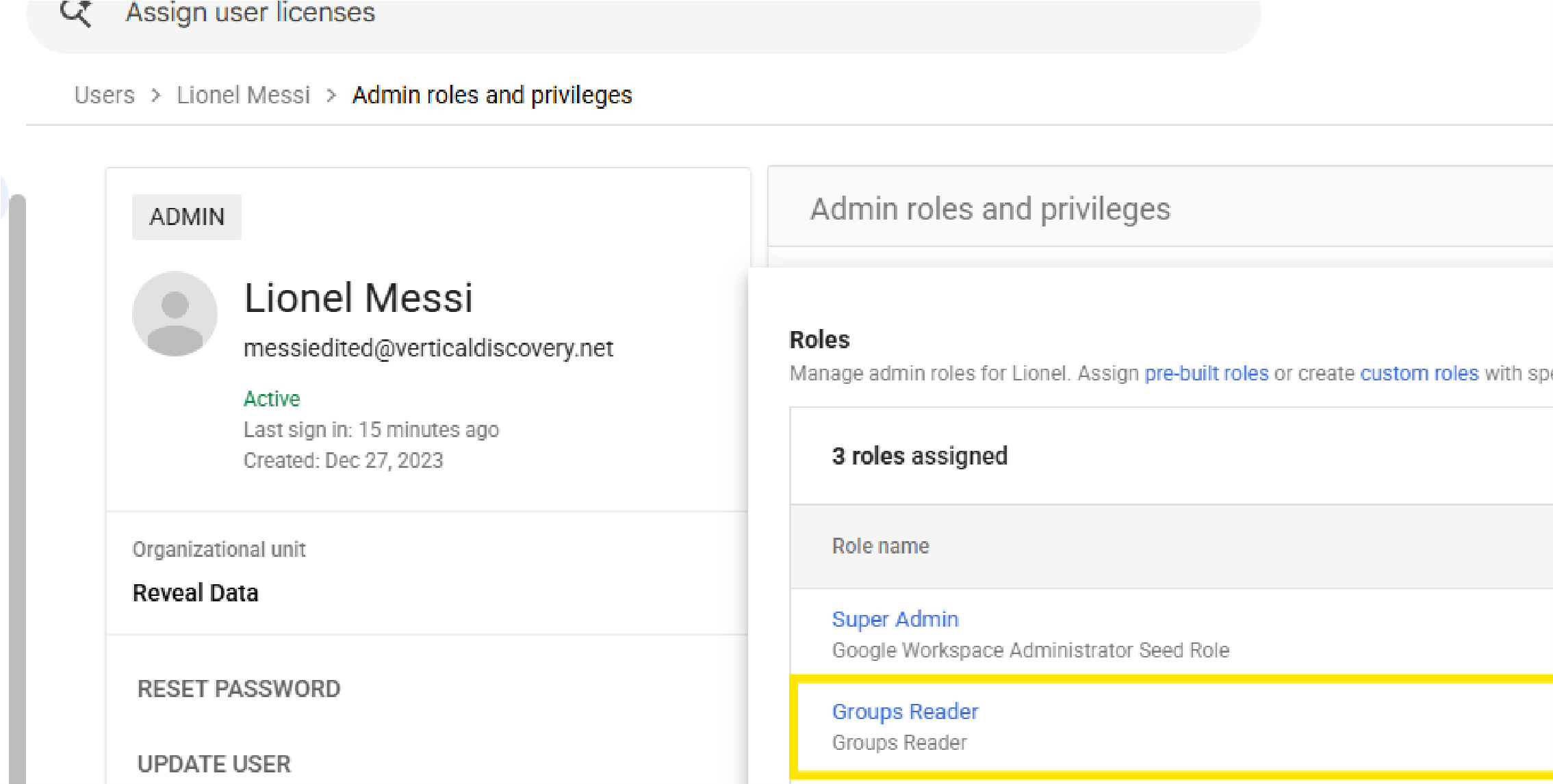
The service account used for the synchronization needs the Groups Reader admin role so that group data can be read through the Admin SDK API. This is the service account provided during Reveal Hold tenant creation.
In admin.google.com, go to Directory > Users and select the user.
Select Admin roles and privileges.
Find Groups Reader in the roles list, toggle it to Assigned, and select Save.
Synchronize the address book
Once Reveal Hold support the setup, go to Admin Center > Subscription > Address Book Synchronization.
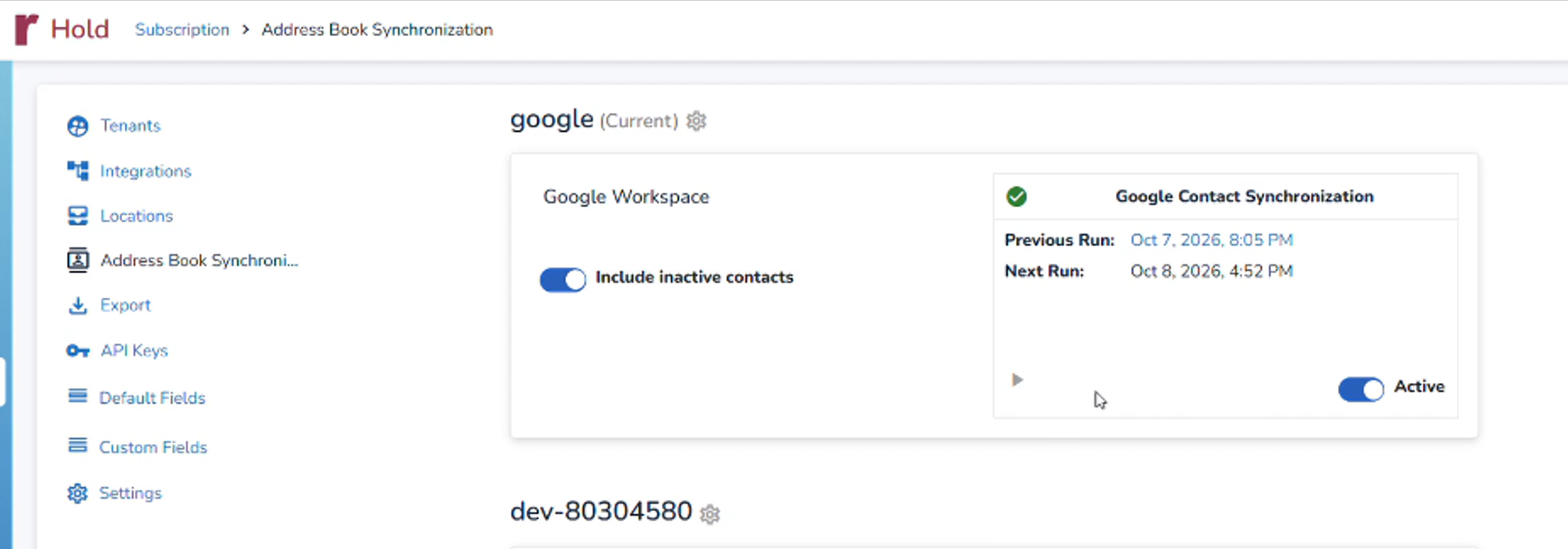
Select Run the Google Contact Synchronization to start the synchronization.
Go to Configurations > Address Book.
Verify that contacts from your Google directory appear in the Address Book.
See Address Book Synchronization for more information about scheduling synchronization and managing synchronized contacts.