This article explains how to integrate Reveal Hold with Miro Enterprise to preserve Miro boards as part of a legal hold. This integration uses Miro’s Cases and Legal Hold APIs and is available only to Miro Enterprise customers with Enterprise Guard enabled.
The Miro Enterprise integration allows Reveal Hold to issue legal holds directly in Miro. When a hold is issued, Miro preserves boards associated with custodians included in the hold.
Note
Legal holds in Miro are not applied instantly. It can take up to 24 hours for a hold to be fully enforced.
How Preservation works
Boards are preserved when a custodian accesses or modifies them after the hold becomes active.
Only activity that occurs after the hold is issued is included.
Preservation status is synced back to Reveal Hold.
Important
Boards that are never accessed or modified after the hold is active may not be preserved by Miro.
Prerequisites
Before you begin, ensure you have:
Miro Enterprise plan with Enterprise Guard enabled.
Access to Miro Cases and Legal Hold APIs.
Reveal Hold permissions to create integrations and preservation locations.
Note
Administrative setup in Miro is required. See Notes for Administrators on Miro Enterprise Integration.
Create the MIRO Integration
In Reveal Hold, go to Integrations.
Select +Create Integration.
Choose Miro as the Integration Type.
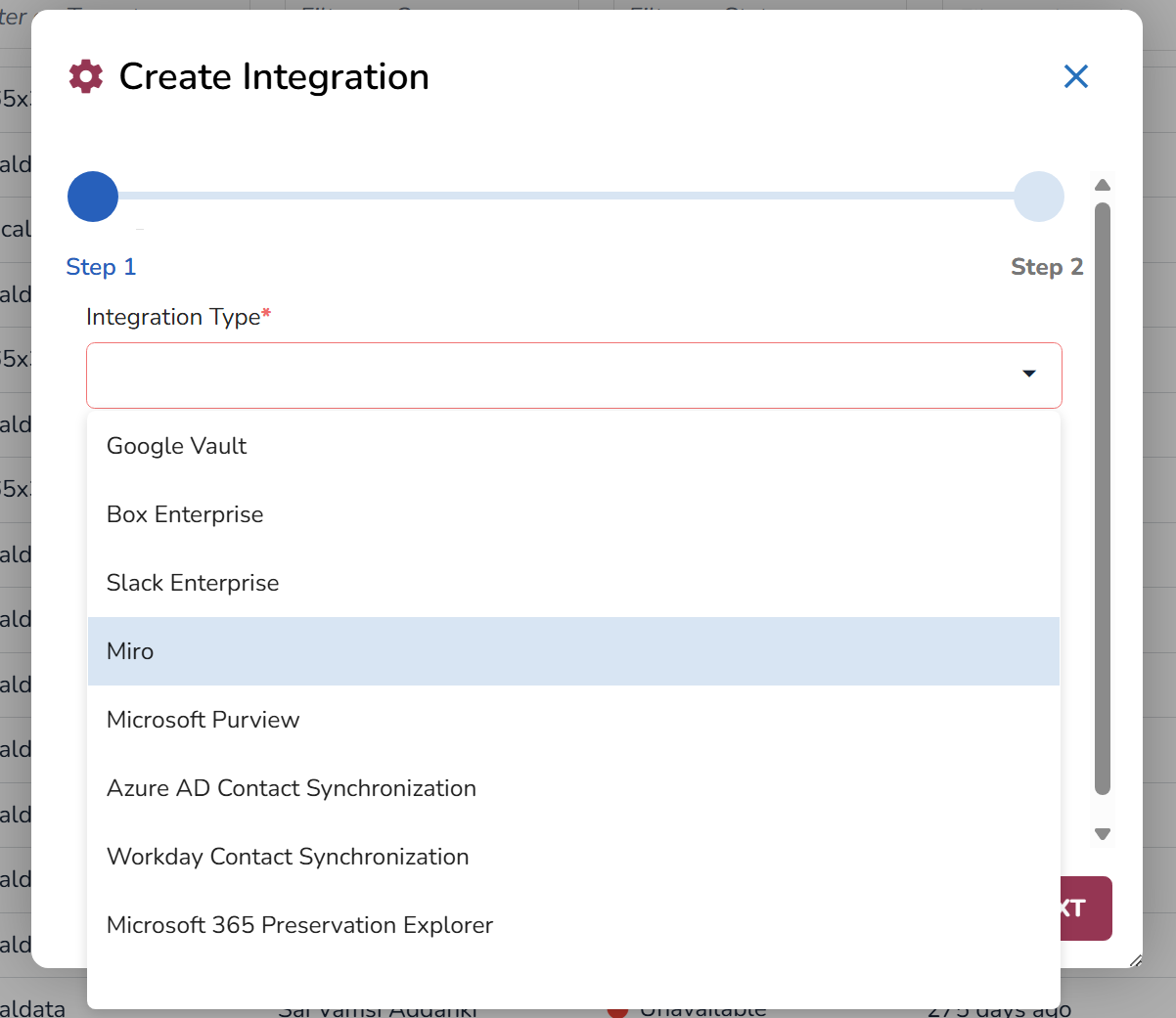
Select your Tenant.
Click Next.
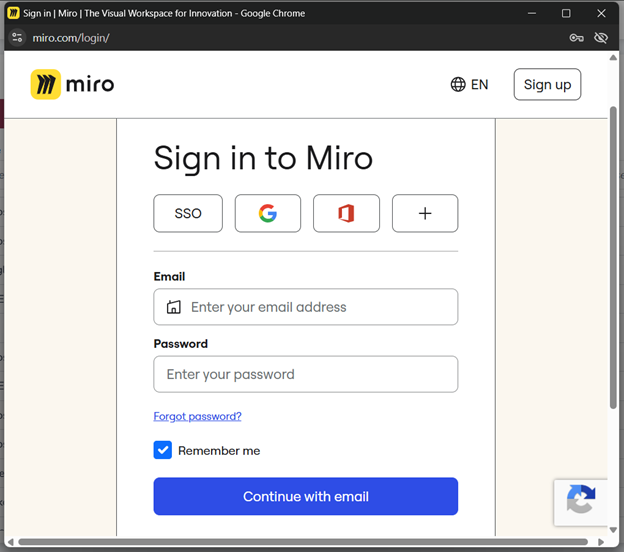
After that, a sign in popup will appear. Write you credentials and click on Continue with Email.
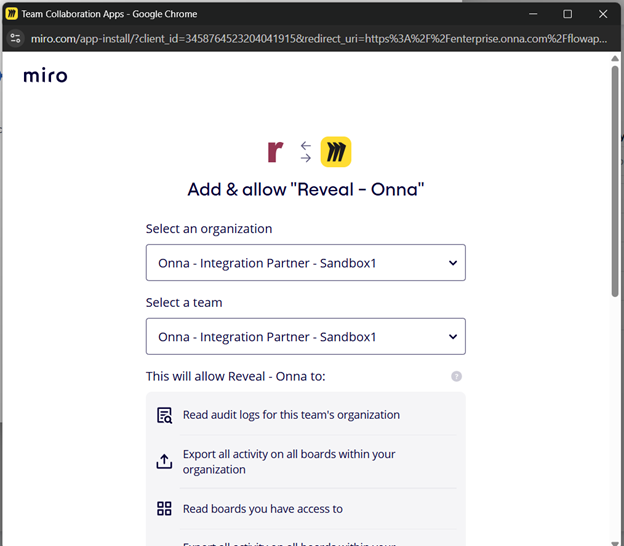
Next, select an organization and a team as a Reveal and Onna partner and click Add.
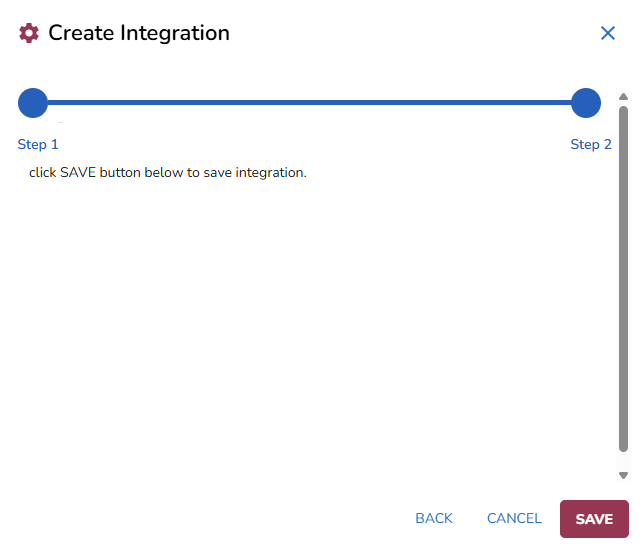
Navigate to the Reveal Hold application and click on Save.
Create a Miro Preservation Location
Go to Subscriptions > Locations in Reveal Hold.
Select +Create Location.
Add the Name.
Choose Miro as the Preservation Type.
Choose Miro as Source.
Select Tenants.
Save the location.
Issue a Legal Hold with Miro Location
When a legal hold is issued with a Miro preservation location, Reveal Hold creates a corresponding legal hold case in Miro eDiscovery.
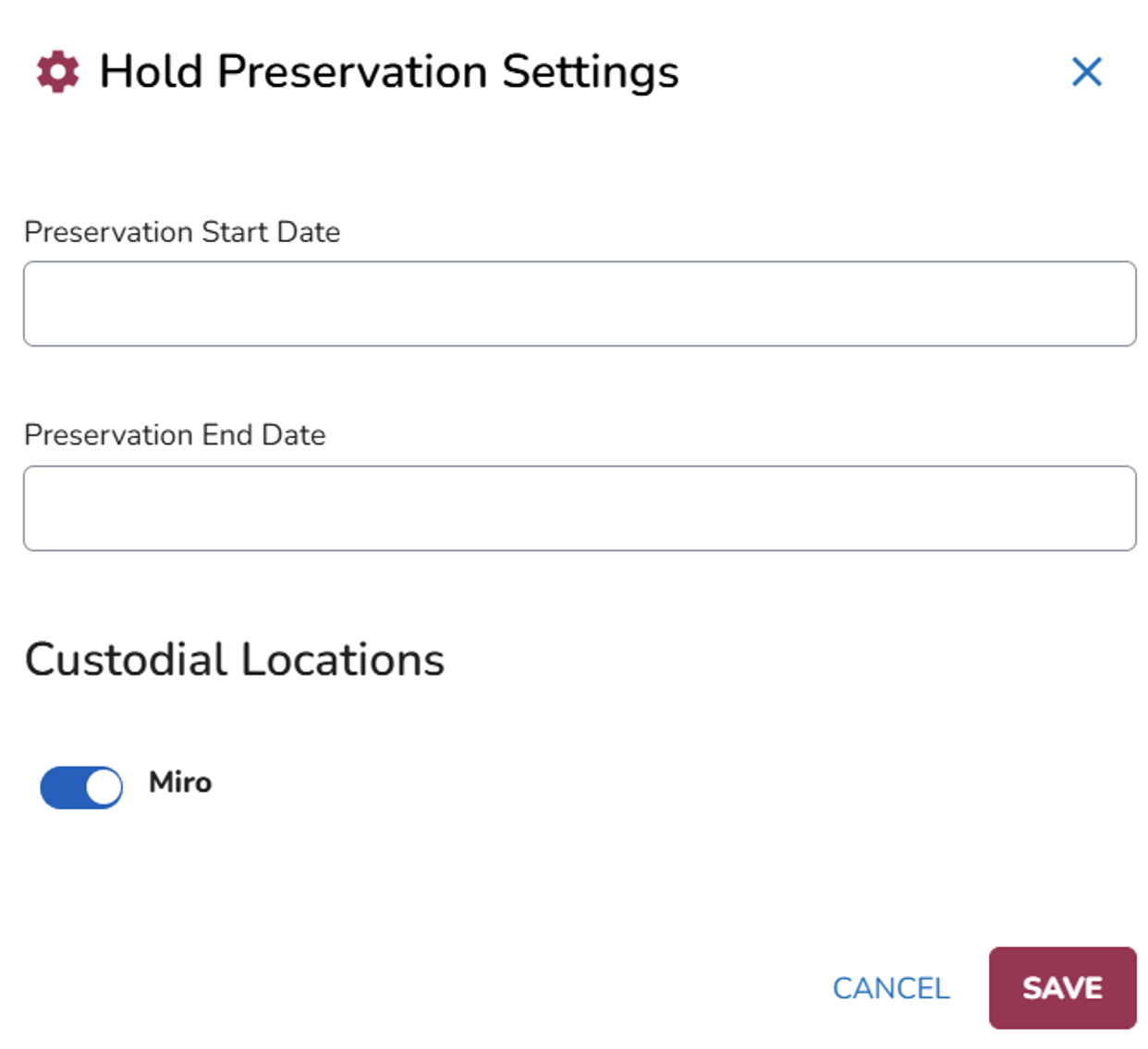
After the preservation is applied, the dashboard will show the following statuses:
Preserved Automatically: The custodian exists in Miro and preservation is applied.
Not present: The custodian does not exist in Miro.