Preserving data in-place means you retain the data where it is actually being used, rather than moving it to a separate archiving solution or to a separate location.
Microsoft Purview (fka Microsoft 365 Compliance Center) Preservation in Place Support
Reveal Hold supports preservation in-place for Microsoft Purview formerly known as the Microsoft 365 Compliance Center using Standard eDiscovery. This means that for custodians that are part of a hold, you can preserve (put on hold) their Mailbox and OneDrive in Microsoft 365.
Mailbox and OneDrive preservation is bound to custodians, meaning that Reveal Hold will preserve the Mailbox and OneDrive for the custodians selected in your Hold.
In addition to custodian locations, you can also include in Teams, SharePoint, and Shared Mailboxes to be preserved. This is only available for Entra ID tenants. In case of Okta and Ping tenants, you will need to add your Entra ID tenant with a user to set up an integration with the Preservation Explorer in order to read and select SharePoint sites, Teams, and Shared Mailboxes for automated preservation.
Important
Please view Notes for Administrators on the Microsoft Purview Integration.
Create Integration with Microsoft Purview
Select Create Integration.

Select the Integration Type and the Tenant. Click Next.
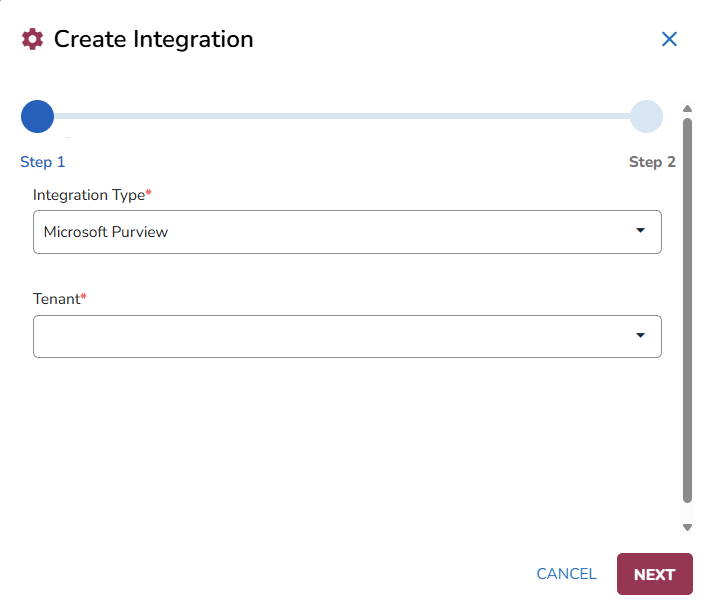
Authenticate the integration. First, copy the code. Then, go to https://microsoft.com/devicelogi.
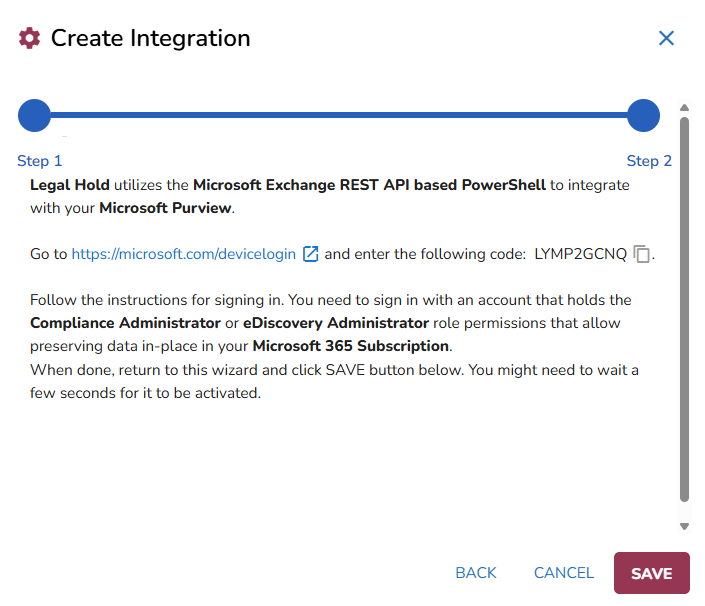
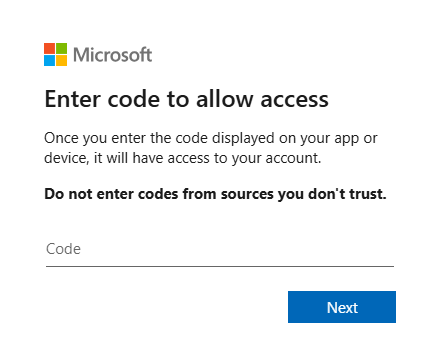
Paste the code and click Next.
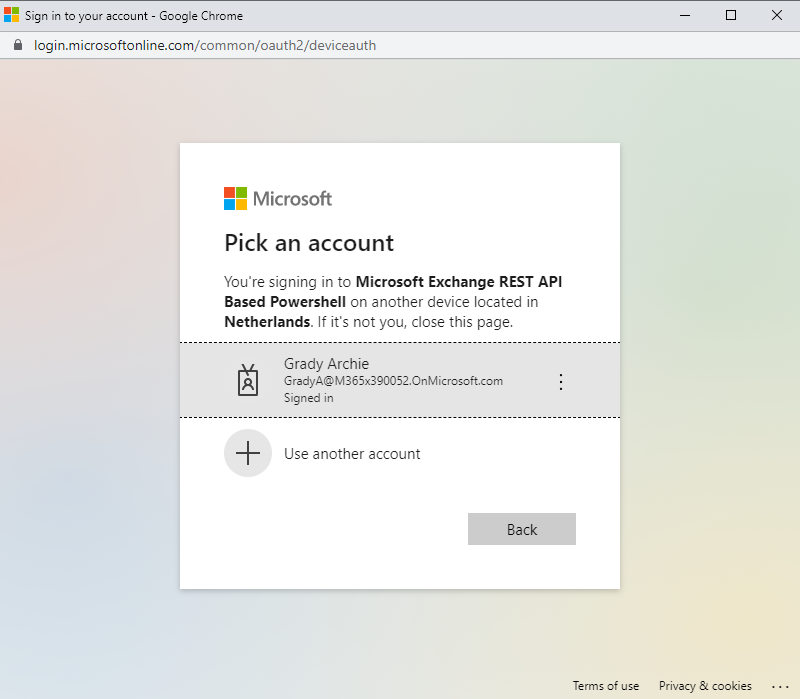
Sign in with the account that has sufficient privileges to preserve data in-place in your Microsoft 365 subscription. You should have either Compliance Administrator (formerly known as eDiscovery Manager) or eDiscovery Administrator Role permissions.
For more information, please refer here (only available for Administrators):
https://compliance.microsoft.com/compliancecenterpermissions
Click Continue.
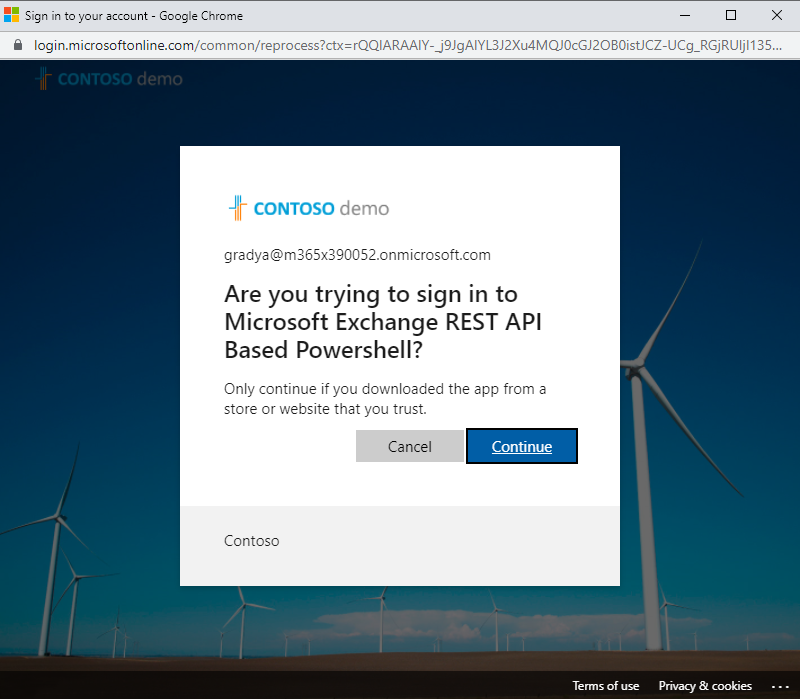
Once you have authenticated, the window can be closed and you can return to Create Integration wizard.
Click Save to finalize the integration.
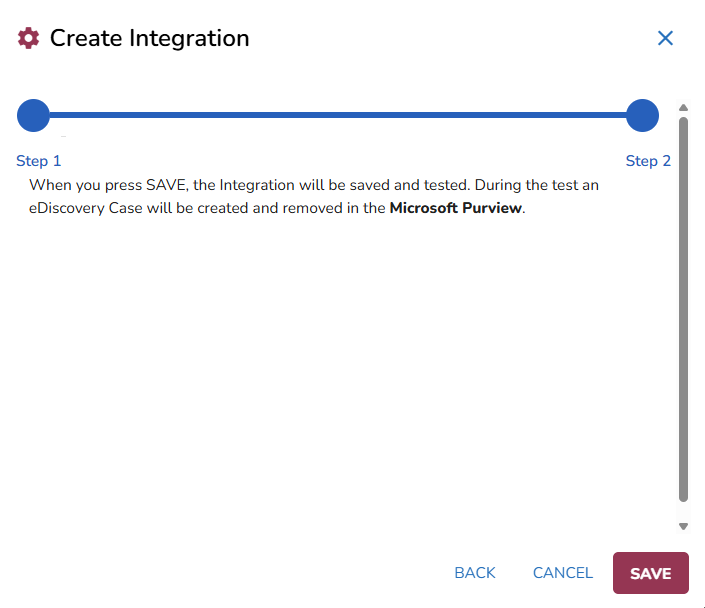
Once the connection is established, a test is being executed (creation and removal of an in-place hold) to check if the integration has sufficient privileges. Select the Refresh icon (to move the status from Validating to Enabled).

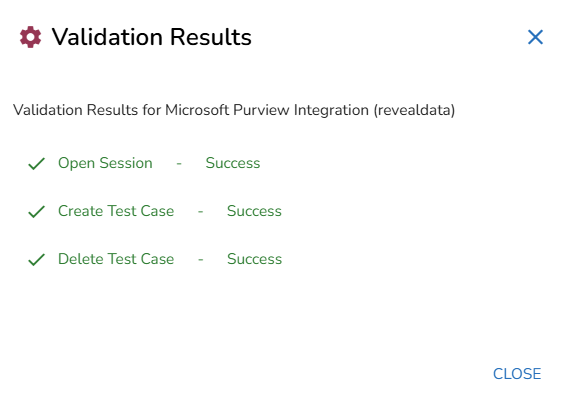
View the validation report with the test results by clicking the Show Validation Results button.
As the authentication is limited in time, the Microsoft Purview Integrations can expire. Therefore you have a renew option for the integration.
With the integration completed, you can now create Preservation Locations to determine which locations need to be preserved in the hold.
Create Integration with Microsoft 365 Preservation Explorer
Select Create Integration.
Select the Integration Type and the Tenant.
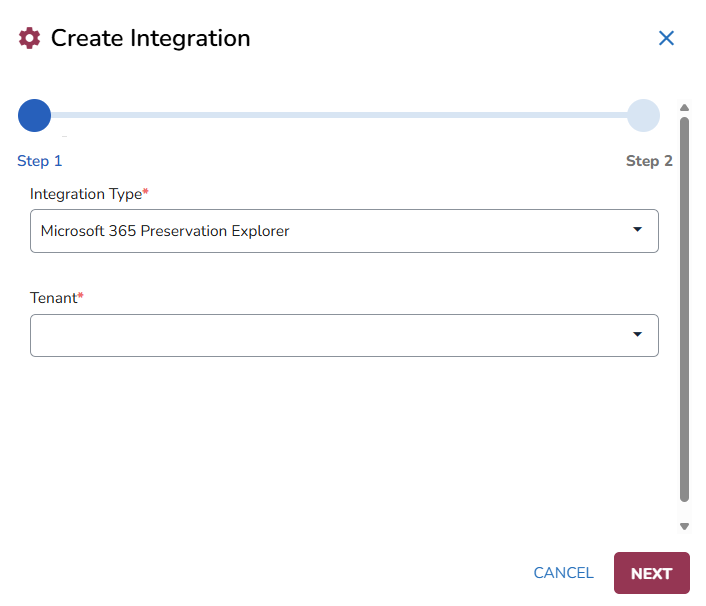
Click Next.
Click Save. The Validation Process will begin.
Click
 to show the Validation Results.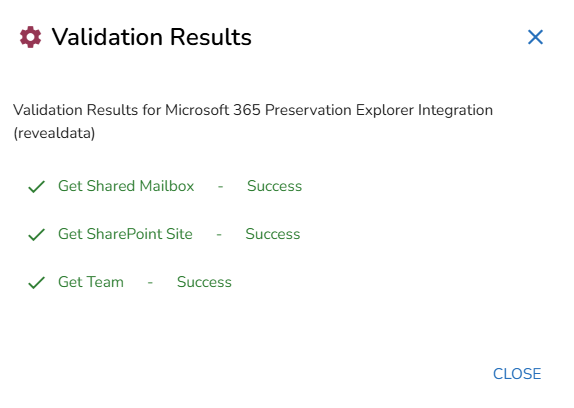
With the integration completed, you can now add preservation locations.
Open Locations.
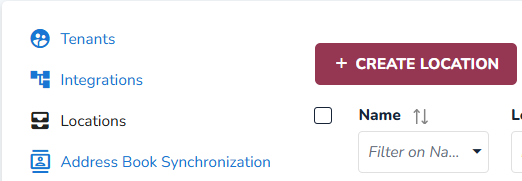
Click
 .
.In the Preservation Location window, enter the below information:
Name: Define a name for the location
Preservation Type: Select Microsoft Purview
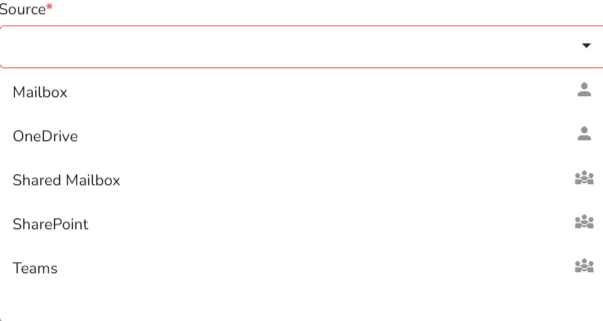
Source: Select your source
Note
Sources are now identified as Custodial
 ; Specific custodians or Non-Custodial
  ; or Non specific custodians-shared groups.
Select your Tenant and click Save.
Synchronize Contacts
To ensure your contacts are kept up to date, follow the steps outlined in the Address Book Synchronization article to synchronize your contact list.
Upcoming Microsoft Purview Change – No Impact to Reveal Hold Preservation Capabilities
Microsoft has announced a change to how eDiscovery cases and searches created via PowerShell cmdlets synchronize with the Microsoft Purview user experience (UX). Starting March 23, 2026, objects created, modified, or deleted through PowerShell will no longer appear or stay in sync within the Purview eDiscovery interface.
What this means for your organization
Reveal Hold uses Microsoft’s PowerShell-based APIs to create and manage preservation cases and holds in your Microsoft 365 tenant. This change affects only the visibility of PowerShell-created cases and searches inside the Purview UX. It does not impact your ability to perform in-place preservation, nor does it reduce your compliance posture.
All preservation actions executed by Reveal Hold continue to function exactly as required under Microsoft’s supported frameworks. Microsoft explicitly confirms that eDiscovery capabilities, Content Search, and PowerShell/Graph automation remain fully supported.
Impact on Reveal Hold users
You may no longer see cases and holds created by Reveal Hold inside the Purview eDiscovery UX.
All preservation actions executed by Reveal Hold remain valid, compliant, and auditable.
PowerShell audit logs and Microsoft Graph remain authoritative sources for monitoring automated preservation actions.
What Reveal Hold is doing to maintain transparency and trust
To address the loss of visibility in the Purview UX, Reveal Hold will introduce a built‑in page that provides a read‑only overview of all Purview cases and holds created through our integration.
This interface will closely resemble the Purview experience and provides users with:
A trusted, consistent view of all preservation cases created by Reveal Hold
Centralized visibility without requiring an E5‑level subscription
Additional assurance and verification for QA and compliance workflows
Note
Reveal Hold customers do not need to take any action. All existing workflows continue to function, and our new read‑only Purview summary view will provide the transparency our customers expect.
If you have questions about this Microsoft change or how Reveal Hold supports your compliance processes, contact Reveal Hold Support.