In this article, you’ll learn how to perform a Slack Enterprise integration.
In order to set up an authorized connection for Slack Enterprise, you will need the following information:
Slack Org Owner Account
The credentials for the account are needed to establish an authorized connection. It is recommended to use a service account to establish the connection.Legal Hold Admin Role
Assign the Legal Holds Admin system role to the Slack account used for the integration to allow it to create and manage legal holds.
Slack Discovery API
The Slack Discovery API must be enabled on the account. To enable the Slack Discovery API an Org Owner needs to email exports@slack.com to say they'd like to enable the Discovery APIs for their organization.
Creating Slack Enterprise Integration
Go to the Subscription screen.
Click on Integrations.
Select the +Create Integration button. The Create Integration modal will appear.
In the Integration Type dropdown, select Slack Enterprise.
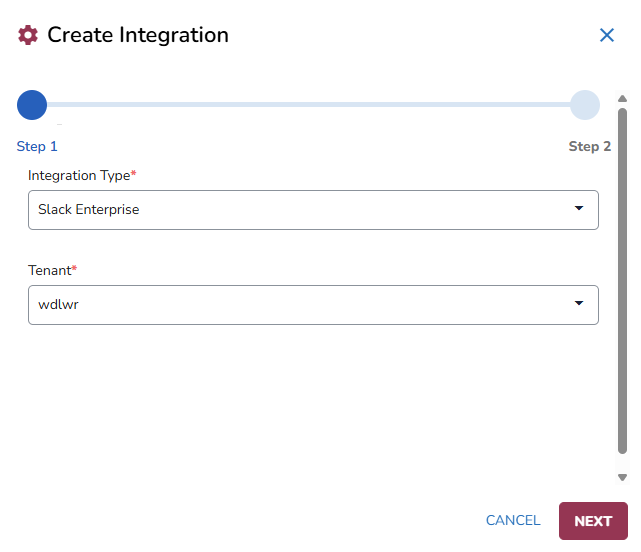
Choose your Tenant.
Click on Next.
Slack modal will appear. Sign in with you workspace name.
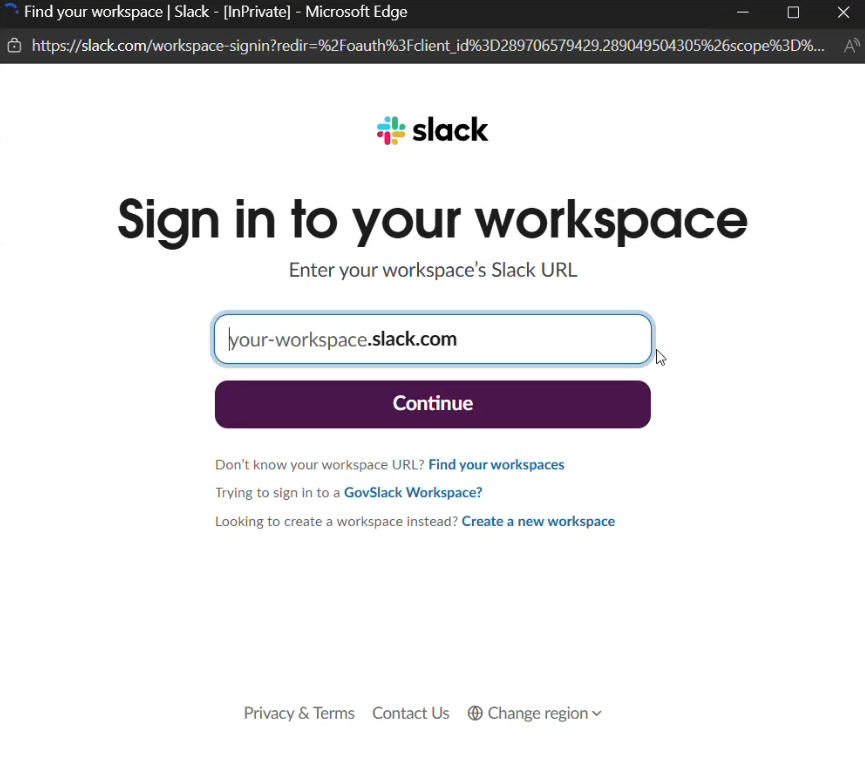
Once you have authenticated, you can close the window and return to the Create Integration modal.
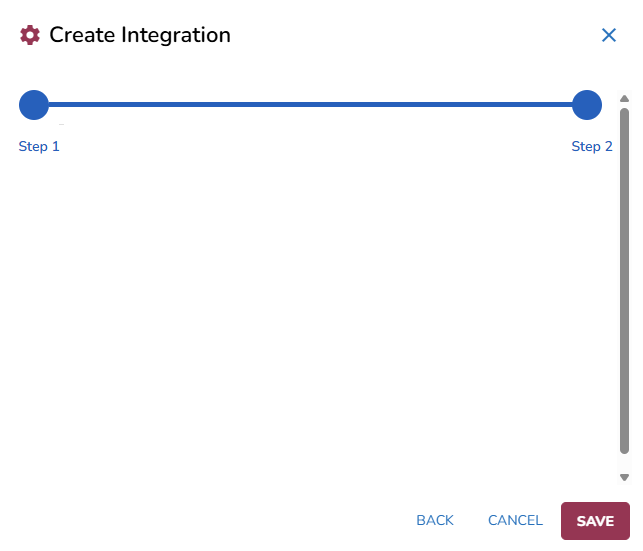
Click on Save.
Creating Slack source in location
Go to Locations and click on
.png)
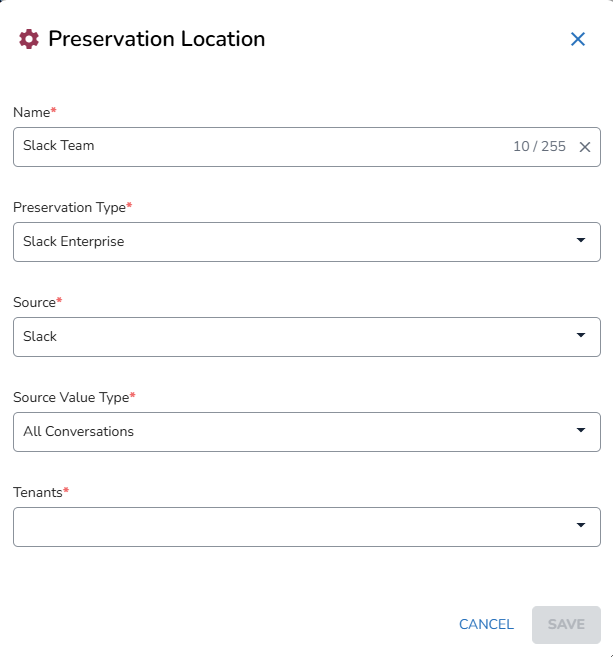
In the Preservation Location modal:
Fill out the Name.
Choose Slack Enterprise in the Preservation Type dropdown.
When choosing this preservation type, a new Source Value Type field will be added below the Source field.
Choose your Source.
In the Source Value Type dropdown, choose if you want to include All Conversations or Only direct and multiparty messages.
Select Tenants.
Click Save.