Reveal Hold supports in-place preservation of Zoom data, allowing Hold Managers to place custodians’ Zoom data on legal hold directly in Zoom. Once a hold is issued, Reveal Hold automatically initiates preservation for custodians associated with an enabled Zoom location. Preservation statuses can be monitored in Reveal Hold, and the legal hold can be released when it is no longer needed.
To configure Zoom preservation, your organization's Zoom account must include Legal Hold, and a Zoom administrator must authorize access. Zoom must also be enabled as a preservation provider for your Reveal Hold subscription. If it is unavailable, contact Reveal Support.
The setup requires administrative permissions to create integrations and locations, along with the appropriate hold-management permissions to issue and lift holds.
Create a Zoom integration
Go to Admin Center > Subscription > Integrations and click
 .
Under Integration Type, select Zoom.
Under Tenant, select the tenant you want to associate with the integration. Only tenants without an existing Zoom integration are available.
Click Next.
In the Zoom sign-in window, sign in with a Zoom administrator account and approve the requested permissions, including legal hold access.
Once authorization is complete, return to Reveal Hold.
The Zoom integration appears in the Integrations grid with its State set to Enabled.
Important
Zoom integrations created before in-place preservation was introduced do not include legal hold access. Edit the existing integration and reauthenticate with Zoom to grant the required permissions. Otherwise, preservation requests will fail.
Create a Zoom preservation location
Go to Admin Center > Subscription > Locations and click
 .
Enter a Name for the location.
Under Preservation Type, select Zoom. The Source is automatically set to Zoom.
Under Tenant, select the tenant associated with the Zoom integration. Only tenants with an enabled Zoom integration are available.
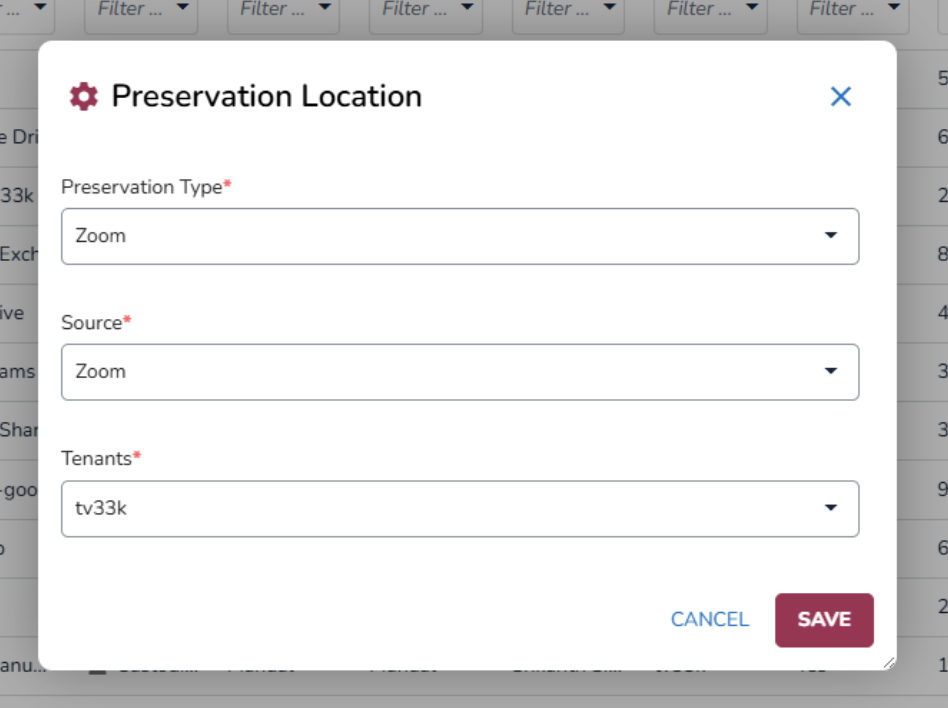
Click Save.
The Zoom location appears in the Locations grid.
Preserve Zoom data
Once the Zoom integration and preservation location are configured, you can enable Zoom preservation for custodians in a hold.
Go to Hold Management and click Create Hold, or open an existing hold.
Enter the required hold details and save.
Open the Custodians tab and add the custodians whose Zoom data needs to be preserved.
Open the Preservation tab and click Edit Preservation Settings.
Enable the Zoom preservation location you created.
Click Save.
Click Issue Hold, then click Yes in the confirmation dialog.
A Hold issued successfully message appears, and Zoom preservation starts automatically.
Note
Each custodian's email address in the Reveal Hold Address Book must match their Zoom sign-in email address. Email matching is case-insensitive. If no matching Zoom user is found, the custodian's preservation status displays Not Present, and no Zoom data is preserved for that custodian.
Review preservation status
After issuing the hold, you can monitor Zoom preservation in the hold's Activity and Preservation tabs.
Open the Activity tab to monitor the preservation request while it is processing. The activity usually completes within a few minutes and disappears from the tab once finished.
Open the Preservation tab to review the status of each custodian.
Once preservation is complete, the custodian's status changes to Preserved Automatically, indicating that their Zoom data is on legal hold in Zoom.
The following statuses may appear during the preservation process. Failed requests are displayed in the Activity tab.
Status | Description |
|---|---|
Not Preserved | The hold has not been issued yet. |
Automatic Preservation Pending | Reveal Hold has requested preservation from Zoom and is waiting for a response. Reveal Hold continues checking for up to 48 hours. |
Preserved Automatically | The custodian's Zoom data has been placed on legal hold in Zoom. |
Not Present | No Zoom user matches the custodian's email address. There is no data to preserve, and this is not an error. |
Excluded | The Zoom location was excluded for this custodian before the hold was issued. |
Automatic Preservation Lift Pending | Reveal Hold has requested that Zoom release the legal hold. |
Lifted | The legal hold has been released in Zoom. |
Failed | The preservation request failed. The error appears under Health Status > Activity Errors. After resolving the issue, the request can be retried from the Activity widget. |
Verify preservation in Zoom
You can also verify that the legal hold has been applied directly in Zoom.
Sign in to the Zoom web portal with a Zoom administrator account.
Navigate to Account Management > Reports > User Activity Reports > Legal Hold for Zoom Chat.
Verify that the custodian's Zoom user appears in the legal hold records.
Lift Zoom preservation
When the hold is no longer required, you can release the preservation in Zoom.
Open the hold in Reveal Hold.
Click Lift Hold and confirm the action.
The Zoom custodian's status changes to Automatic Preservation Lift Pending while Zoom processes the request. Once completed, the status changes to Lifted, indicating that the legal hold has been released in Zoom.
Troubleshoot Zoom preservation
The following table describes common issues and how to resolve them.
Issue | Resolution |
|---|---|
Zoom is unavailable under Integration Type or Preservation Type. | Zoom preservation is not enabled for your subscription. Contact Reveal Support to enable it. |
The tenant is unavailable when creating a Zoom location. | The tenant does not have an enabled Zoom integration. Create or enable the integration before creating the location. |
The Zoom integration displays Unavailable. | The integration may not have legal hold access. Edit the integration and have a Zoom administrator reauthenticate and approve the required permissions. |
Preservation fails for every custodian. | If the integration was created before Zoom preservation was introduced, edit it and reauthenticate with Zoom. Once the permissions are updated, retry the failed requests from the Activity widget. |
The custodian displays Not Present. | Verify that the custodian's Address Book email matches their Zoom sign-in email. Correct the email address and add the custodian again. |
The preservation status remains Pending. | Zoom may take additional time to process the request. Reveal Hold continues checking for up to 48 hours. Take action if the request displays Failed in the Activity tab. |