This article explains how to configure PingFederate SSO with PingDirectory for the Reveal Hold application.
The setup includes:
Creating an LDAP Password Credential Validator
Creating an HTML Form IdP Adapter
Mapping the IdP Adapter to the Policy Contract
Creating an Access Token Management instance
Creating Access Token Mappings
Creating an OpenID Connect Policy
Creating an OpenID Connect client
Creating the required groups and users in Ping Directory
Providing the required PingFederate runtime URL, client ID, and client secret to the Reveal Hold application
The configuration below is based on the provided setup information.
Before starting, make sure:
PingFederate is installed and accessible.
PingDirectory is already configured and available as an LDAP data store.
You have access to the PingFederate Admin Console.
You have the required PingDirectory administrator credentials.
You have the required access to create users and groups in PingDirectory.
1. Create the Password Credential Validator
Step 1: Open Password Credential Validators
Log in to the PingFederate Admin Console.
From the top menu, click System.
Open Password Credential Validators.
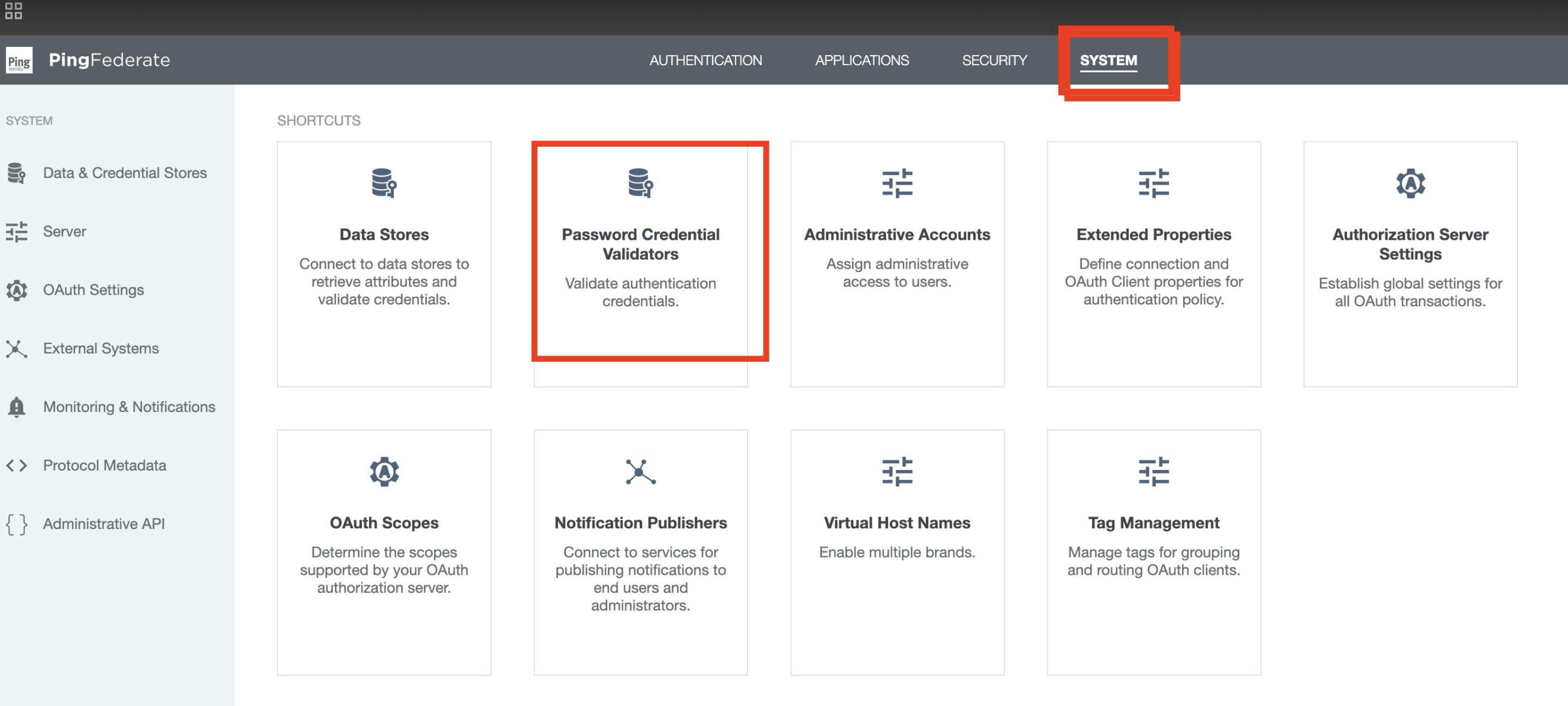
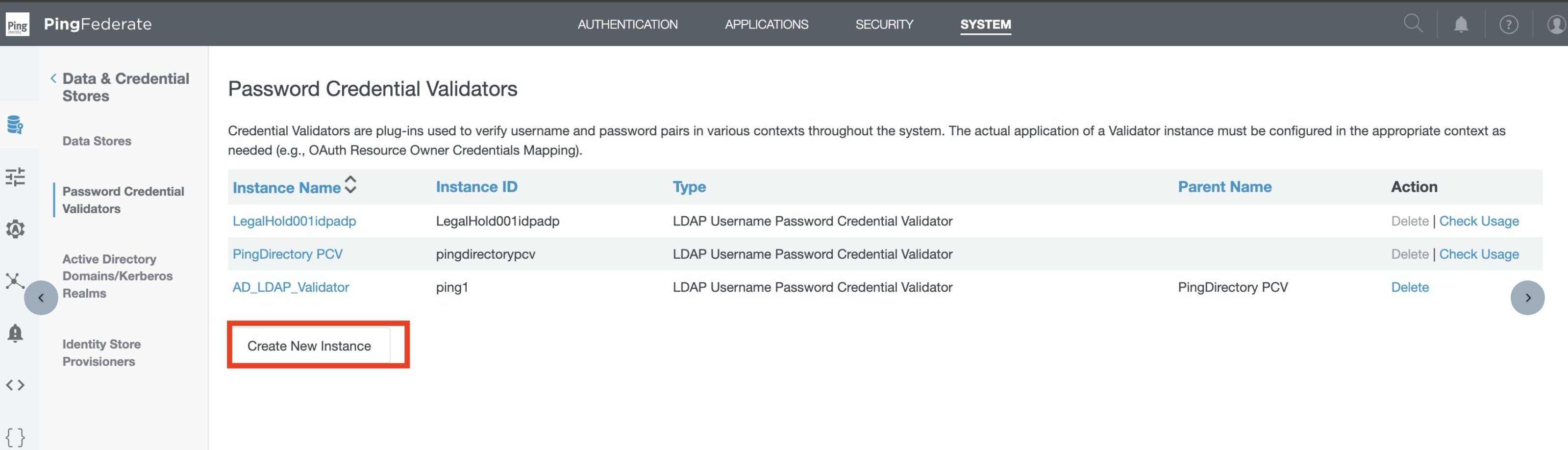
Click Create New Instance.
Step 2: Enter the Instance Details
1. Enter the following values:
Field | Value |
|---|---|
Instance Name |
|
Instance ID |
|
Type |
|
Parent Instance | None |
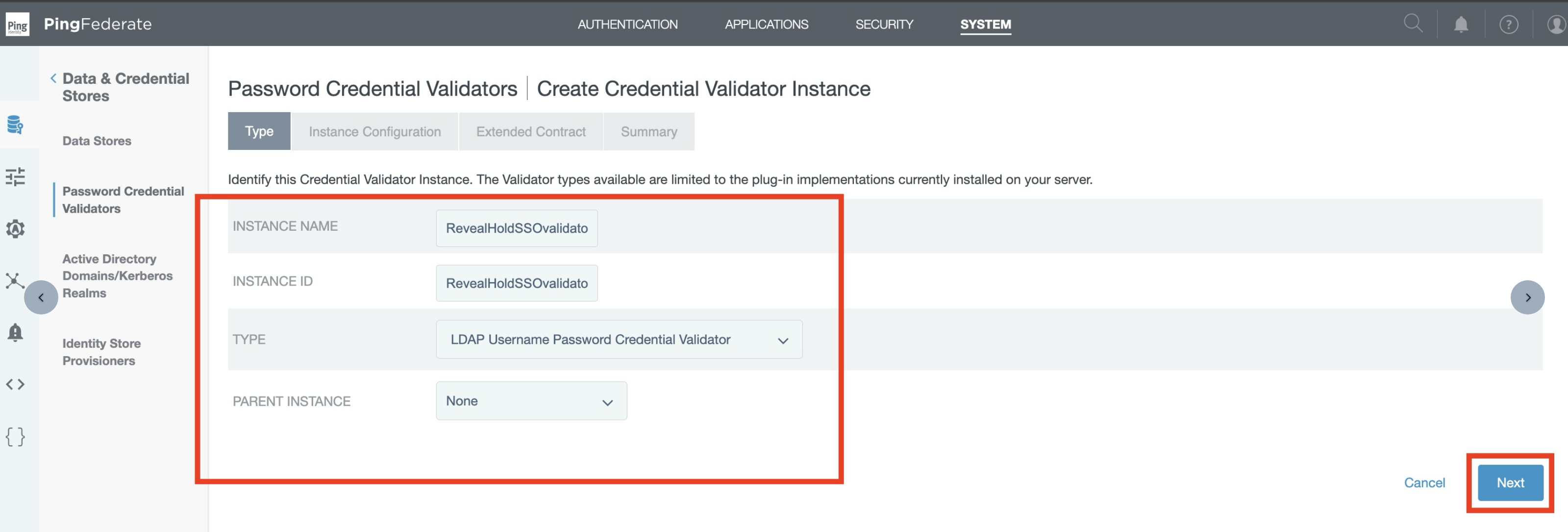
Click Next.
Step 3: Configure LDAP
In the Instance Configuration page, enter the following values:
Field | Value |
|---|---|
LDAP Datastore |
|
Search Base |
|
Search Filter |
|
Scope of Search |
|
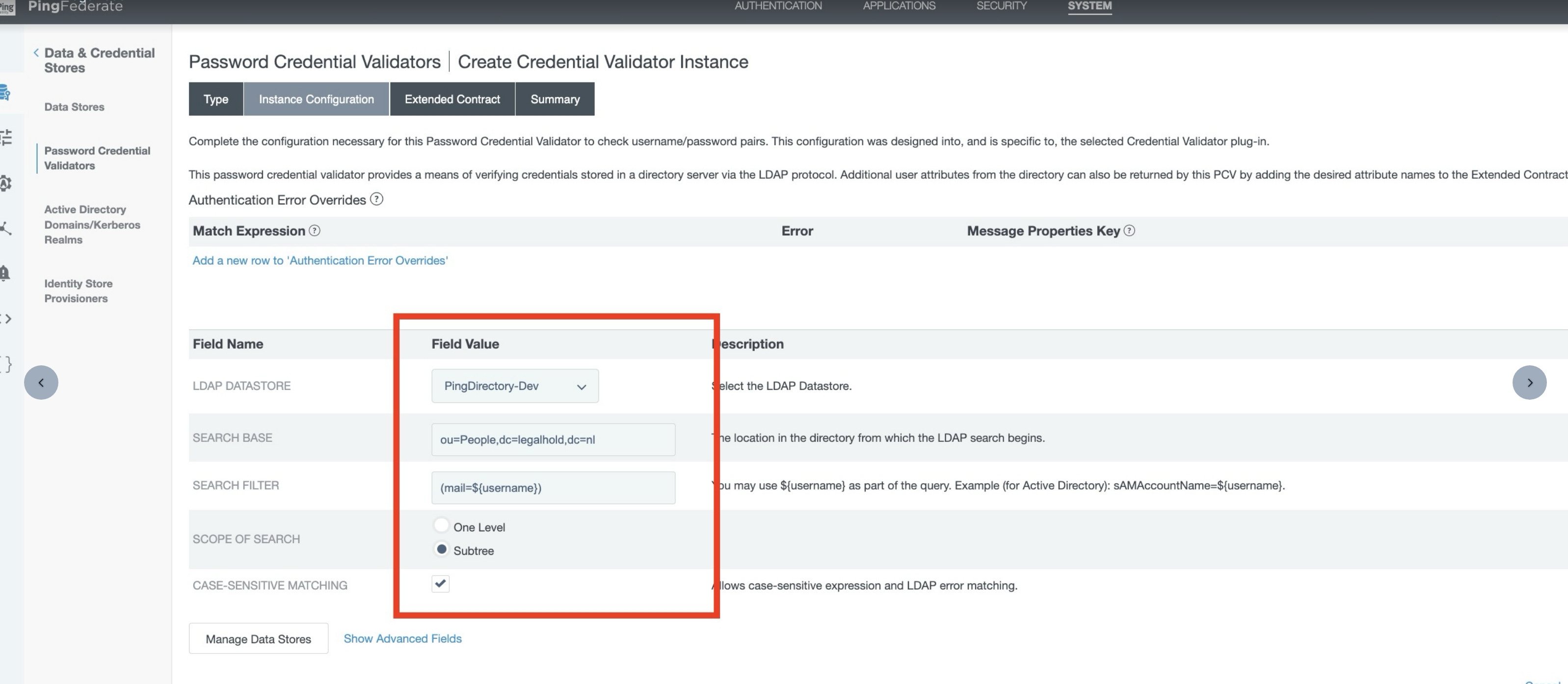
Click Next and Next.
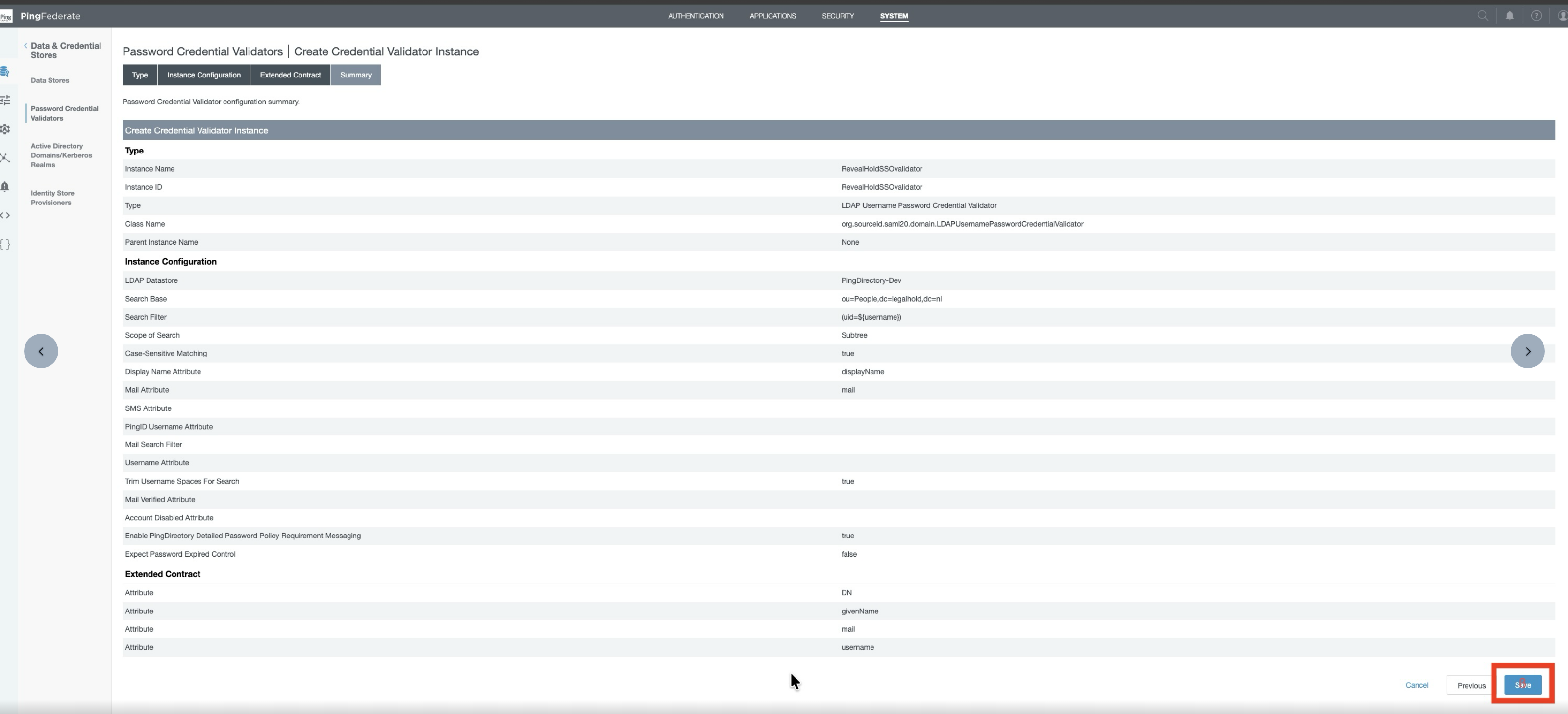
Review the configuration on the Summary page and click Save.
2. Create OAuth Scopes
Under System option, click OAuth Scopes.
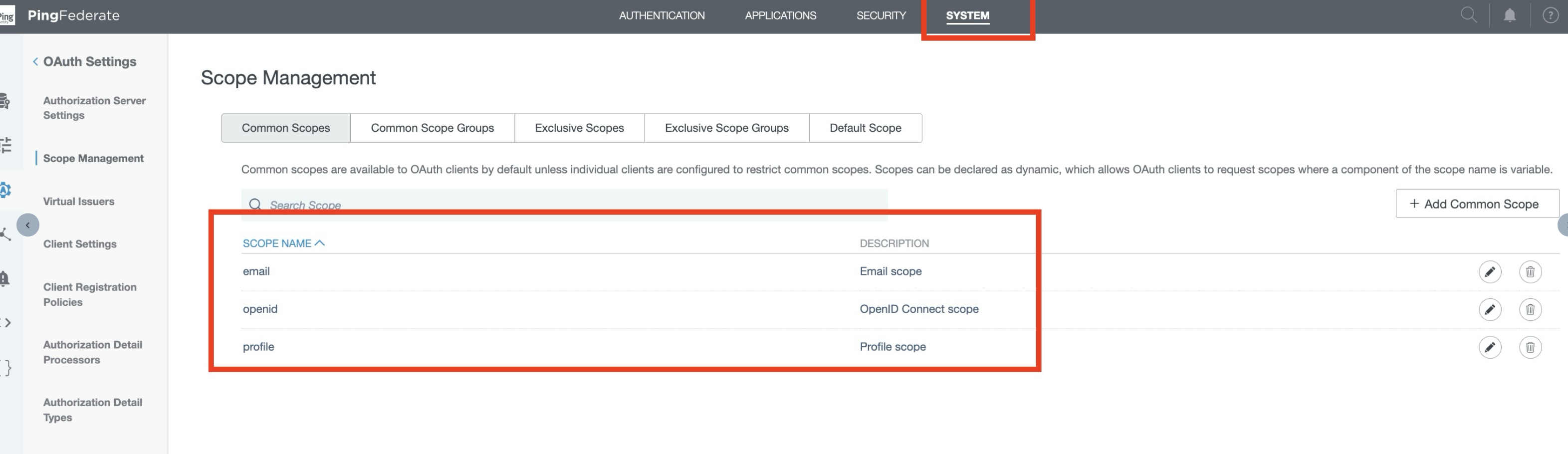
Add the following scopes in the Common Scope page and save the configuration.
Scope Name | Description |
|---|---|
Email scope | |
openid | OpenID Connect scope |
profile | Profile scope |
3. Create the HTML Form IdP Adapter
Step 1: Open IdP Adapters
From the top menu, click Authentication.
Select IdP Adapters.
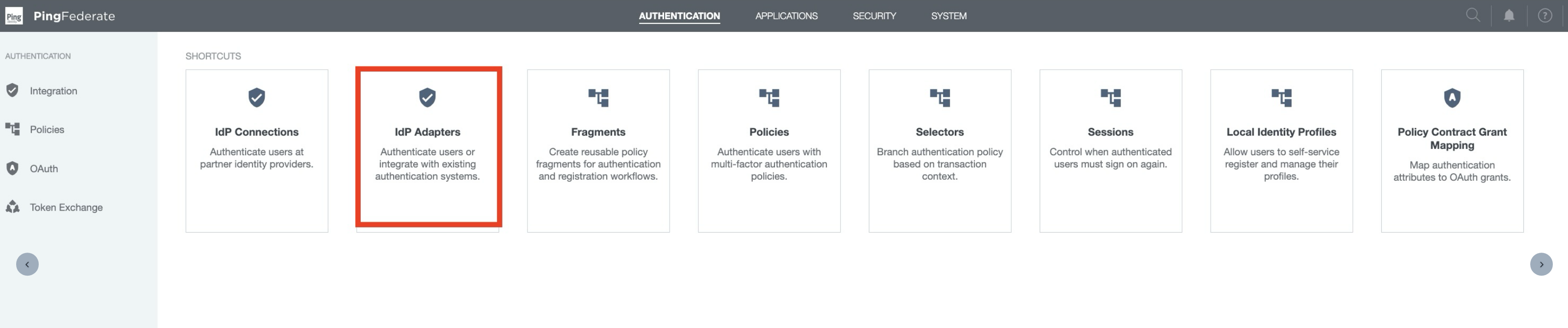
Click Create New Instance.

Step 2: Enter Adapter Details
Field | Value |
|---|---|
Instance Name |
|
Instance ID |
|
Type |
|
Parent Instance | None |
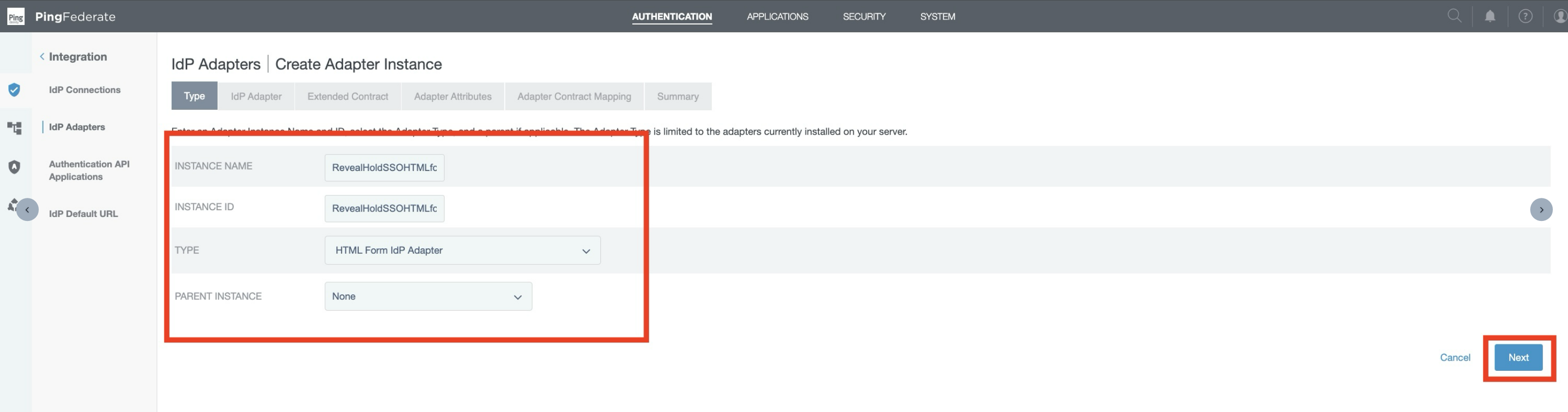
Click Next.
Step 3: Add the Credential Validator
On the IdP Adapter configuration page:
Click Add a new row under Credential Validators.
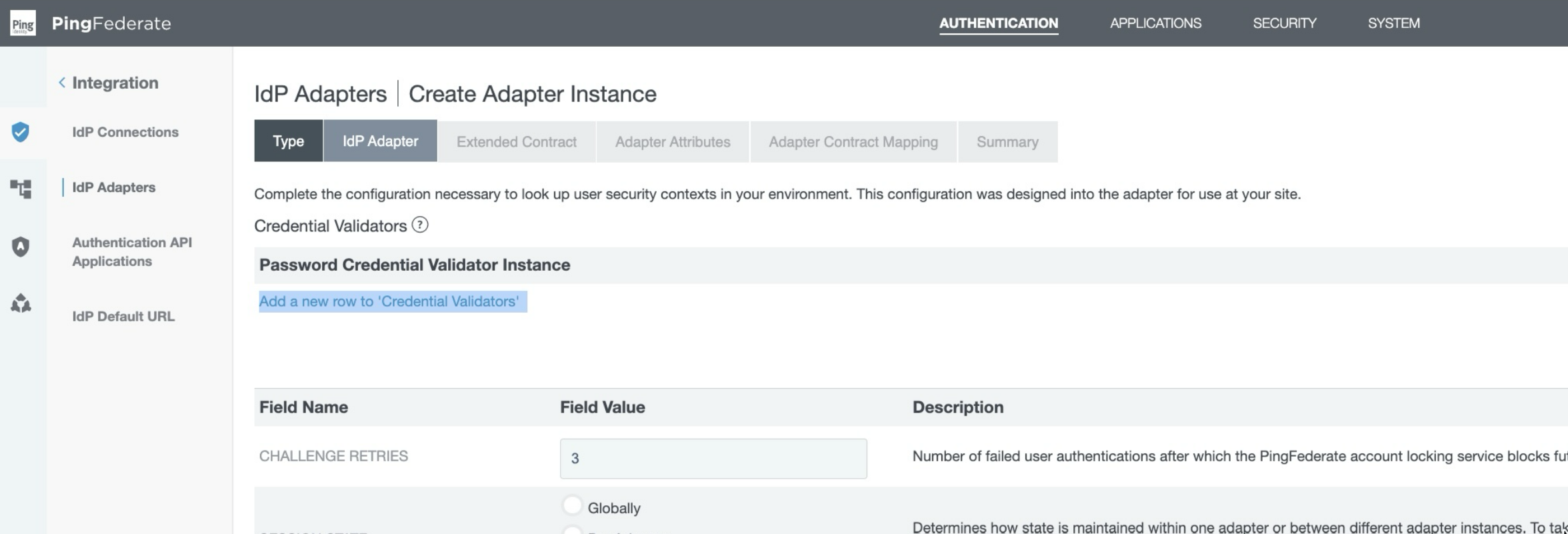
Select
RevealHoldSSOvalidator.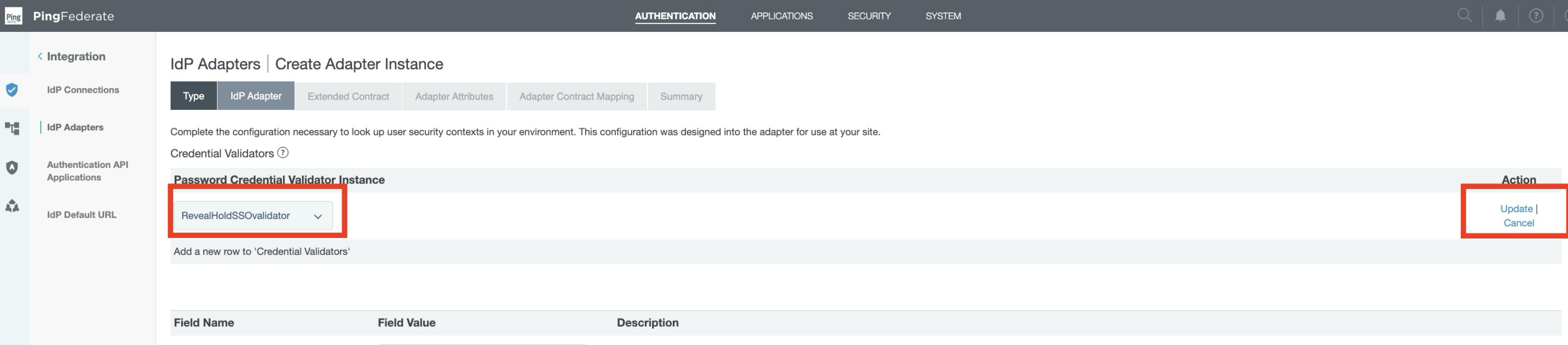
Click Update.
Click Next.
Step 4: Add Contract Attributes
Add the following attributes:
Section | Attribute |
|---|---|
Core Contract |
|
Core Contract |
|
Extend the Contract |
|
Extend the Contract |
|
Extend the Contract |
|
Extend the Contract |
|
Extend the Contract |
|
Extend the Contract |
|
Extend the Contract |
|
Extend the Contract |
|
Extend the Contract |
|
Extend the Contract |
|
Extend the Contract |
|
Extend the Contract |
|
Extend the Contract |
|
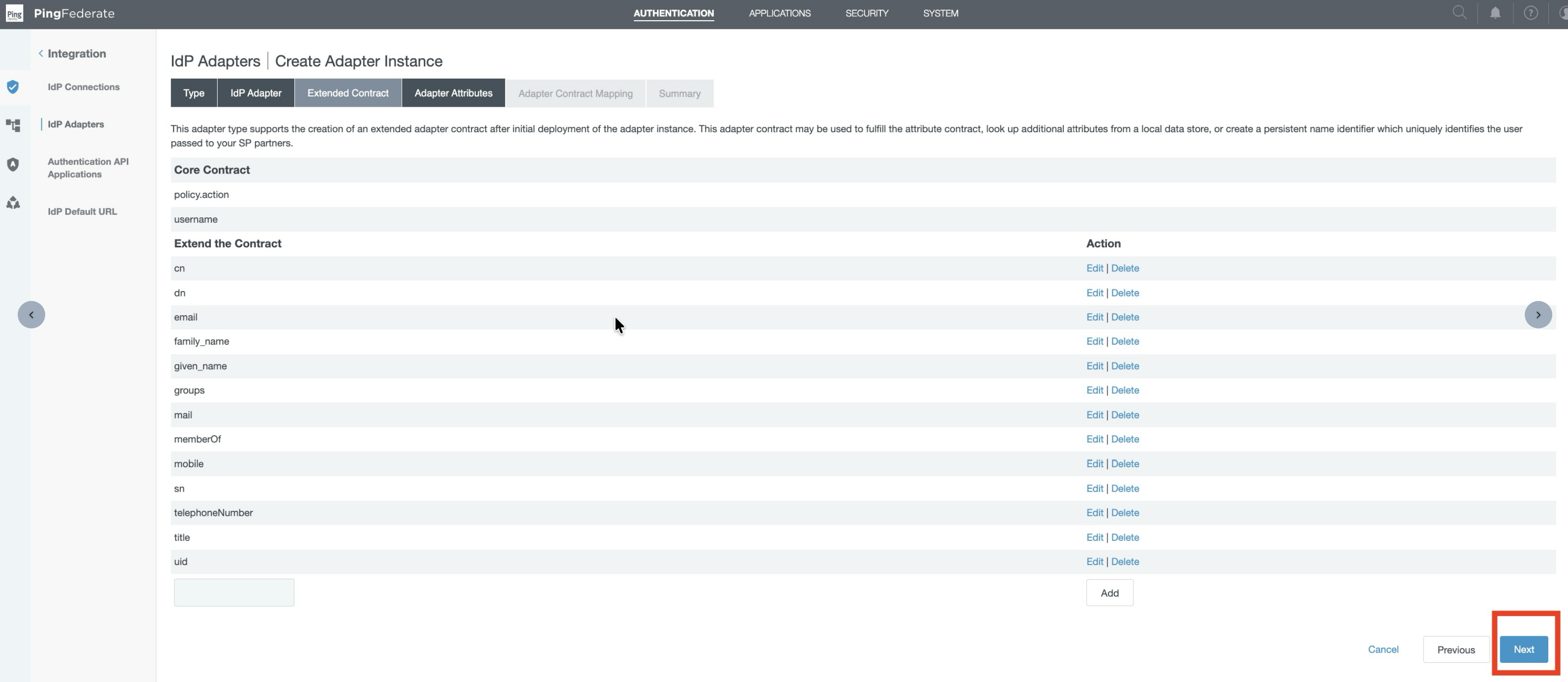
Click Next.
Step 5: Configure Adapter Attributes
Configure the attributes as follows:
Attribute | Pseudonym | Mask Log Values |
|---|---|---|
| No | No |
| No | No |
| Yes | No |
| Yes | No |
| Yes | No |
| Yes | No |
| No | No |
| Yes | No |
| No | No |
| No | No |
| No | No |
| No | No |
| No | No |
| No | No |
| Yes | No |
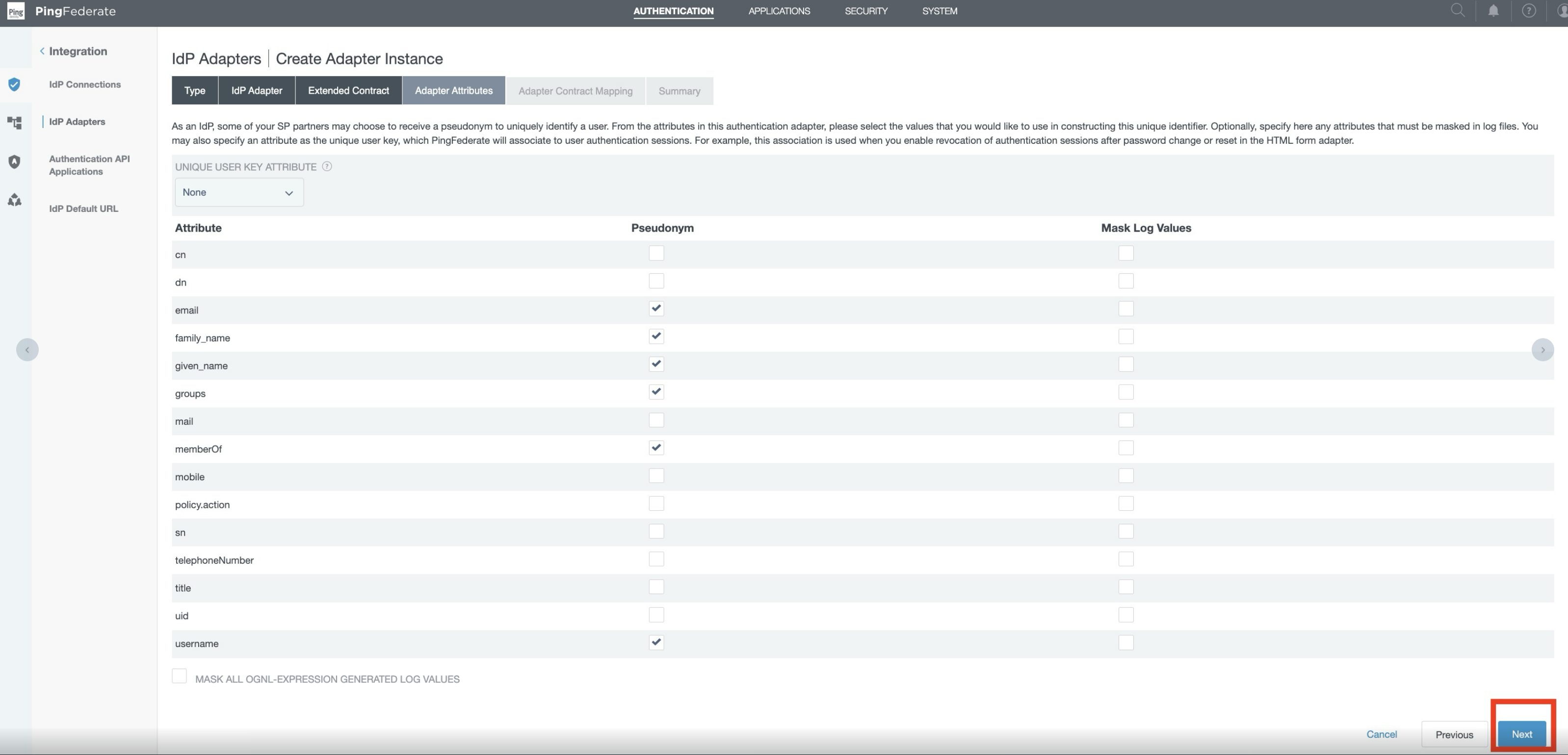
Set:
Unique Contract Attribute: None
Mask All OGNL-Expression Generated Log Values: No
Click Next.
Review the Adapter Contract Mapping and click Next.
Review the Summary page and click Save.
Step 6: Configure Adapter Contract Mapping — Add Attribute Source
In the IdP Adapter configuration, click the Adapter Contract Mapping tab (or click Next until you reach the Adapter Contract Mapping step).
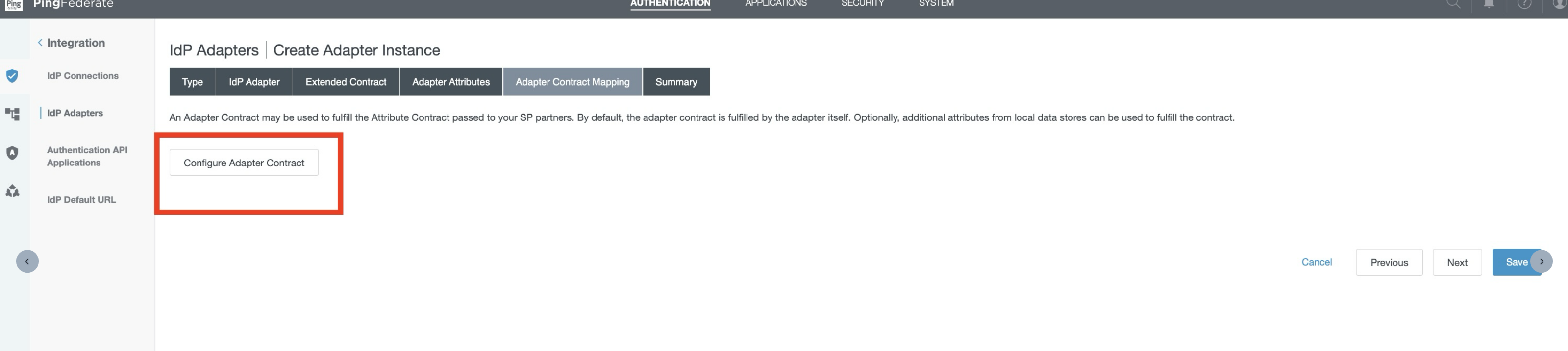
Click Configure Adapter Contract.
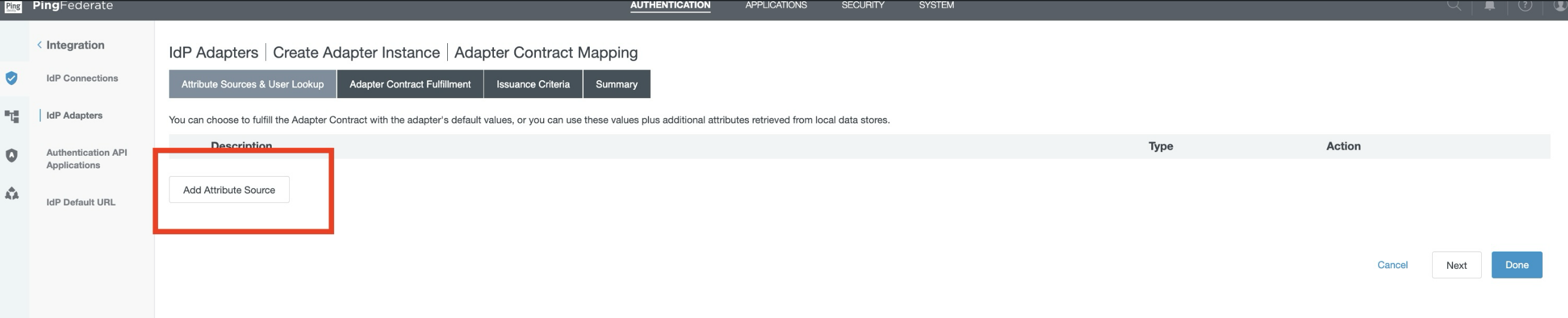
On the Adapter Contract Mapping screen, click + Add Attribute Source.
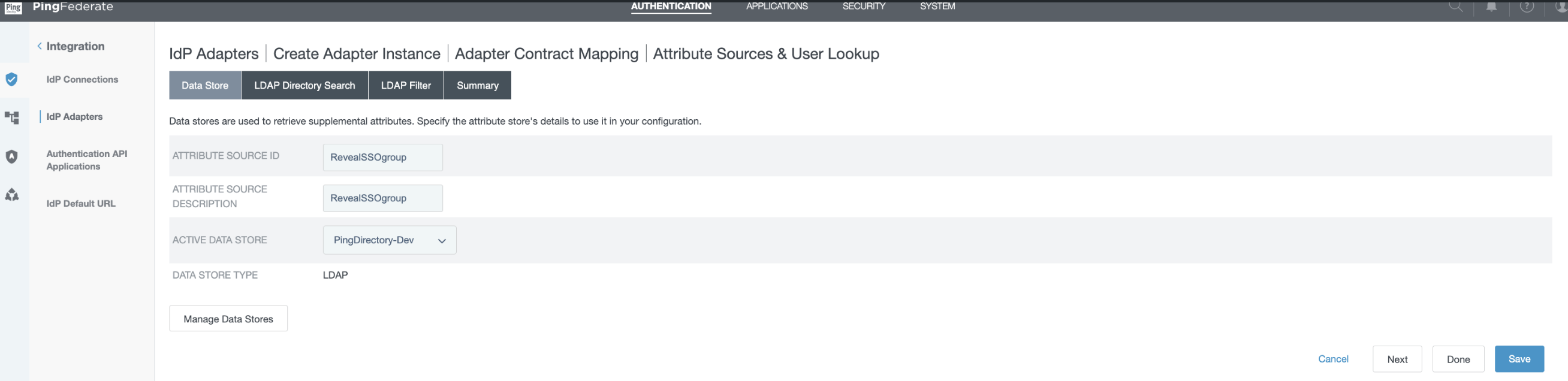
Fill in the following fields:
The Add Attribute Source wizard opens with a Data Store tab.
Field | Value |
|---|---|
Attribute Source ID | RevealSSOgroup |
Attribute Source Description | RevealSSOgroup |
Active Data Store | PingDirectory-Dev |
Data Store Type | LDAP (auto-populated) |
Click Next to proceed to the LDAP Directory Search tab.
Configure the LDAP search settings as follows:
Field | Value |
|---|---|
Base DN | Provide the required base DN |
Search Scope | Subtree |
Attributes to Return | Subject DN, cn, givenName, mail, sn |
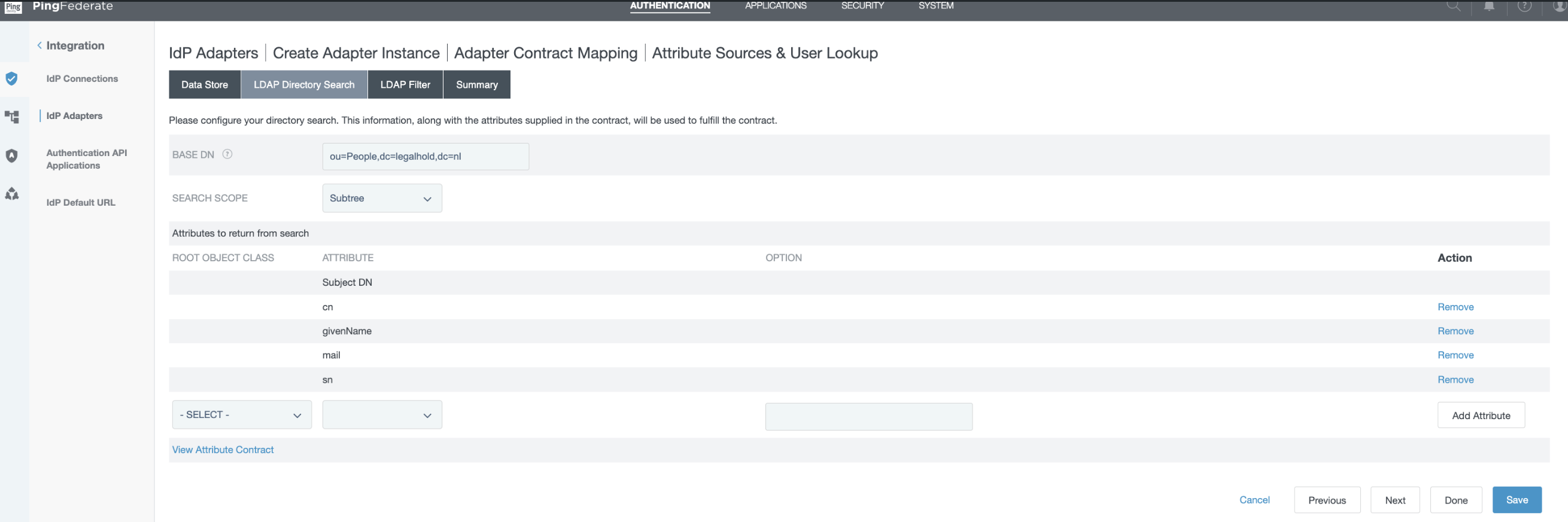
To add attributes:
Click Add Attribute next to the attributes list.
Select Subject DN from the dropdown — this captures the full LDAP distinguished name.
Repeat and add: cn, givenName, mail, sn.
Click Next to proceed to the LDAP Filter tab.
Enter the following LDAP search filter: (mail=${username})
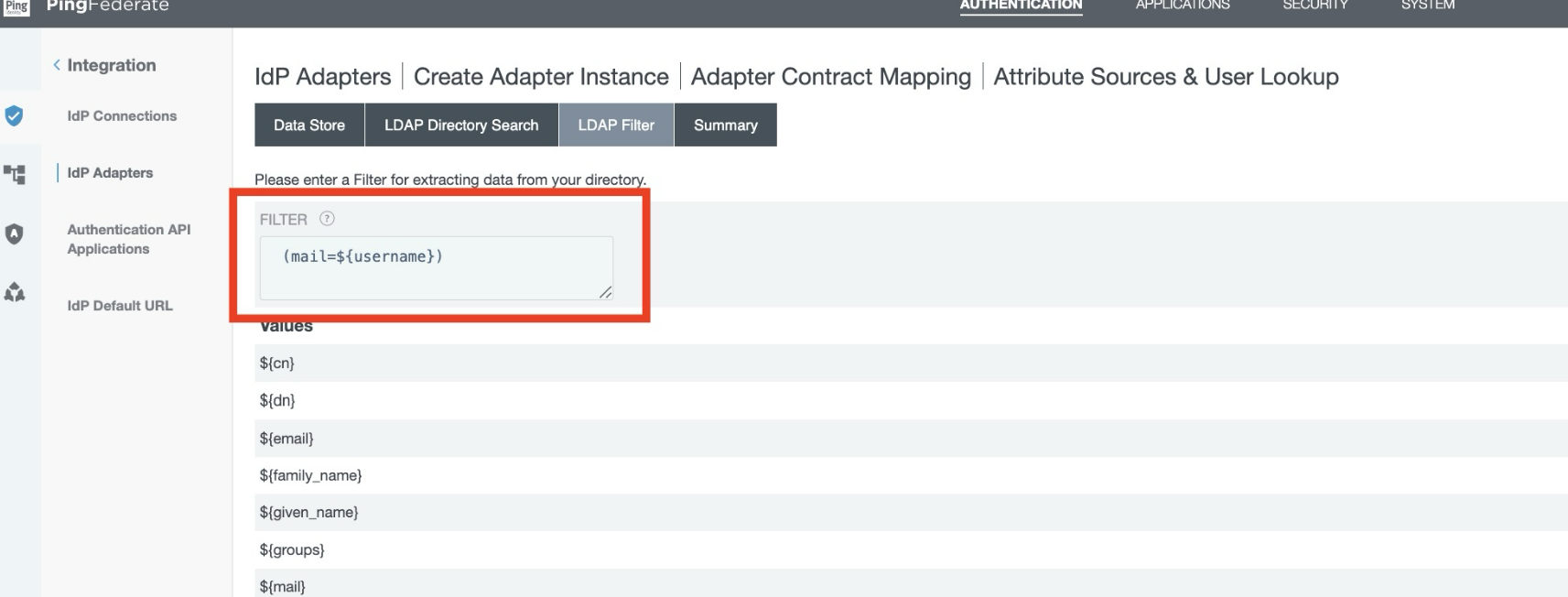
Click Next, then Done to save the attribute source.
Step 7: Configure Adapter Contract Fulfillment
In the Adapter Contract Fulfillment table, for each attribute listed below:
Click the Source dropdown and change it from Adapter to LDAP (RevealSSOgroup).
In the Value dropdown that appears, select the corresponding LDAP attribute from the list.
Apply the following mappings:
Contract Attribute | Source > Value |
|---|---|
cn | LDAP (RevealSSOgroup) → cn |
LDAP (RevealSSOgroup) → mail | |
given_name | LDAP (RevealSSOgroup) → givenName |
family_name | LDAP (RevealSSOgroup) → sn |
LDAP (RevealSSOgroup) → mail | |
sn | LDAP (RevealSSOgroup) → sn |
dn | LDAP (RevealSSOgroup) → Subject DN |
username | Adapter |
groups | Adapter |
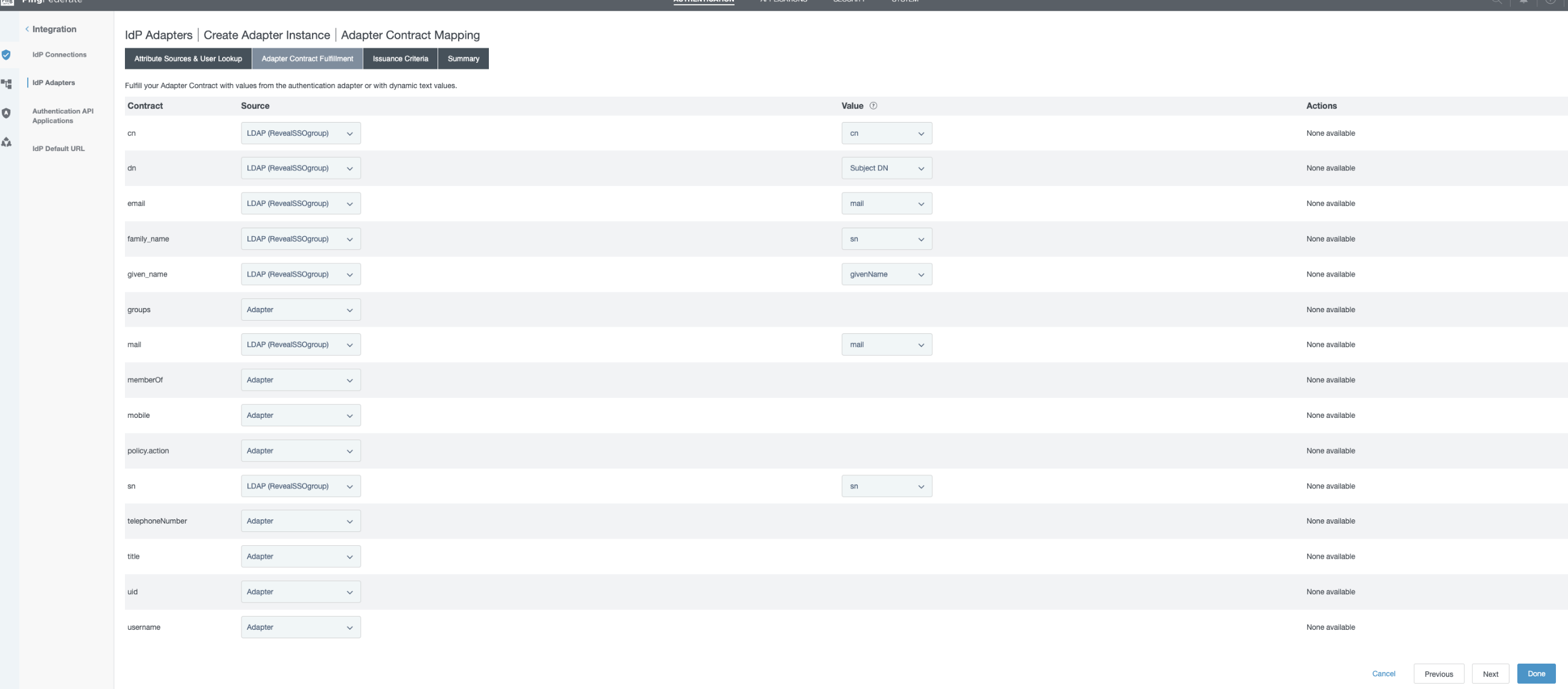
After updating all attributes, click Next, then Save to save the adapter configuration.
4. Map the IdP Adapter to the Policy Contract
Step 1: Open Policy Contract Grant Mapping
Go to Authentication.
Open Policy Contract Grant Mapping.
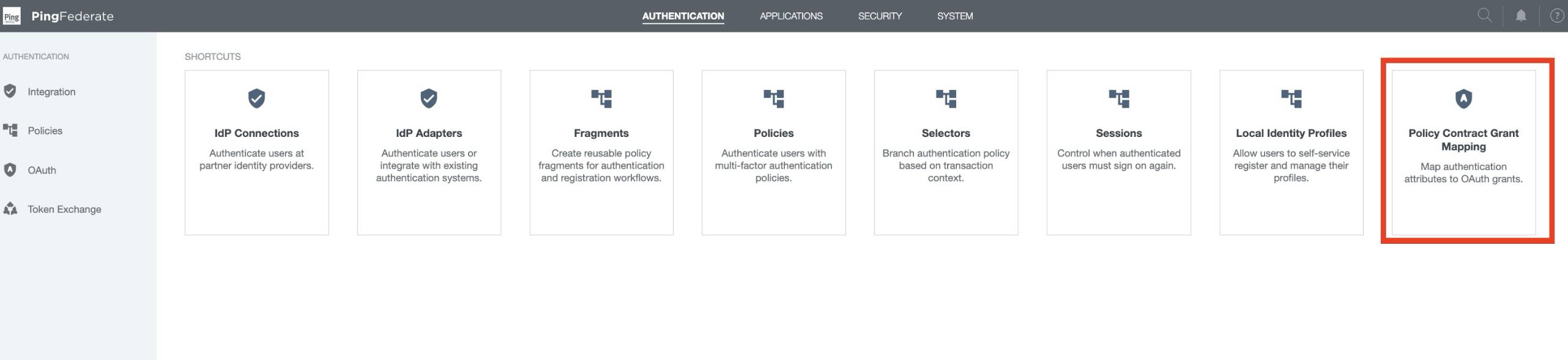
Select IdP Adapter Grant Mapping.
Select the IdP Adapter created earlier.
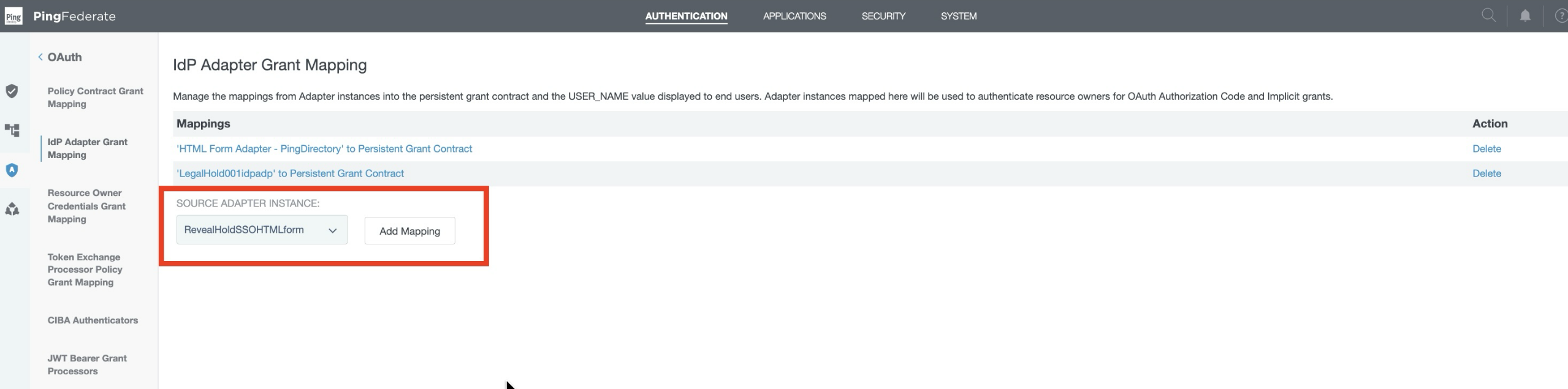
Click Add Mapping.
Click Next.
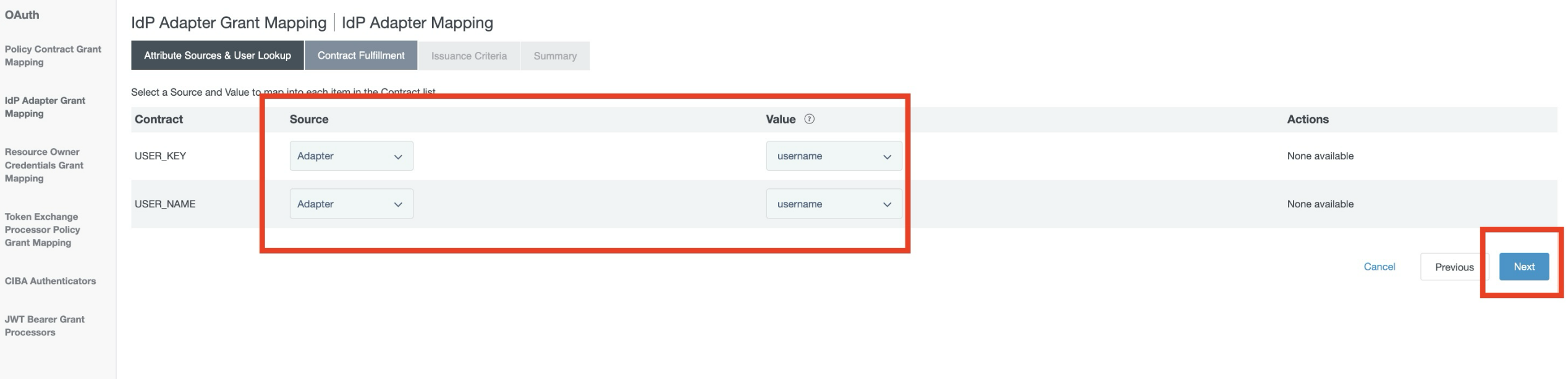
Step 2: Configure Contract Fulfillment
Configure the following values:
Contract | Source | Value | Actions |
|---|---|---|---|
| Adapter |
| None available |
| Adapter |
| None available |
Click Next.
Review the Summary and click Save.
5. Create Access Token Management
Step 1: Open Access Token Management
From the top menu, click Application.
Select Access Token Management.
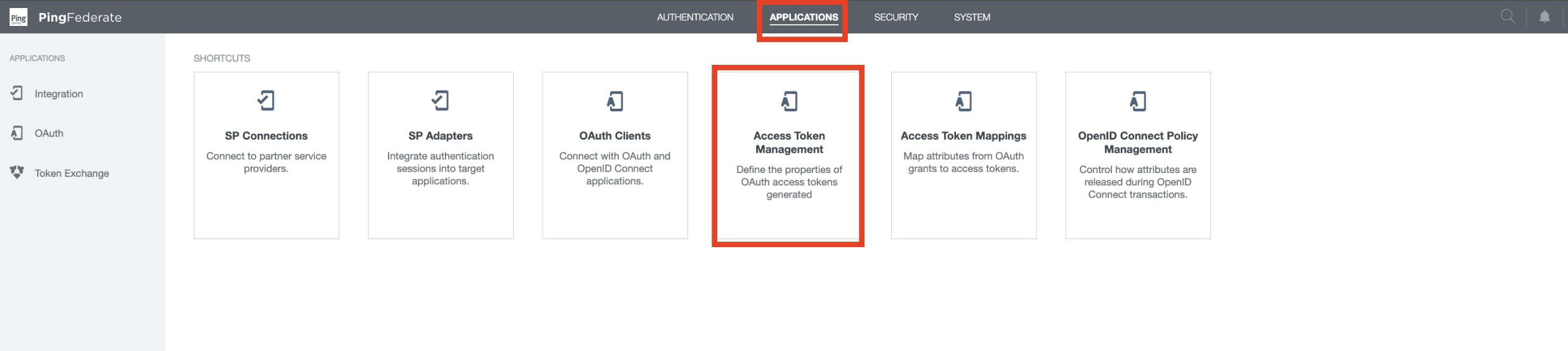
Click Create New Instance.
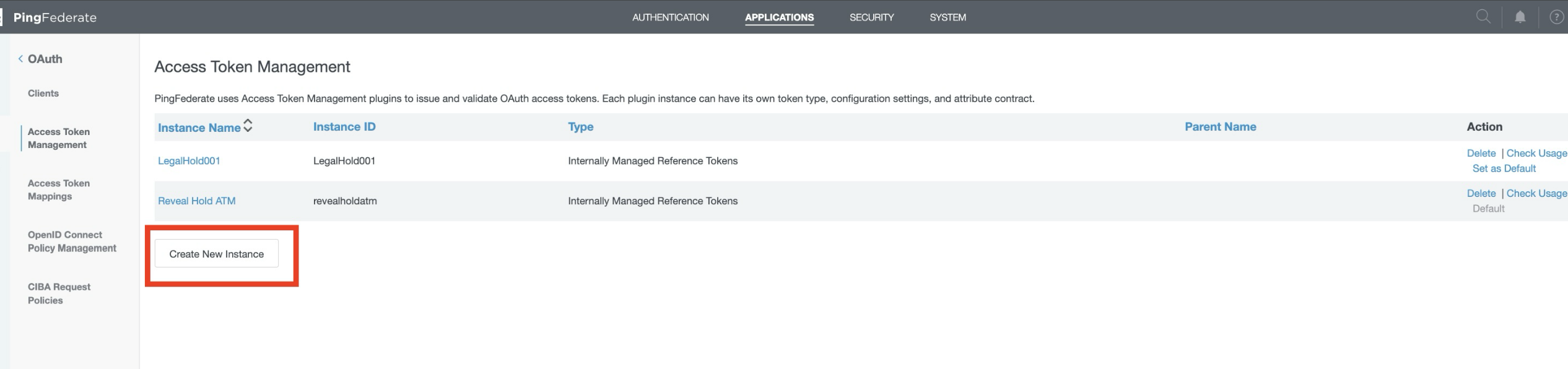
Step 2: Enter the Instance Details
Field | Value |
|---|---|
Instance Name |
|
Instance ID |
|
Type |
|
Parent Instance | None |
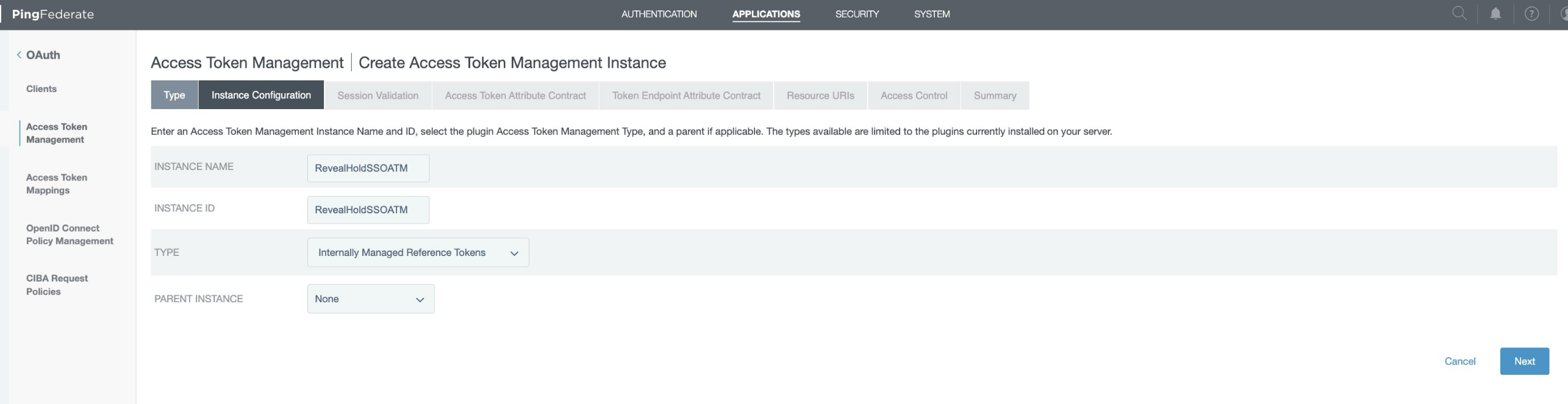
Click Next and Next.
Step 3: Configure the Access Token Attribute Contract
Add the following attributes:
Field | Value |
|---|---|
Subject Attribute Name |
|
Extended Contract Attribute |
|
Extended Contract Attribute |
|
Extended Contract Attribute |
|
Extended Contract Attribute |
|
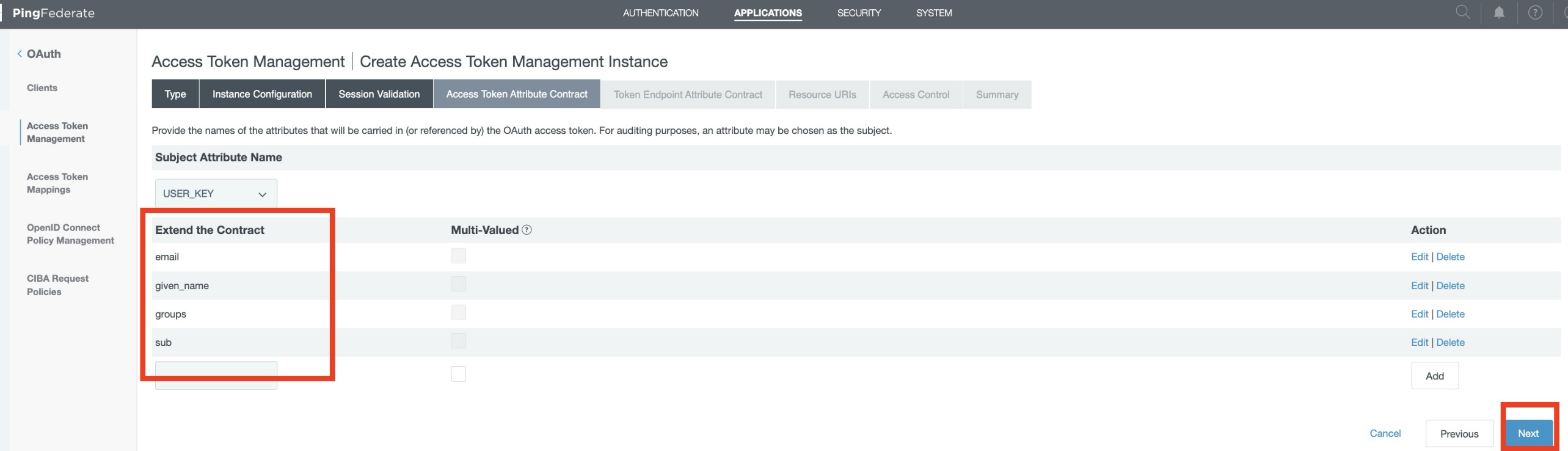
Set Multi-Valued = No for all listed attributes and click Next.
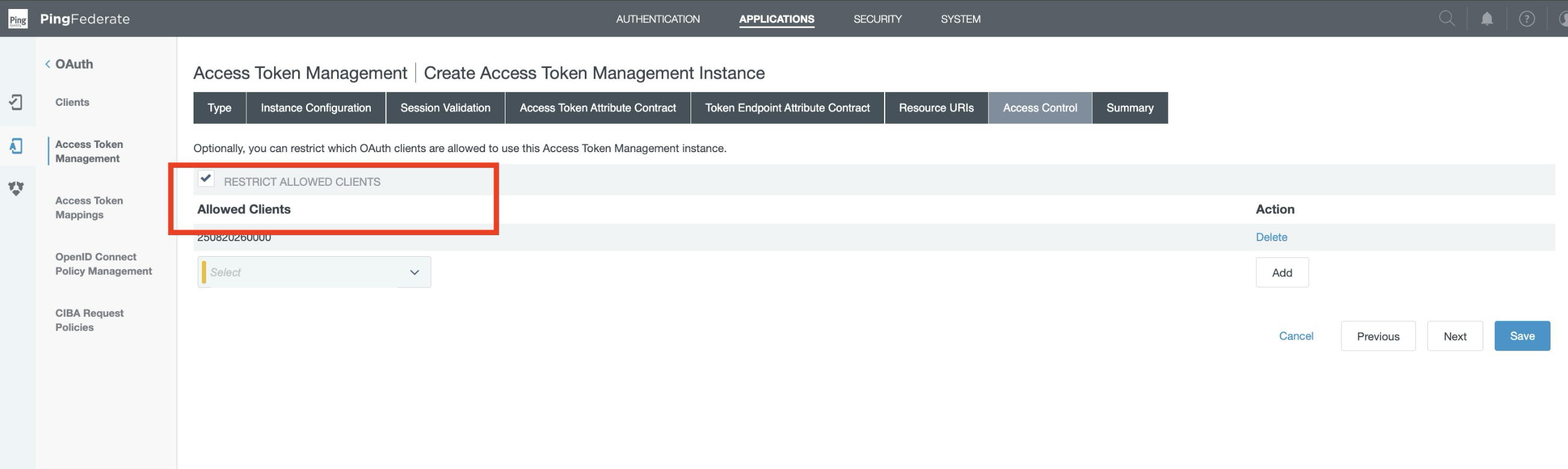
Step 4: Configure Access Control
Select the Restrict Allowed Clients checkbox.
Select your Client ID from the list.
Click Add.
Click Next to proceed to the next step.
Review the Summary, and click Save.
6. Create Access Token Mapping
Step 1: Open Access Token Mappings
Under Application → Access Token Management, open Access Token Mappings.
Select:
IdP Adapter:
RevealHoldSSOHTMLformAccess Token Manager:
RevealHoldSSOATM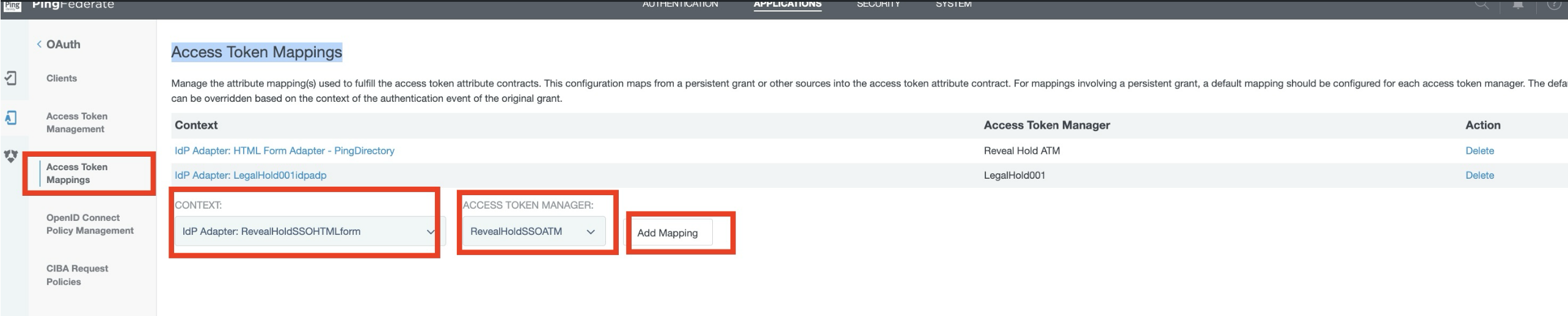
Click Add Mapping.
Step 2: Configure Contract Fulfillment
Enter the following:
Contract | Source | Value | Actions |
|---|---|---|---|
| Adapter |
| None available |
| Adapter |
| None available |
| Adapter |
| None available |
| Adapter |
| None available |
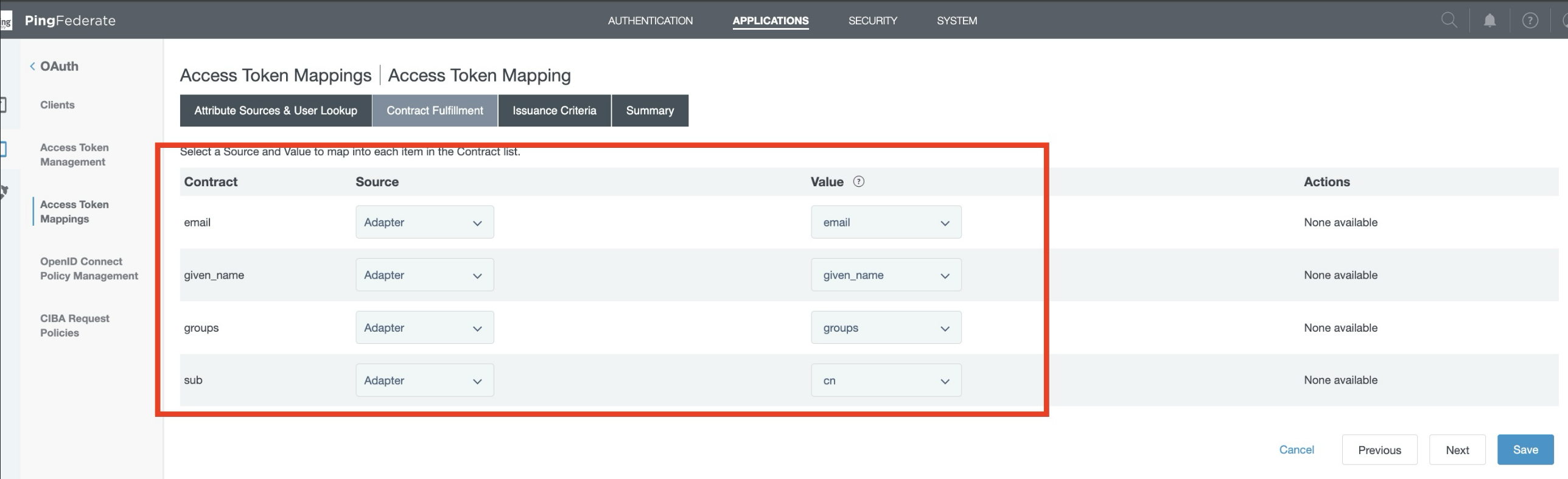
Click Next.
Review the Summary and click Save.
7. Create OpenID Connect Policy
Step 1: Open OpenID Connect Policy Management
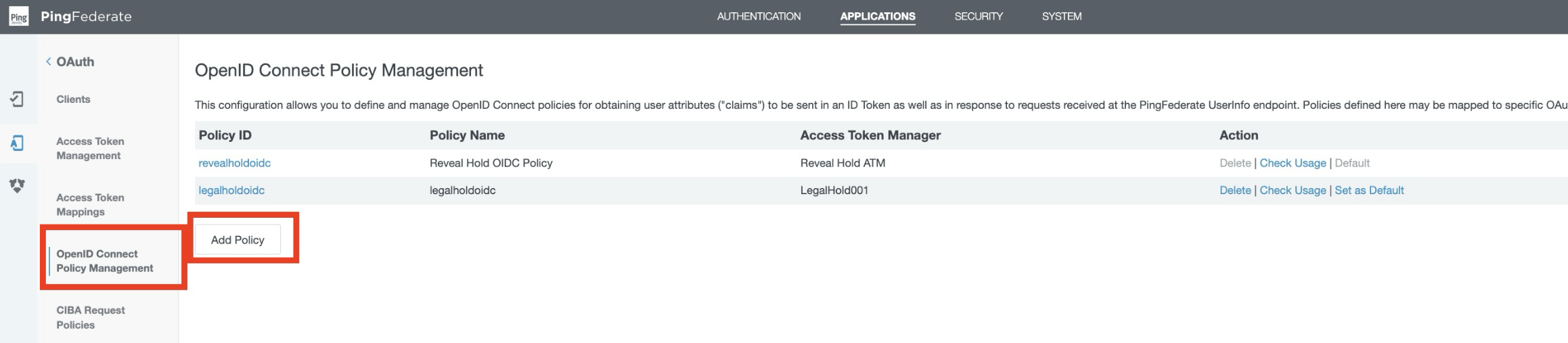
Under Application, open OpenID Connect Policy Management.
Click Add Policy.
Step 2: Enter Policy Details
Field | Value |
|---|---|
Policy ID |
|
Name |
|
Access Token |
|
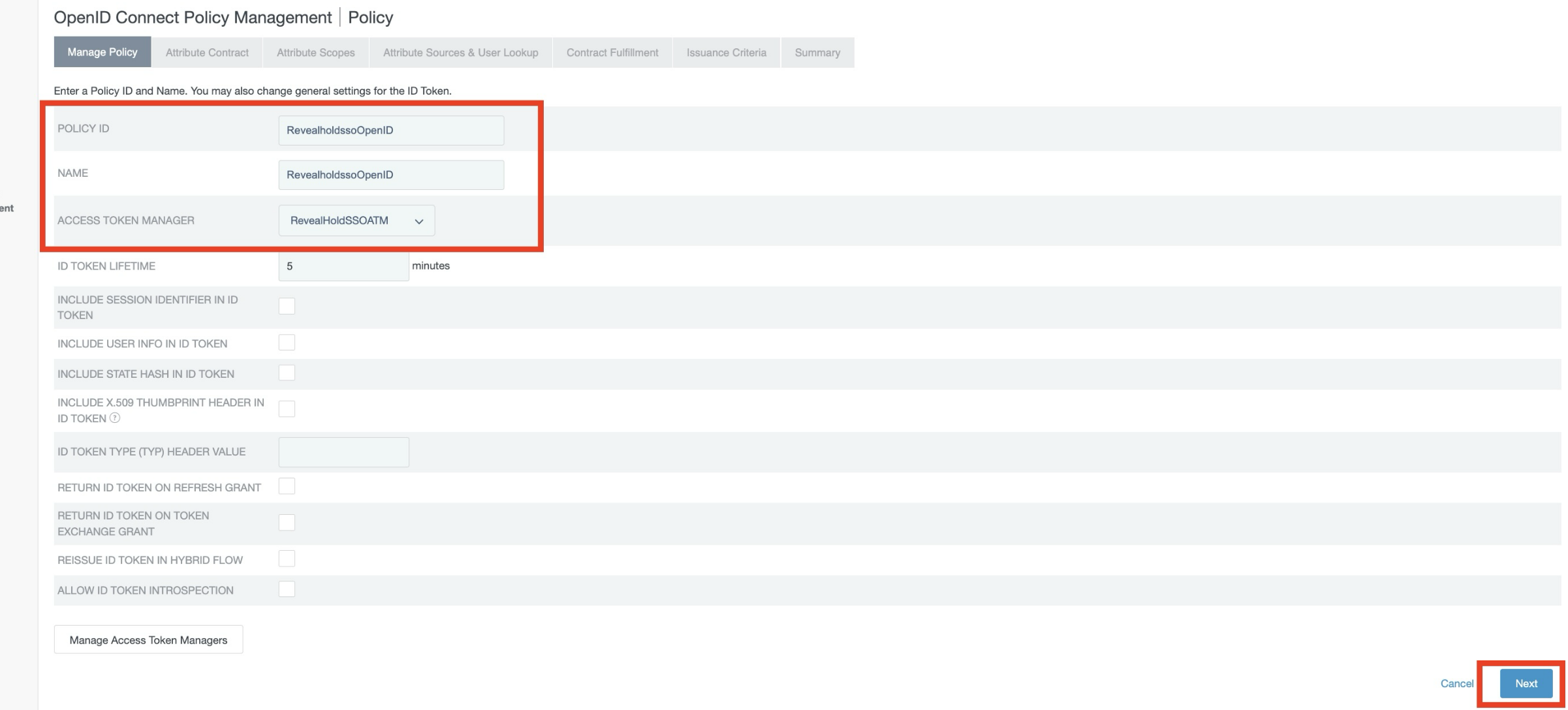
Click Next.
Step 3: Configure the Attribute Contract
Delete the existing extended contract attributes and add the following:
Attribute | Override Default Delivery | ID Token | User Info | Multi-Valued |
|---|---|---|---|---|
| No | No | Yes | No |
| No | No | Yes | No |
| No | No | Yes | No |
| No | No | Yes | No |
| No | No | Yes | No |
| No | No | Yes | No |
| No | No | Yes | No |
| No | No | Yes | No |
| No | No | Yes | No |
| No | No | Yes | No |
| No | No | Yes | No |
| No | No | Yes | No |
| No | No | Yes | No |
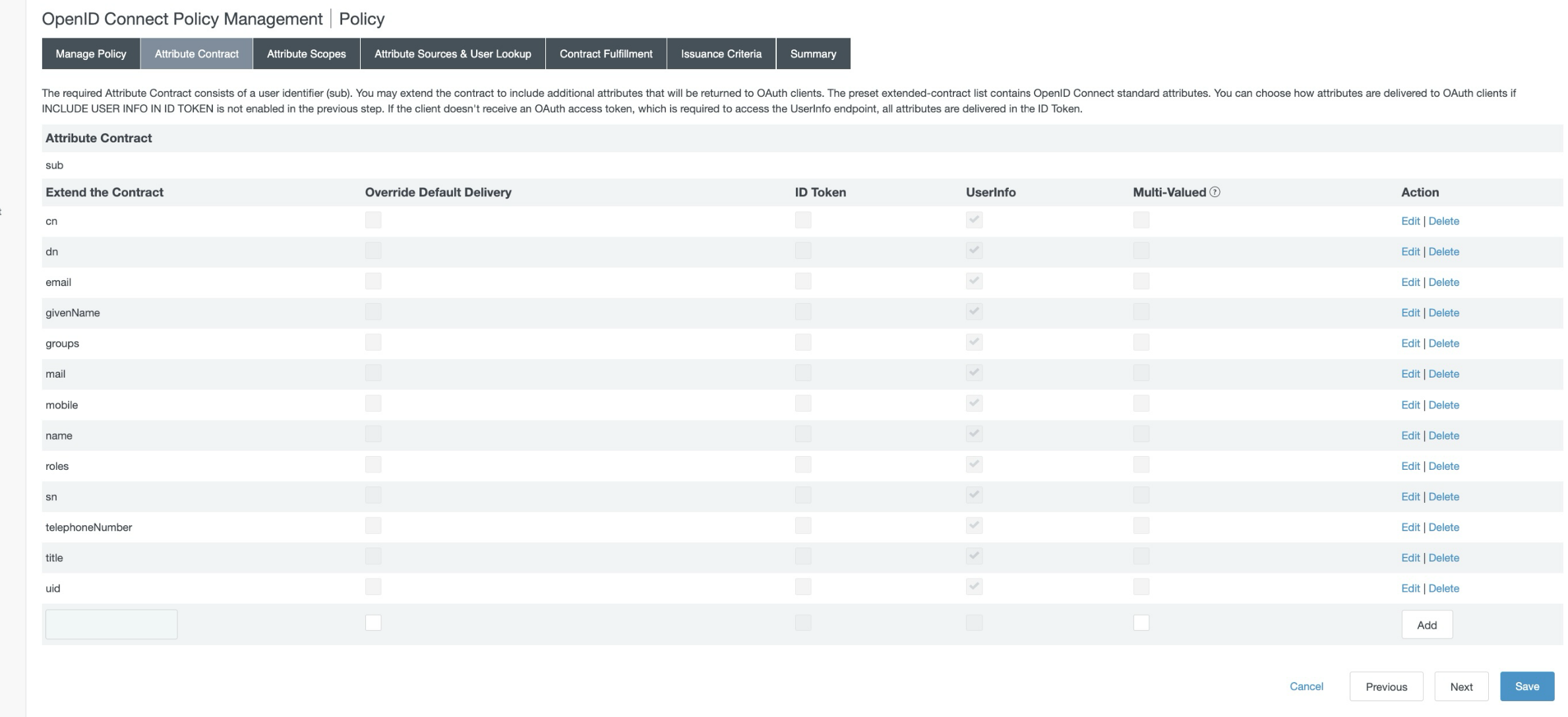
Click Next.
8. Configure Attribute Source and User Lookup
Step 1: Add Attribute Source
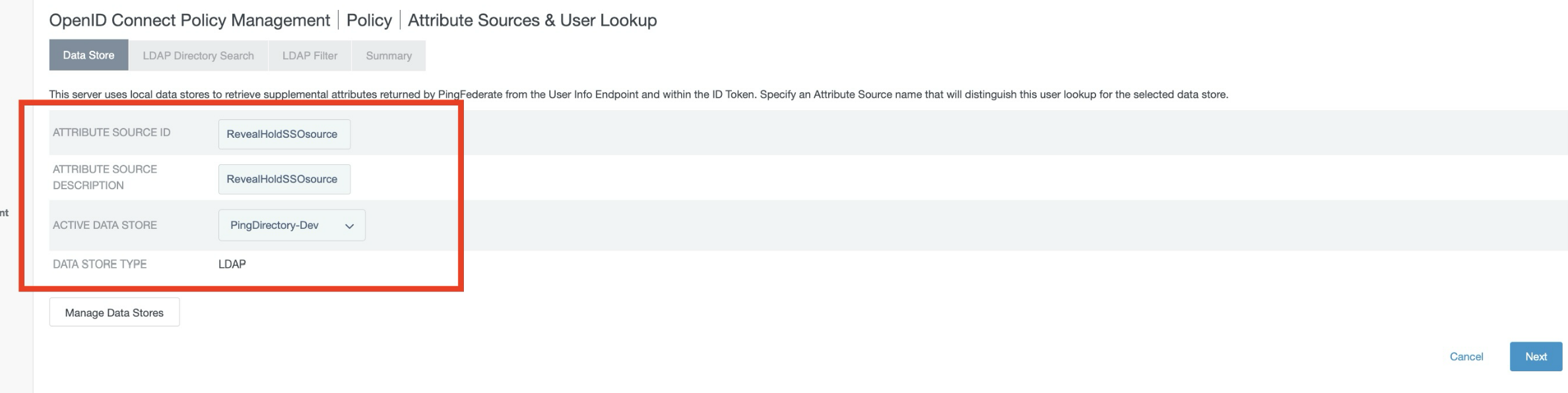
On Attribute Sources & User Lookup:
Click Add Attribute Source.
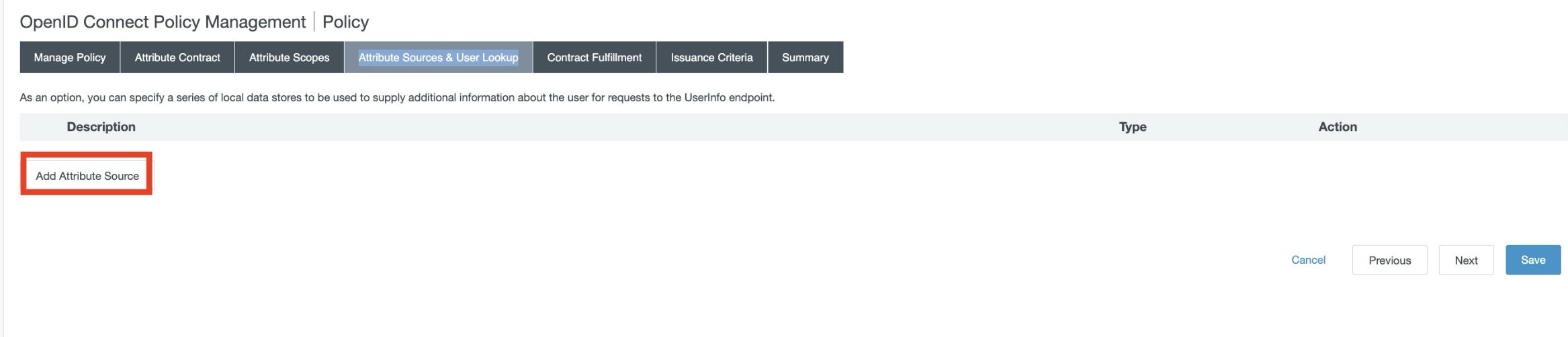
Enter the following:
Field | Value |
|---|---|
Attribute Source ID |
|
Description |
|
Active Data Store |
|
Click Next.
Step 2: Configure LDAP Directory Search
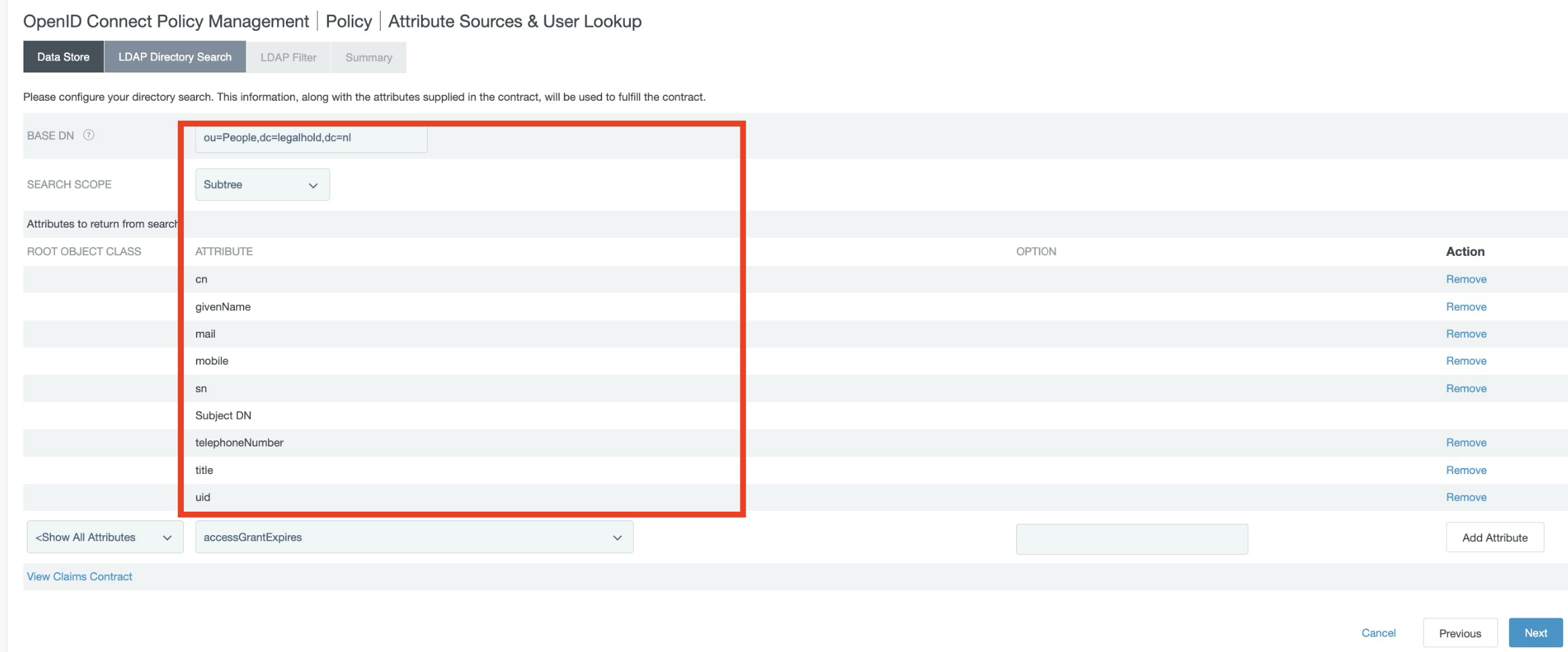
Configure the following:
Field | Value |
|---|---|
Base DN | Provide the required base DN |
Search Scope |
|
Add the following attributes:
cngivenNamemailmobilesntelephoneNumbertitleuid
Click Next.
Step 3: Add LDAP Filter
Add the following LDAP filter:
(cn=${sub})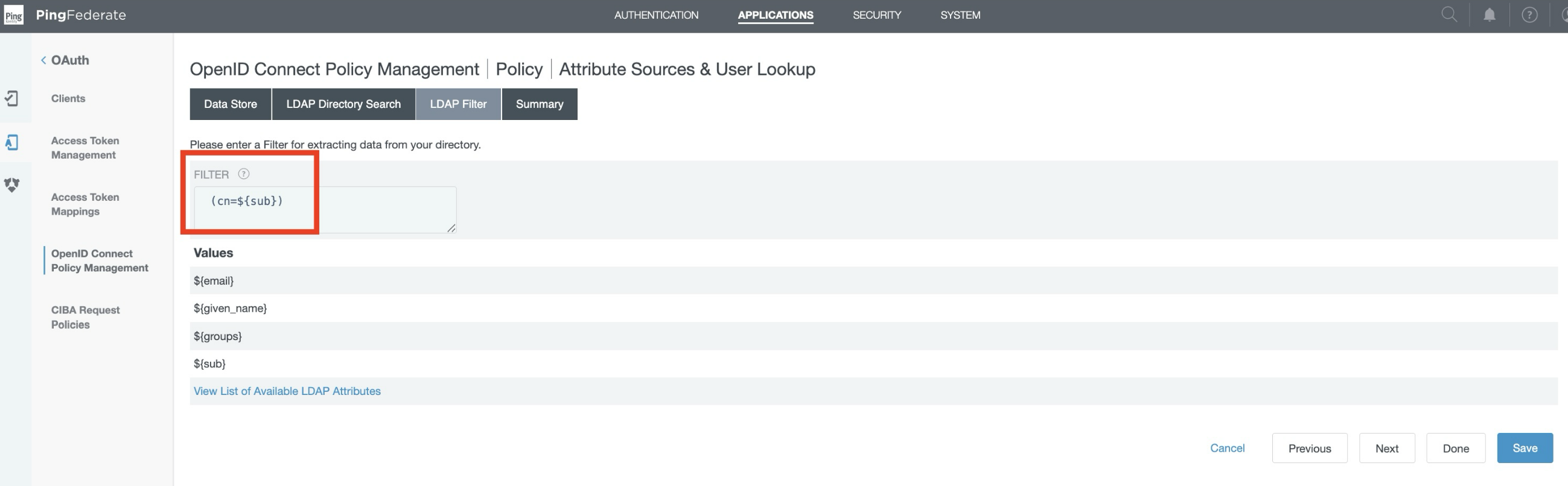
Click Next.
Review the Summary and click Save.
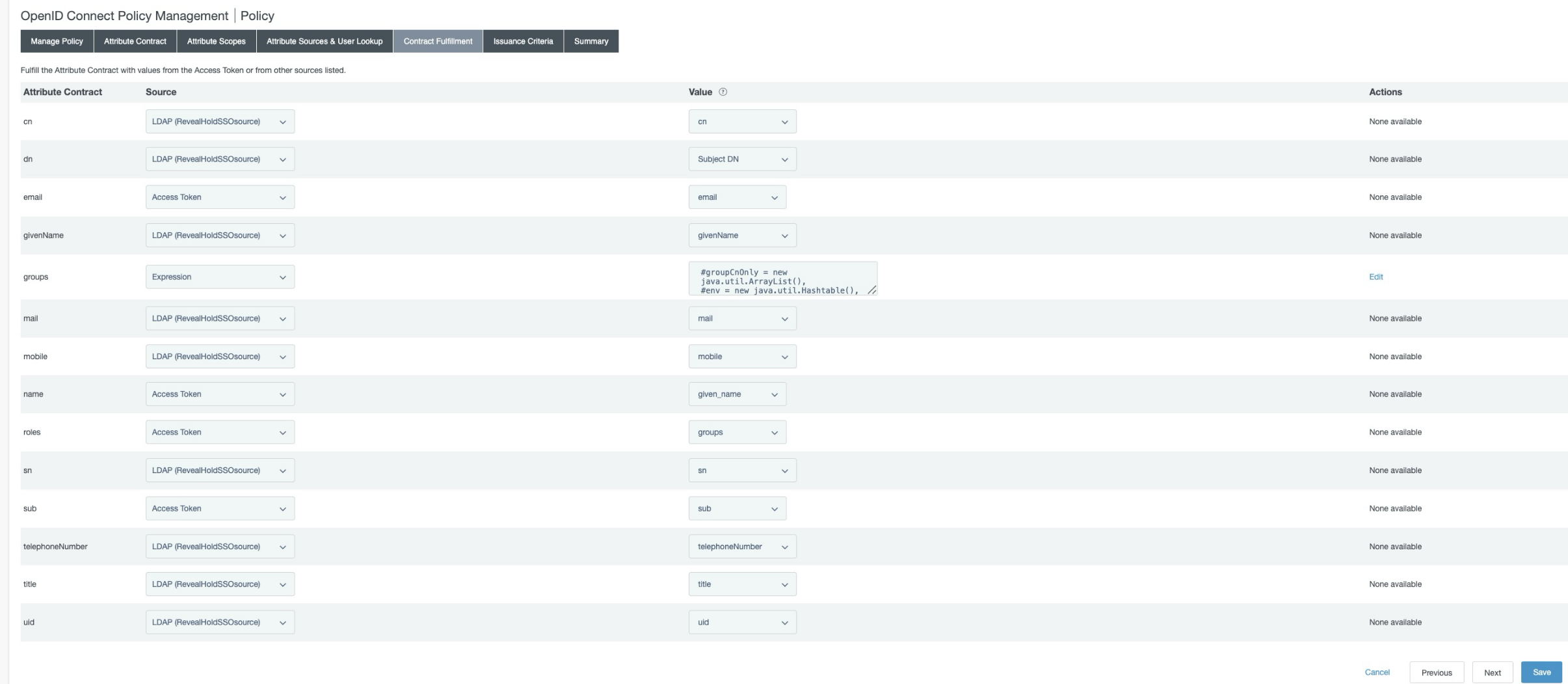
9. Configure Contract Fulfillment
Configure the OpenID Connect Policy Contract Fulfillment as follows:
Attribute Contract | Source | Value | Actions |
|---|---|---|---|
| LDAP ( |
| None available |
| LDAP ( |
| None available |
| Access Token |
| None available |
| LDAP ( |
| None available |
| Expression | Group expression | Edit |
| LDAP ( |
| None available |
| LDAP ( |
| None available |
| Access Token |
| None available |
| Access Token |
| None available |
| LDAP ( |
| None available |
| Access Token |
| None available |
| LDAP ( |
| None available |
| LDAP ( |
| None available |
| LDAP ( |
| None available |
10. Configure the Groups Expression
The groups expression is used to retrieve the groups for the logged-in user from PingDirectory.
Use the following expression as the base configuration:
#groupCnOnly = new java.util.ArrayList(),
#env = new java.util.Hashtable(),
#env.put("java.naming.factory.initial", "com.sun.jndi.ldap.LdapCtxFactory"),
#env.put("java.naming.provider.url", "ldaps://ping-dev.legalhold.nl:1636"),
#env.put("java.naming.security.authentication", "simple"),
#env.put("java.naming.security.principal", "cn=Directory Manager"),
#env.put("java.naming.security.credentials", "<Directory Manager password>"),
#ctx = new javax.naming.directory.InitialDirContext(#env),
#sc = new javax.naming.directory.SearchControls(),
#sc.setSearchScope(2),
#userResults = @java.util.Collections@list(#ctx.search("Provide the required base DN", "(cn=" + #this.get("sub") + ")", #sc)),
#userDN = #userResults.size() > 0 ? #userResults.get(0).getNameInNamespace() : "",
#filter = "(member=" + #userDN +")",
#en = #ctx.search("ou=Groups,dc=legalhold,dc=nl", #filter, #sc),
#resultsList = @java.util.Collections@list(#en),
#resultsList.{
  #attrs = #this.getAttributes(),
  #groupCnOnly.add(#attrs.get("cn").get())
},
#ctx.close(),
new org.sourceid.saml20.adapter.attribute.AttributeValue(#groupCnOnly)
Important
Before saving the expression:
Update the LDAP URL.
Update the Directory Manager username.
Replace the password placeholder with the correct PingDirectory Directory Manager password.
After updating the values, click Next, review the Summary, and click Save.
11. Create the OpenID Connect Client
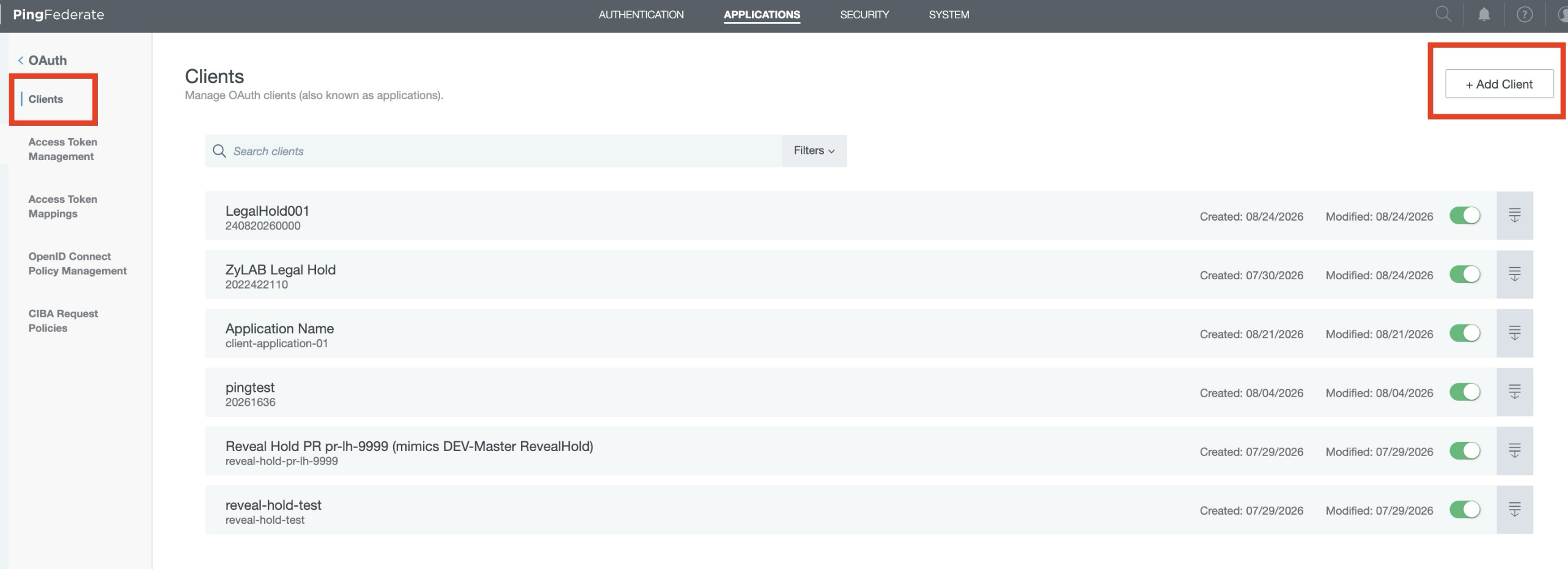
Step 1: Open Clients
Under Application, click Clients.
Click + Add Client.
Step 2: Configure General Information
Field | Value |
|---|---|
Client ID |
|
Client Name |
|
Step 3: Configure Client Authentication
Field | Value |
|---|---|
Authentication Method |
|
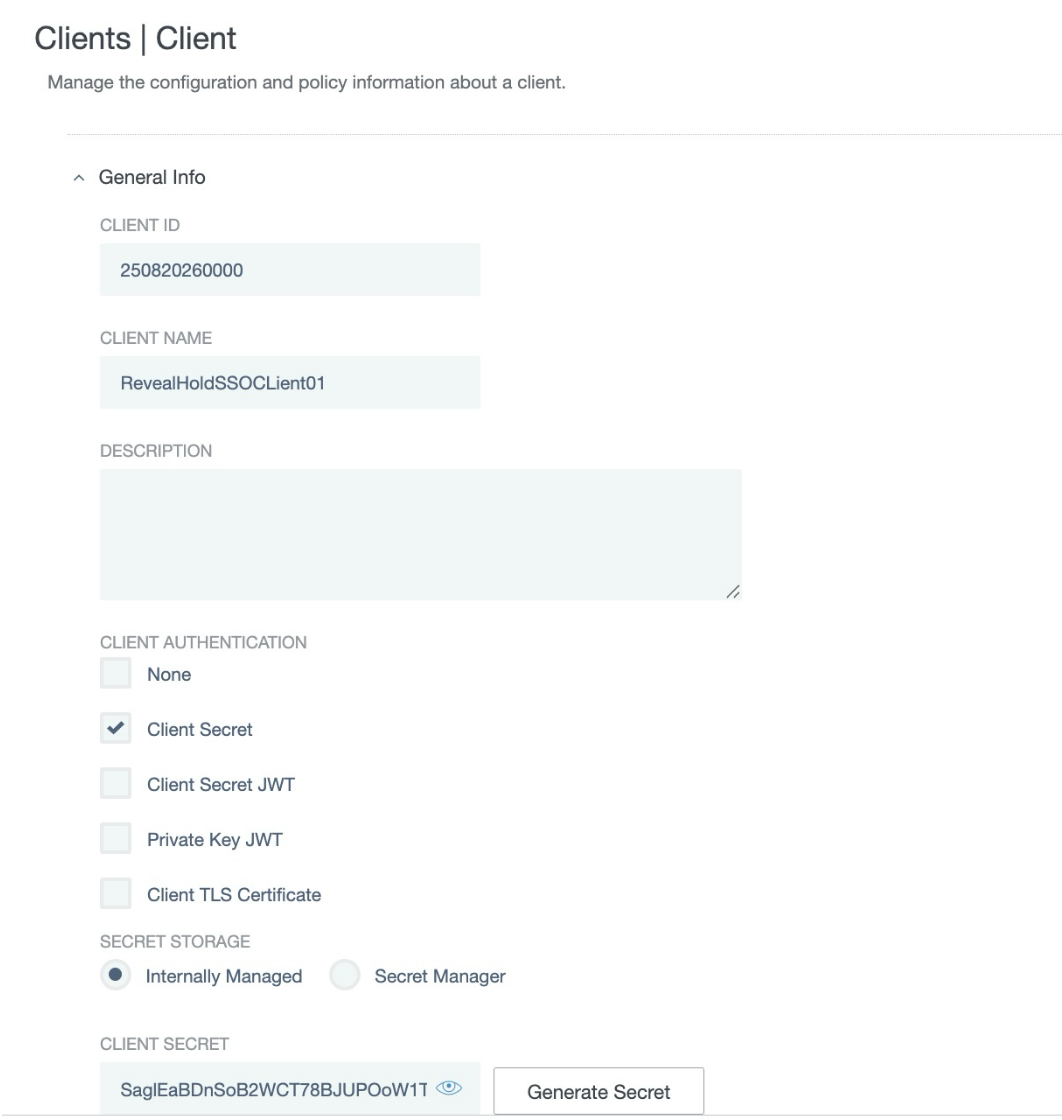
Step 4: Configure Secret Storage
Field | Value |
|---|---|
Secret Storage |
|
For Client Secret:
Select Generate.
Copy and securely store the generated client secret.
For Client Secret Retention Period:
Select Use Global Settings.
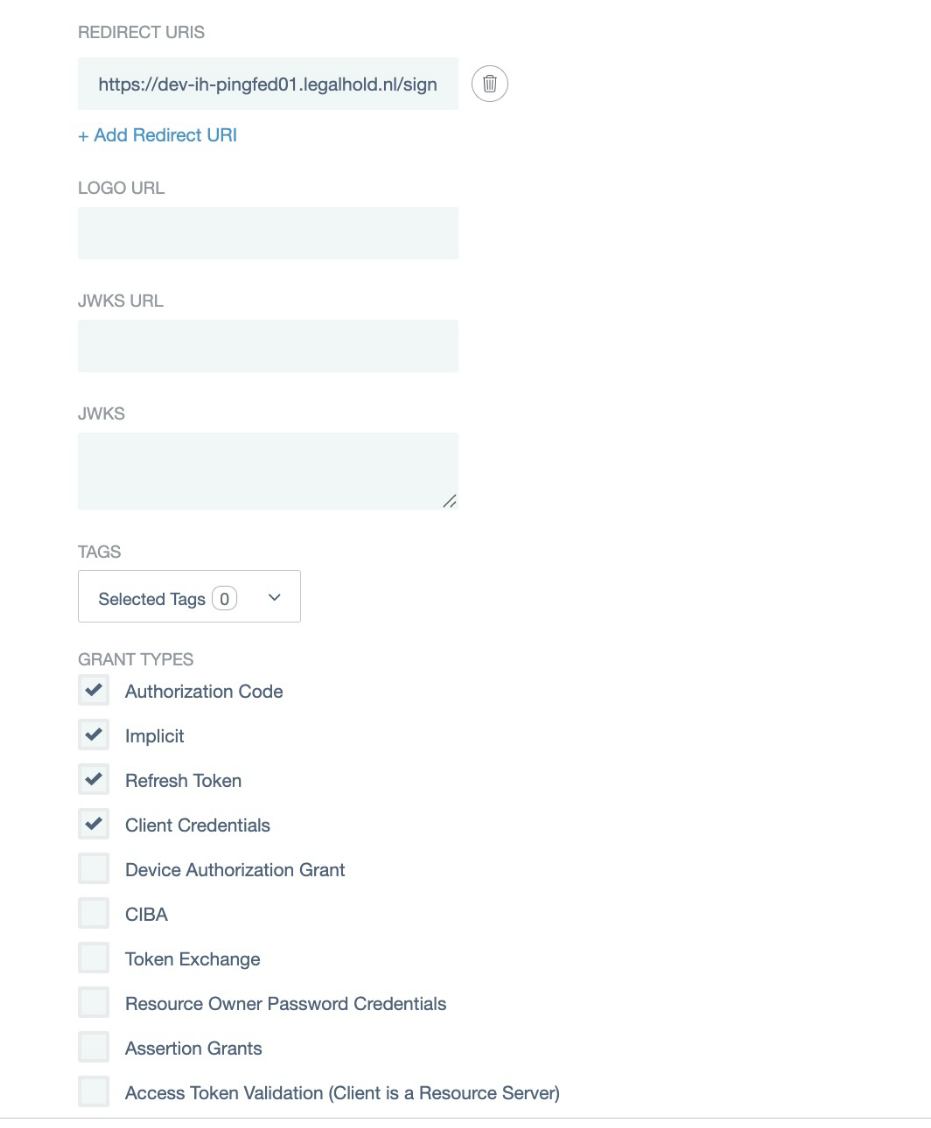
Step 5: Configure Redirect URI
Add the required Redirect URI: https://legalhold.one/signin-mt-oidc/
Make sure the actual application URL is used for the target environment.
Step 6: Configure Grant Types
Check the following:
Authorization Code
Implicit
Refresh Token
Client Credentials
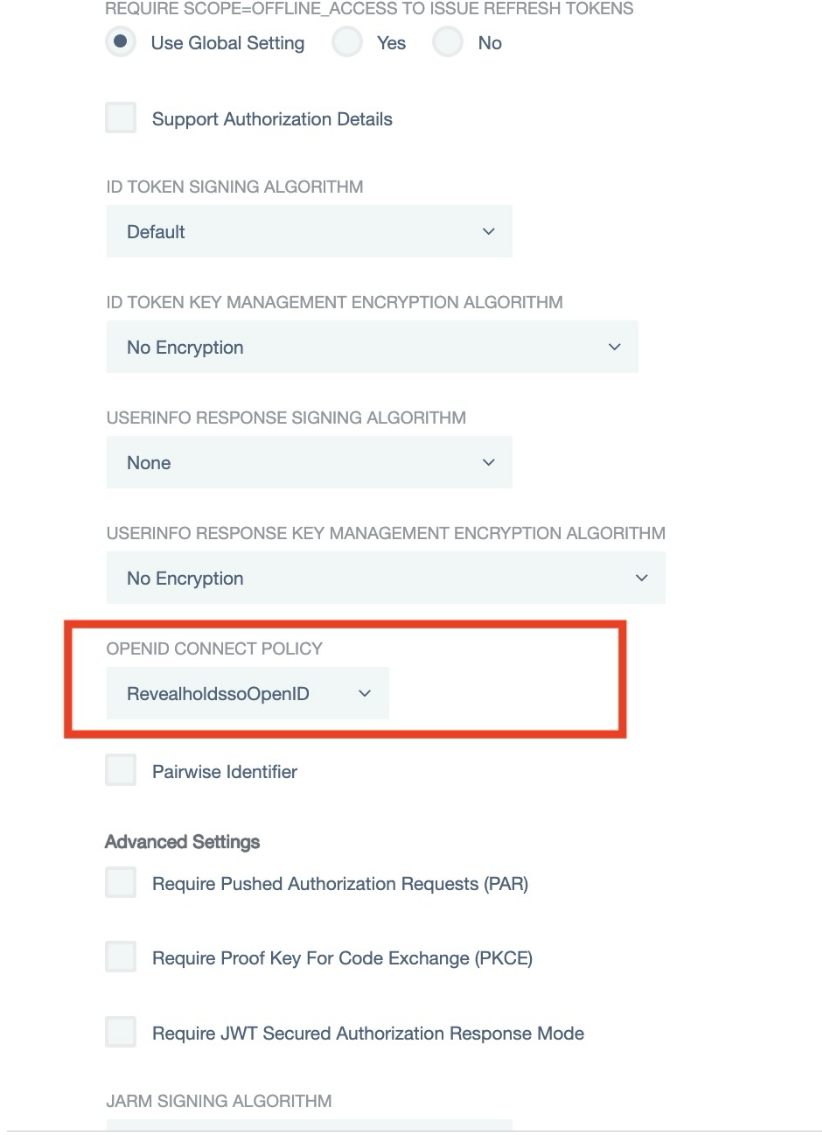
Step 7: Configure OAuth Settings
Set the following:
Field | Value |
|---|---|
OpenID Connect Policy |
|
Default Access Token Manager |
|
Bypass Authorization Approval | Enabled |
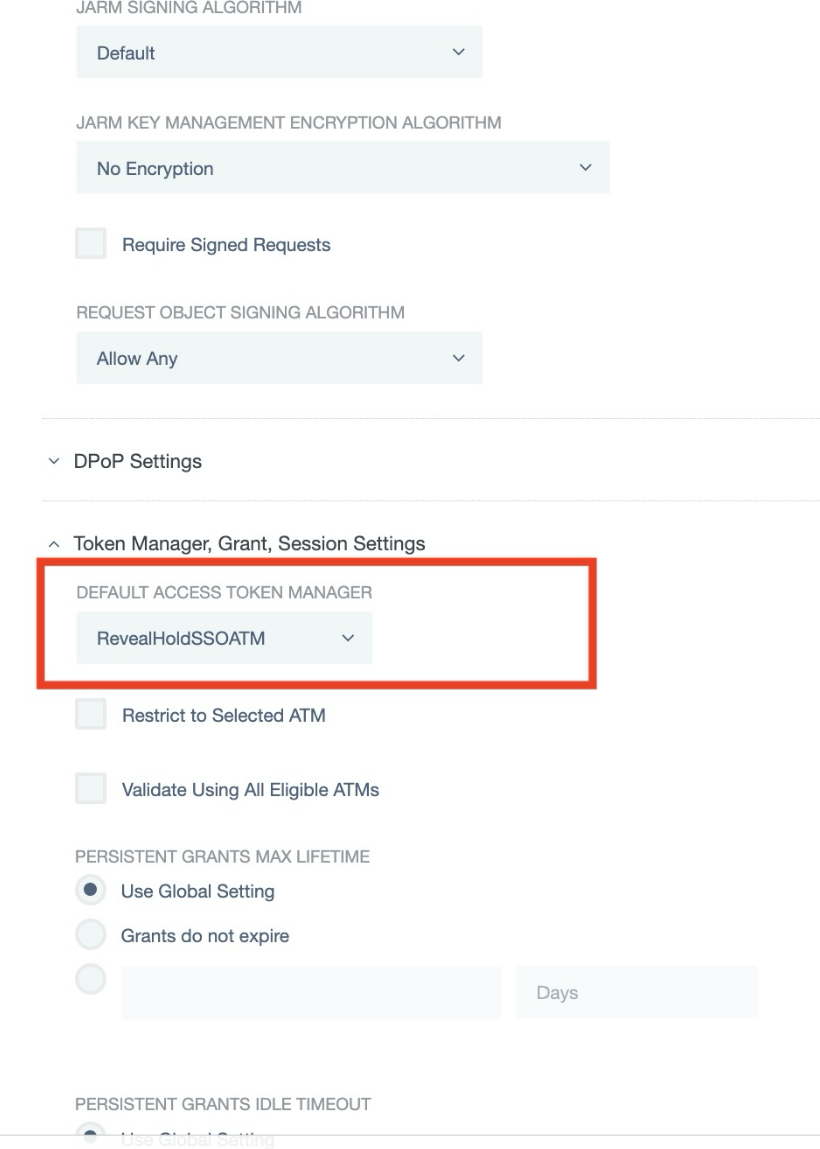
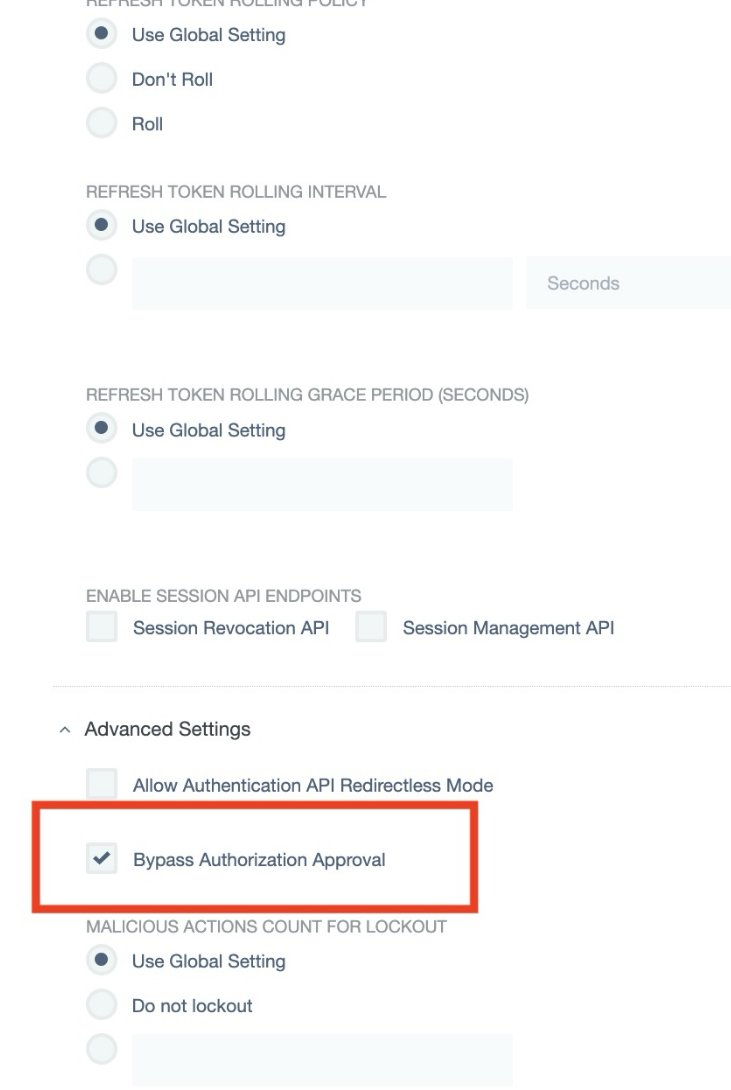
Click Save.
After saving, copy the Client ID and Client Secret and store them securely.
12. Create Groups in PingDirectory
Create the following groups in PingDirectory:
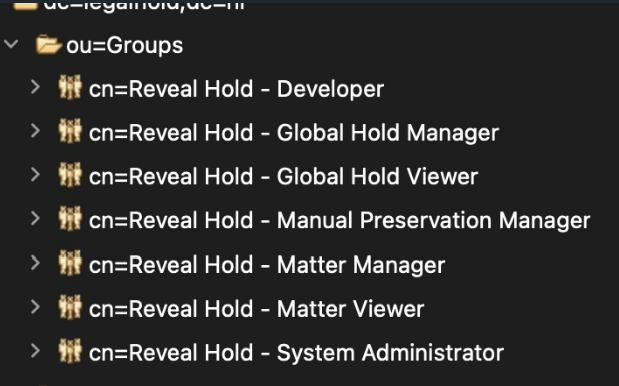
Add users to the appropriate group based on their Reveal Hold application role.
13. Create Users in PingDirectory
When creating users, make sure the required LDAP attributes are populated.
The provided example contains the following attributes:
Attribute | Example Value |
|---|---|
|
|
|
|
|
|
|
|
|
|
|
|
|
|
|
|
|
|
|
|
|
|
|
|
|
|
|
|
|
|
|
|
| Encrypted/hashed password |
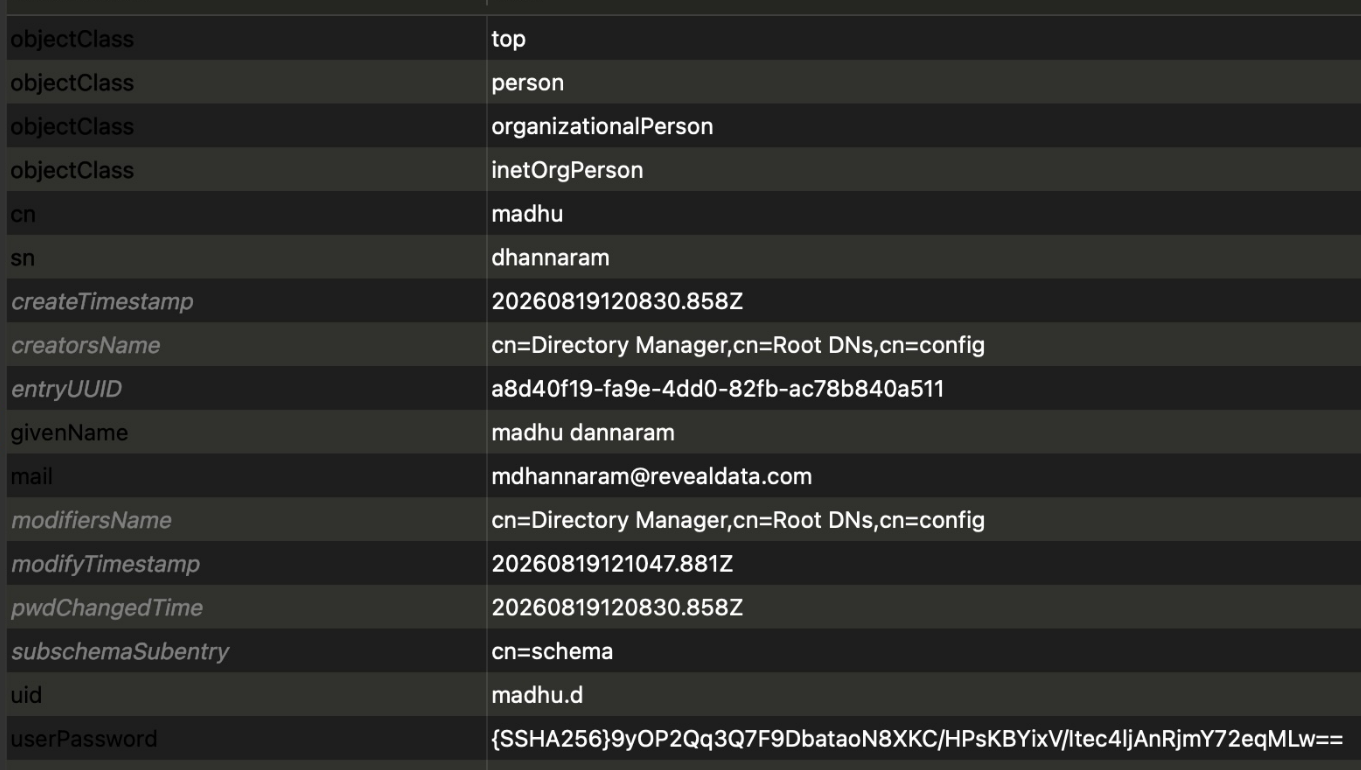
Note
The timestamps, UUID, and other system-generated values in this table are examples from the provided configuration and should not be copied as fixed values for new users.
14. Final Information Required for Reveal Hold
After the PingFederate configuration is completed, provide the following information to configure SSO in the Reveal Hold application:
PingFederate Runtime Engine URL: The PingFederate runtime engine uses port 9031 in the provided setup. Provide the correct PingFederate runtime engine URL for the environment.
Client ID: Provide the client ID created in the OpenID Connect client configuration.
Client Secret: Provide the client secret generated while creating the OpenID Connect client.
Note
The username is configured using the
15. Configuration Checklist
Use this checklist to confirm that the setup is complete:
PingDirectory data store is available in PingFederate.
RevealHoldSSOvalidatoris created.LDAP search base and search filter are configured.
RevealHoldSSOHTMLformIdP Adapter is created.RevealHoldSSOvalidatoris linked to the IdP Adapter.Required IdP Adapter contract attributes are added.
IdP Adapter is mapped to the Policy Contract.
RevealHoldSSOATMAccess Token Manager is created.Access Token attributes are configured.
Access Token Mapping is created.
RevealholdssoOpenIDOpenID Connect Policy is created.Attribute source is configured.
LDAP directory search is configured.
LDAP filter is configured.
Contract fulfillment is configured.
Groups expression is configured with the correct environment values.
OpenID Connect client is created.
Client ID and Client Secret are securely stored.
Required PingDirectory groups are created.
Users are created and assigned to the correct groups.
PingFederate runtime engine URL is available.
Client ID, Client Secret, and runtime URL are provided to the Reveal Hold application.
16. Important Final Tasks and Network Requirements
Step 1 – PingFederate URL
Customer should provide the PingFederate Runtime Engine URL while Reveal Hold will allow the provided DNS/URL in our network. Please ensure the URL is accessible from the Reveal Hold environment.
Step 2 – IP Whitelisting
Reveal Hold will provide our IP address to the customer while customer should whitelist our IP address in their network. This will allow Reveal Hold to access the PingFederate URL.