Edit the Default Notification Settings
The Settings tab enables the Global Hold manager to set the notification schedule according to their company procedures.
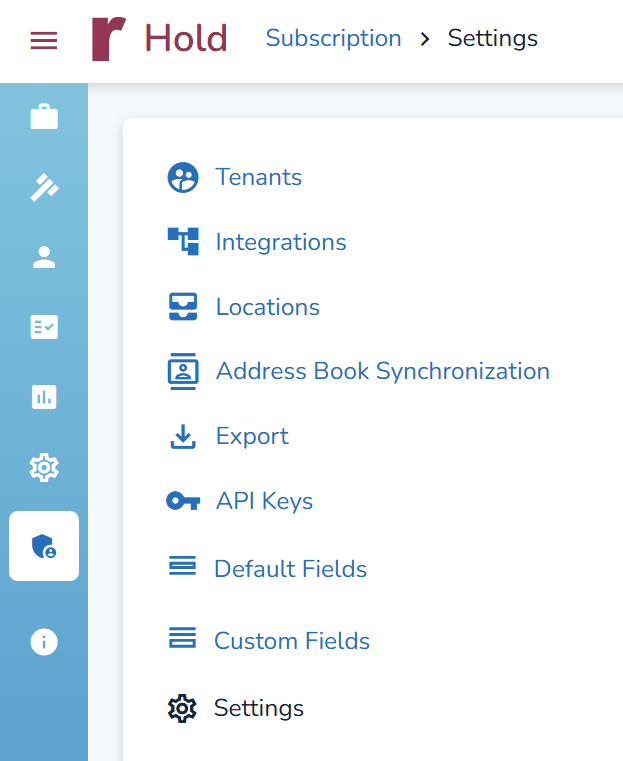
From the menu on the left, select Admin Center > Subscription > Settings.
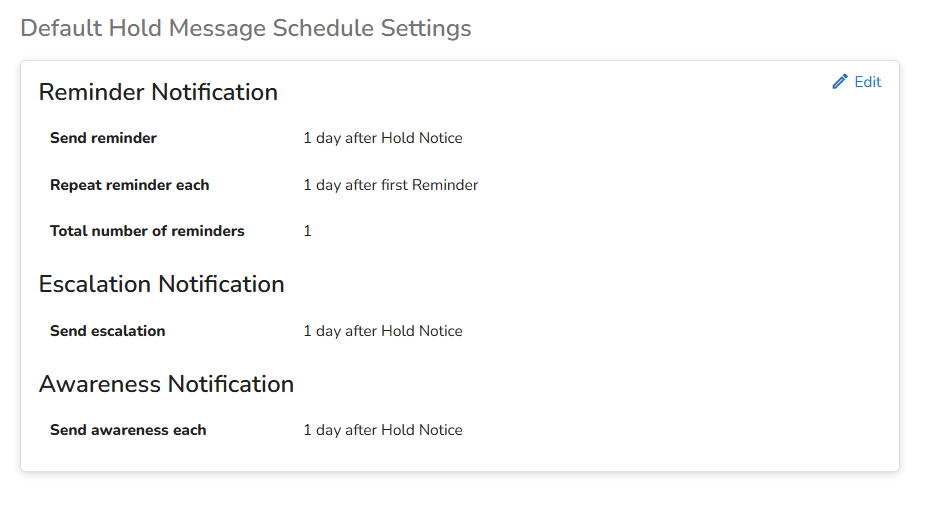
From the Default Hold Message Settings window, select Edit.
Change the Schedule Settings accordingly.
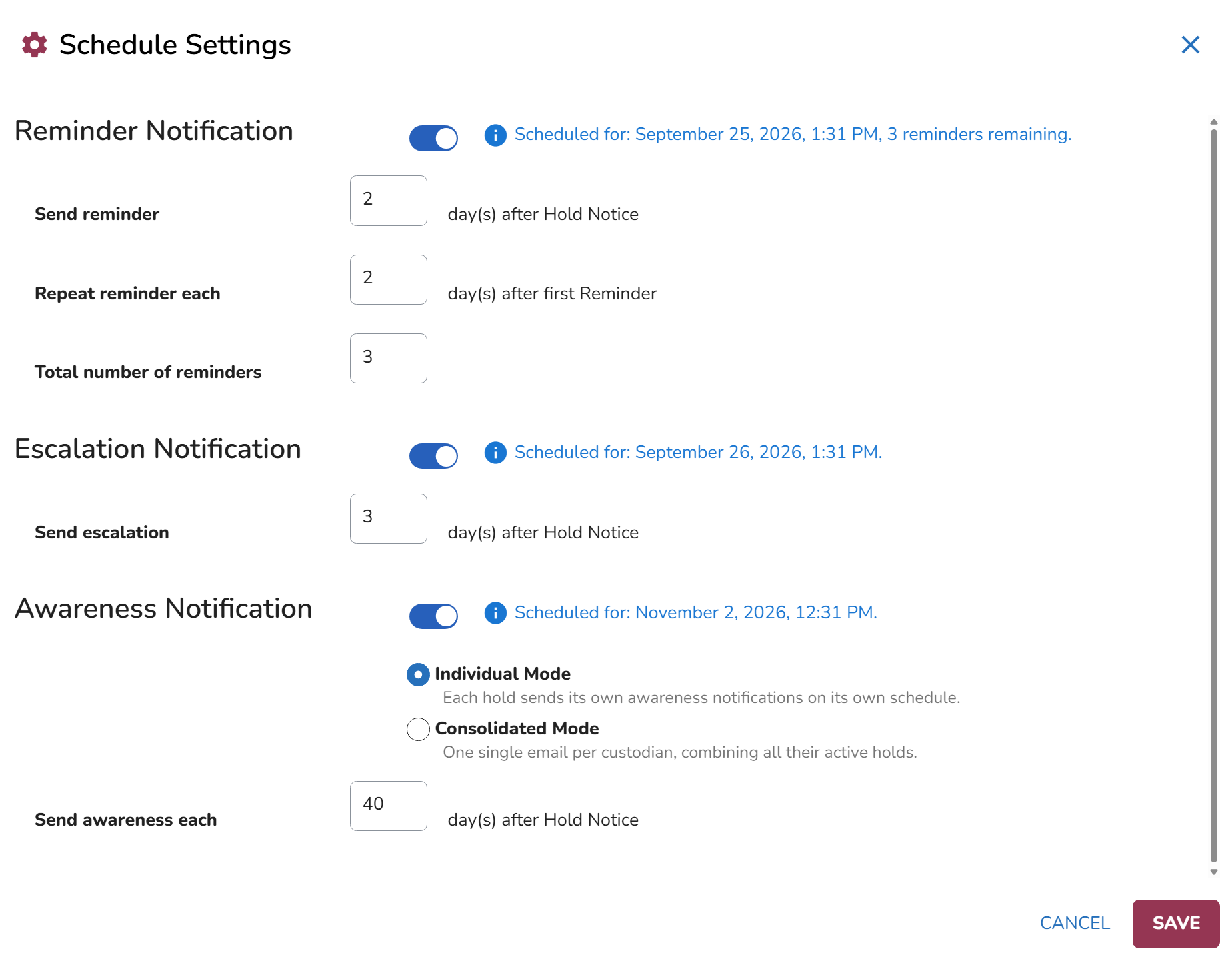
Reminder Notification
Use the Reminder Notification to send follow-up notifications to custodians who have not yet completed the required action for a Hold Notice.
Turn on the Reminder Notification toggle.
In Send reminder, enter the number of days after the Hold Notice when the first reminder should be sent.
Configure how often the reminder should repeat.
Choose the total number of reminders you want to send.
Escalation Notification
Use Escalation Notification to schedule an escalation after a Hold Notice is sent.
Turn on the Escalation Notification toggle.
In Send escalation, enter the number of days after the Hold Notice when the escalation notification should be sent.
Awareness Notification
Awareness notifications can be sent using Individual Mode or Consolidated Mode. Only one mode can be active at a time, and the selected mode applies to all holds within the subscription.
Individual Mode manages awareness notifications separately for each hold, with each hold using its own template and schedule. Custodians assigned to multiple holds receive a separate awareness notification for each hold.
Consolidated Mode combines a custodian’s eligible active holds into a single email and uses a subscription-level template and schedule, reducing repetitive notifications and simplifying administration.
In the Schedule Settings modal, turn on Awareness Notification.
Select Individual Mode or Consolidated Mode.
After selecting Individual Mode, specify the number of days between awareness notifications using the Send awareness each [X] days after Hold Notice field.
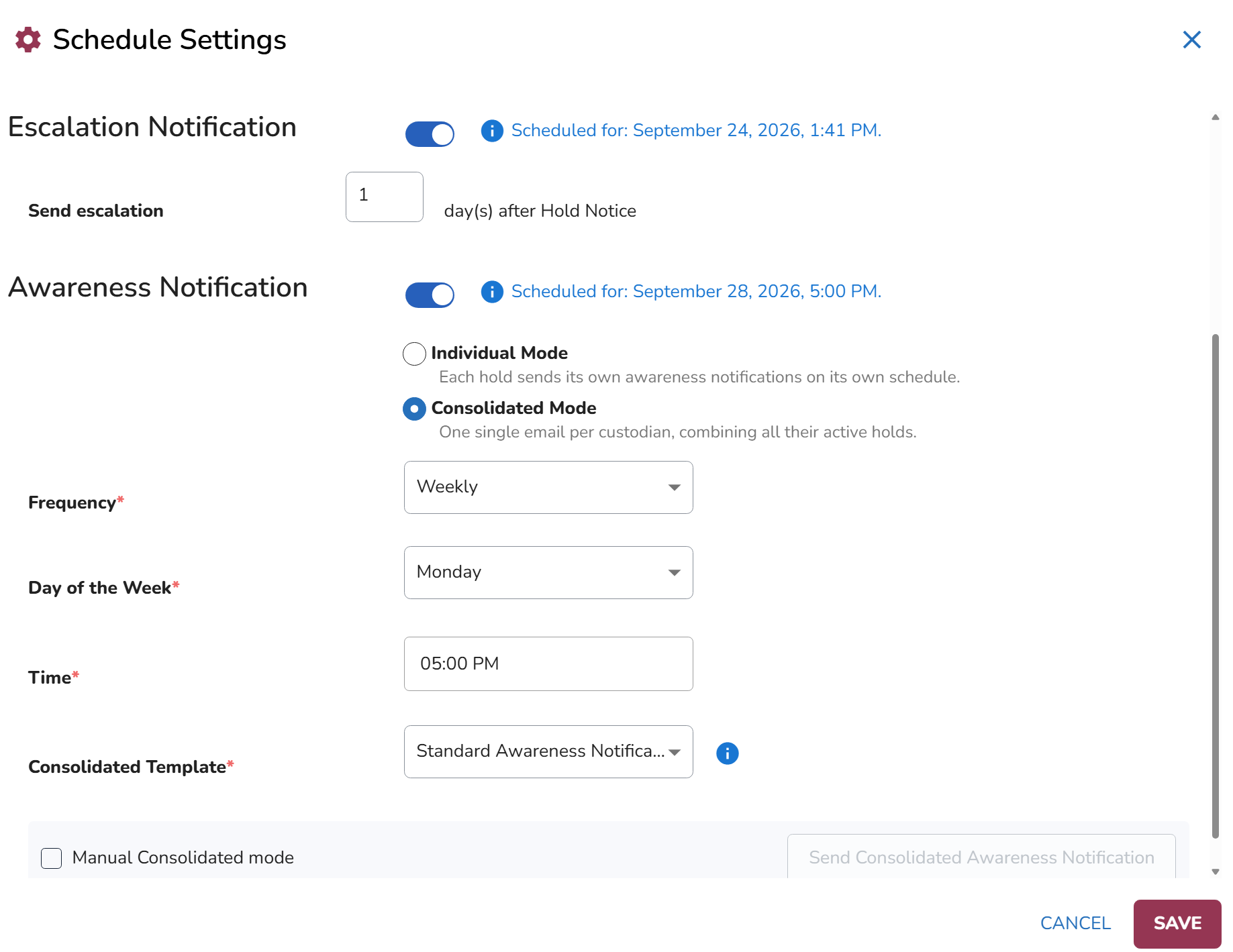
When selecting Consolidated Mode, one awareness notification is sent to each custodian containing all of their eligible active holds. The configuration applies at the subscription level.
Choose the Frequency to configure how often consolidated awareness notifications are sent:
Weekly: Select the Day of the Week and Time for the notification.
Monthly: Configure the Monthly Recurrence and Time. You can schedule the notification for a specific day of the month or use the available recurrence options.
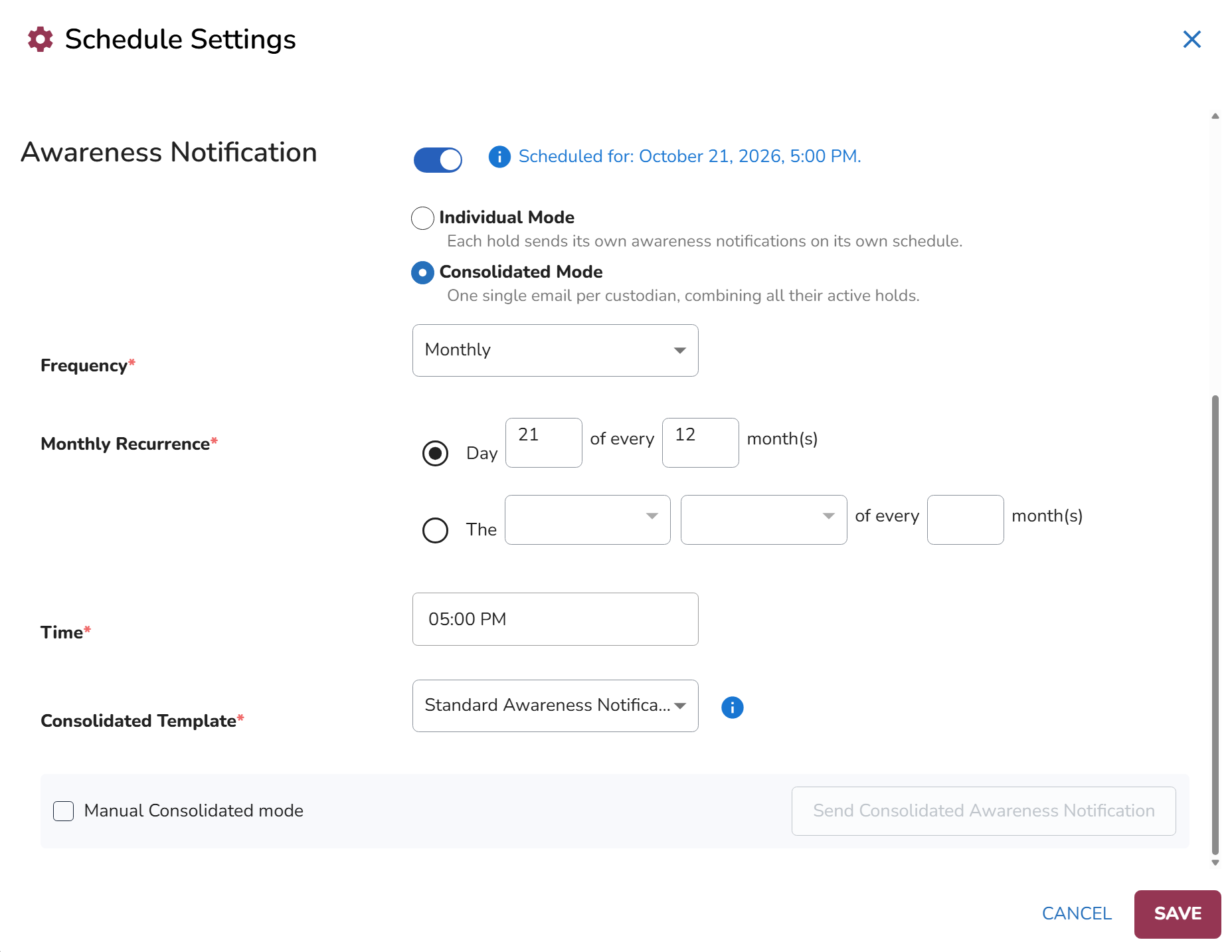
In the Consolidated Template step, select the Awareness Notification template you want to use.
The selected template should include the Custodian Holds placeholder. This placeholder generates a personalized list of the custodian’s eligible active holds in the consolidated email, including information such as the Hold Name, Matter Name, Hold Owner, and Issued On date. If the selected template does not include the Custodian Holds placeholder, Reveal displays a warning below the field. You can still save the configuration, but the consolidated email will not include the list of holds.
Custodians with Silent or Notice Only communication status are excluded for the applicable holds. If a custodian has no other eligible holds, no consolidated awareness notification is sent.
To send a consolidated awareness notification outside the configured schedule, select Manual Consolidated mode, then select Send Consolidated Awareness Notification.
Click Save.
When Consolidated Mode is active, existing hold-level awareness settings are preserved but cannot be used to schedule individual awareness notifications, as only one mode can be active per subscription at a time. Individual holds can still be included in or excluded from consolidated awareness notifications. Excluded holds receive no awareness notifications while Consolidated Mode is active.
To include or exclude a hold, go to the hold's Scheduling tab and select Edit. For more information, see Scheduling.
When Consolidated Mode is active, existing hold-level awareness settings are preserved but cannot be used to schedule individual awareness notifications. Only one mode can be active per subscription at a time. Holds can still be included in or excluded from consolidated awareness notifications.
Note
Changes to Consolidated Awareness settings are recorded in Audit. This includes events such as changes to the selected template, schedule, and other subscription-level configuration. Manual consolidated notification runs are also recorded, including information about the run and the custodians notified.
Edit Approval Workflow Setting
The Approval Workflow setting provides a structured review and approval process before a hold is issued or reissued. Approval Workflow settings are configured by a System Administrator from Admin Center > Subscription > Settings and apply at the subscription level, affecting every tenant within the subscription. Each approval is recorded to provide a clear audit trail of what was approved, by whom, and when.
The Approval Workflow involves the following roles:
System Administrator – Configures the Approval Workflow Settings.
Matter Manager – Prepares holds and submits them for approval. Matter Managers cannot approve holds.
Global Hold Manager – Prepares and submits holds for approval and can also approve holds submitted by other users. Global Hold Managers cannot approve their own requests.
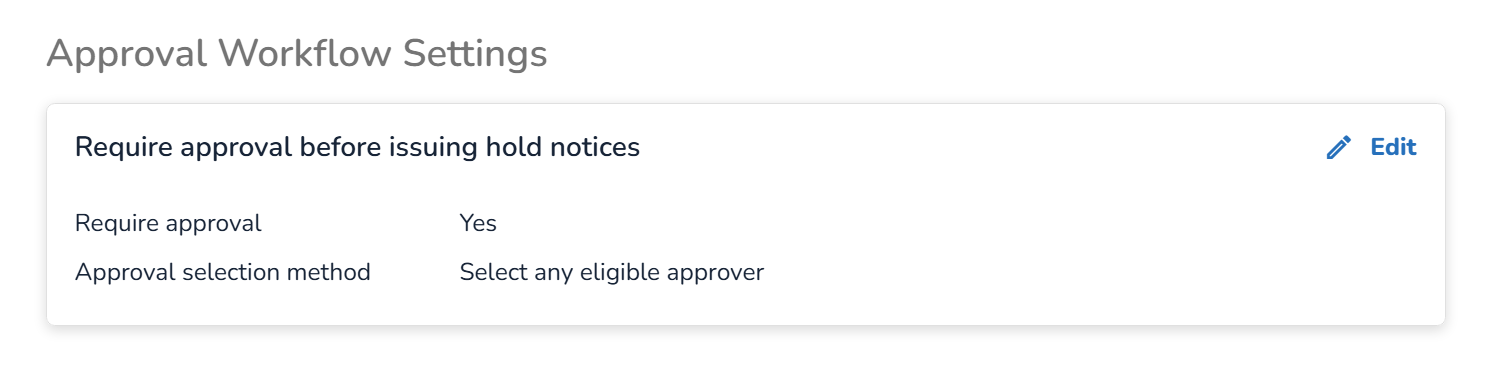
Click Edit.
In the Approval Workflow Settings modal, configure how holds can be issued.
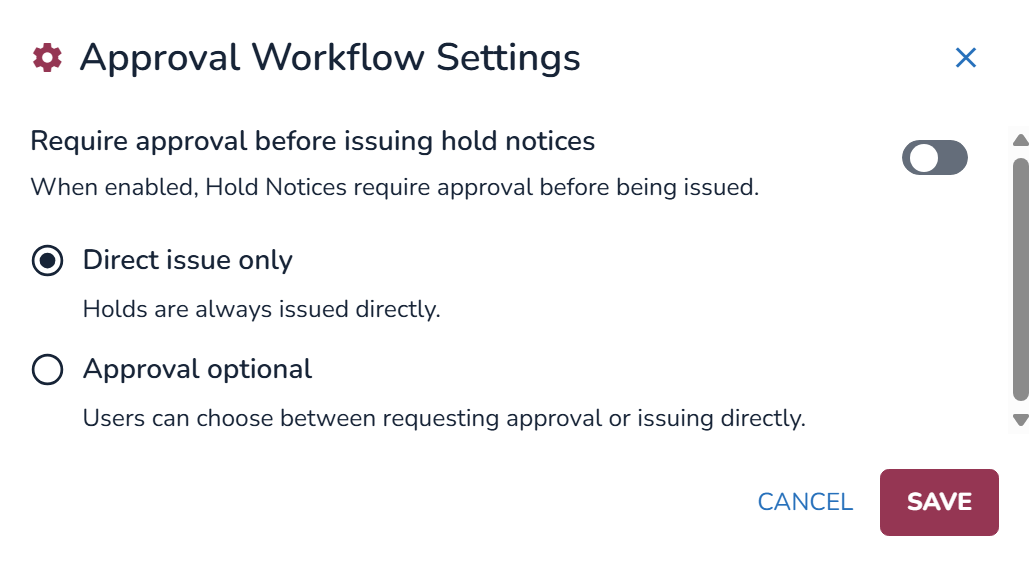
When Require approval before issuing hold notices is turned off, select one of the following:
Direct issue only – Holds are issued directly without an approval step. Users are not given the option to request approval during the issuing process.
Approval optional – Users can choose whether to issue a hold directly or request approval from an eligible approver.
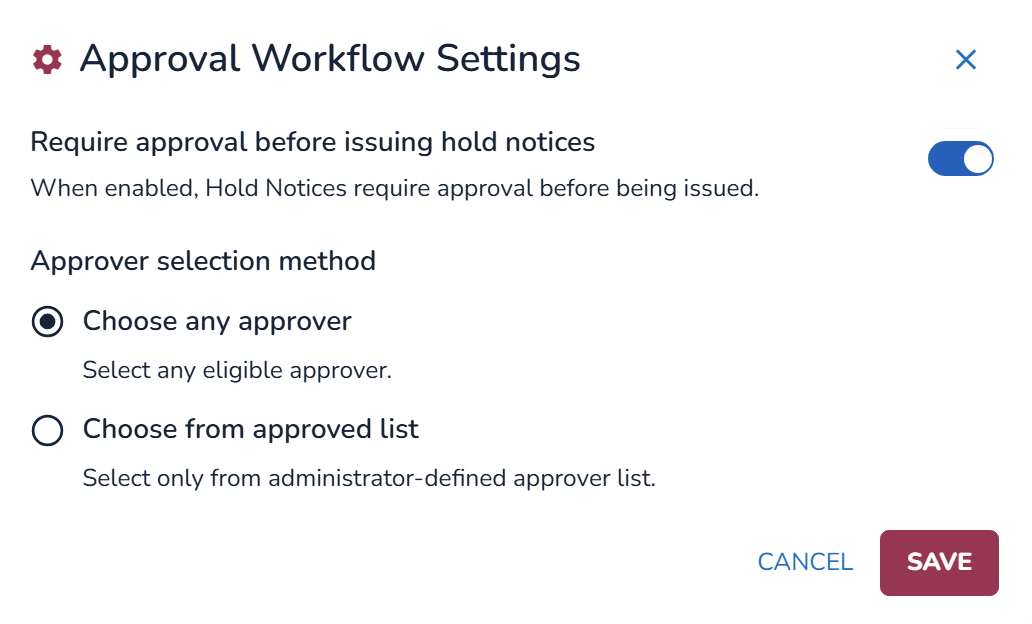
Turn on Require approval before issuing hold notices to make approval mandatory. Users must request and receive approval before a hold can be issued. When approval is required, choose how approvers are selected:
Choose any approver – Approval requests can be sent to any eligible approver in the subscription.
An eligible approver must be an active application user with the Approve Hold permission and the Global Hold Manager role. The approver must also be someone other than the requester. If no eligible approver exists in the subscription, the approval request cannot be submitted and the requester is prompted to contact an administrator.
Choose from approved list – Approval requests can only be sent to a predefined list of approvers configured by the System Administrator. Use this option when approval requests need to be routed to specific individuals.
When this is selected, an additional step appears where you can define the approved list. Select at least two approvers, then click Save. Approvers are added after clicking the + Add Approver button.
Edit Email Integration
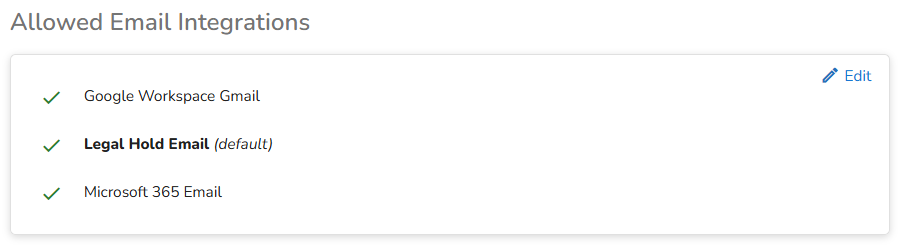
As an Administrator you can use the option to select which email integration is allowed to be used by the users.
From the Allowed Email Integrations window, select Edit.
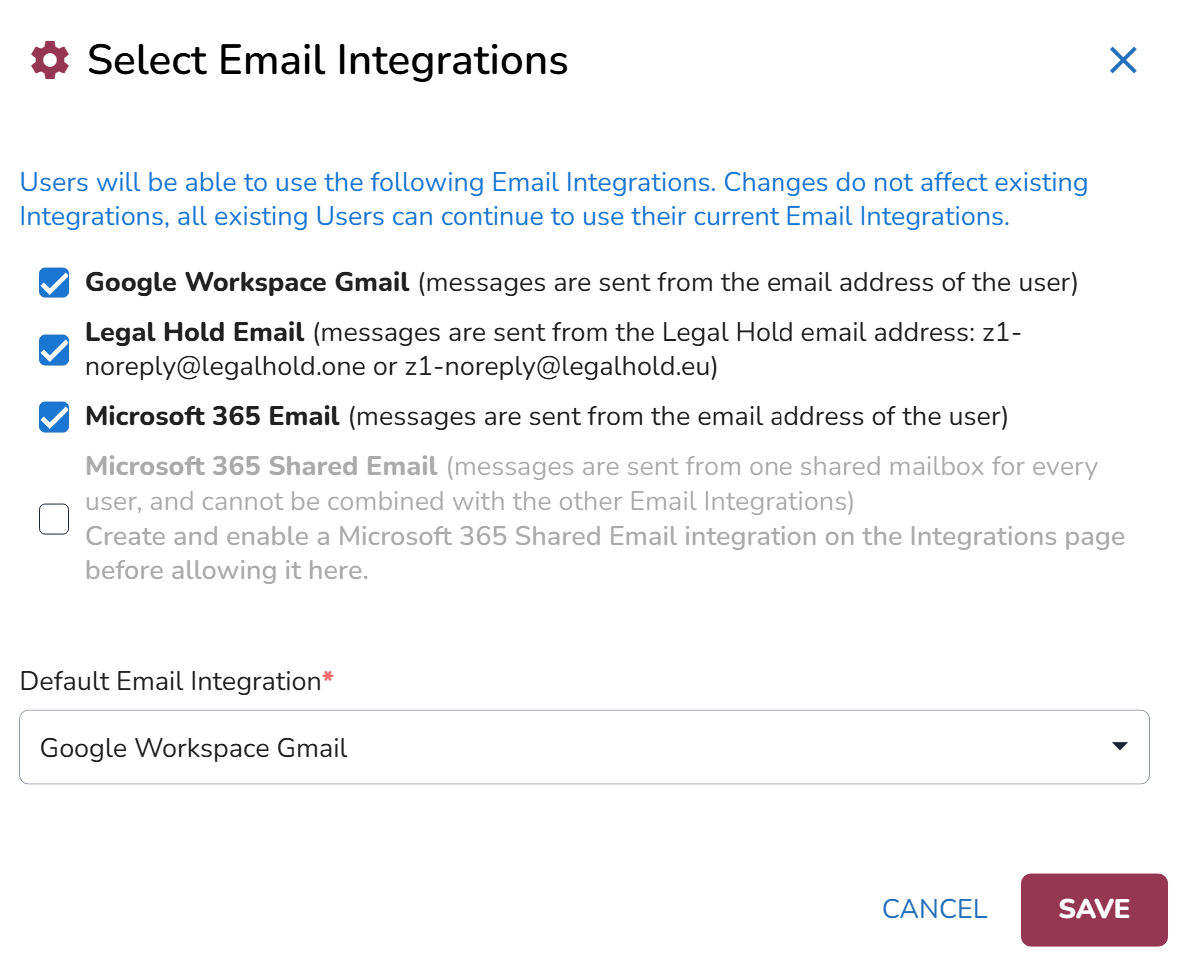
Check the box of the Email Integrations you wish to use. If more than one integration is selected, click down arrow to set your Default Email Integration.
If Legal Hold Email is selected as the only available integration, it is automatically enabled for all existing and new users. Previously configured email integrations are not reactivated automatically.
Click Save.
Note
When Microsoft 365 Shared Email is selected, it automatically becomes the default and only available email integration for all users, without requiring individual authorization. Other email integration options become unavailable, but their configurations are preserved. If the shared mailbox is disabled, the previously allowed integrations are restored.
For instructions on creating the shared mailbox integration, see Integrate with Microsoft 365 Shared Email.