Issues of spoliation mostly do not arise when a hold is created, issued or even lifted, but at a much later date. Therefore, it is necessary to keep precise logs not only of what actions (event types) were taken, but also when. Whenever decisions are questioned, audit logs are an important source of information.
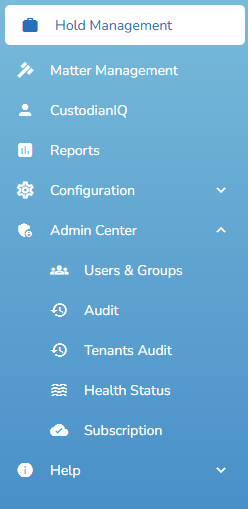
Select one of the Audit logs in the menu beneath Admin Center. Depending on your permissions, you can view either or both Audit logs: Audit and/or Tenants Audit.
View, Filter & Sort
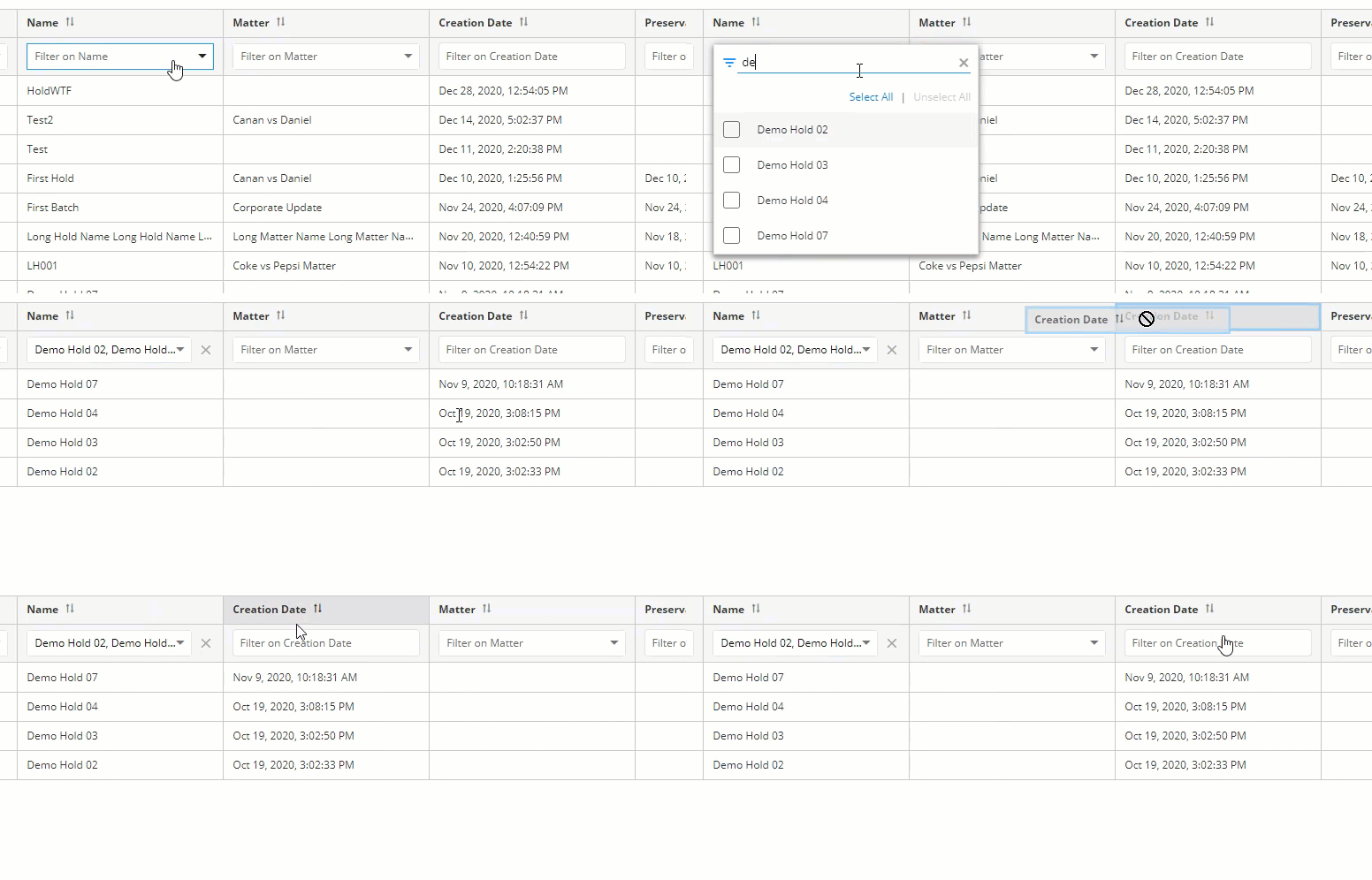
You can view logged events and filter/sort them via the grid columns. On both the Audit and Tenants Audit pages, you can filter/sort all logged event types.
Note
Filtering/sorting works the same on all pages.
View a short animation of filtering and sorting by expanding the thumbnail below:
To add/remove columns:
Select the Settings icon
 .
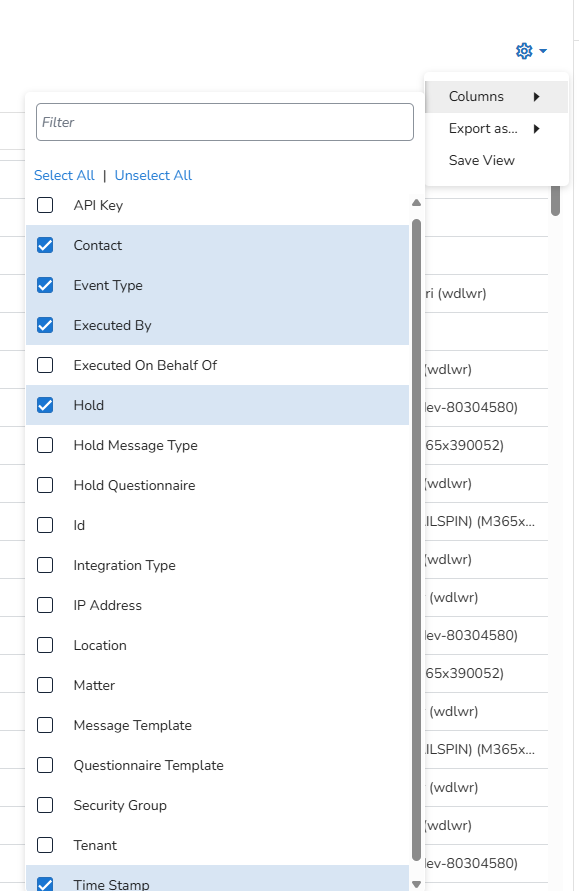
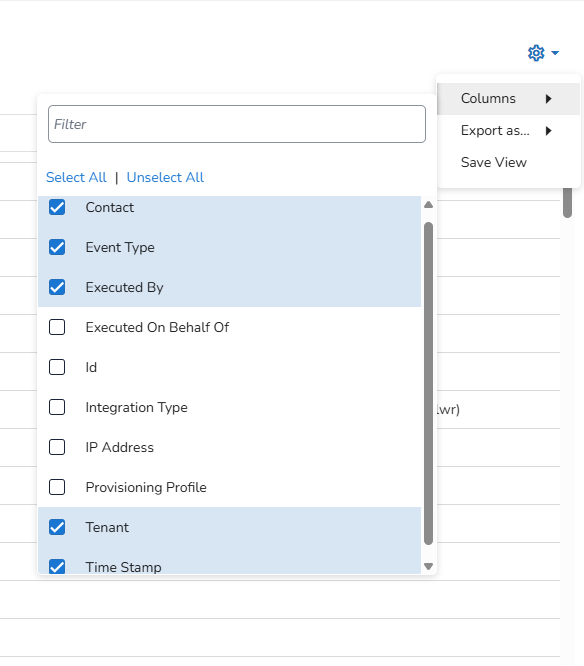
.Then, select Columns and (de)select the appropriate columns.
For Audit, the following columns are available:
For Tenants Audit, the following columns are available:
Report subscription activity
Report subscription activity is recorded in the audit trail, including when a subscription is:
Created or edited
Paused or resumed
Cancelled
Automatically paused due to a role change
Used to deliver a scheduled report email
For each event, the audit trail records the subscription name, report name, owner, action, timestamp, and responsible user, providing a record of report subscription activity for compliance and security review.
View Attachments
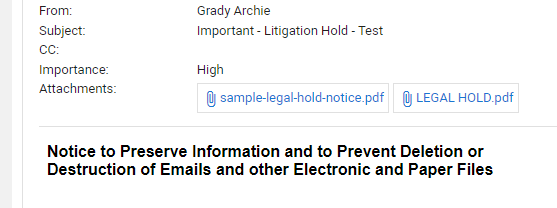
You are able to view attachments directly from the Audit log. To do so:
Select the audit event whose attachment you would like to open.
In the Event Details pane to the right of the grid, locate and select the needed attachment to open it.
Export the Audit Log
You can export the audit log as a CSV, Excel (partial, 500 records) or PDF (partial, 500 records) file. To do so:
First, select the Settings icon
 .
.Then, select Export As... and select the format to which you want to export.
Save Audit Log Layout
The Audit View might have been adjusted by filtering, sorting and/or by a specific selection of columns (via Settings > Columns).
To save this new view:
Select the Settings icon
 .
.Then, select Save View.