The bulk actions available in Reveal's Grid toolbar enable users to leverage searching, filtering and grid selections in a variety of ways.
Tag Documents in Update
The results of a search, filter, or manual selections from the grid may be assigned to a work folder, tagged, have standard values written to updatable fields, or standard reviewer notes added to the documents.

Note
Most bulk actions are limited to 2,000 selected documents. If the selection exceeds the limit for an action, a message indicates how many documents must be deselected. Alternatively, select All documents in results list to apply the action to the entire result set without the selected-document limit.
In the above example, a keyword search for vinson has been entered. Before opening Update, four items in the result list were checked as selections. Update would then open to its Act On tab, showing a choice between the Selected documents (4) and All documents in results list (556).
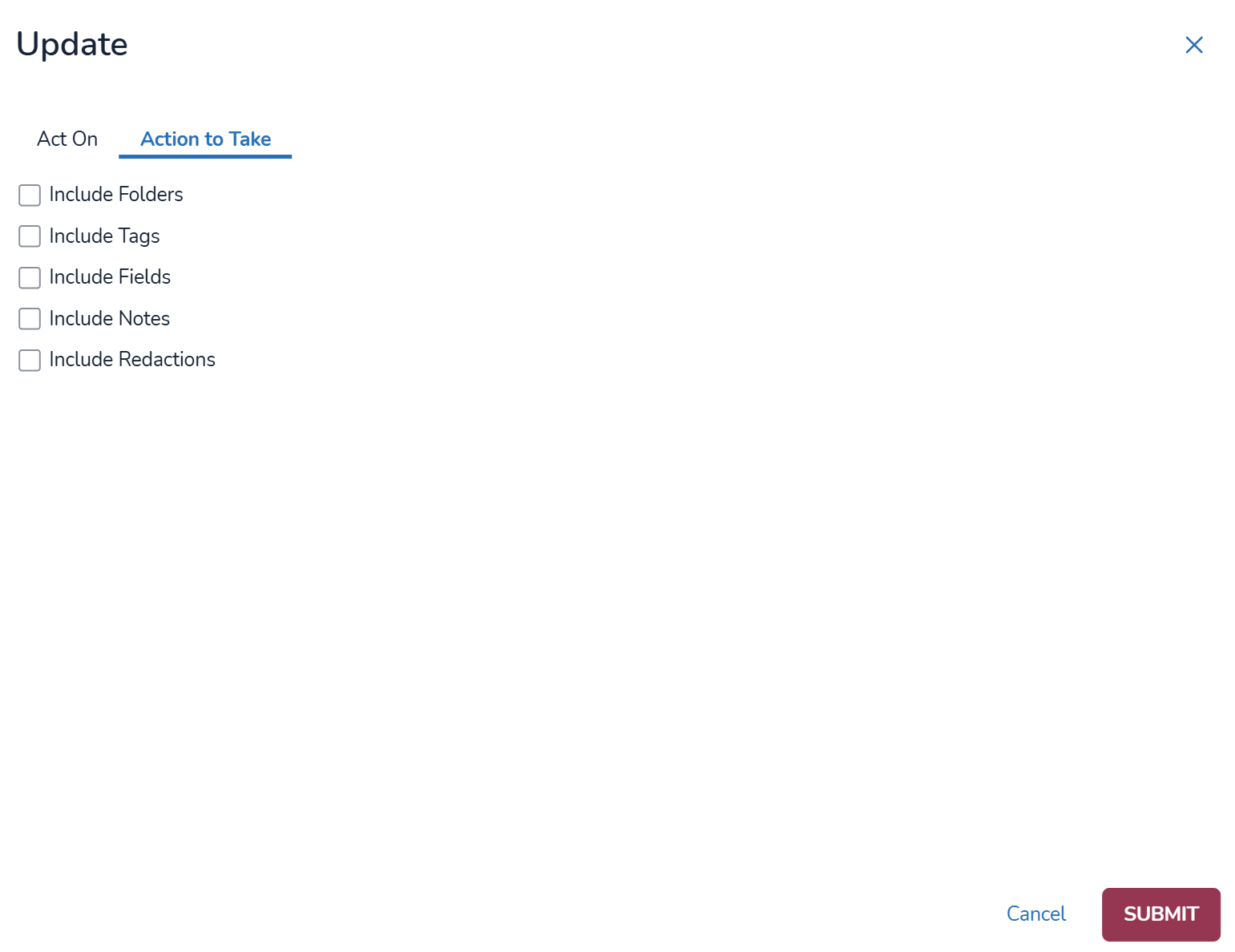
The Actions to Take tab offers several alternatives to updating and organizing these documents. All offer Action choices of Add to apply the update or Remove to clear an update or setting. Selecting multiple Include... options will open each selection in its own panel at the right of the window.
Include Folders

Select one or more Work Folders or Transcripts folders to assign for the retrieved documents.
Currently All will be shown as available for assigning documents; Only Available will be implemented to restrict the view to folders where the user has read/write permissions.
Note
When the user adds a new folder during a bulk job, the newly created folder will be selected by default and, if it was added as a sub-folder, the node where the folder was added will be expanded by default.
Include Tags
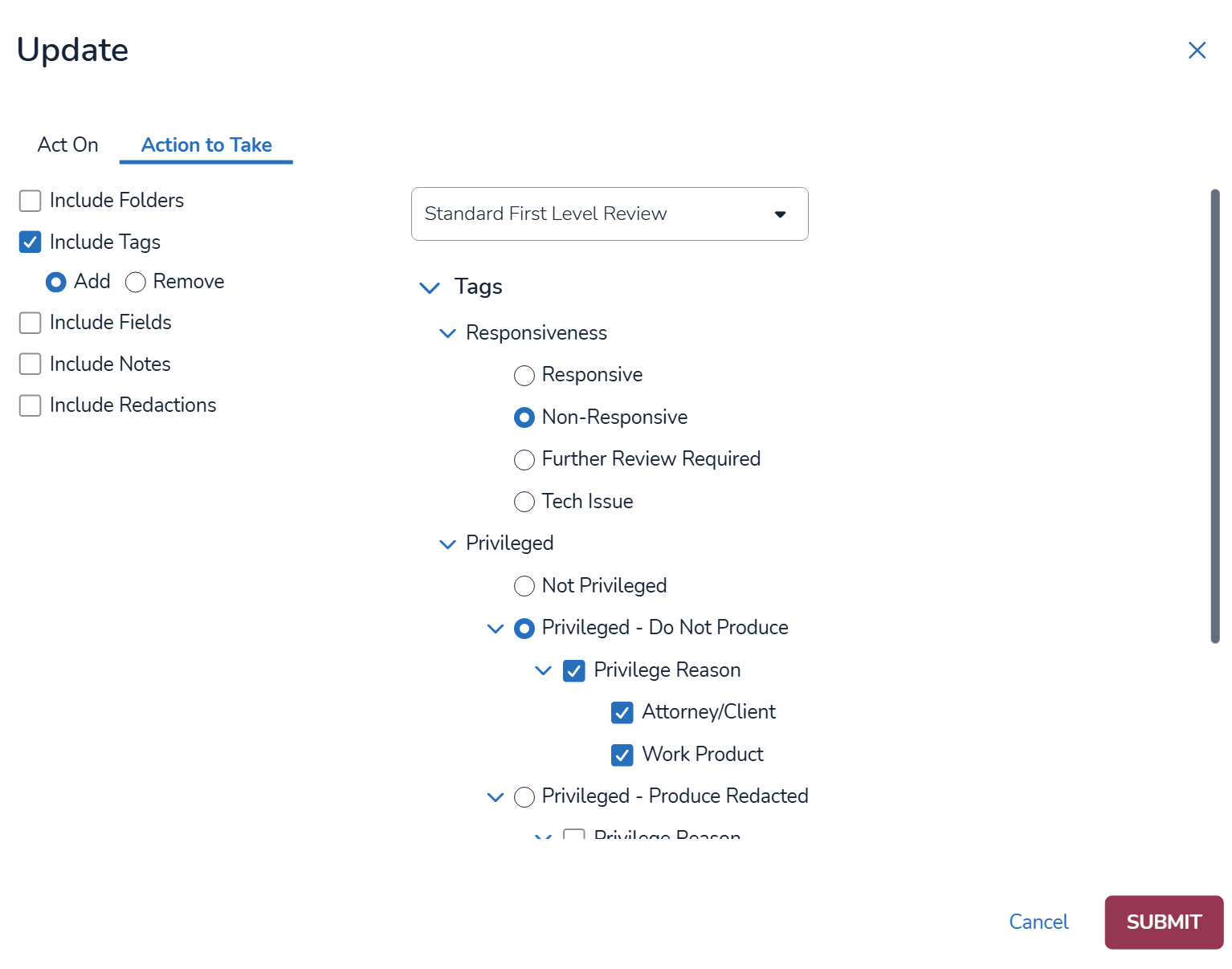
Select a Tag Profile to choose its tags for update.
Select one or more tags to be applied (or, as will be seen below, removed) to the documents retrieved in the result set.
Note
When a user creates a tag profile, the system will now prompt the creation of a First Reviewed Date field.
If a user applies a tag from a tag profile through the Update feature in the grid, the First Reviewed Date field will automatically populate with the date and time of the tagging action, as long as a value does not already exist for that field.
When bulk tagging documents through the Update feature using a tag within a tag profile, the First Reviewed Date field will be updated accordingly, provided that it is empty.
Include Fields - Select (a) a field profile and (b) an updatable field from the display, then enter the value to be applied (or removed, as appropriate). The selected field(s) may be set to Insert the added string to the field or Copy the contents of a field selected from the drop-down menu (containing currently displayed profile fields) that appears to the right. The action choices are:

Set if empty
Replace existing value
After existing value
Before existing value
Remove
Include Notes - Enter text to be added to reviewer notes for the selected documents.
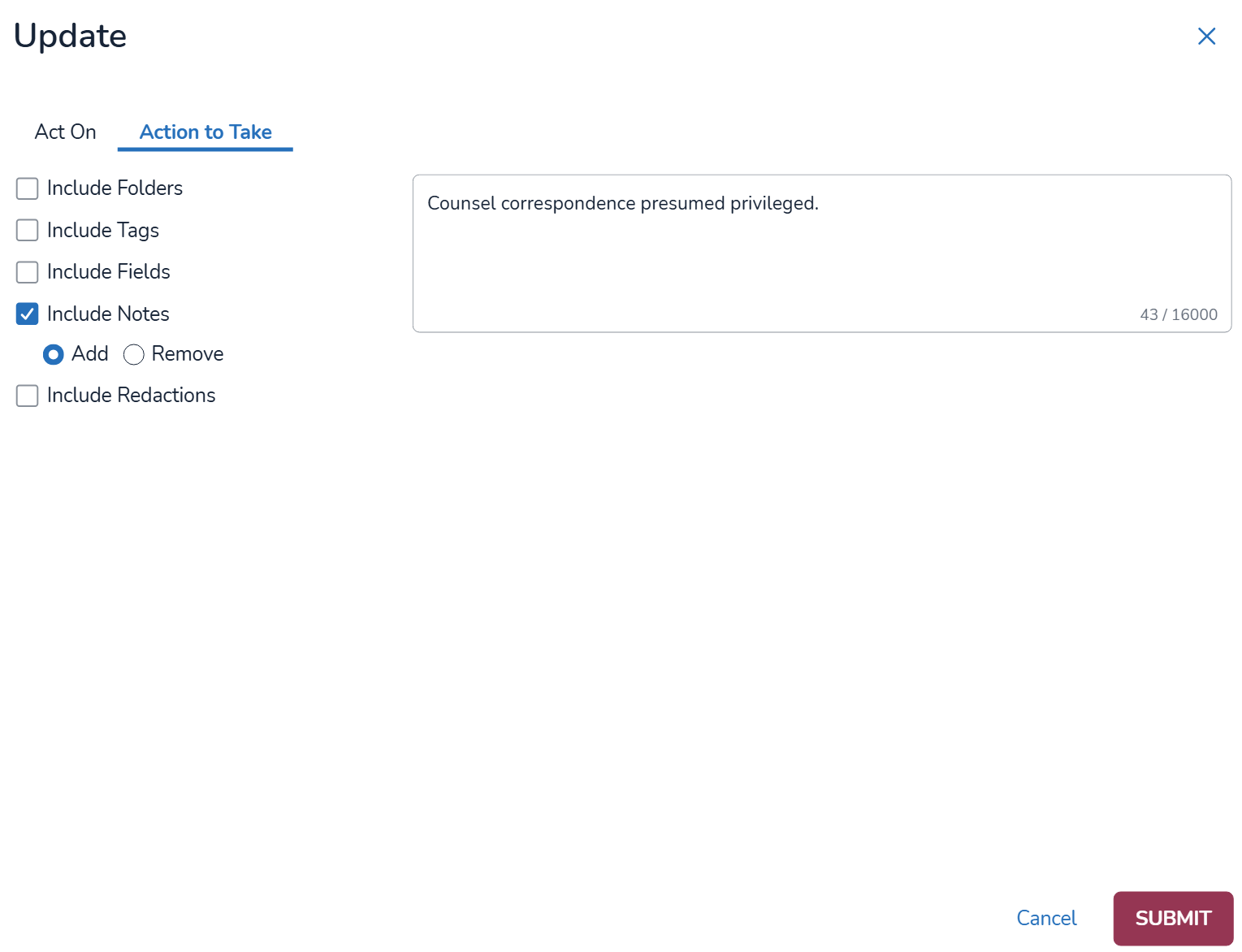
When action specification is complete, click SUBMIT. A confirmation pop-up will open.
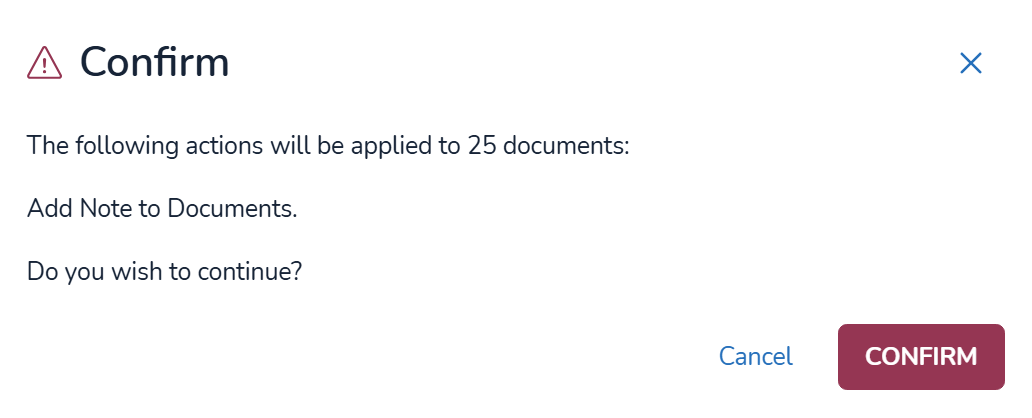
Click Confirm to proceed.
As with all bulk actions, you can check progress and status under Jobs
 , accessed from the Navigation Pane.
Bulk Tag displays a log of all current and prior jobs generated from Update. Status of the currently submitted job will be shown.

Removing Tags
Regarding removing tags from several documents, it was noticed that the search for Enron's counsel also turned up an employee named Donnie Vinson, whose mention would not automatically trigger the possibility of attorney/client privilege. After searching for the keyword phrase donnie w/1 vinson and retrieving ten documents, we open Update to take action on those documents.
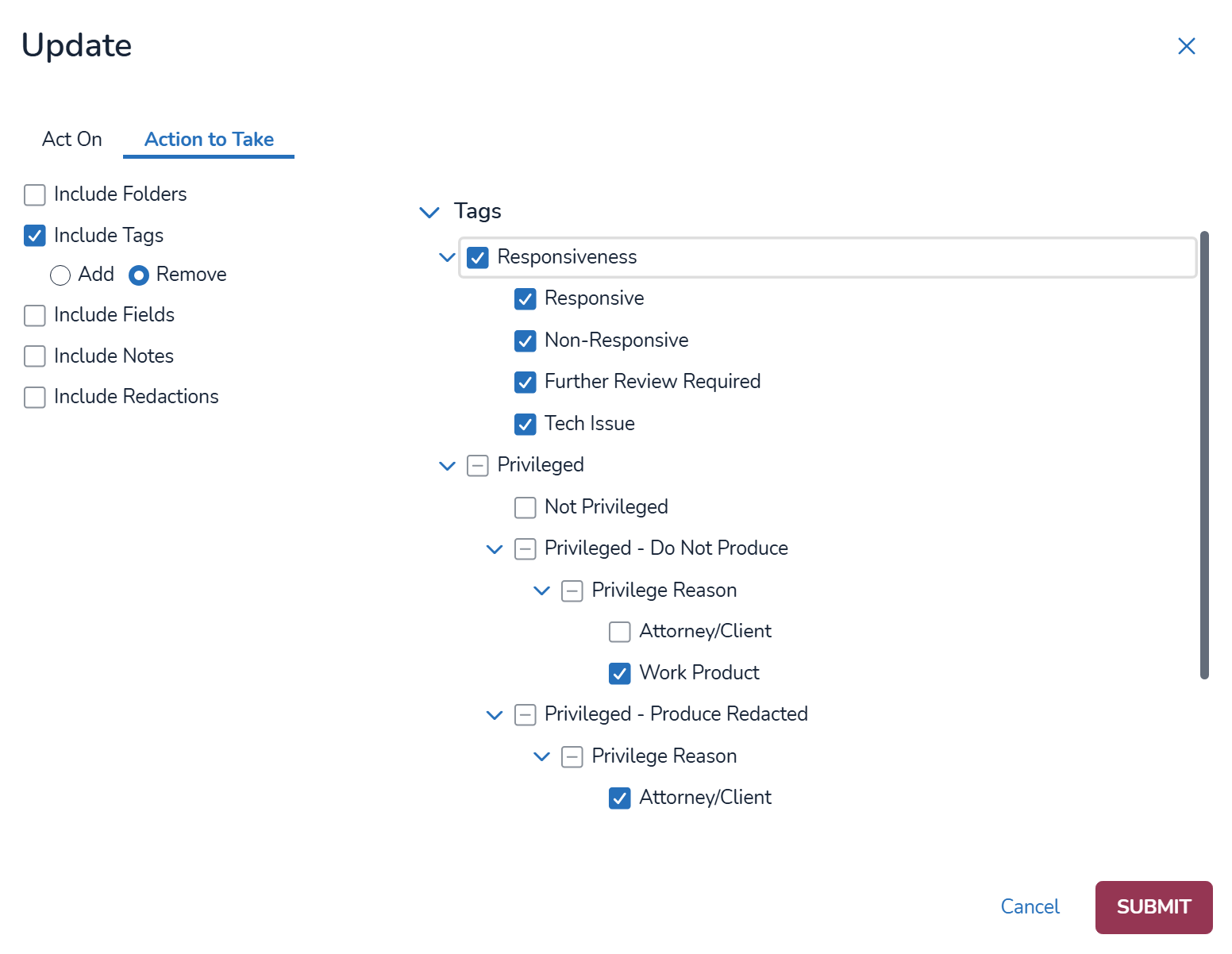
Under Action to Take, select Include Tags, choose a Tag Profile, and set the Action to Remove. You can use the checkboxes to select individual tags or entire groups. Parent checkboxes show whether some or all tags in a group are selected. Switching between Add and Remove clears previous selections.
Click SUBMIT, then Confirm to start the bulk update job.