Index jobs page
In Reveal Web, you can monitor Index jobs by navigating to [your project] > Jobs > Indexes. This will open up a new window in a separate tab. Click  View All Jobs to display all Index jobs within your specific project.
.png)
The Index table displays the status of any Index job in that project. You can also see the progress of a running job and get counts and details of any errors.
Job types
There are several different Index jobs that might be listed. The following are the most common types you’d see in the Index table:
Job Name | Description |
|---|---|
[jobname]_ReviewAppend | Manual export from Discovery Manager to Review. Includes Metadata and OCR/Loaded text indexing. |
Native View auto indexing | The Native View (PDF) Index job that runs automatically after data is pushed to review from processing. |
Brainspace Integrated Metadata | Post AI Document Sync indexing jobs. |
Brainspace DB Ingestion | Post AI Document Sync indexing jobs. |
API index job | Manually-run Index jobs from the Index option in the Review Grid. This can include native or spreadsheet Index jobs, Extracted text, or others. |
Creator types
Index jobs can be initiated in multiple ways, either automatically or by the user. The following are common values you’d find under the “creator” column.
Created By | Description |
|---|---|
[username] | An Index job initiated by a user from the Review Grid. |
SystemUser | An Index job auto-created by Reveal. |
msa########_reviewapi | An Index job auto-created by Discovery Manager during processing. |
[blank] (no field value) |
Errors report and Summary Report
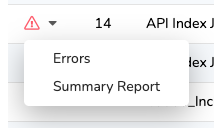
In the Index jobs page ([your project] > Jobs > Indexes) Click the  dropdown to view Errors and the Summary Report, both of which can be exported as a CSV.
Summary Report
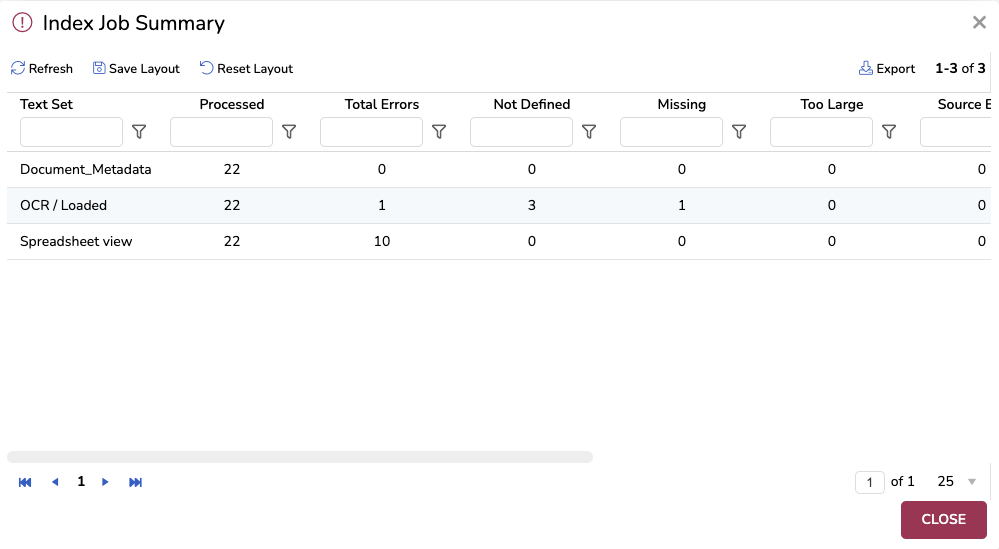
The Summary Report shows totals for each text set indexed in a job, such as Document_Metadata or OCR/Loaded. The report will show the total count of files processed and provide metrics on the total error count as well as the number of errors for each type.
Errors report
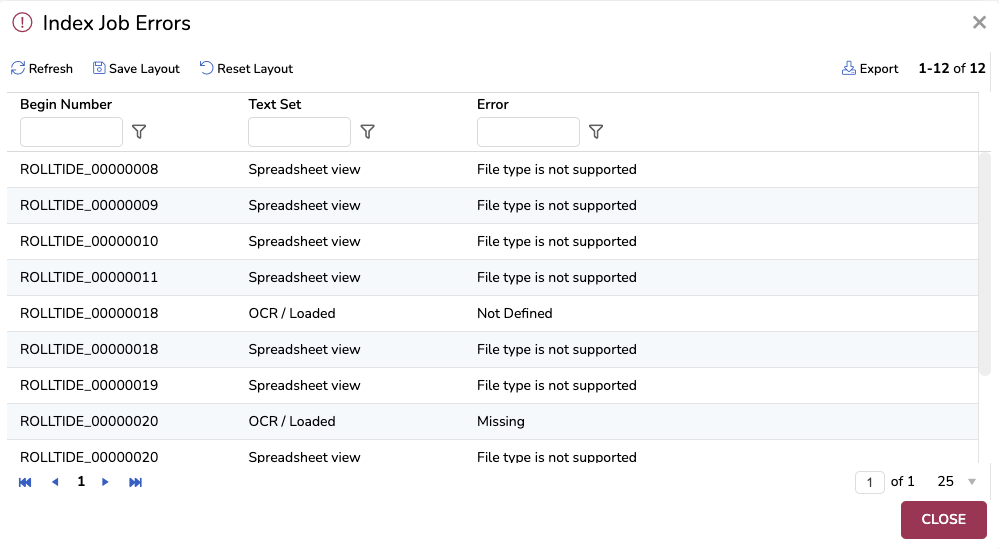
The Errors report will list every document that had an error. The report is downloadable and includes the Begin Number, the text set / Index type, and the error message. Use this report to get a list of IDs that you can search on to isolate errors.
Example

For the above Native View auto indexing job, you could investigate the 3 errors by:
Viewing the Summary Report to see the number of errors per type.
Viewing the Errors report to see the specific documents that errored. errored.
With these reports, you can then search by Begin Number for the error docs to triage.
Alert details in Document Viewer
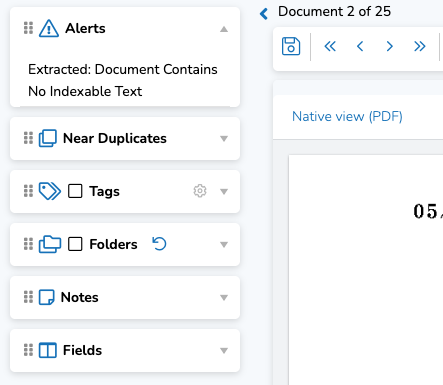
In the Document Viewer sidebar, an Alerts panel will be visible if your document encountered an indexing error. The only errors represented in this panel are indexing errors.
Searching for documents with alerts
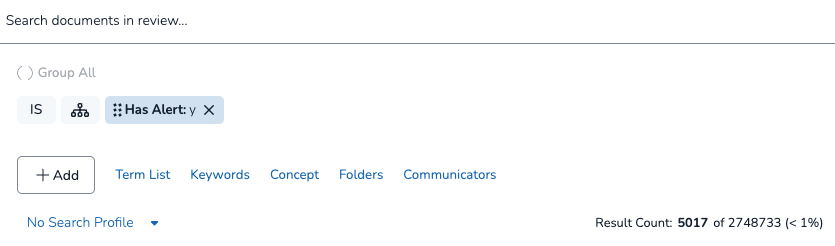
There are two filters that can help you filter your Review Grid to documents with alerts.
Has Alert field
The Has Alert field is a y / n field that marks whether or not your document has an alert, regardless of what type the alert is.
Note
Make sure you’re using the Has Alert field, and not the Has Alerts (plural) field.
Alert Detail field
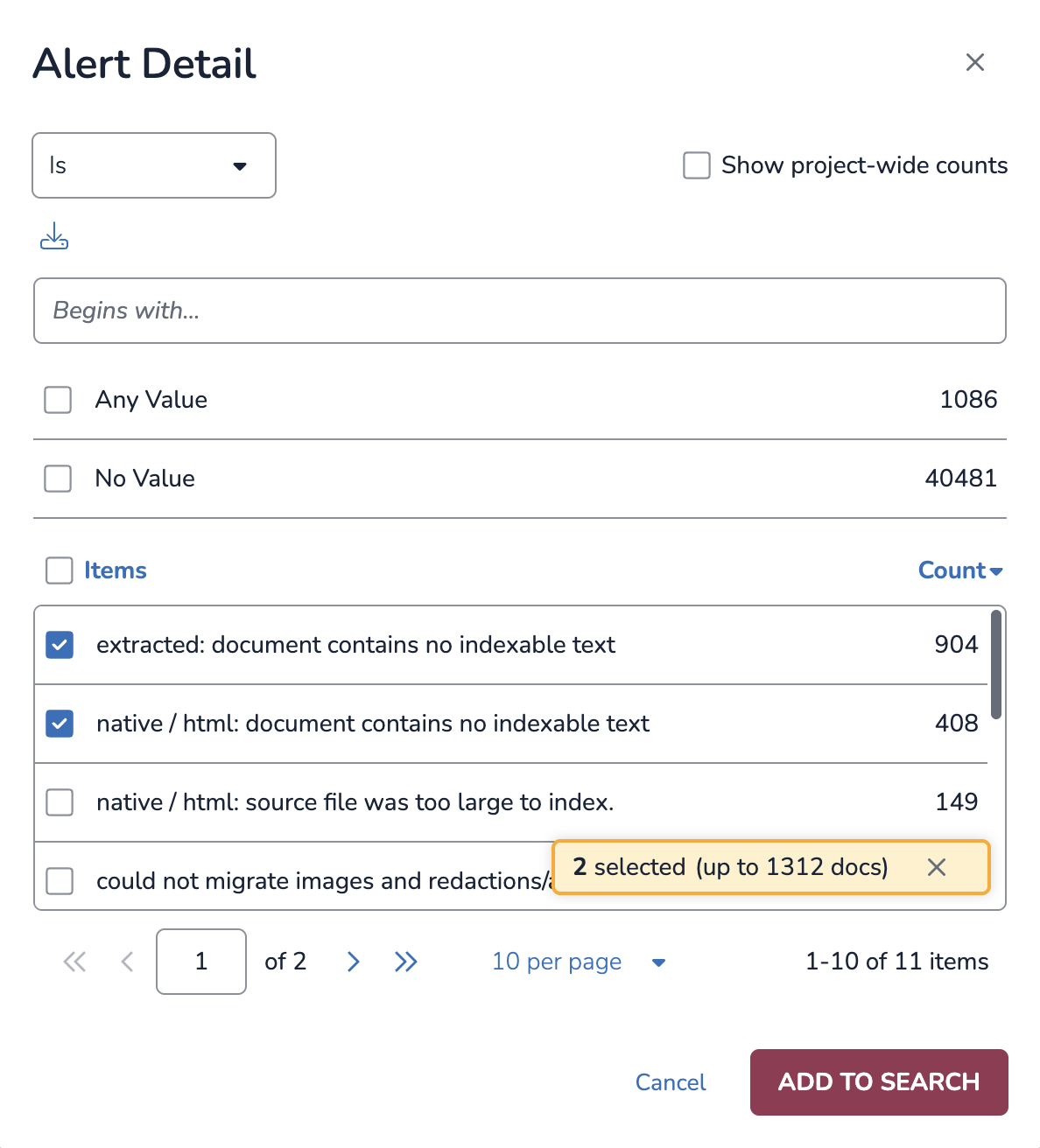
The Alert Detail field is a multi-value field that displays which indexing alerts a document was flagged for. You can search for documents with specific indexing alerts for quality control checks and troubleshooting.
By searching this field, it’s possible to choose specific types of alerts, isolate them, then perform remedial actions like running OCR on files that have no text.
Important
The Alert Detail field is organized by text set and by alert. For example, to see all files with “document contains no indexable text”, you’ll need to make sure you select all text sets types from your list with that specific error (e.g. Extracted, Native View PDF, and OCR / Loaded in the below image).
See the Alert Details section for common Alert Detail errors.