Whether documents are uploaded through a Logikcull production or uploaded manually, an agency staff member must approve or reject the upload. This is the agency’s last chance to review the documents before releasing them.

Warning
It is the agency’s responsibility to ensure that any approved documents are reviewed and redacted appropriately so no sensitive or confidential information is released.
Approve or reject document
After documents pass the automatic security check, they can either be approved or rejected. Neither decision is final, and this status can be changed at any time (see the Rejecting an “approved” document section for more information).
Approve: Approve the document for release to the requester.
Reject: Reject the document. It won't be released, and the requester will not be notified that any documents were rejected in the first place.
Important
Approved documents will never be sent directly to requesters as attached files in an email. Instead, requesters receive a link to the Track Request Status screen, which automatically displays their request and requires authentication to view. Any approved documents will be available for download from this screen.
Mark records as private or public
Documents can either be limited to view by the requester only, or allowed to be viewed to the public through the Reading Room, regardless if viewers have requested the documents themselves. Neither decision is final, and this status can be changed at any time (see the Remove a document from the Reading Room section for more information).
Private: Only the requester has access to the document after it’s released. The requester can pull up their request at any time using their tracking number, and must go through email verification to see the request and access records.
Public: The document is released to the requester and also published in the Reading Room, where anyone can view it.
Release Documents

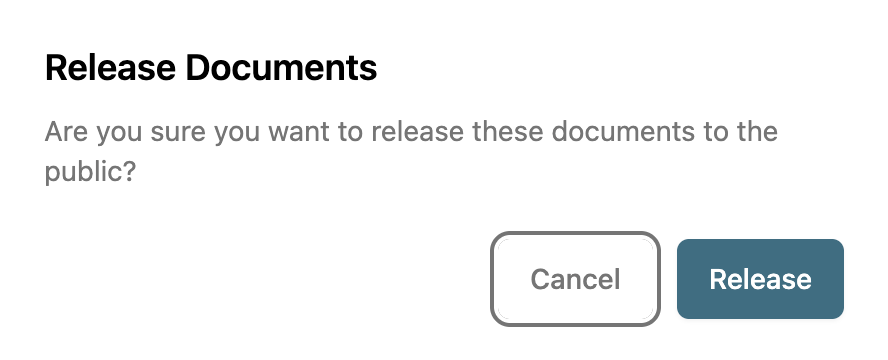
Once documents are uploaded, either through Logikcull or manually, they must be released by pressing the Release Documents button. A secondary popup will appear, confirming you want to release your documents.
Warning
Once a request is marked as Released, it will remain in that stage, even if new documents are uploaded:
New Logikcull productions in a project connected to a standing publication will automatically be approved and released without requiring an agent to open the standing publication and accept anything.
New documents and productions created through Logikcull in a records request will still need approval, but will not go through a second “Release” step. Approving the document immediately releases it to the requester or public, and the requester will receive a new email that mentions additional documents.
Rejecting an “approved” document
In cases where a document must be rejected after it has already been approved and released, you can click the X button next to a document’s “approve” status to change its status to “reject”. This will prevent requesters from further accessing the document through the Track Request Status screen, but it will not cancel the approval email sent to the requester, and does not change the fact that the requester still may have had a chance to download the files during the time the documents were under the “approve” status.
Remove a document from the Reading Room
If you reject a document that is public and has been approved and released, or change an approved document from “public” to “private”, it's removed from the Reading Room. However, this does not change the fact that the requester and/or the public still may have had a chance to download the files during the time the documents were under the “approve” and “public” status.
For more on how the public views released documents, see View Released Request Docs – Reading Room.