The Logikcull panel connects the request to a Logikcull project for document upload, redaction, and production. It is accessible via the Records tab in the left navigation.
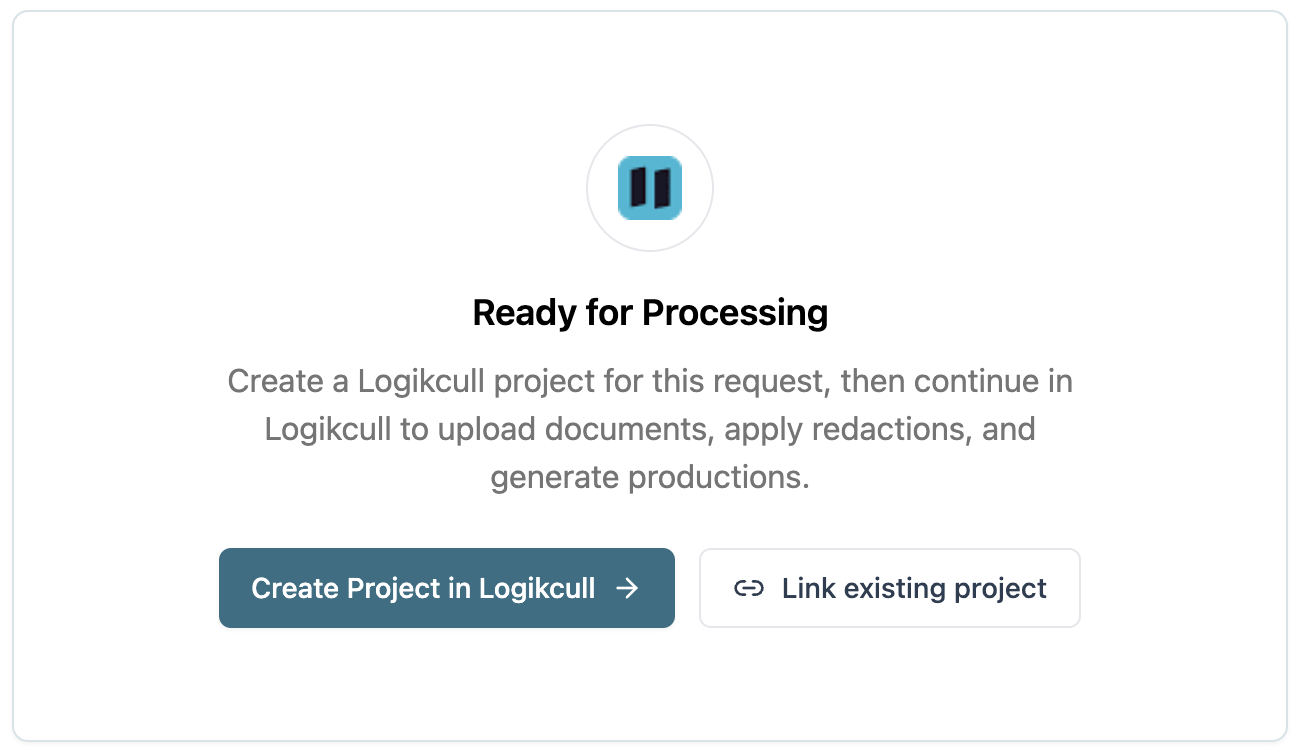
Creating a project
When the request reaches the Processing stage, the panel shows a Create Project in Logikcull button. Click it to create a Logikcull project linked to this request. You can also link to an existing project that has already been created in Logikcull.
Note
Multiple requests can be linked to a single Logikcull project.
Once created, the panel shows a project card with:
Project name — matches the request tracking ID.
Project ID — the Logikcull project reference number.
Total Documents, Review Status, Total Pages — pulled live from Logikcull.
Available actions:
Open in Logikcull ↗ — opens the linked project in Logikcull in a new tab. Sign in with your Logikcull account to upload documents, apply redactions, and generate productions.
Refresh status — updates the document and page counts from Logikcull.
Productions
When productions have been generated in Logikcull they appear in the Productions section as individual cards, each ready for agency review before release to the requester.
Each production card shows the production name, date, file types, and size. Available actions on each production:
✓ Approve — approves the production for release to the requester.
✗ Reject — rejects the production. It will not be released.
⬇ Download — downloads the production as a ZIP file containing the production's Images, Natives, and/or Text files as generated in Logikcull.
Final Approval stage
Reviewing and approving productions is the Final Approval stage of the request workflow.
Open the Records tab from the left navigation.
In the Productions section, review each production card. Click Download to download a production for review.
Click Approve to approve a production for release, or Reject to reject it.