Document notes, comments, and annotations are created within Logikcull’s Document Viewer.
Adding Notes
From the rightmost toolbar, click
 Notes, or from top toolbar, click
 More > Notes.
In the Notes modal:
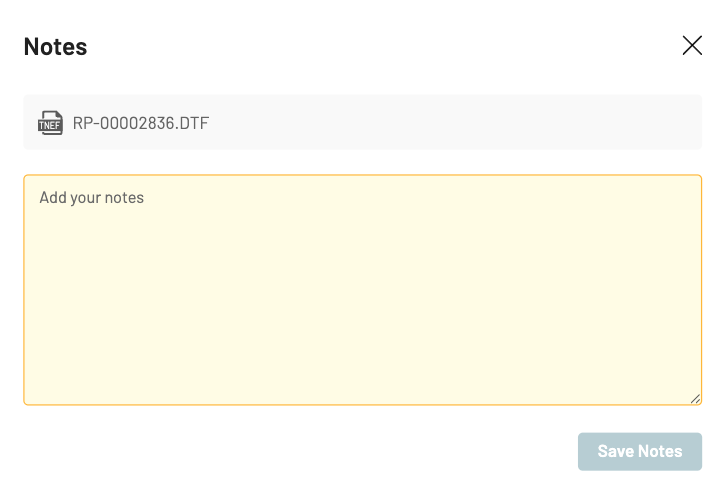
Write your Note.
Click Save Notes.
Any document that receives a note will automatically be tagged with “Has Notes” to improve searchability.
Adding Comments
From the rightmost toolbar, click
.png) Comments, or from the top toolbar, clickMore > Comment.
Comments, or from the top toolbar, clickMore > Comment.In the Comments modal:
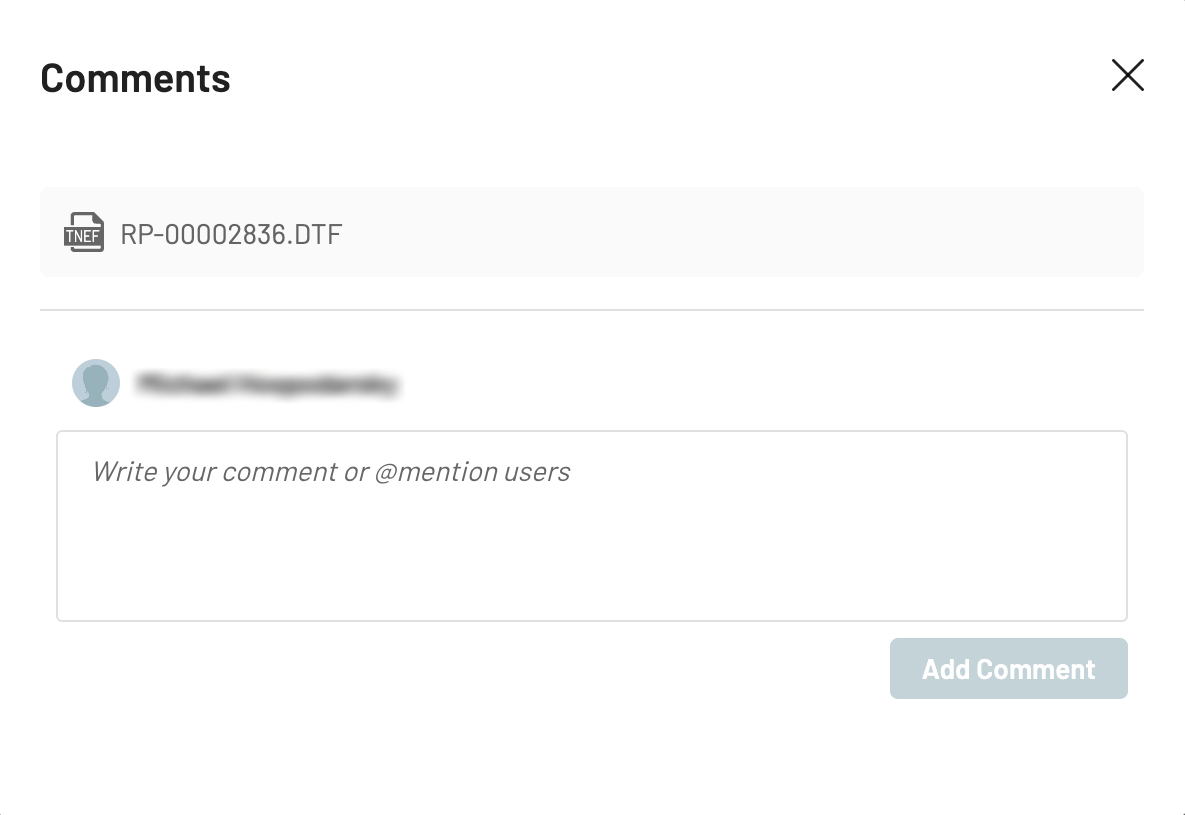
Write your comment.
You can @mention other project users to notify them via an email that contains a link directing users to the document.
Click Add Comment.
Any document that receives a comment will automatically be tagged with “Has Comments” to improve searchability.
Adding Annotations
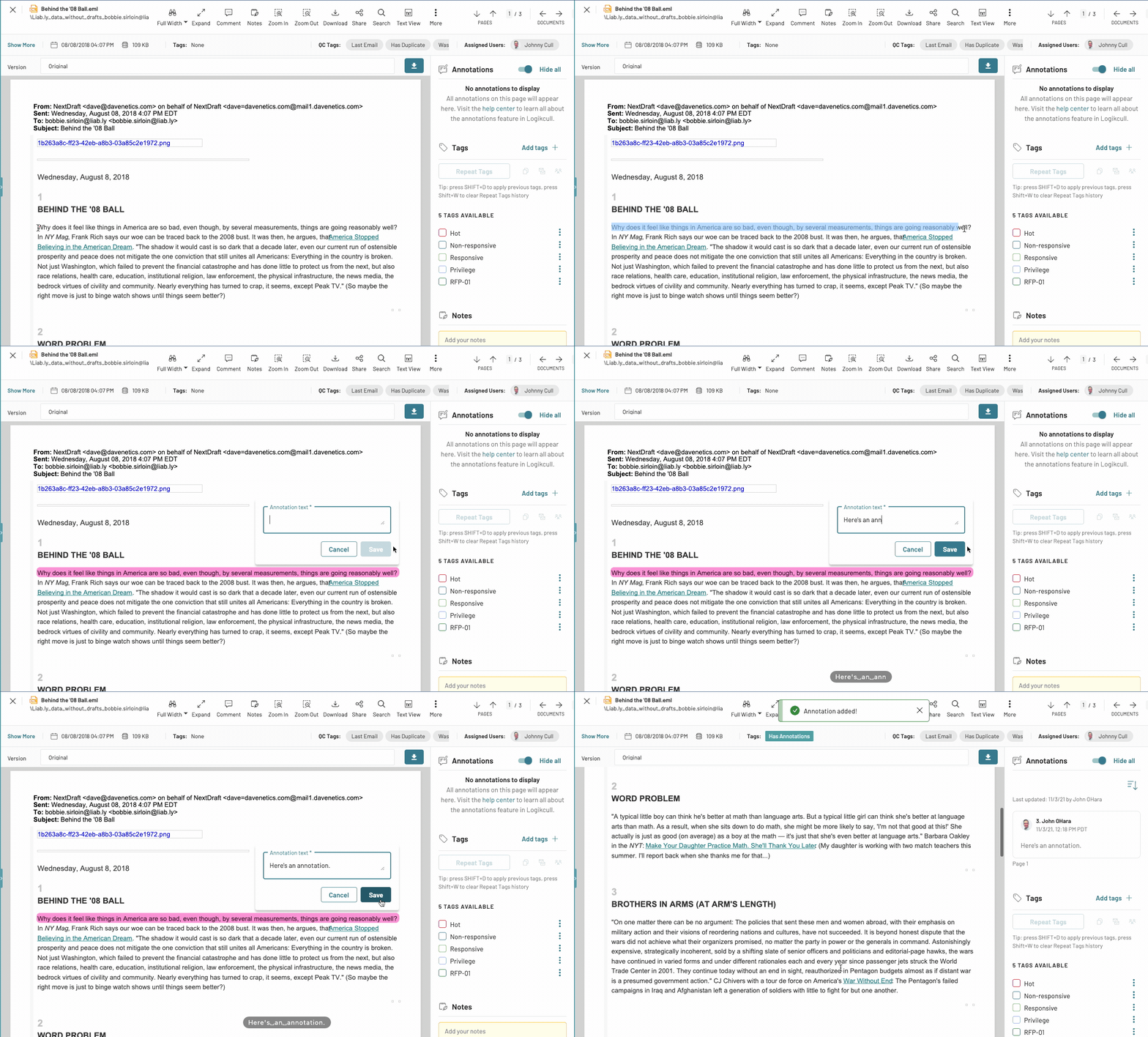
Document Text: In the document viewer, double-click on a word OR click and drag to highlight. The "Annotate" option will appear. Click "Annotate" to add your annotation text.
"Pin Drop" anywhere on the document: Right-click anywhere on the document. The "Annotate" option will appear. Click "Annotate" to add your annotation text.
Searching on Notes, Comments and Annotations
Searching for Notes
To search for text entered into a Logikcull Document Note, you can use this syntax in the search bar:
notes:
Example:
Documents with important in the Logikcull Document Notes field |
Searching for Comments
To search for text entered into a Logikcull Comment, you can use this syntax in the search bar:
comments.body:
Example:
comments.body:critical | Documents with critical in the Logikcull Document Comments field |
Searching for Annotations
To search for annotation text, you can use this syntax in the search bar:
annotations.body:
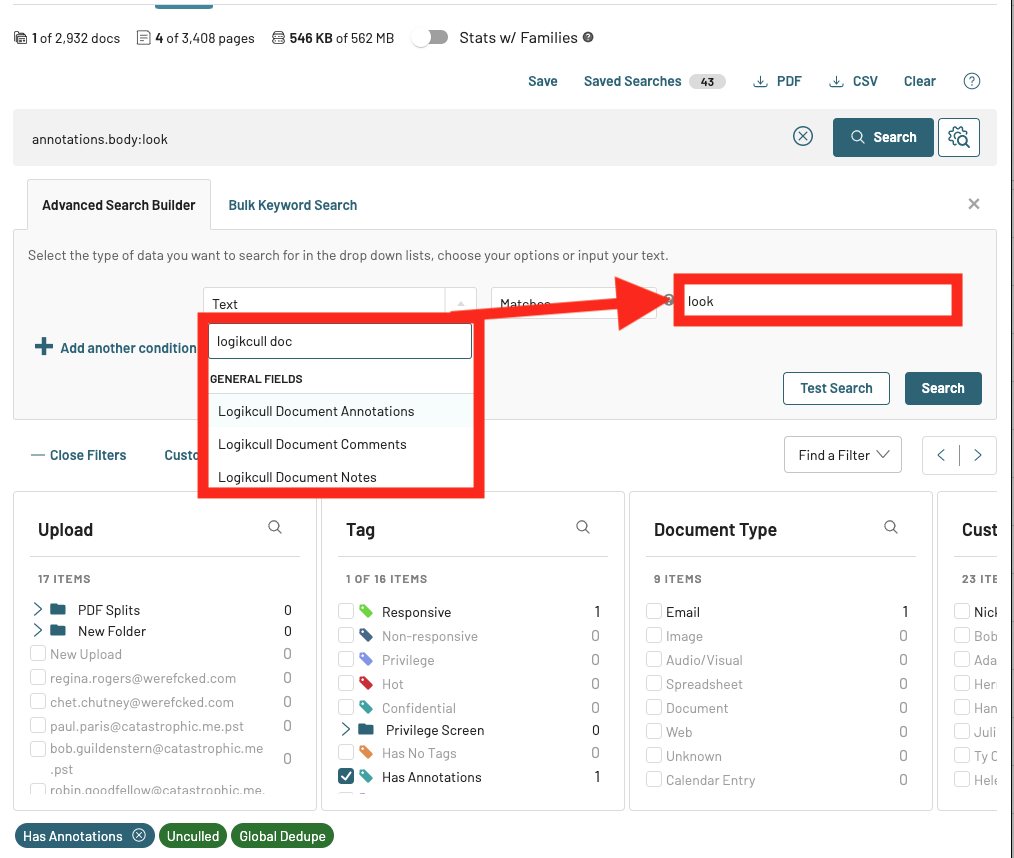
Searching for Notes, Comments, or Annotations using Advanced Search
You can also use the Advanced Search Builder to search on existing Notes, Comments, and Annotations.
Annotation FAQ's
How do I edit an annotation?
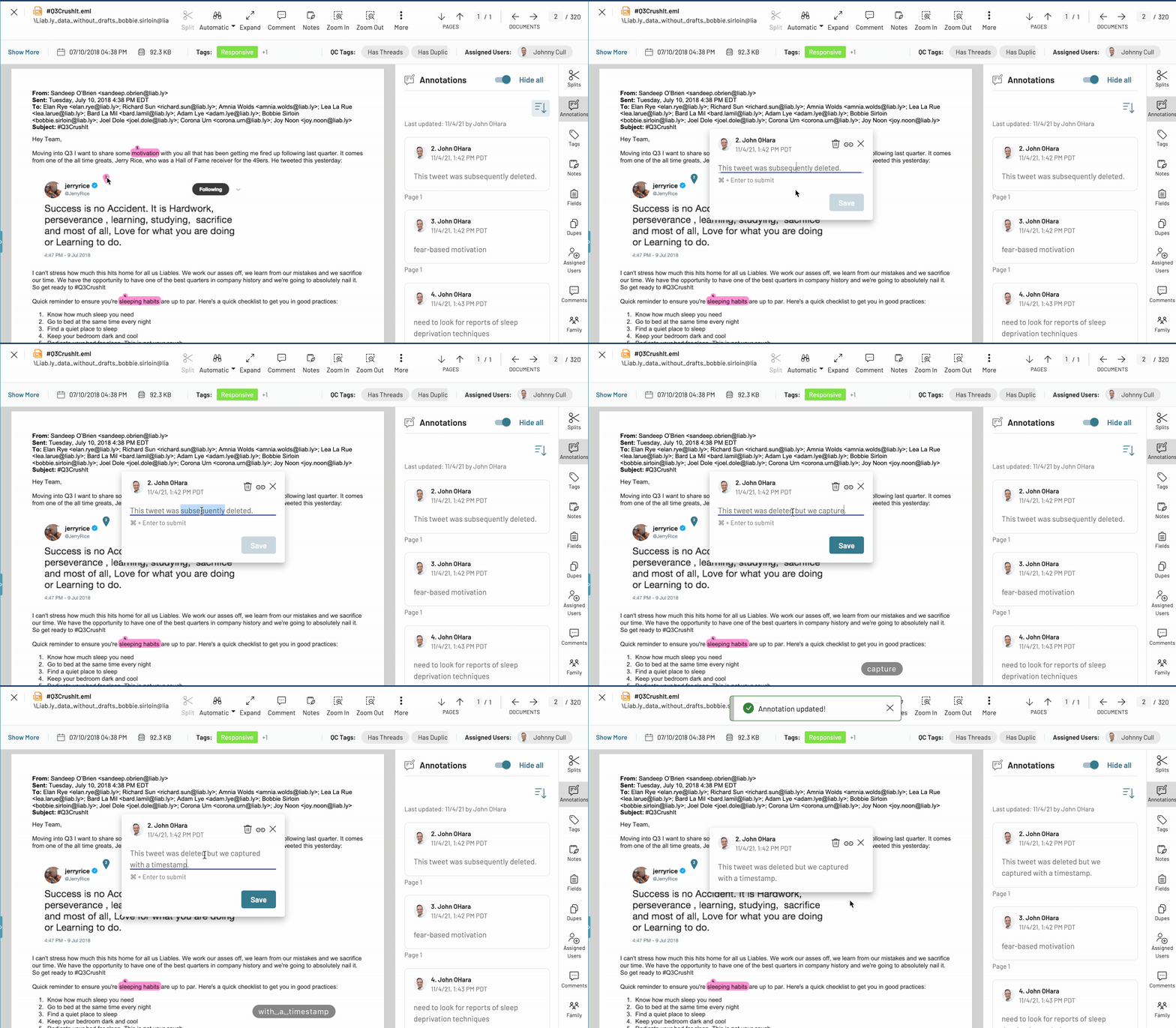
Click directly on the highlighted annotation text, the annotation pin, or the annotation card on the right-side panel. Clicking into the annotation opens the annotation editor. Click "Save" to update your annotation.
How do I delete an annotation?
Click on the highlighted text, pin, or right-side panel card. Click on the trash can icon that appears next to the annotation text:
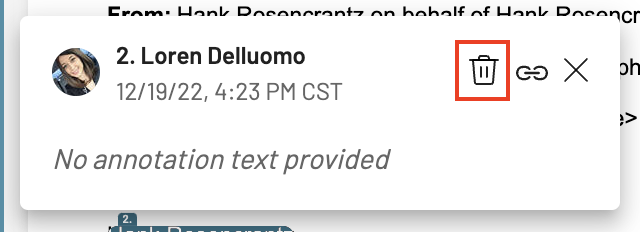
⚠️ Annotations can only be deleted by the user that applied them. ⚠️
How do I send another Logikcull user a link to an annotation?
Click on the link icon above the annotation text in the document viewer. The link will be saved to your clipboard. Paste the link in an email, chat conversation, or Document Comment to share with another user.
How do I re-order my annotations in the side panel?
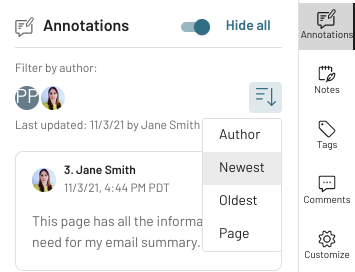
You can sort your annotation cards in the right-side panel by clicking the sort arrow in the top corner of the annotations section. You can sort by author, newest to oldest, oldest to newest, or page location.
How do I hide/show the annotations on the document viewer?
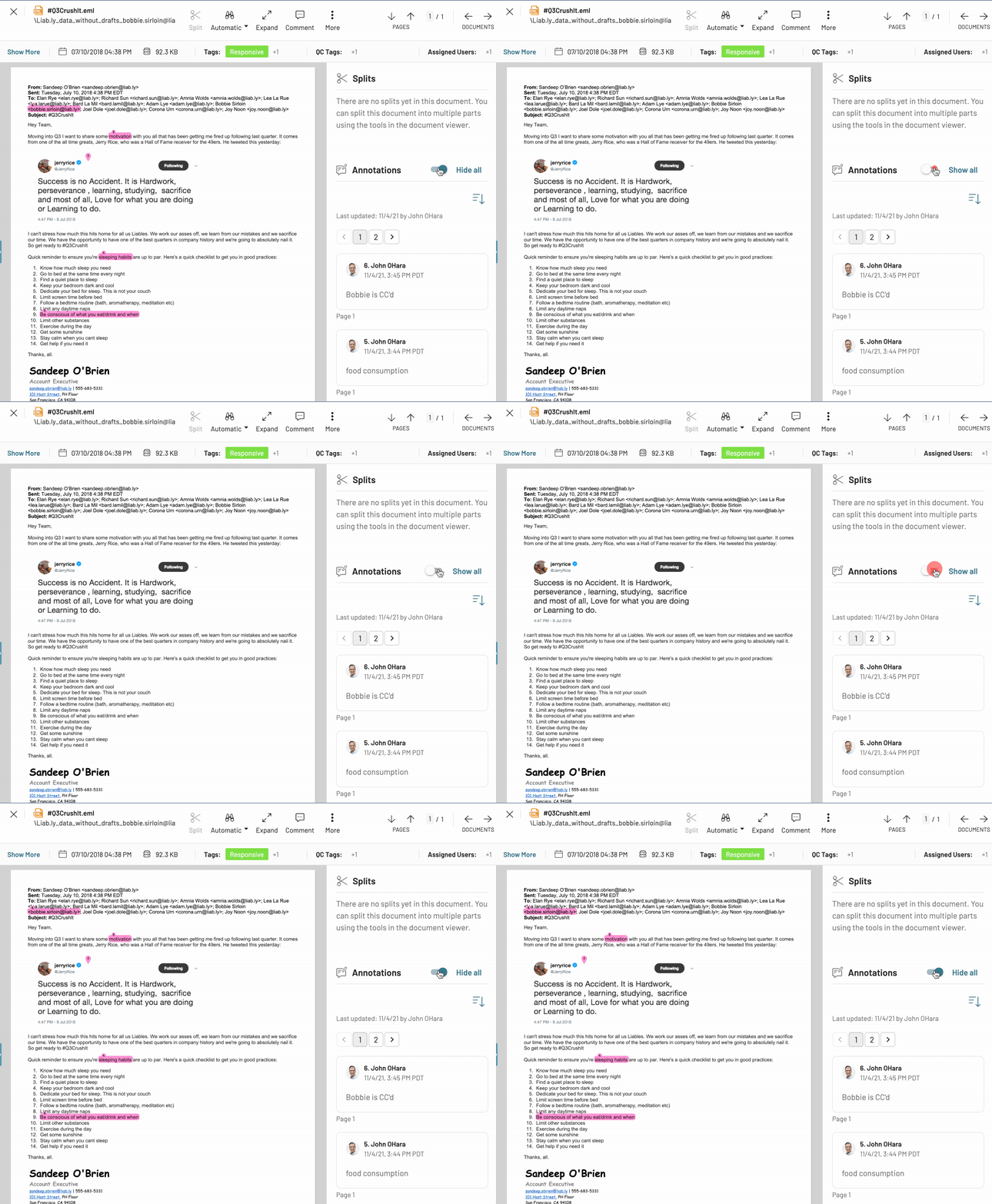
You can hide or show annotations using the toggle switch on the right-side panel, or the keyboard shortcut (shift + a) to toggle annotations on or off.
Will annotations print or download with my documents?
No. Annotations will never print or download, and this is by design. Annotations are considered legal work product intended only for internal collaboration and organization of information. This safeguard prevents inadvertently providing the opposing party with sensitive notes or insights not meant to be shared.