With Logikcull's redaction tool, you can easily mark out redactions. We'll automatically re-OCR and save the redacted version for you.
To start redacting, select the “Redact” button in the toolbar above or to the right of the document. (If you do not see the redaction option, you can customize your tool bar. You can learn how to customize the tool bars here.)
Note
Logikcull has various functionalities that make it easy to locate and redact PII. See the PII redaction in Document Viewer section for more information.

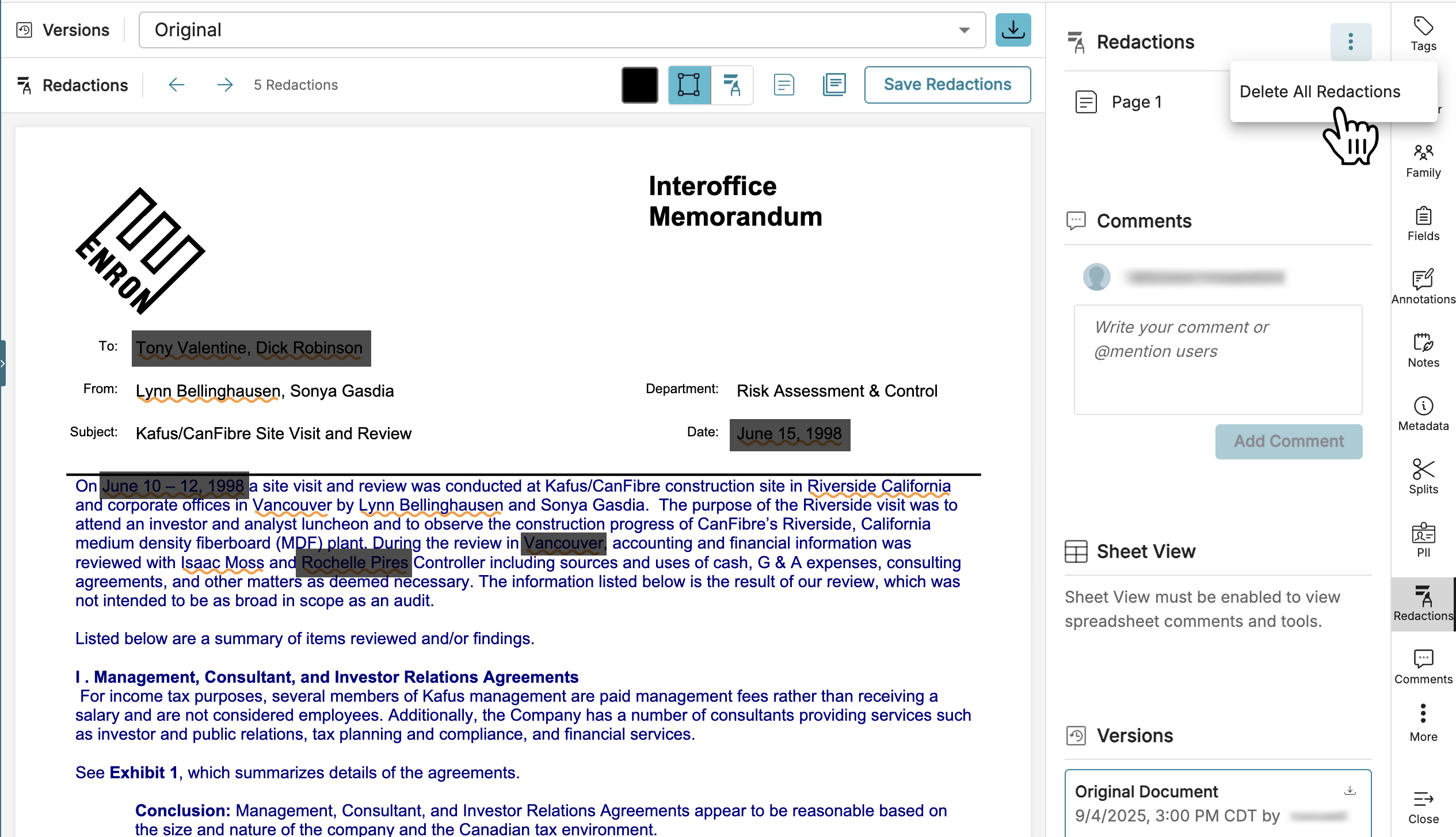
Redaction Color: Select between Black and White as a redaction color
Draw Redactions: Click the "Draw Redactions" icon to manually draw boxes around sections of text you wish to redact.
Select to Redact: Click the "Select to Redact" icon and click + drag a text selection. A pop-out menu will appear with the option to redact your selected text.
Redact Current Page: Click the "Redact Current Page" icon to fully redact an entire page.
Redact Multiple Pages: Click the "Redact Multiple Pages" icon to select one or more page ranges to redact. You can also select a redaction label from this menu.
You can click into any redaction to add, remove, or change the redaction label. Toggle redactions to be visible or invisible by clicking the "Redactions" icon in the top toolbar. You can also delete all redactions on a document by clicking the 3-dot menu at the top of the Redactions list in the sidebar.
Important
You don't have to save after each redaction, but make sure to click Save Redactions before moving onto the next document.
Producing Redacted Documents:
When you download redacted documents using the 4-step download workflow and include redacted images, Logikcull will:
Withhold the native from being produced, even if the file type is selected for inclusion with native files
Withhold native parent documents when one or more children has redactions
Re-OCR the image to ensure the redacted text is not produced
Multiple redaction labels
You can apply multiple labels to a redaction, but only if the feature is manually enabled in your Project’s settings.
Enable or disable multiple redactions
From within your project, navigate to
.png) Project Settings > Redactions.
Project Settings > Redactions.Under the Redaction Labels section, turn the Allow multiple labels per redaction toggle on or off.
A popup should appear that says “Review preferences successfully saved.”
Note
Users currently in Document Viewer may have to refresh their page before they see the effects of changing the toggle.
Apply multiple redactions
When enabled, multiple labels can be added to redactions in the same way singular labels are added.
Click any redaction to open up the Redaction Label popup.
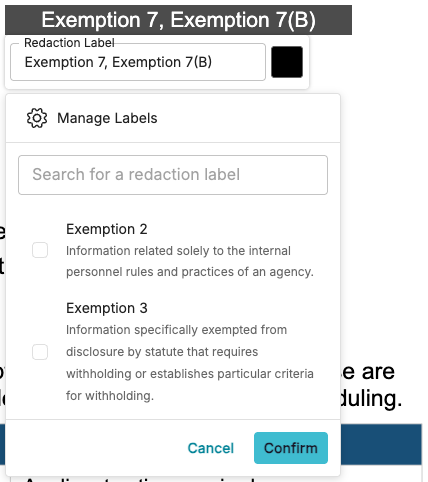
Use the checkboxes to choose one or more redaction labels.
Click Confirm to apply the labels.
Click Save Redactions to save your changes.
Multiple redaction labels will display as a list of labels separated by commas, e.g. “Exemption 7, Exemption 7(D)”.
Document Viewer shortcut menu (right-click)
Right-click any existing redaction to open up the shortcut menu.
Frequent redaction labels
 Frequent redaction labels gives you easy access to your top redactions by usage. These redactions dynamically update based on an individual user’s most frequent redactions, reducing clicks and speeding up redaction workflows.
.png)
The frequent redaction labels list updates based on the below parameters:
Frequent redaction labels will be stored for 30 days on a running basis, so the list can remain updated to your top redaction labels.
Frequent redaction labels are different in each project, since projects can vary in purpose and scope.
The lists changes based on the number of times you use the same redaction in a single project.
Bulk redactions will not influence the frequent redaction labels list.
If you delete or change the name of a redaction label, it will automatically disappear or update in the frequent redaction labels list.
Justifications (properties)
.png)
 Properties allows you to add a justification for any of your redactions, which give reviewers a clear, documented reason for each redaction. This makes it easier to defend withholdings if challenged, and helps other reviewers or attorneys stay consistent across a large document set.
Redaction Schedule report
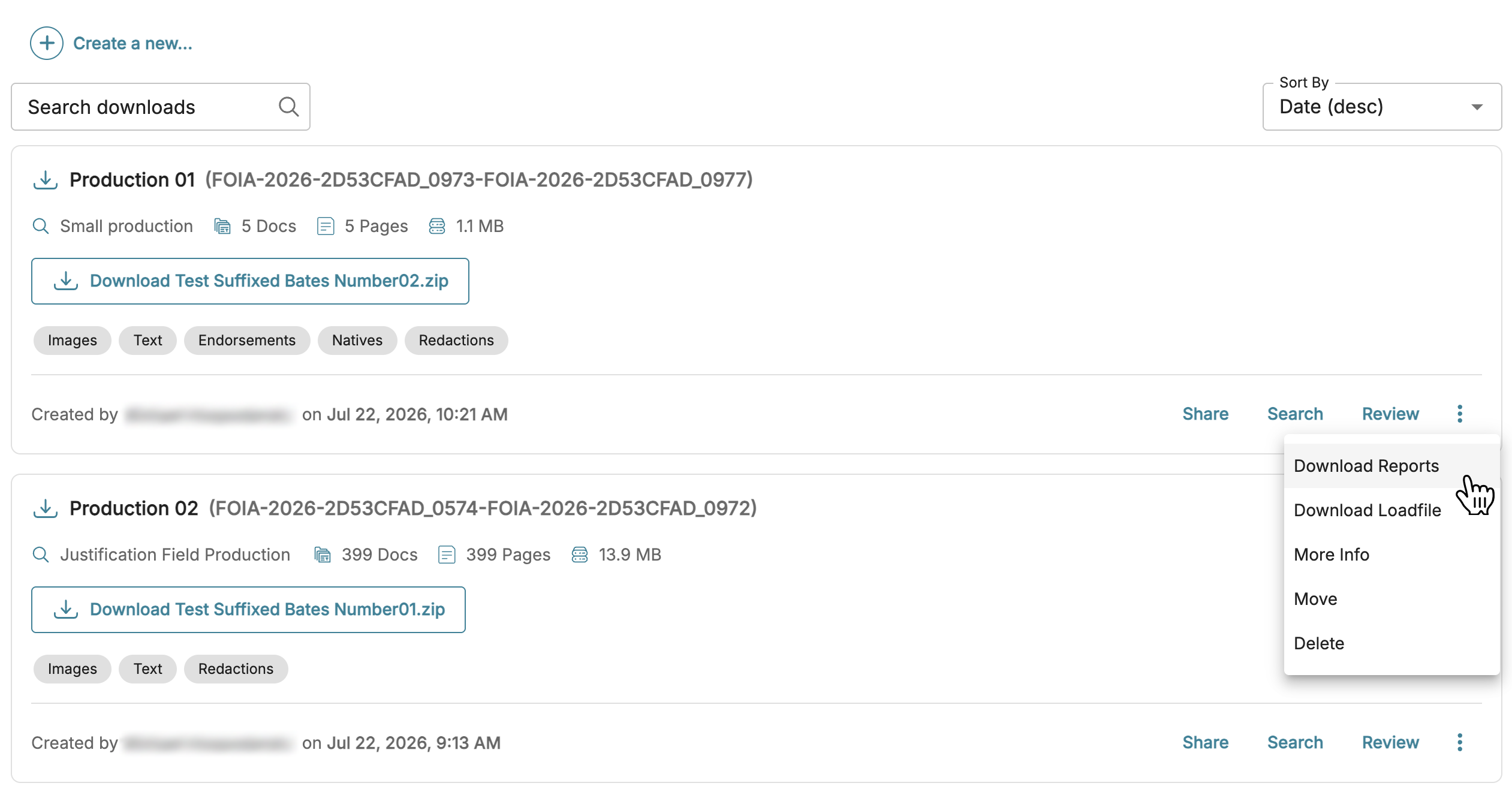
You can view justifications and redaction descriptions in your Redaction Schedule report, which is available after your download has completed by pressing the ellipsis > Download Reports.
Your computer will download a zip file. You can find the report, titled [Download name]_redaction_schedule.csv, in the zipped folder.
.png)
The redaction schedule displays the following information:
Document Reference: The file’s Bates or Document Number ID.
Page(s) / Time Range: The range of pages (document) or time (audio) where redactions start and end.
Redaction Count: The total number of redactions.
Both unlabeled and labeled redactions are represented in this value.
Redaction Label: The redaction labels used.
Redaction Label Description: The description of your redaction label.
Justification: The redaction label’s justification.
Redaction labels, descriptions, and justifications are only listed once per entry, even if it’s used more than once in the same file.
Important
The Redaction Schedule report is not included in your deliverable download. If you need to provide justifications along with your download, the report will have to be created and sent separately.
Annotate
 Annotate lets you attach comments to redactions, which are used for internal legal collaboration and organization of information. For more information, including how to search for annotations using the search bar, see Document Notes, Comments, and Annotations.
Hide all annotations
.png) Hide all annotations will toggle annotation visibility on your page.
Hide all annotations will toggle annotation visibility on your page.
PII redaction and auto-redact toggle
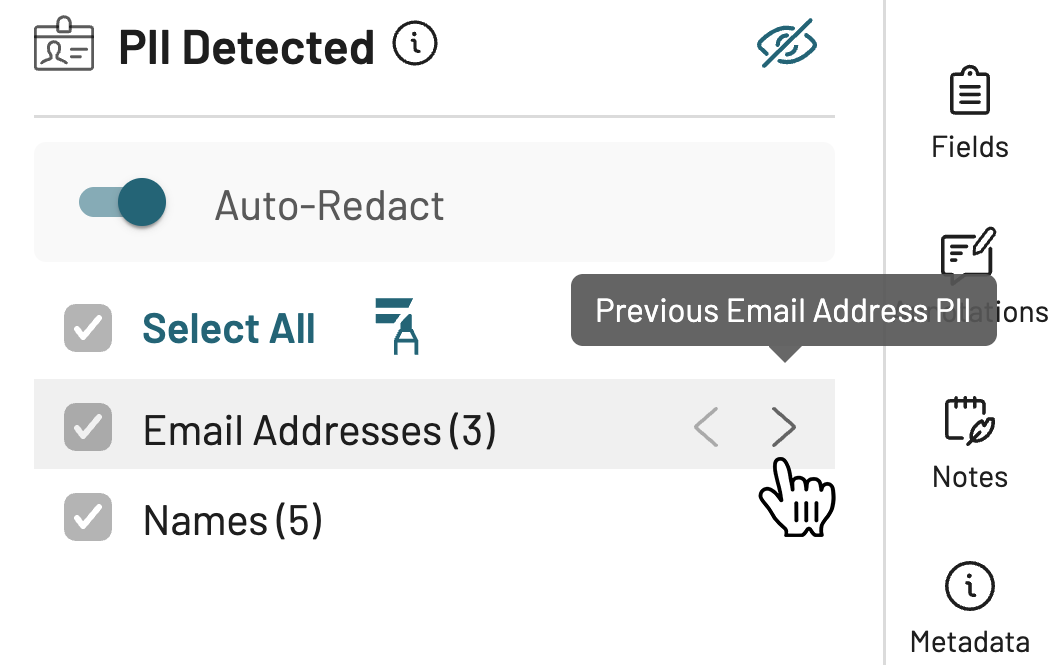
When a document is loaded into the viewer, Logikcull runs PII detection on the searchable text of the image and presents the results in the document side panel.
Note
You may need to add PII Detected to your side panel tools. See Customizing Document Tools for more information.
You can use the side panel to:
Select/deselect PII entity type by checking the box next to each PII type. PII that is left unchecked will hide.
Manually the selected PII type(s) by using the
.png) redact icon. This will only redact the PII that are checked.
redact icon. This will only redact the PII that are checked.Navigate the selected PII type using the back and forward arrows.
Turn auto-redact on or off by pressing the auto-redact toggle.
Opening any new document will automatically redact all PII detected in that document.
Show/Hide all PII (squiggly lines) by using the
 eye icon.
Clicking the redact icon allows you to select a redaction label from a menu of options, or create your own.
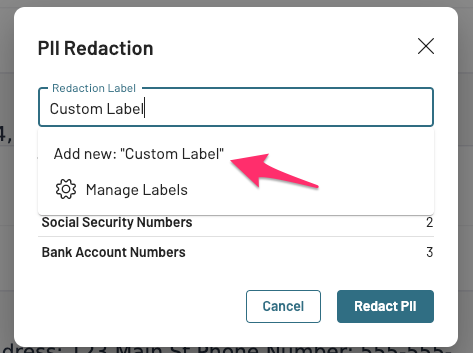
See PII Detection for a list of PII that Logikcull can detect.
Note
Redactions made through the above PII auto-redact toggle will not receive an “Auto-Redactions Triggered” tag. This is exclusively for the Auto-Redactions feature, which you can read about in Manage Auto-Redactions.