Once you’ve validated Ask’s results, the next step is to decide what to do with them. Ask is not just about getting answers – it’s about moving your matter forward.
Incorporate your findings
After reviewing the responses, you can:
Tag documents – Apply tags to relevant documents for organization, privilege review, or production prep.
Filter documents – Add Ask’s cited documents or highly similar docs to your search, then review those documents.
Save into a search set – Group the sources you validated into a saved search so you can easily return to them later.
Export or share – Export results or share them with your legal team for further analysis (see Downloading Ask sessions for more information).
Using Ask history
Ask History helps you keep track of your past questions, so you can build on previous searches without starting from scratch. It’s a quick way to revisit insights, continue exploration, and stay organized.
+ New Session – Start a new chat.
Session history – All your sessions are listed in chronological order and divided into sections: Today, Last 7 days, and Older than 7 days.
Collapse Menu – Minimize the Ask sidebar.
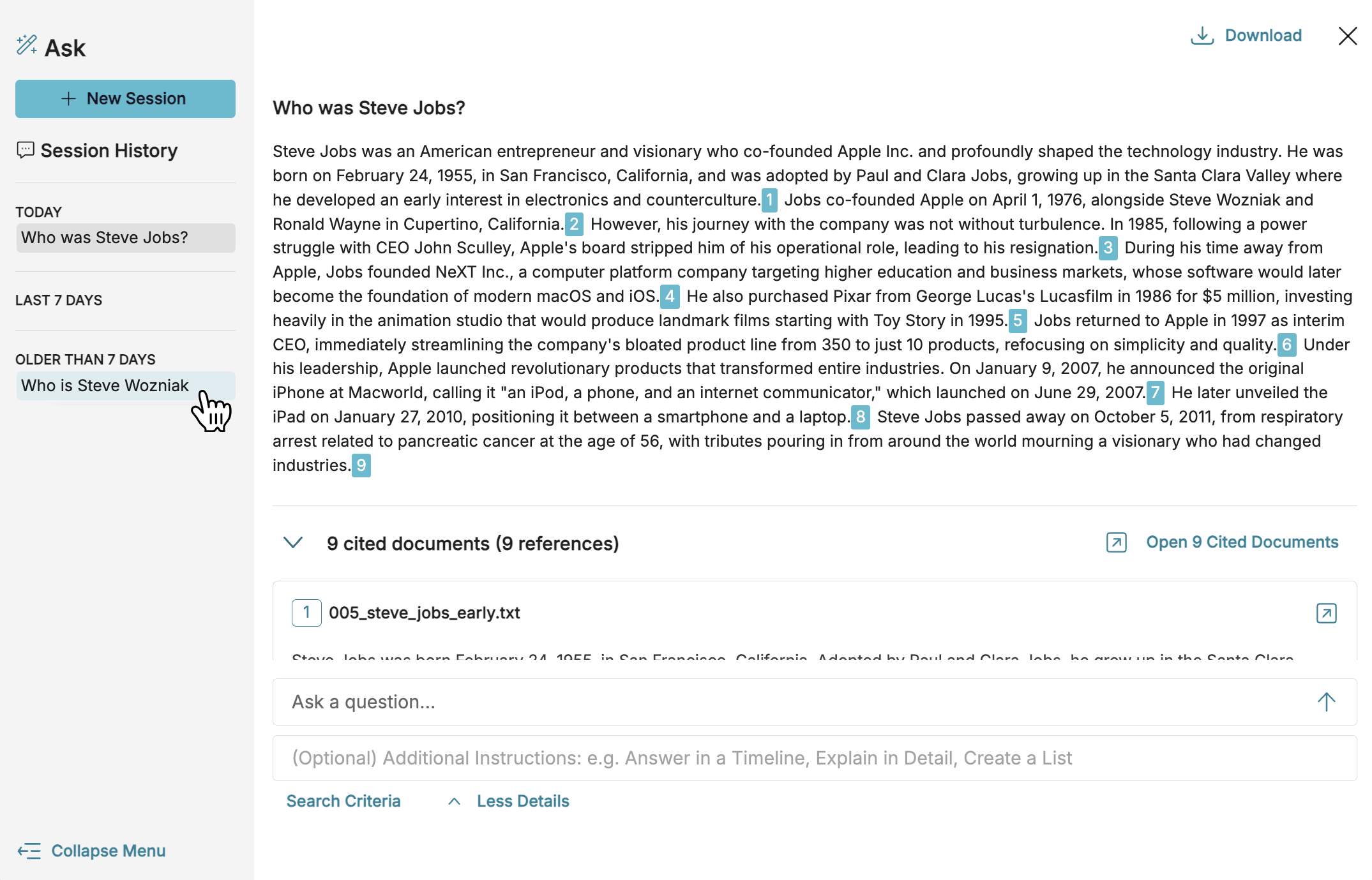
Clicking on any of your old sessions under history will open it in the Ask window. You can still interact with your old sessions, including submitting additional queries. You can also click Search Criteria to see what search and filters were applied to your data when asking your query.
Note
Use Ask History to experiment with different queries and compare results without losing track of what you’ve already explored.
Downloading Ask sessions
Even though users can only view their own sessions in Ask’s interface, sessions can be downloaded and shared with other users.

In the upper-right hand corner of the Ask window, click Download.
Choose how you want your session downloaded:
Download this session – From your current session only, download the current question and answers as a CSV.
Download all sessions in this project – Download all users’ sessions (including yourself) in a single CSV. This option is only available if a user is a Project Admin.
Download this session as PDF – From your current session only, download the current question and answers as a PDF.