Early Access
Features marked with an asterisk [ * ] are behind Feature Flag and being released and documented for Early Access. You can stay in the loop with further announcements about these features in future release notes.
Just as with any research method, it’s essential to validate the answers Ask provides. AI-generated summaries are helpful starting points, but they must be checked against the actual source material to ensure accuracy and completeness.
Ask organizes its findings using sources (the documents), snippets (passages within documents), and references (1-2 sentences within snippets that closely match your question). Multiple references can come from a single source, allowing Ask to provide concise summaries while pointing you to the most relevant text.
Note
Think of validation as a critical checkpoint. Ask helps you find relevant information quickly, but reviewing the underlying documents ensures that your conclusions are accurate, complete, and actionable.
When you're happy with Ask's response, validate it using the below features.
Cited documents
Ask’s narrative responses include citations drawn directly from documents. These appear as cards in a vertical list, organized by source document. Citations add transparency by showing exactly where the information comes from and enabling quick review of the original material.
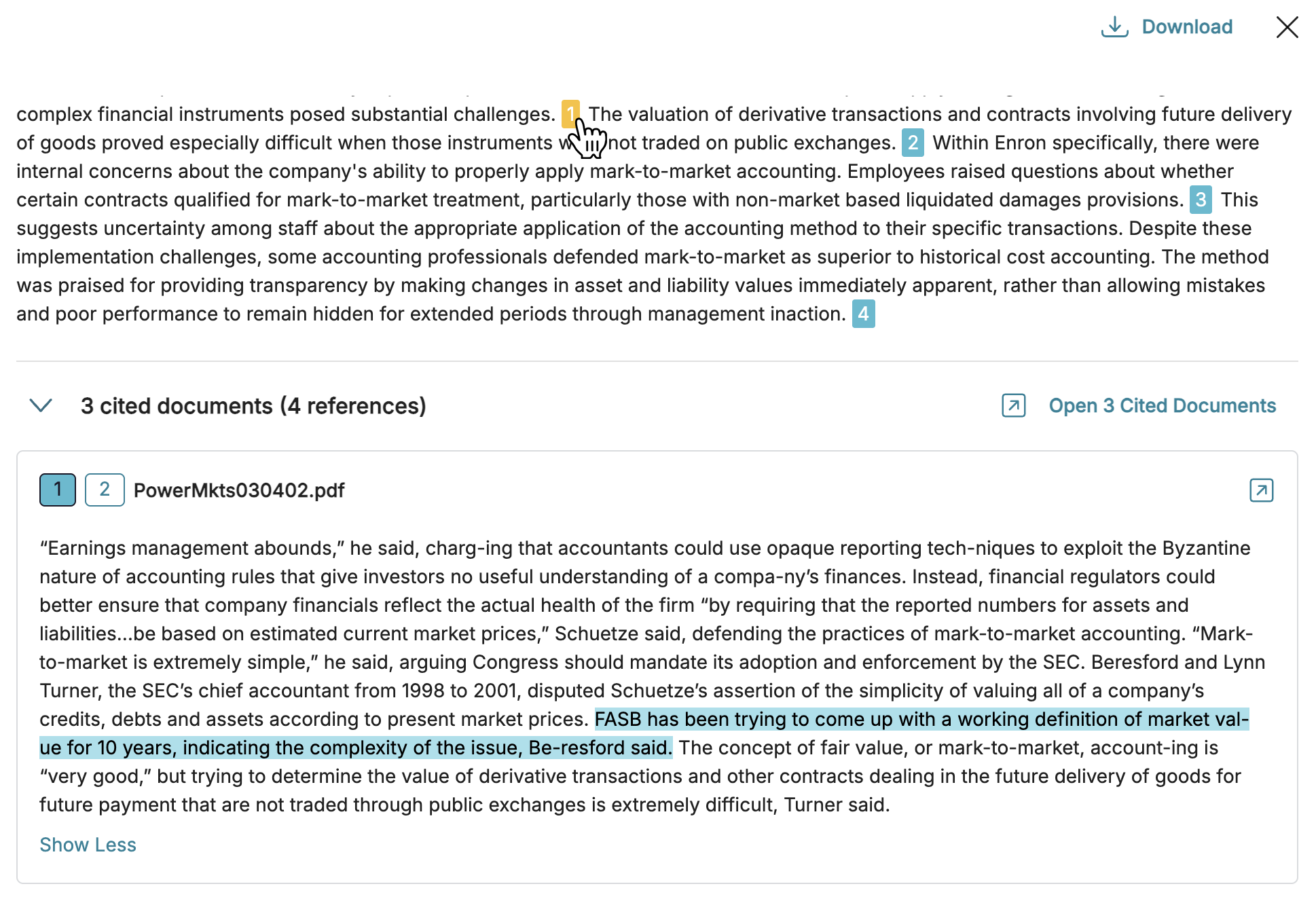
Using Ask’s cited documents, you can:
Jump to citations – Click any of the in-text citation numbers to jump directly to the citation card. Ask will then highlight chunks of text in the reference that it used to generate its response.
Reference text – Read through the reference to verify that Ask’s response is correct. Click Show More to expand the card and read the whole citation.
Open a cited document – Click the
 icon to open the cited document in Document Viewer and read it in its entirety.
 Some documents may contain more than one citation. In this case, the references are grouped together in one card.
Filter documents – Click
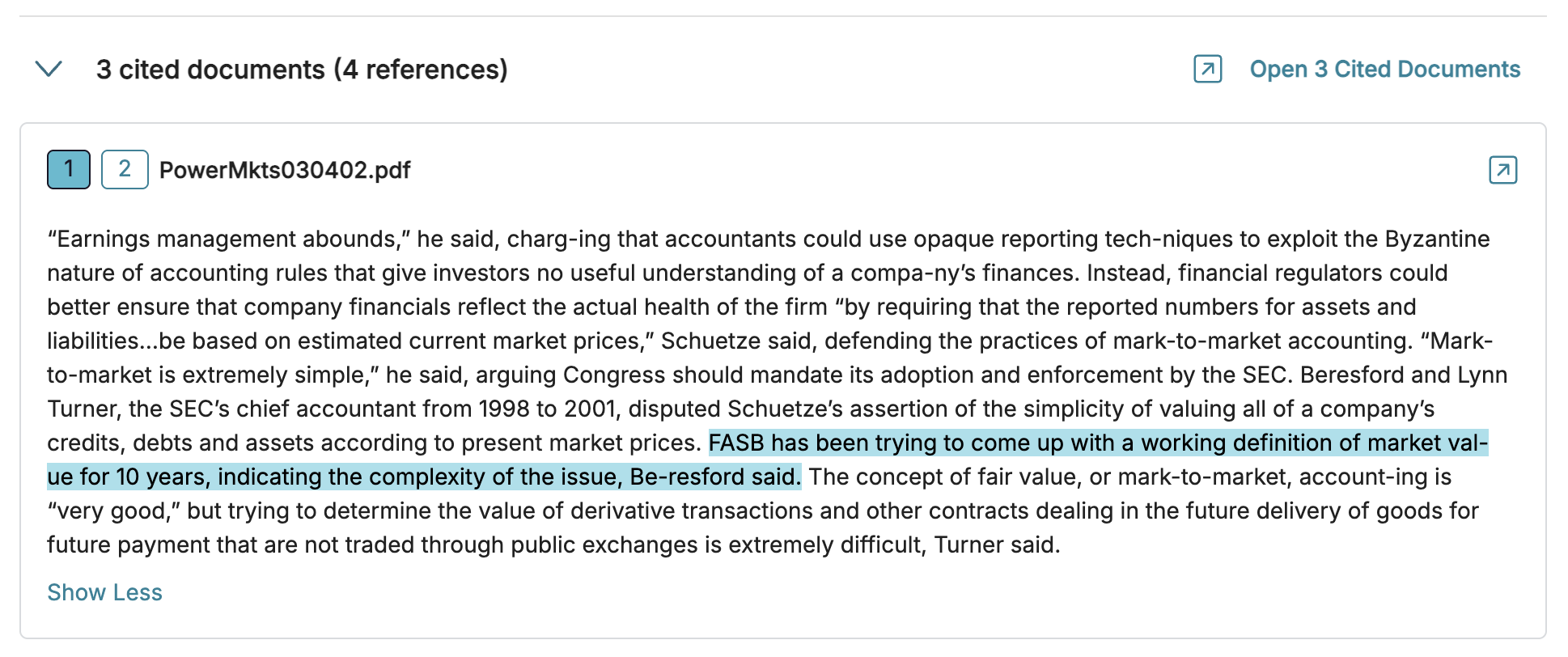
Open [x] Cited Documents to filter your search to just the citations Ask used to create its response. See Adjust search scope for more information.
Semantic Matches*
The Semantic Matches bar displays all similar documents with a similarity score above 30%. There are four document similarity classifications depending on similarity score.
Classification | Similarity Score (%) |
|---|---|
Little or no similarity | 0%–29% |
Low similarity | 30%–49% |
Medium similarity | 50%–69% |
High similarity | 70%–100% |
Use the Semantic Matches bar to gauge your dataset’s quantity and distribution of document similarity relative to your query.
.png)
There are multiple ways you can change your search scope through the Semantic Matches bar. See Adjust search scope for more information.
High-scoring documents report*
The high-scoring documents report is a CSV of all documents with a similarity score of 70% – 100%. You can download this report by clicking Export CSV just above the Semantic Matches bar.
.png)
The CSV contains four columns:
Item ID – The parent document ID number.
Snippets ID – A unique ID assigned to each snippet for internal reference only. There is no snippet ID field in Logikcull that can be used for searching, filtering, or other user-facing workflows.
Snippets Text – The reference text most relevant to your query from the document.
Relevancy Score – Organized highest to lowest. To find the document’s similarity score, multiply relevancy score by 100.
Adjust search scope
Within Ask’s window, there are a variety of ways you can further cull your documents to narrow your search scope or isolate documents for review. This can be useful if you want to continue prompting Ask with questions in your existing session but on a narrower set of documents.
Note
Adjusting your scope using the below methods will not affect the scope of your existing sessions. To ask questions with your new search/filter, create a new session and choose Current Search.
Click Low, Medium, or High in the Semantic Matches bar to filter down to the displayed number of documents.
.png)
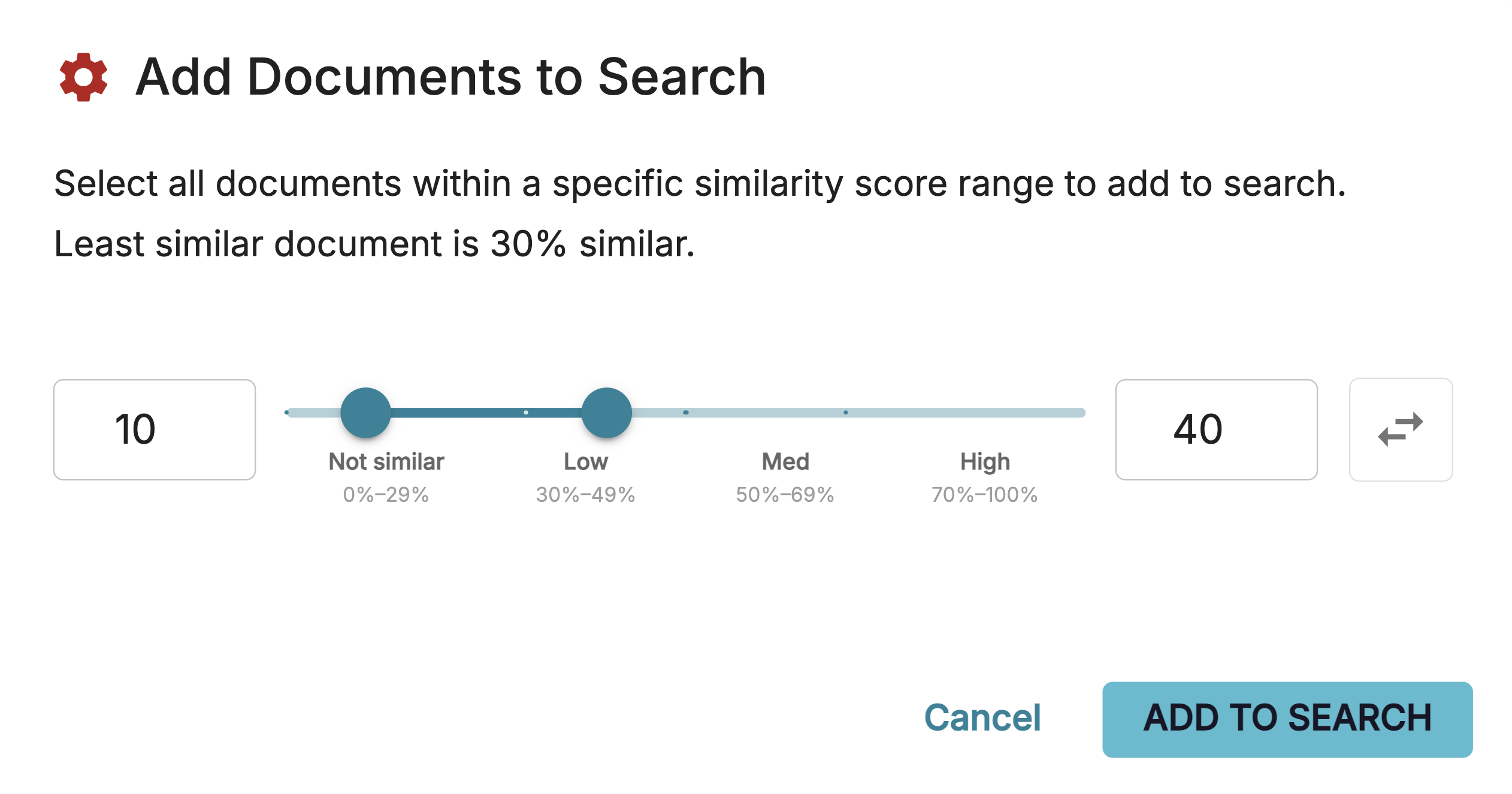
Or, you can select the All Matches dropdown to filter from a Custom Range. This lets you filter to a more tailored window of similar documents, including documents under 30% similarity.
If you want to know more about only the documents cited by Ask during your last query, you can press the Open [x] Cited Documents button to isolate your search just to Ask’s cited documents.
If you’ve adjusted your scope through the Ask window using any of the above methods, Ask will add a pill to either the search bar or the filter carousel. These can be removed by pressing x.

.png)
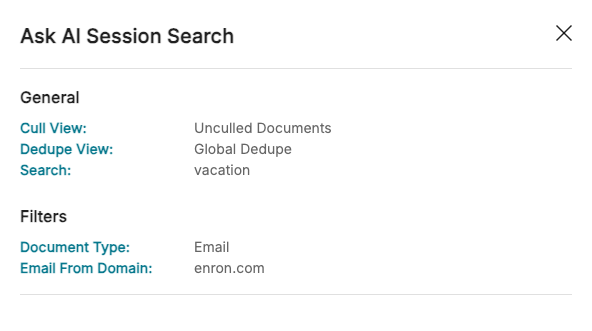
View current search scope
To check the search scope that was in place during an old session, click Search Criteria underneath the search bars. This will display:
Cull View: Whether you searched culled or unculled documents.
Dedupe View: The dedupe preference at the time of the session.
Search: Any search that was applied. If no search was used, this field is blank.
Upload: The upload(s) you were searching in at the time of the session.
Other validation methods
Ask’s feature is designed to provide you with a few ways of validating its responses directly in the Ask window. But it may also be useful to engage with Logikcull’s other features to ensure information matches what’s represented in your data.
Read documents directly – Open any of Ask’s referenced or cited documents in Document Viewer to read it directly. This can help check context or ensure Ask’s summary is in line with the original document.
Use other search tools – Leverage Logikcull’s keywords, filters, or concept searches to confirm results or uncover additional relevant information.
Check external information – When necessary, cross-check facts against outside resources such as interview notes, meeting records, or documents not included in your dataset.