Account Admins can disconnect an existing SSO connection from their account without needing to create a request from support, making it easy to switch identity providers or resolve connection issues on your own.
We recommend disconnecting your SSO if:
Your SSO testing failed during setup
You need to re-configure your existing SSO settings
You’re adding / changing identity providers.
Important
Users who signed in exclusively through SSO may need to reset their passwords once SSO is disconnected.
Disconnect SSO
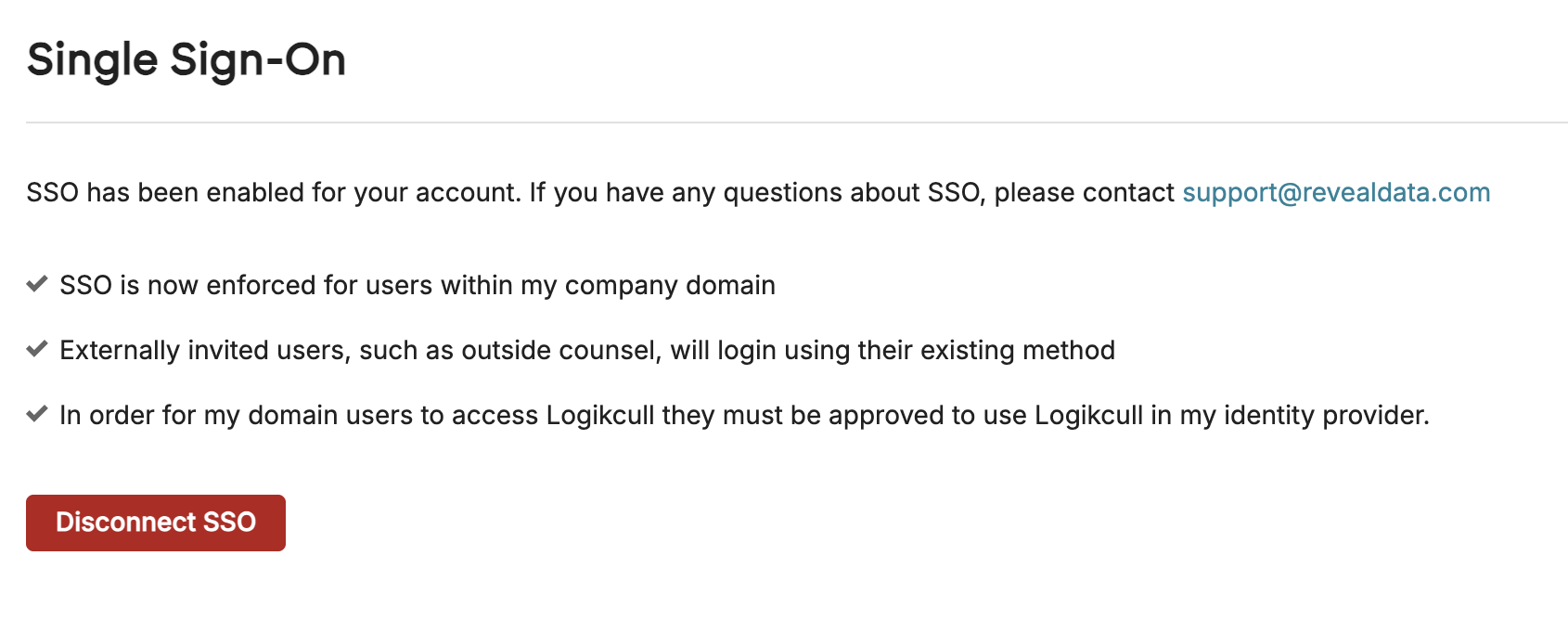
Navigate to Account Settings > Preferences > Single Sign-On
Click Disconnect SSO.
A Disconnect SSO? popup will appear. Click Disconnect SSO.
Once disconnected, SSO enforcement is removed, the Auth0 connection and local record are deleted, and standard login is restored. Though the change happens immediately, users who are currently logged into Logikcull will not be kicked out of the program.
Warning
After disconnecting your SSO, users won’t be required to log in through your identity provider. This change happens immediately for all users and cannot be undone.
SSO re-enablement
You can re-enable your SSO by following instructions in the below articles, based on your identity provider.
Also check out Getting Started with SSO for important information on how SSO works in the Logikcull platform.