Download Templates let you save your download settings for quick and easy use during future downloads. This will populate most all of the Create a download popup with settings saved from a previous production.
For a complete list of which settings are and are not saved, see the Download Template saved settings section.
Creating a Download Template
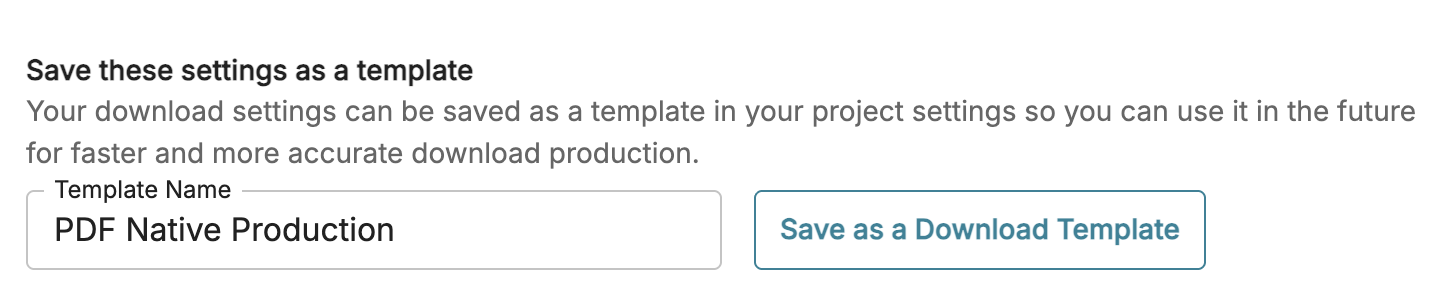
To create a template, run through the 4-part download process to select your download preferences, and then complete the Save these settings as a template section in Part 4.
Using a Download Template
The next time you run a download, the template you saved will be available in Part 1 of the workflow. Choosing a template will configure your new download with all of your download preferences.
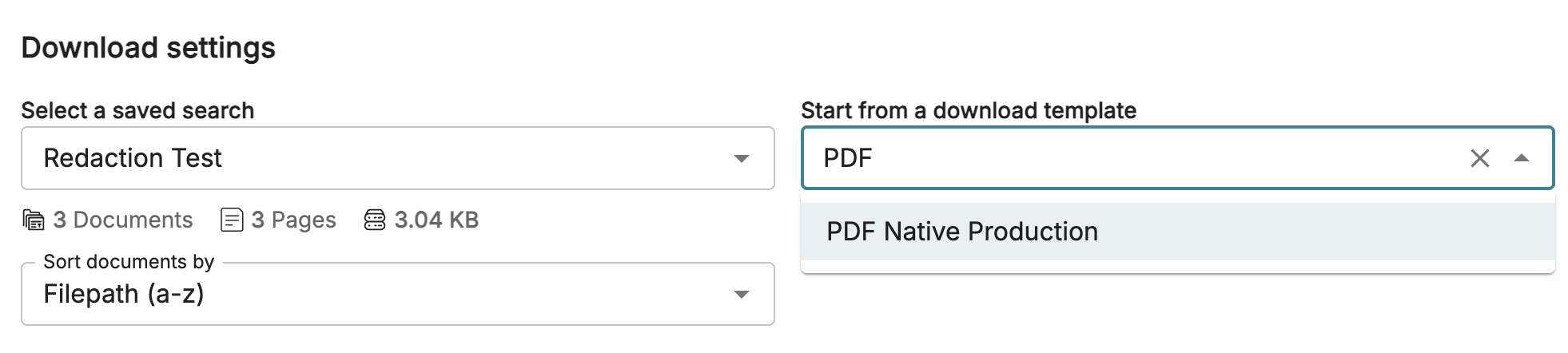
After a template is chosen, users can continue through the popup and change any of the settings if needed. Templates can also be renamed, or you can update your template with any changes made during your download process.

Download Template saved settings
The Download Template will save most of the settings from the Create a Download popup. See the below table for a comprehensive list of settings included and excluded from the template.
Section | Saved settings | Excluded settings |
|---|---|---|
Select Files |
|
|
Load File Settings |
| - |
Image Options |
|
|
Native Options |
| - |
Other Options |
|
|
Share & Download |
|
|